Use pyproject.toml
You can specify the project dependencies in the pyproject.toml file inside the project directory. You can create pyproject.toml manually or configure a Poetry environment, so that it's created automatically.
PyCharm provides code completion for packages names and a quick-fix to install the missing dependencies.
Specify project dependencies
Open pyproject.toml in the editor.
Locate or create the
[project]section.Specify the names of the required packages as strings in the
dependenciesarray.When you start typing the package name, PyCharm provides completion options:
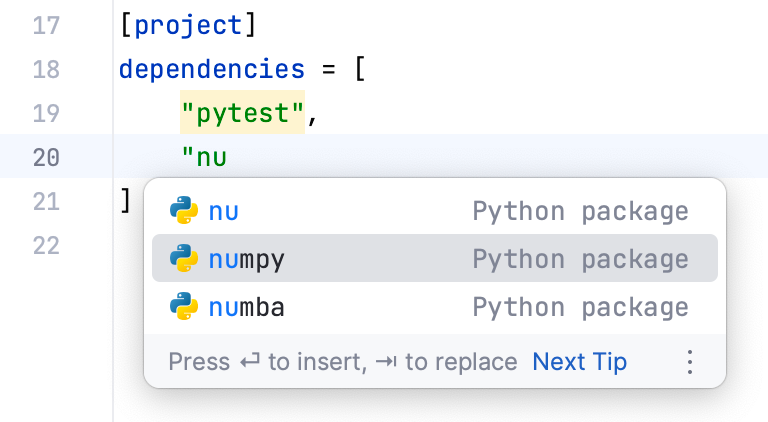
Press Enter to insert the suggestion.
You can also provide the optional dependencies of the project in the [project.optional-dependencies] section or specify the build-time dependencies in [build-system.requires].
If the name of the package is highlighted, it means that this package has not been installed for the current Python interpreter.
Install missing packages
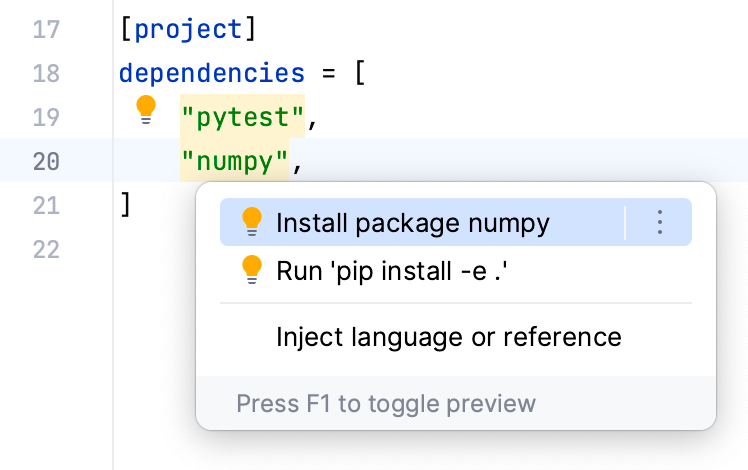
Place the caret at the highlighted package name and press Alt+Enter.
Click Install package.
View package versions and details
To open the package information page in a separate editor tab, hold Ctrl pressed and hover over the package name. When the package name turns into a hyperlink, click it without releasing the keys.
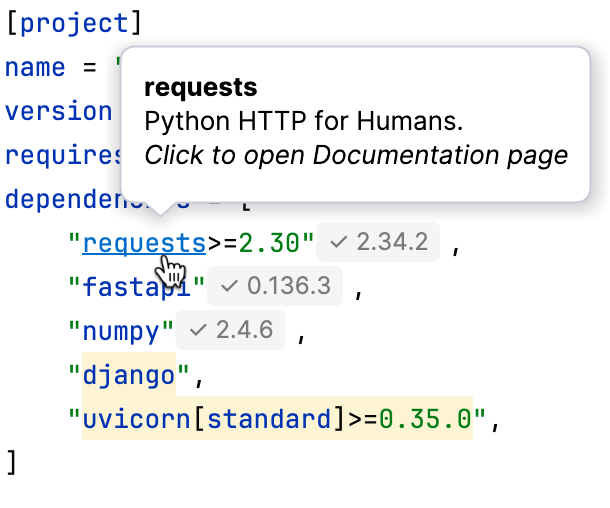
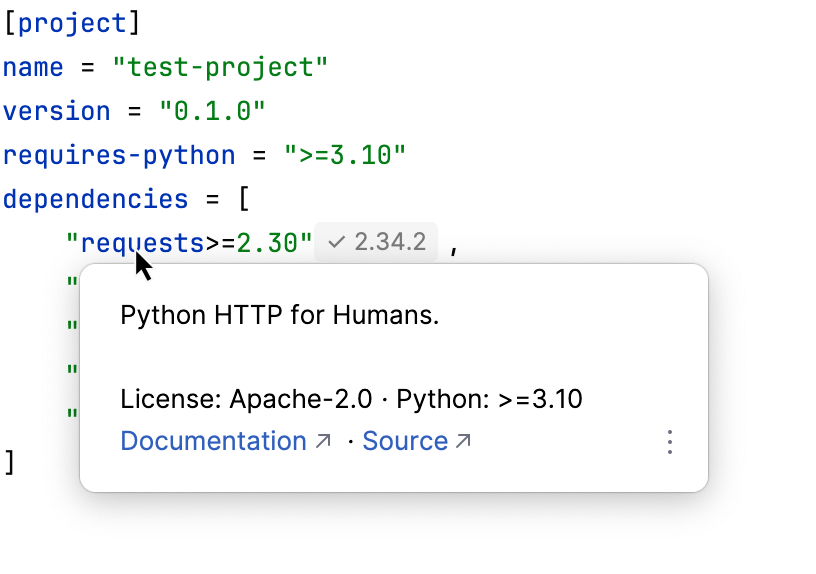
To quickly view package details in the Quick Documentation popup, hover over a dependency. Alternatively, place the caret at the dependency and press Ctrl+Q.
Update .lock file
Open pyproject.toml in the editor.
Edit pyproject.toml to add, remove, or change a dependency.
Use the actions on the banner at the top of the editor to update the .lock file.
The available actions depend on the type of environment:
 Poetry Lock: Update the poetry .lock file to match the dependencies in pyproject.toml.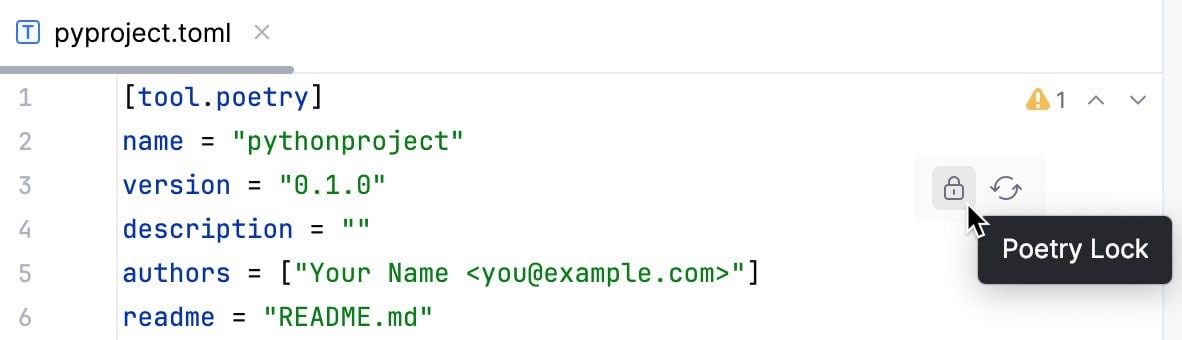
 Poetry Update: Install or update dependencies based on pyproject .toml and update the poetry.lock file accordingly.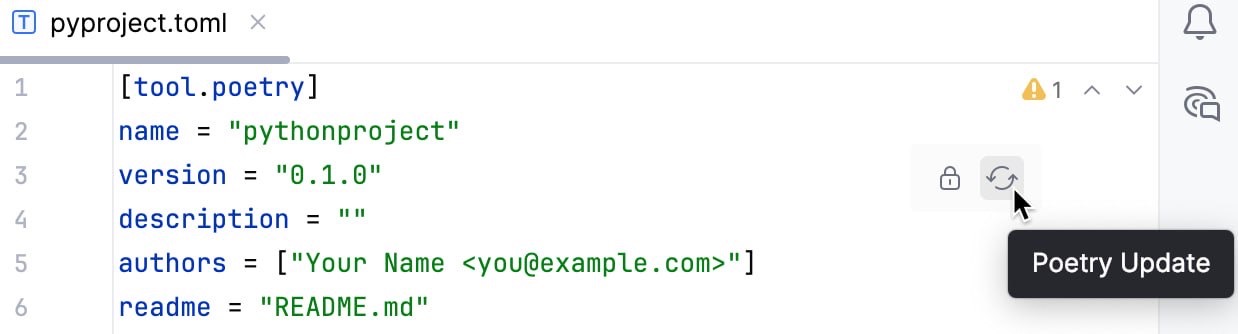
For more information, refer to Poetry documentation.
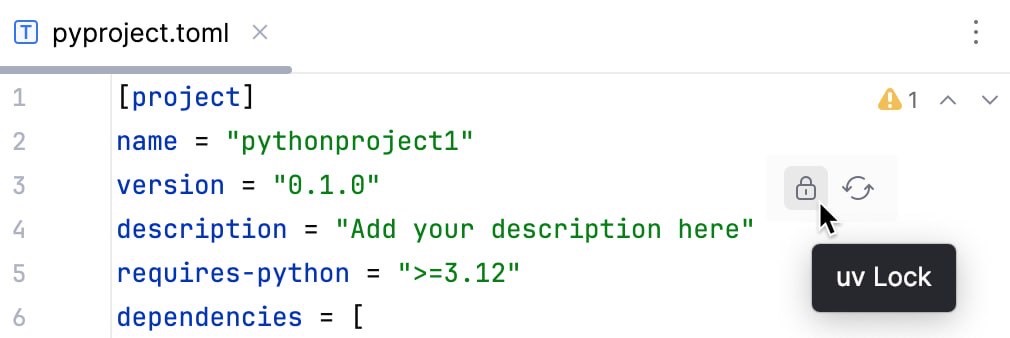
- uv Lock: Upgrade all dependencies to the latest allowed versions and update the uv.lock file.
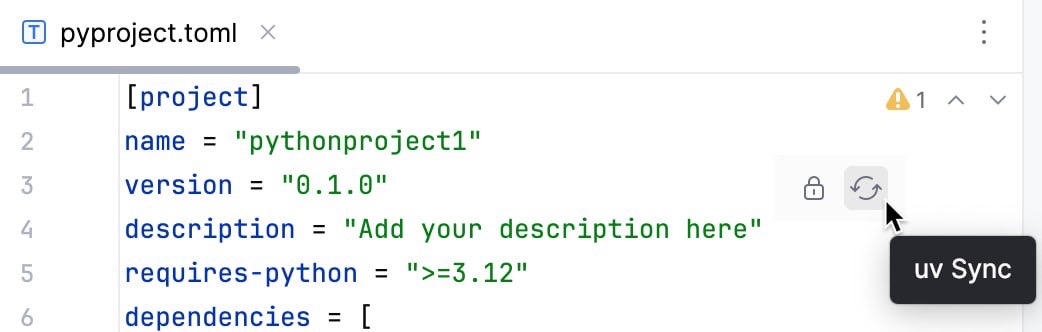
- uv Sync: Update the project's environment to ensure that all dependencies are up to date with the uv.lock file.
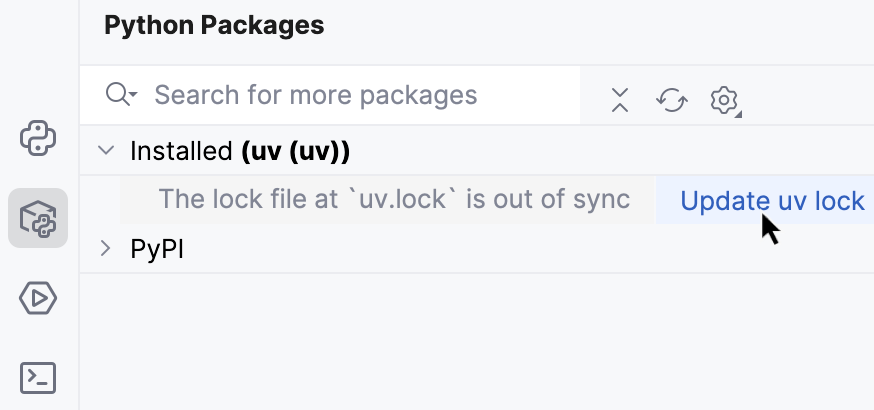
You can update the uv.lock file and manage the installed packages from the Python packages tool window:
Open the
 Python Packages tool window.
If the uv.lock file is out of sync, click Update uv lock to bring it up to date.
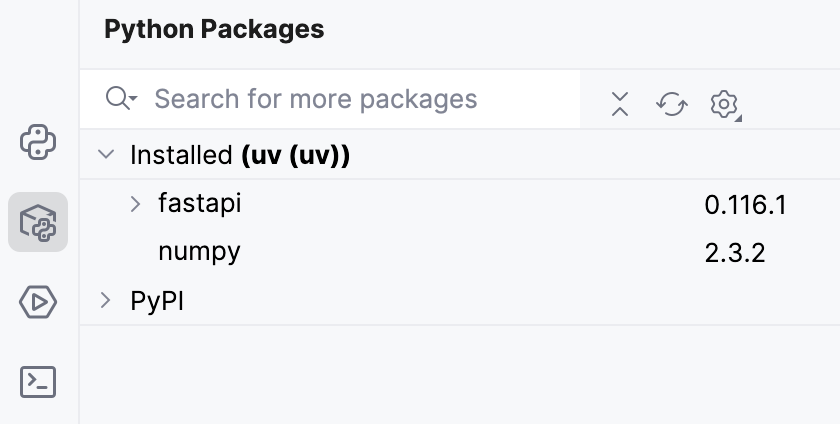
You can also uninstall, upgrade and review installed packages.
For more information, refer to uv documentation.
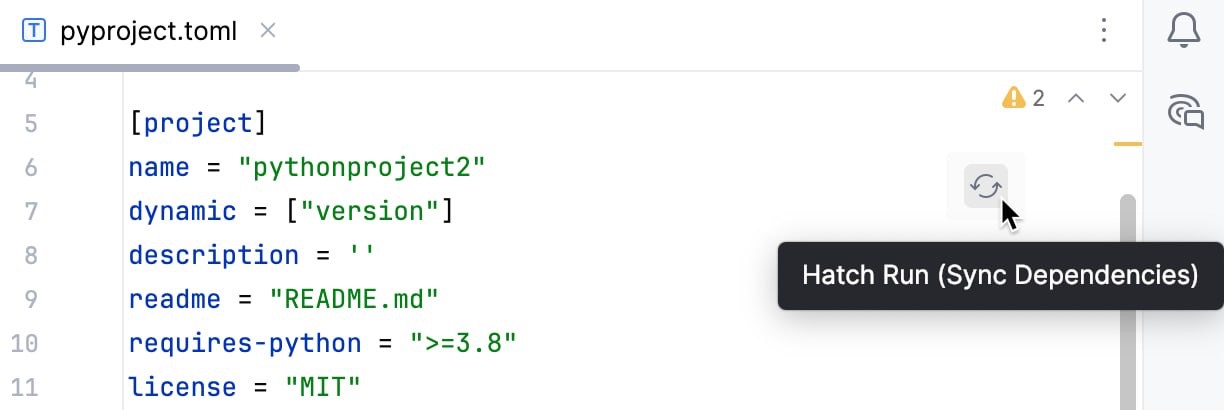
- Hatch Run: Run the default Hatch environment to install or update packages based on pyproject.toml. If any dependencies have changed, the environment is automatically updated to reflect those changes.
For more information, refer to Hatch documentation.
On the right side of the banner, Packages opens the Python Packages tool window, and External Tools opens .
Workspaces and monorepos
When the Workspace mode is enabled, pyproject.toml files in subdirectories are used to detect workspace members and subprojects.
PyCharm verifies environment consistency and warns you if a dependency defined in pyproject.toml is missing from the environment. A quick-fix is provided to install the missing dependency.
If a package is imported in your code but not listed in the workspace member's pyproject.toml, a quick-fix will suggest adding the package to the environment and updating the corresponding .toml file.
For more information, refer to Workspaces and monorepos.