Psalm
On this page, enable and configure the Psalm quality tool.
Item | Description |
|---|---|
Configuration | Select the required interpreter from the list. The list contains all the currently configured local and remote PHP interpreters. For more information, refer to Configure local PHP interpreters and Configure remote PHP interpreters. Clicking |
Show ignored files | Click to open the Psalm Ignored Files dialog, which lists the files that Psalm skips. PhpStorm suggests adding a new file to the list during inspection when waiting for response from the Psalm exceeds the limit specified in the Tool process timeout field. This is done to prevent slowing down processing. For each file, PhpStorm displays its name and location.
|
Configuration file | Provide the path to the Psalm configuration file. If the file is not present, PhpStorm displays the notification prompting you to create it. 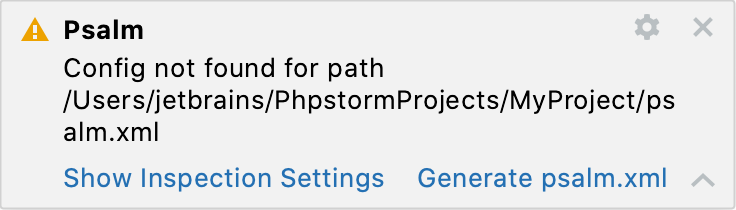 |
Show info | Select the checkbox to have Psalm report the errors that are at a lower level than the errorLevel specified in the configuration file. If the checkbox is not selected, such errors will be ignored. |
Find unused code | Select the checkbox to have Psalm report the located unused code (including unused variables). |
Find unused @psalm-suppress annotations | Select the checkbox to have Psalm report all unused @psalm-suppress annotations. |
Run mode | Configure how often Psalm is triggered to analyze code:
|
Idle threshold (ms) | Define the delay time in milliseconds after code modification before Psalm runs. |
Minimum interval (ms) | Define the minimum time in milliseconds that must pass between two consecutive runs of Psalm on the same file. This prevents Psalm from running too frequently in case of frequent file savings or heavy typing. |
 and locate the desired file in the dialog that opens.
 .
. .
.Psalm Dialog
The dialog opens when you click  next to the Configuration list on the Psalm page.
Use this dialog to configure the used PHP interpreter, path to the Psalm executable file, as well as Psalm's behaviour. For more information, refer to Psalm.
Item | Description |
|---|---|
Interpreters pane | The left-hand pane of the dialog shows the default PHP interpreter to use the Psalm from. To add a different interpreter, click |
Psalm path | In this field, specify the location of the Psalm script: psalm.bat for Windows or psalm for Linux and macOS. PhpStorm detects the path to the Psalm executable file in the To check that the specified path to psalm.bat or psalm ensures interaction between PhpStorm and Psalm, that is, the tool can be launched from PhpStorm and PhpStorm will receive problem reports from it, click the Validate button. This validation is equal to running the |
Tool process timeout | In this field, specify how long you want PhpStorm to wait for a result from Psalm. If the timeout is exceeded, the process is terminated to prevent excessive CPU and memory usage. This lets you fine-tune the Psalm process behavior depending on the configuration of your computer and the rule sets used. |
 and select the path in the dialog that opens.