User interface themes
The interface theme defines the appearance of windows, dialogs, buttons, and all visual elements of the user interface. By default, PhpStorm uses the Dark theme unless you changed it during the first run.
Change the UI theme
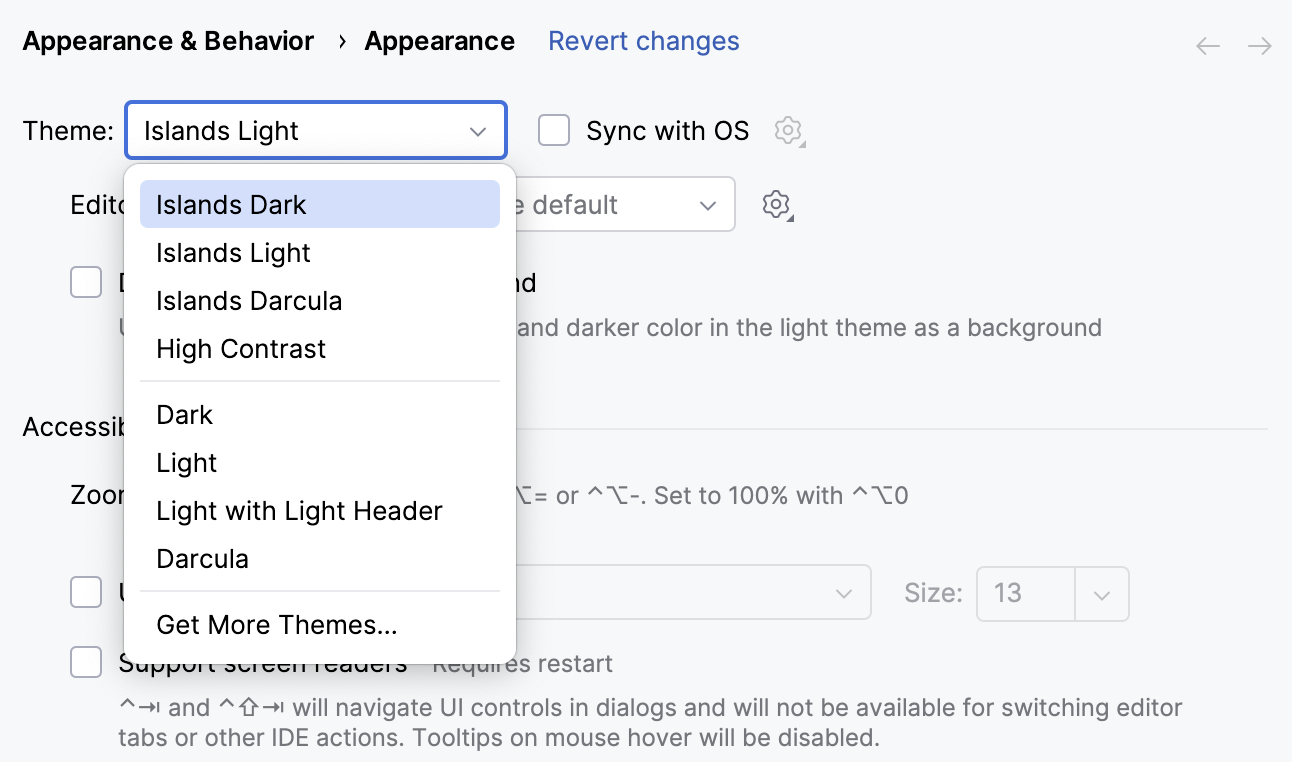
In the Settings dialog (Ctrl+Alt+S) , select Appearance & Behavior | Appearance.
Select the UI theme from the Theme list:
Islands Dark: default dark theme with the clear separation of UI sections
Islands Light: default light theme with the clear separation of UI sections
Islands Darcula: alternative low-contrast dark theme with the clear separation of UI sections
High Contrast: theme designed for users with color vision deficiency
Dark: alternative dark theme
Light: alternative light theme
Light with Light Header: alternative light theme with a light header
Darcula: alternative low-contrast dark theme
Click Get More Themes to install a custom theme as a plugin from JetBrains Marketplace
To improve editor focus in Islands themes, select Different tool window background. This applies a lighter shade in dark themes and a darker shade in the light theme for your tool windows.
Optionally, select a color scheme from the Editor color scheme list.
The default color scheme for the current theme is indicated in the list.
Select Sync with OS to let PhpStorm detect the current system settings and use the default dark or light theme accordingly. If your OS is set up to auto-switch between day and night modes, the IDE will automatically toggle between light and dark themes too.
It is also possible to create your own UI themes for PhpStorm and customize the built-in themes. For more information, refer to IntelliJ Platform SDK Documentation.
Quick switch theme
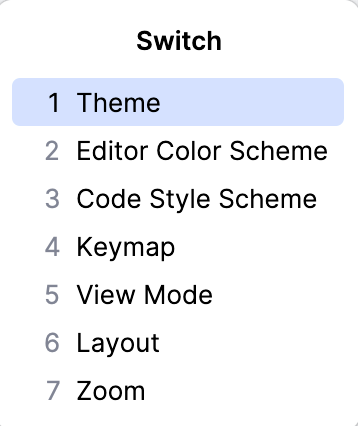
You can quickly switch between different user interface themes, color schemes, code style schemes, keymaps, view modes, layouts, and zoom percentage without invoking the IDE settings.
Press Ctrl+` or select from the main menu.
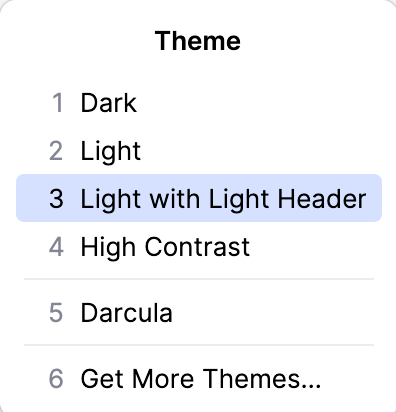
In the popup that opens, select the IDE setting that you want to change.
In the suggestion list, select the desired option.
Create shortcuts
You can map the Theme action to your preferred key combination.