Inlay hints
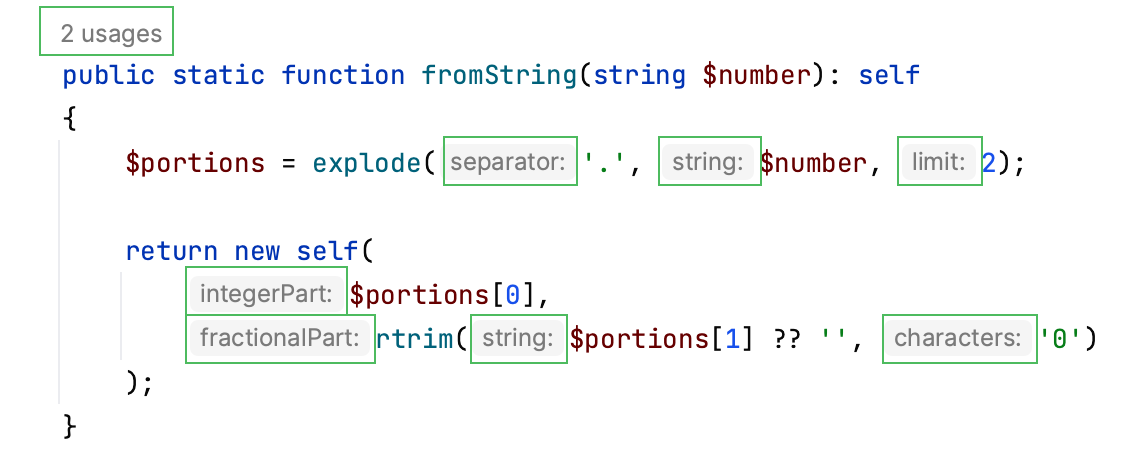
Inlay hints appear in the editor and provide you with additional information about your code to make it easier to read and navigate.
Enable or disable inlay hints
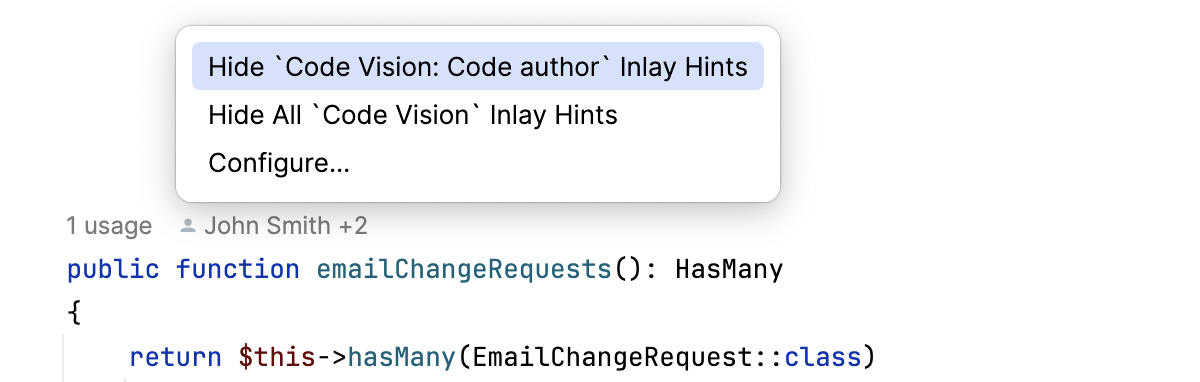
To disable a hint that is currently in front of you in the editor:
Right-click the hint and select whether you want to disable the specific type of hints or all hints in this category.
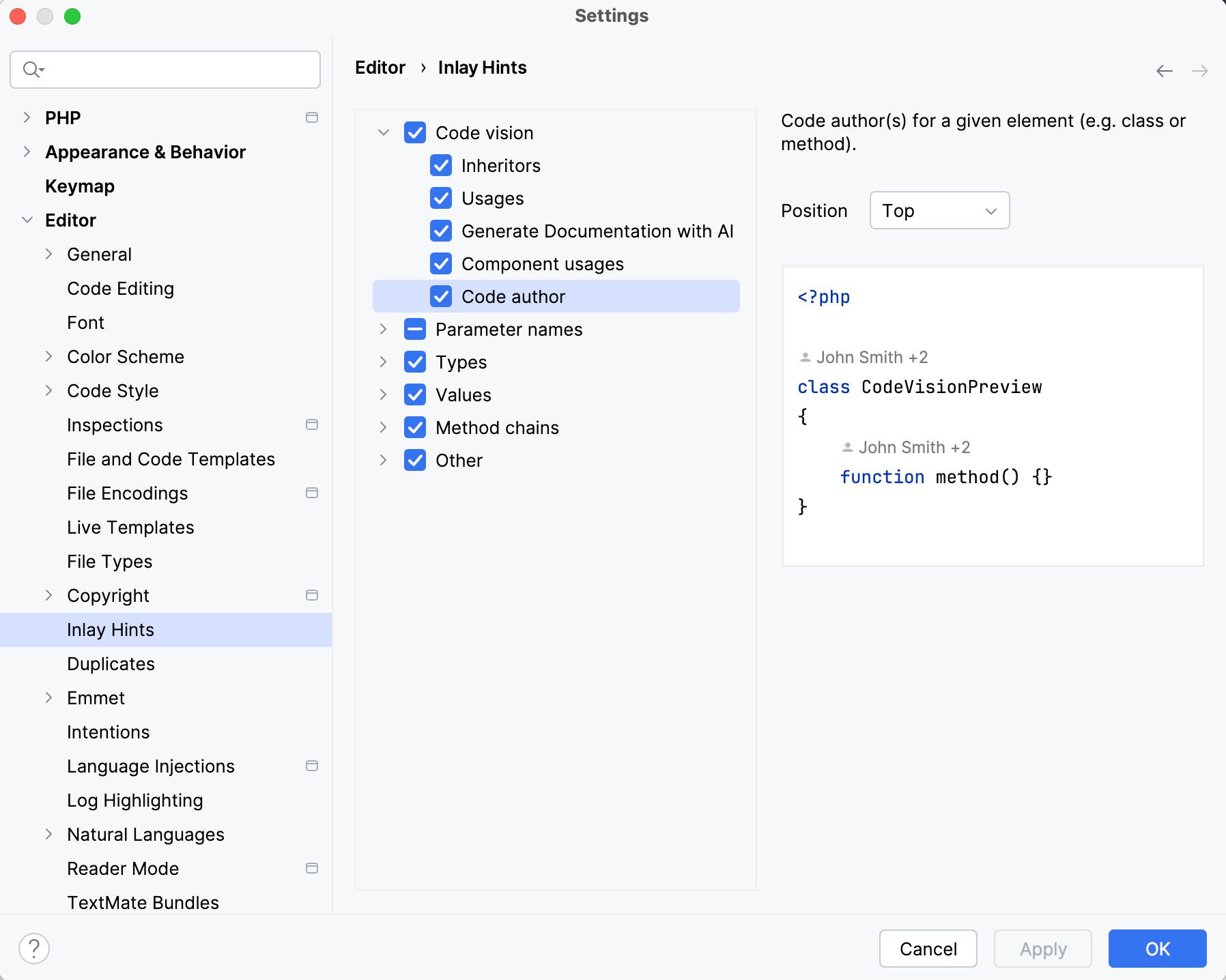
To configure one or more specific groups of inlay hints:
Open the Settings dialog (Ctrl+Alt+S) , go to , and use the checkboxes next to the hints to hide or show the corresponding category of inlay hints.
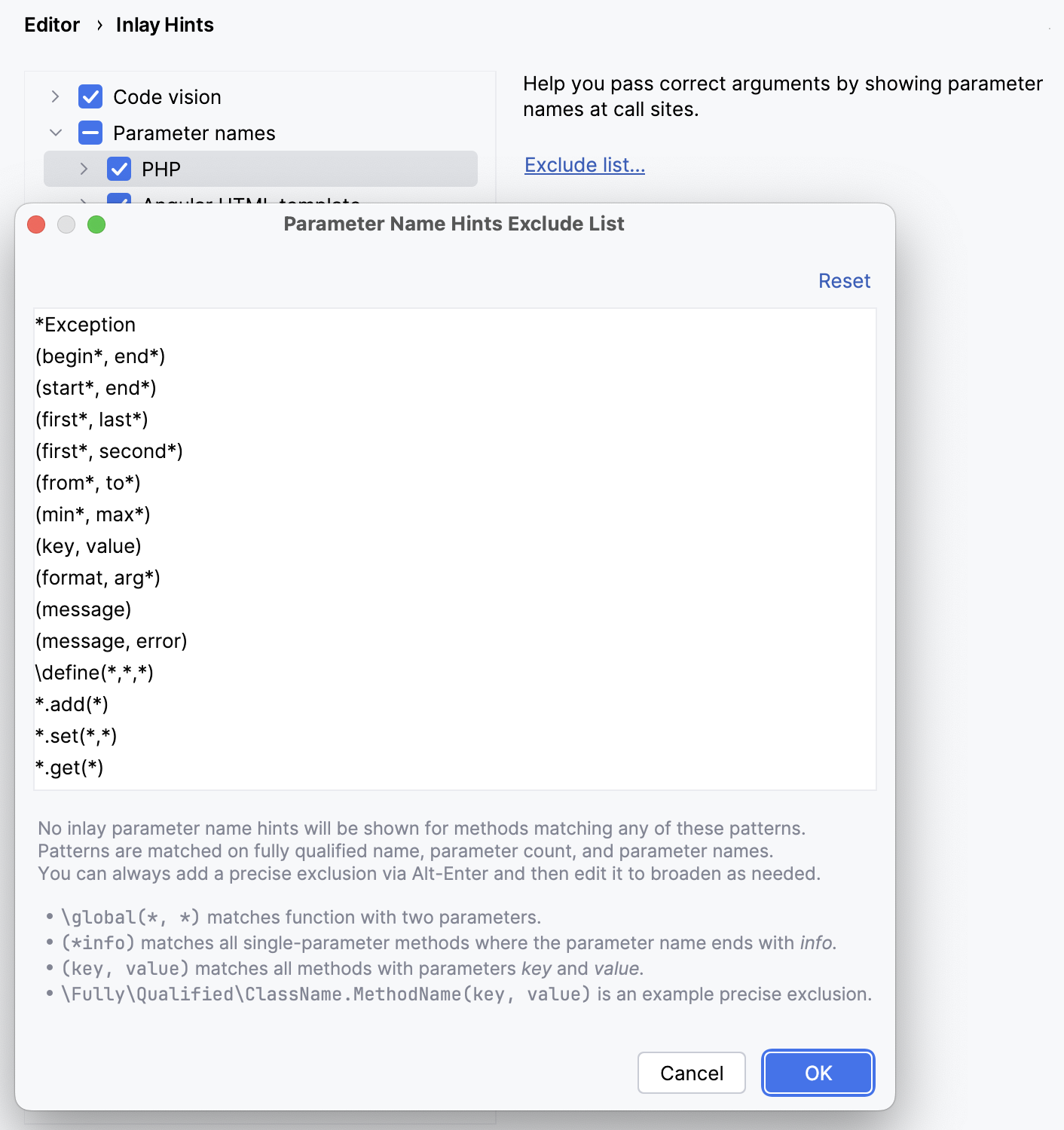
To disable inlay hints for a specific PHP method:
Open the Settings dialog (Ctrl+Alt+S) , go to , and click Exclude list. In the dialog that opens, specify the list of symbols to exclude using fully qualified names or wildcard syntax.
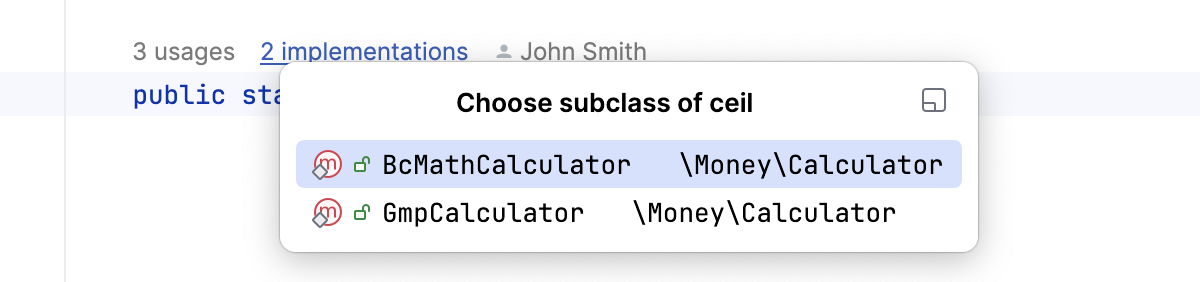
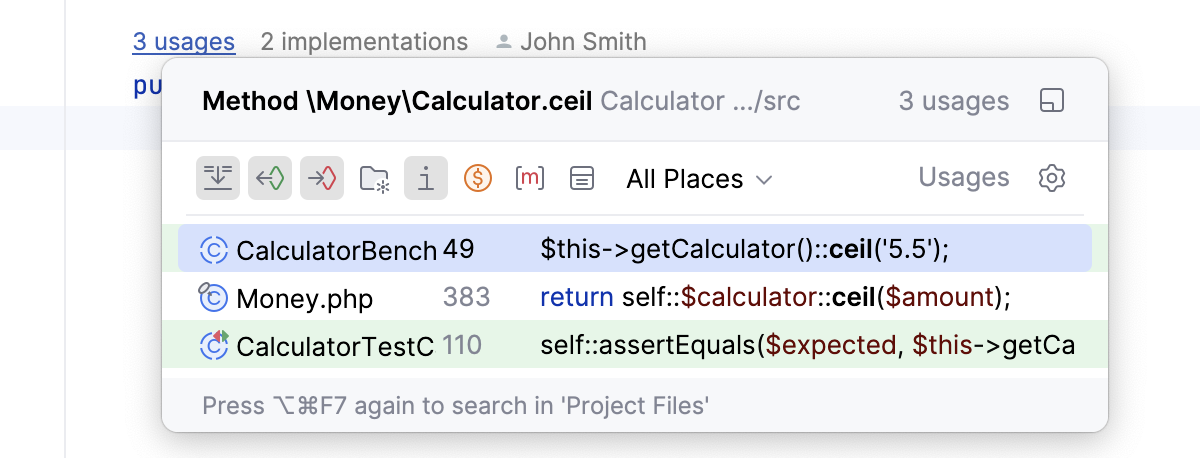
Code vision | Code vision hints display in the editor the number of inheritors and usages for a symbol, show who authored it, and mark symbols that are new or contain uncommitted changes. When you hover over a hint, it turns into a link. By clicking the link you can navigate to usages or implementations of the class or interface as well as open Version Control annotations.
In the right-hand pane of the dialog, configure the default position of inlay hints—whether they should be displayed above symbols or to the right of them—and specify the maximum number of inlay hints to be shown in each position.  You can also configure custom positioning for hints of a specific type. 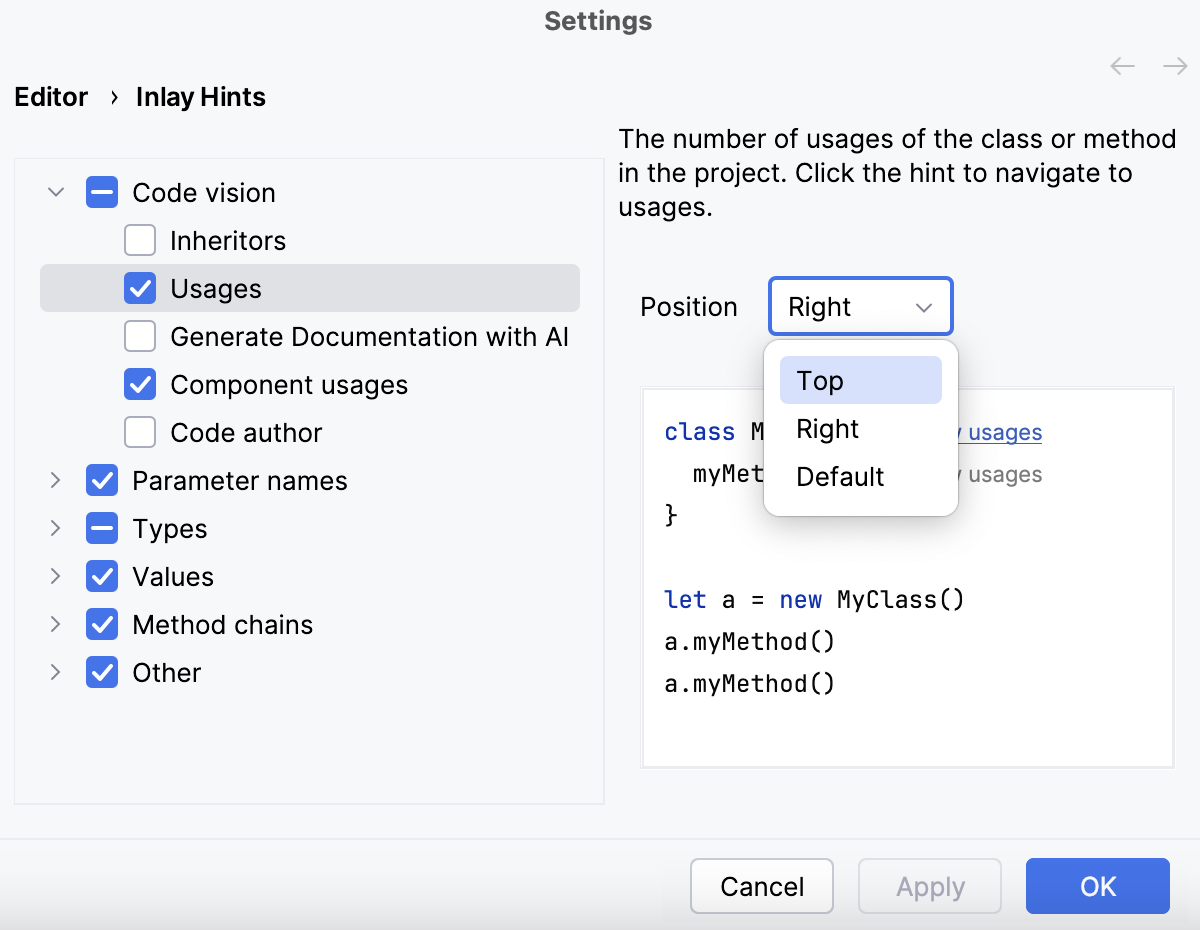 |
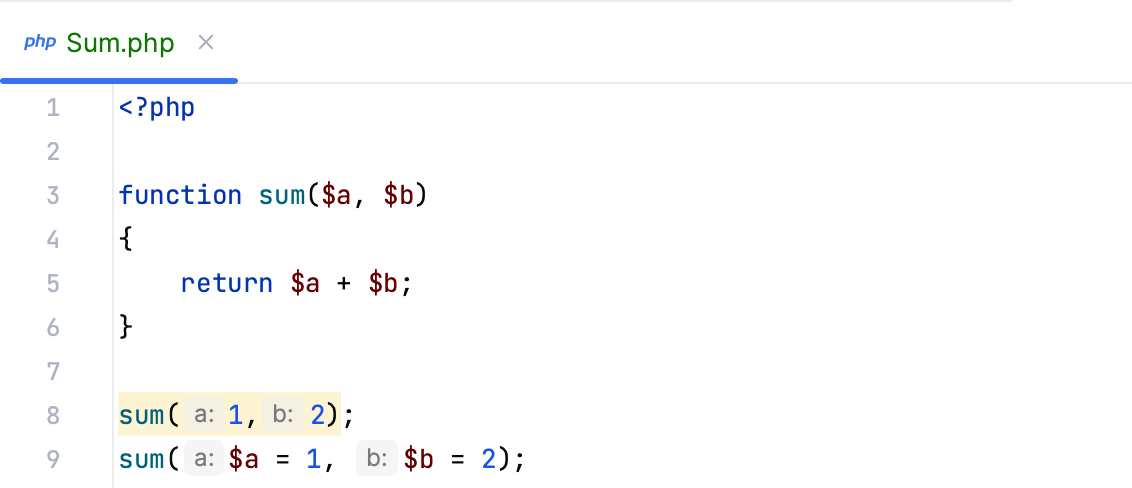
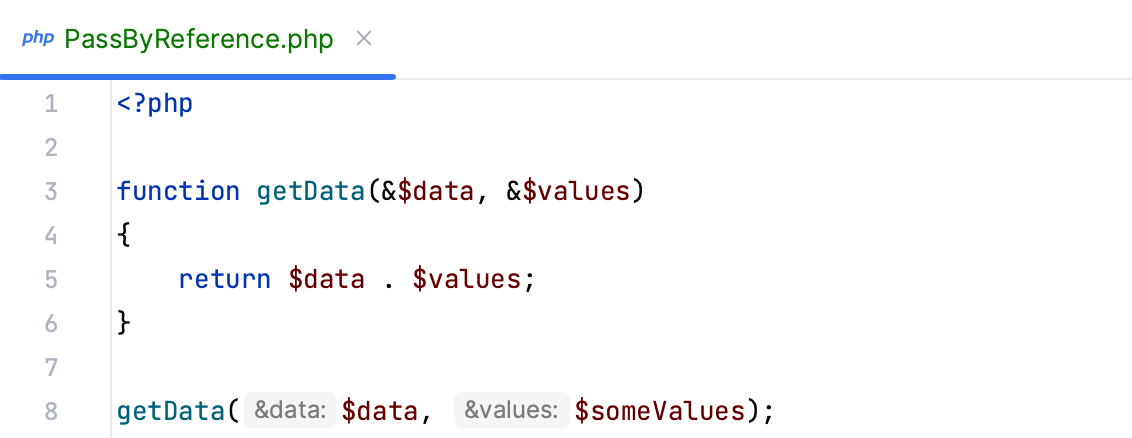
Parameter names | Show the names of parameters in function and method calls. These hints provide assistance with passing correct arguments to functions and methods. The PHP-specific parameter name options are:
For a number of methods and functions, parameter names are not shown by default: such methods and functions are on the default Exclude List. To re-enable the excluded parameter name hints or add more excluded methods or functions, click Exclude list and edit the list. |

Change inlay hints appearance
In the Settings dialog (Ctrl+Alt+S) , go to , then select Inline hints.
Select the inlay hint type and state, and configure the font color and effects as required.