Shelve or stash changes
Sometimes you need to switch between different tasks with things left unfinished and then return back to them. To work on several different features without losing your work, you can shelve or stash your pending changes.
Shelve vs Stash
Stashing changes is very similar to shelving.
Stashes are generated by Git, and can be applied from within MPS, or outside it.
Patches with shelved changes are generated by MPS and are also applied through the IDE.
Also, stashing involves all uncommitted changes, while when you shelve changes, you can select some of the local changes instead of shelving them all.
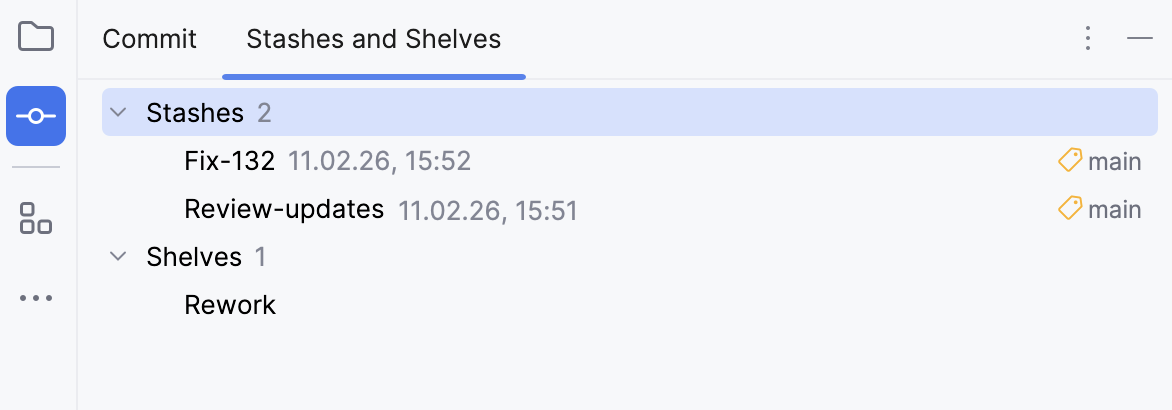
Combine Stash and Shelf tabs
If you want to work both with stashes and shelves, you can combine the Stash and the Shelf tabs into one.
Shelve and unshelve changes
Shelving is temporarily storing pending changes you have not committed yet. This is useful, for example, if you need to switch to another task, and you want to set your changes aside to work on them later.
With MPS, you can shelve both separate files and entire changelists.
Once shelved, a change can be applied as many times as you need.
Shelve changes
In the Commit tool window ( Alt+0) , right-click the files or the changelist you want to shelve and select Shelve Changes from the context menu.
In the Shelve Changes dialog, review the list of modified files.
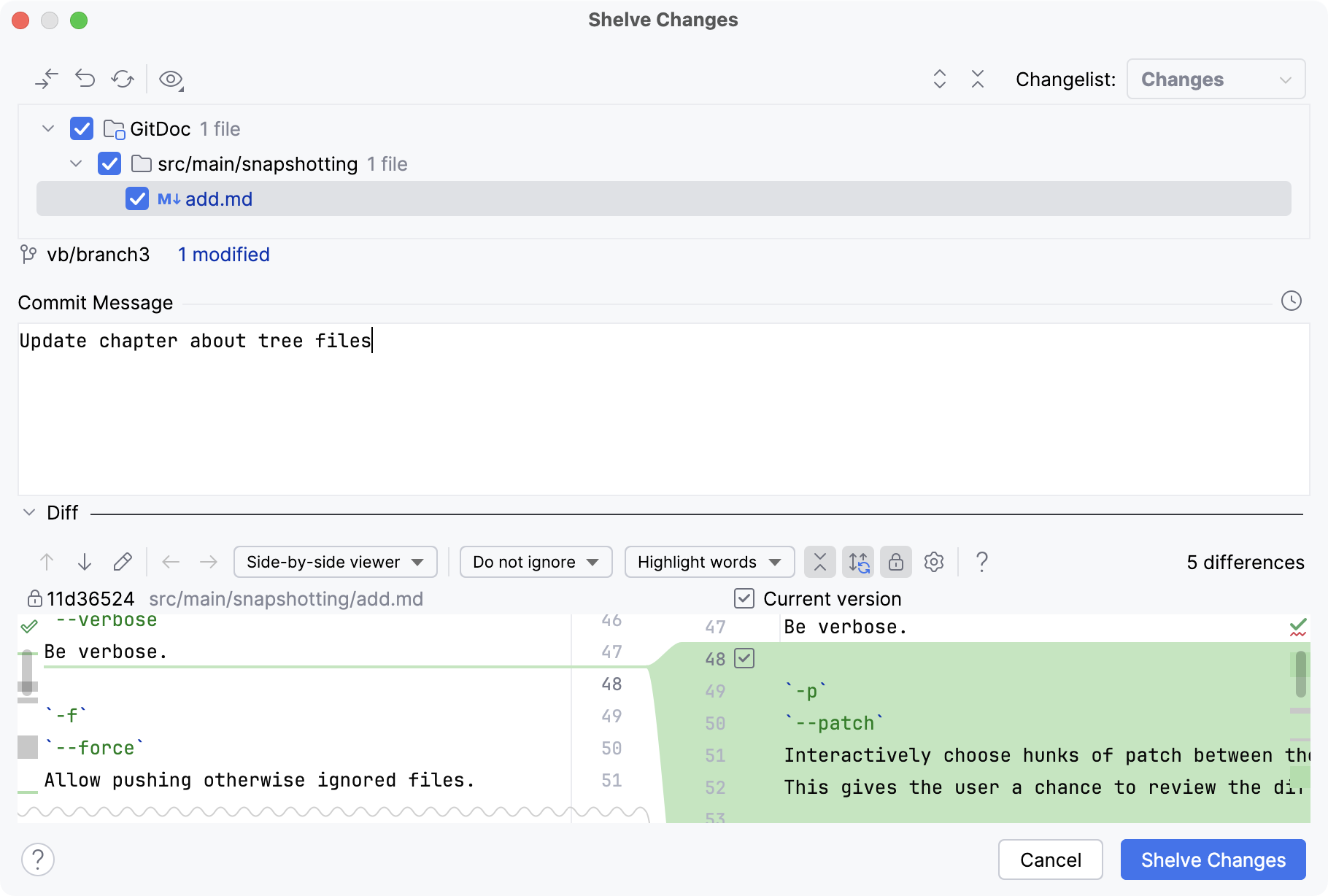
All files in the list are selected by default. Deselect the files that you do not want to shelve.
Item
Tooltip and Shortcut
Description

Show Differences
Ctrl+D
Open the Differences dialog that highlights the differences between your local working copy of the selected file and its repository version.

Revert
Revert all changes made to the local working copy of the selected files.

Refresh Changes
Ctrl+F5
Click this button to reload the Changed files tree view so it is up to date.

Group By
Choose how you want to group the modified files — by directory or file extension


Expand or collapse all nodes
Ctrl+NumPad +
Ctrl+NumPad -
Click these buttons to expand or collapse all nodes in the directory tree. These buttons are not available in flat view.
Changelist
N/A
From this list, select the changelist that contains the modified files to be shelved. The active changelist is selected by default.
The summary under the modified files pane shows statistics on the currently selected changelist, such as the number of modified, new and deleted files. This area also shows how many files of each type are shown, and how many of them will be shelved.
In the Commit Message field, enter the name of the shelf to be created.
In the Diff pane, you can explore the differences between the base repository version of the selected file and the version you are about to shelve.
Item
Tooltip and Shortcut
Description
 /
/
Previous Difference / Next Difference Shift+F7 F7
Jump to the next or previous difference.
When the last or the first difference is reached, MPS suggests clicking the arrow buttons or pressing F7/Shift+F7 once more and comparing other files modified locally. This behavior depends on the Go to the next file after reaching last change option in the Diff Viewer settings.

Jump to Source
F4
Open the selected file in the editor. The caret is placed in the same position as in the Diff Viewer.


Compare Previous/Next File
Alt+Left Alt+Right
Click these buttons to compare the local copy of the previous/next file with its update from the server.
Viewers
Select a viewer mode: "MPS model viewer", "side-by-side" or "unified". The side-by-side mode has two panels, the unified mode has one panel. The MPS model viewer shows a list of changed root nodes and for the selected root node shows two panels.
The MPS viewer offers several configuration settings:
Show Inspector - makes the Inspector tool window visible in the dialog for both panels.
Use Short Change Description - show a shorter variant of the description. The users may find it more readable.
Hide Non-Functional ID Changes - ignores changes when a node has been replaced with its identical copies (e.g. by retyping the same code).
Hide Non-Functional Resolve-Info Changes - when enabled, references to a declaration that has merely changed its name will not be highlighted as changed.
Track Moved Nodes - identifies nodes that have been moved to a different position and visually distinguishes them from mere removals/additions of nodes.
Hide Unordered Moves - available when "Track Moved Nodes" is on, ensures that reordered nodes in a collection defined as "unordered" in the structure aspect are not highlighted as a change.
You can edit code and perform the Accept, Append, Revert actions in both viewers.
You can change text only in the right part of the side-by-side viewer or in the lower line in the unified viewer.
You can edit only local versions of your files. You cannot edit files that have read-only status.
Whitespace
Define how the Diff Viewer should treat whitespaces.
Do not ignore: white spaces are important, and all the differences are highlighted. This option is selected by default.
Trim whitespaces: trim whitespaces if they appear in the end and at the beginning of a line (
("\t", " ")).If two lines differ in trailing whitespaces only, these lines are considered equal.
If two lines are different, trailing whitespaces are not highlighted in the By word mode.
Ignore whitespaces: white spaces are not important, regardless of their location in the source code.
Ignore whitespaces and empty lines: ignores whitespaces and empty lines. The following entities are ignored:
all whitespaces (as in the 'Ignore whitespaces' option)
all added or removed lines consisting of whitespaces only
all changes that consist of splitting or joining lines without changes to non-whitespace parts.
For example, differences between
a b canda \n b care not highlighted in this mode.
Highlighting mode
Select the way differences granularity is highlighted.
The available options are:
Highlight words: modified words are highlighted
Highlight lines: modified lines are highlighted
Highlight split changes: if this option is selected, big changes are split into smaller changes.
For example,
A \n BandA X \n B Xare treated as two changes instead of one.Highlight characters: modified symbols are highlighted
Do not highlight: if this option is selected, the differences are not highlighted at all.
Use the Do not highlight option when you work with the files that were significantly modified. In such cases, highlighting might introduce additional difficulties during a review.

Collapse Unchanged Fragments
Collapse all the unchanged fragments in both files. The number of non-collapsible unchanged lines is configurable on the Diff & Merge settings page. To open the Diff & Merge page, open settings by pressing Ctrl+Alt+S and navigate to . .

Synchronize scrolling
Scroll both diff panes simultaneously. If this button is released, each pane can be scrolled independently.

Disable editing
Enable editing of the local copy of the selected file, which is disabled by default. When editing is enabled, you can make last-minute changes to the modified file before committing it.

Editor settings
Open a list of available options. Select or clear these options to show or hide line numbers, indentation guides, white spaces, and soft wraps.

Help
F1
Open a browser and show the corresponding help page.
Note that most options listed above are available for text files only. Binary files have a limited number of diff options.
Click the Shelve Changes button.
You can also shelve changes silently, without displaying the Shelve Changes dialog. To do this, select the file or changelist you want to shelve and click  Shelve Silently on the toolbar or press Ctrl+Shift+H. The name of the changelist containing the changes you want to shelve will be used as the shelf name.
To avoid ending up with numerous shelves with the same name (such as Default, for example), you can drag a file or a changelist from the Commit tab to the Shelf tab of the Commit tool window, wait for a second until it's activated, and edit the new shelf name after releasing the mouse button.
Unshelve changes
Unshelving is moving postponed changes from a shelf to a pending changelist. Unshelved changes can be filtered out from view or removed from the shelf.
In the Shelf tab, select the changelist or the files you want to unshelve.
Press Ctrl+Shift+U or choose Unshelve from the context menu of the selection.
In the Unshelve Changes dialog, specify the changelist you want to restore the unshelved changes to in the Name field. You can select an existing changelist from the list or enter the name for a new changelist to be created. You can enter the description of the new changelist in the Comment field (optional).
If you want to make the new changelist active, select Set active. Otherwise, the current active changelist remains active.
If you want to remove the changes you are about to unshelve, select the Remove successfully applied files from the shelf option. The unshelved files will be removed from this shelf, added to another changelist, and marked as applied. They will not be removed completely until deleted explicitly by selecting Delete from the context menu.
Click OK. If conflicts occur between the patched version and the current version, resolve them as described in Resolve Git conflicts.
You can also unshelve changes silently, without displaying the Unshelve Changes dialog. To do this, select a file or a changelist you want to unshelve and click  Unshelve Silently on the toolbar or press Ctrl+Alt+U. The unshelved files will be moved to the active pending changelist.
You can also drag a file or a changelist from the Shelf tab to the Commit tab to unshelve it silently. If you drag it holding the Ctrl key, it will be copied to the Commit tab but also kept in the shelf.
Discard shelved changes
In the Shelf view, select the changelist that contains the changes you do not want to keep anymore.
Right-click the changelist and choose Delete from the context menu or press Delete.
Restore unshelved changes
MPS lets you reapply unshelved changes if necessary. All unshelved changes can be reused until they are removed explicitly by selecting Delete from the context menu.
Click
Show and make sure that the Already Unshelved option is  enabled.
Select the files or the shelf you want to restore.
From the context menu of the selection, choose Restore.
Apply external patches
You can import patches created inside or outside MPS and apply them as shelved changes.
In the Shelf view, choose Import Patches from the context menu.
In the dialog that opens, select the patch file to apply. The selected patch appears in the Shelf tab as a shelf.
Select the newly added shelf with the patch and choose Unshelve Changes from the context menu of the selection.
Automatically shelve base revision
It may be useful to configure MPS to always shelve base revisions of files that are under Git version control.
Press Ctrl+Alt+S to open settings and then select .
Select the Shelve base revisions of files under distributed version control systems option.
If this option is enabled, the base revision of files will be saved to a shelf that will be used during a 3-way merge if applying the shelf leads to conflicts. If it is disabled, MPS will look for the base revision in the project history, which may take a while. Moreover, the revision that the conflicting shelf was based on may be missing (for example, if the history was changed as a result of the rebase operation).
Change the default shelf location
By default, the shelf directory is located under your project directory. However, you may want to change the default shelf location. This can be useful, for example, if you want to avoid deleting shelves accidentally when cleaning up your working copy or if you want to store them in a separate repository allowing shelves to be shared among your team members.
Press Ctrl+Alt+S to open settings and then select .
Click Change Shelves Location and specify the new location in the dialog that opens.
If necessary, select Move shelves to the new location to move existing shelves to the new directory.
Watch this video tutorial on how to benefit from shelves to be able to switch to a different task without losing unfinished work:
Stash changes
Sometimes it may be necessary to revert your working copy to match the HEAD commit, but you do not want to lose the work you have already done. This may happen if you learn that there are upstream changes that are possibly relevant to what you are doing, or if you need to make some urgent fixes.
Stashing involves recording the difference between the HEAD commit and the current state of the working directory (stash). Changes to the index can be stashed as well.
Unstashing involves applying a stored stash to a branch.
You can apply a stash to an existing branch or create a new branch on its basis.
A stash can be applied as many times as you need to any branch you need, just switch to the required branch. Keep in mind that:
Applying a stash after a series of commits results in conflicts that need to be resolved.
You cannot apply a stash to a "dirty" working copy, that is a working copy with uncommitted changes.
Save changes to a stash
In the Commit tool window ( Alt+0) , right-click to open the context menu and select .
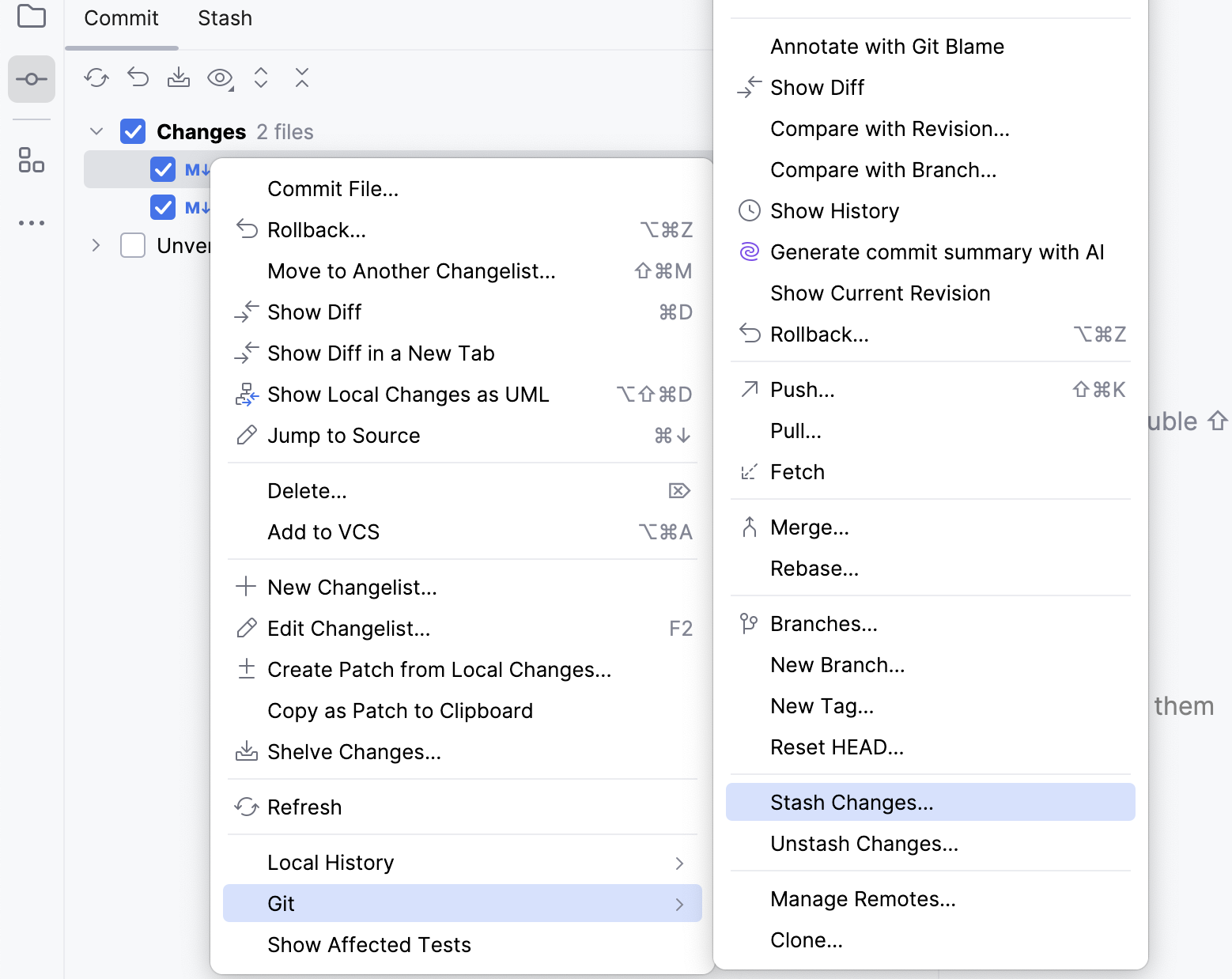
In the Stash dialog that opens, select the appropriate Git root and make sure that the correct branch is checked out.
In the Message field describe the changes you are about to stash.
To stash local changes and bring the changes staged in the index to your working tree for examination and testing, select the Keep index option.
Click Create Stash.
The stashed changes will be moved to the Stash tab next to the Commit tab in the same Commit tool window.
Review stashed changes and apply a stash
In the Commit tool window ( Alt+0) , open the Stash tab.
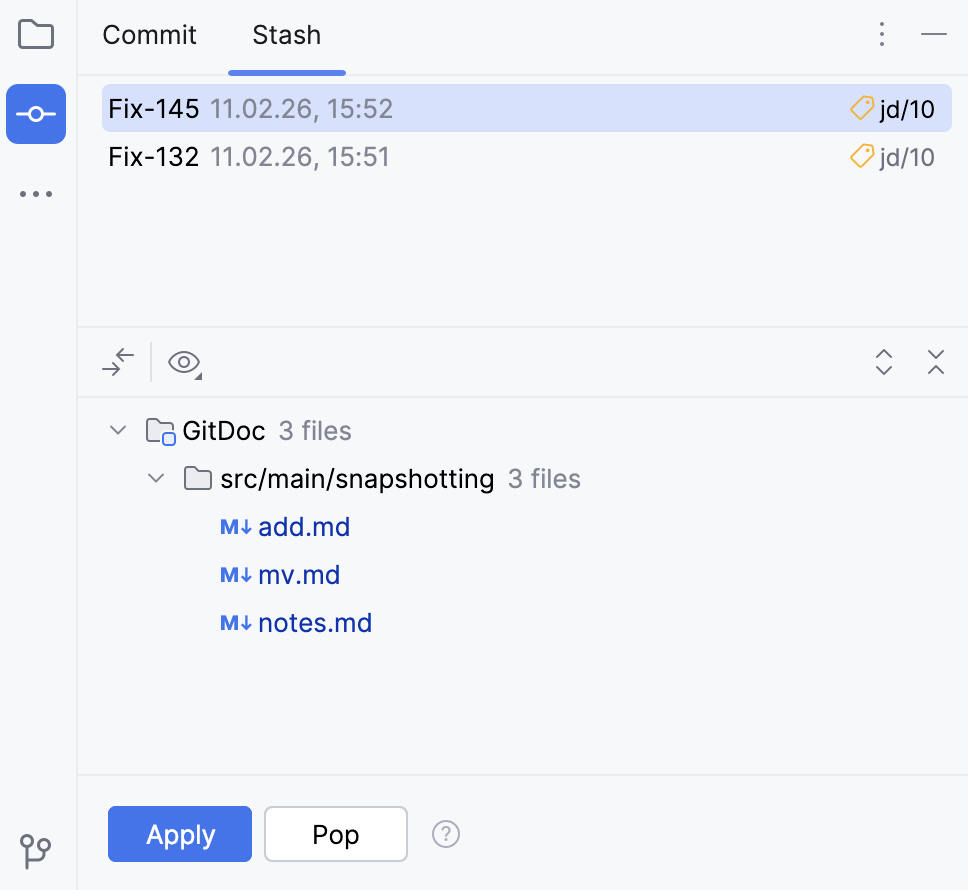
Select the stash you want to apply from the list of stashes.
To review the stashed changes and compare them to the current version of the code, double-click any file from the list to open the diff of stashes.
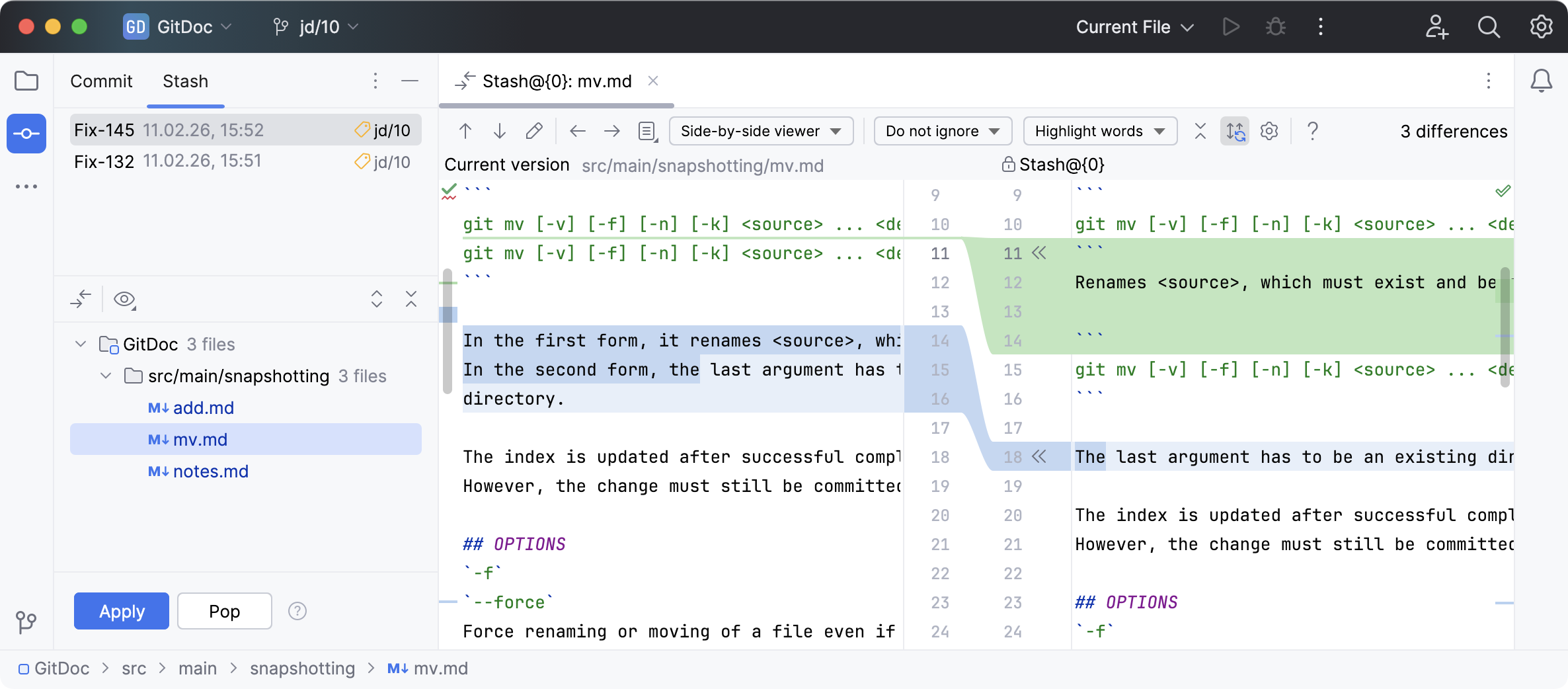
To open the diff in a separate window, click
Settings in the Diff pane and select Show Diff in Separate Window.Click Apply to apply the selected stash and keep it in the list.
Сlick Pop to apply the selected stash and remove it from the list.
You can create a new branch on the basis of the selected stash instead of applying it to the branch that is currently checked out.
Right-click the stash to open the context menu and select Unstash.
Type the name of that branch in the As new branch field.
To apply stashed index modifications as well, select the Reinstate Index option.
Click Apply Stash.
To remove a stash, select it in the list, right-click to open the context menu and select Drop. To remove all stashes, select Clear.