GitHub Enterprise Server
A connection to GitHub Enterprise Server is established through a GitHub App that is created on your GitHub Enterprise Server instance and installed for an organization on that instance. JetBrains Central Console uses this app to access repositories.
Once a connection is established, the instance becomes available as a VCS provider in JetBrains Air and other services based on JetBrains Central Console that use repository connections.
Connect a GitHub Enterprise Server instance
The process of connecting a GitHub Enterprise Server instance consists of the following steps:
Creating the GitHub App and adding the connection in one of the following ways:
Automatically (recommended), using GitHub's App Manifest flow. JetBrains Central Console generates the GitHub App manifest for you. You specify the URL of your instance and the app owner, then create the app there.
Manually, if you already have a GitHub App or your organization requires you to configure the app yourself.
Installing the app for your organization on your GitHub Enterprise Server instance.
Create the GitHub App and the connection
This is the recommended way to connect your GitHub Enterprise Server instance. JetBrains Central Console generates the GitHub App manifest, so the app is created and registered for you.
Add server details and create the GitHub App automatically
In the sidebar, under Integrations, select Hosted VCS.
If you don't see this page, or the controls on this page are inactive, make sure your role has the necessary permissions.
Click Connect VCS and select GitHub Enterprise Server.
A connection card appears on the page.
In the connection card, select the Automatic tab.

In the GitHub server URL field, specify the URL of your GitHub Enterprise Server instance, for example
ghes.jetbrains.com. This must be your own instance, notgithub.com.In the GitHub Enterprise organization name field, enter the name of the organization that will own the app. Note that this is the name of the organization on your GitHub Enterprise Server instance, not the JetBrains Central Console organization.
Click Connect.
You are redirected to your GitHub Enterprise Server instance and asked to create a new app.
In the GitHub App name field, specify a name for the app and click Create GitHub App for <organization-name>.
You are redirected to the list of VCS connections in JetBrains Central Console.
The connection is created, but its status is Not connected. To establish a working connection, follow the instructions to install the GitHub App and authorize it.
Choose this option if you cannot use the App Manifest flow. For example, if your organization requires manual creation and review of GitHub Apps, or if the app owner must be an account that you can't use in the automatic flow. In this case, you create the app on your GitHub Enterprise Server instance and provide its details in JetBrains Central Console yourself.
Create a GitHub App manually
Navigate to your organization's app settings on the GitHub Enterprise Server instance. The URL is usually in the following format:
https://<ghes-host>/organizations/<organization>/settings/apps.Click New GitHub App and enter the following information:
GitHub App name: The name of your app. For example,
JetBrains Central.Homepage URL: The public URL of JetBrains Central Console:
https://console.jetbrains.cloud/Callback URL: The JetBrains Central Console repository connections callback:
https://api.jetbrains.cloud/repo-connections/auth/callbackExpire user authorization tokens: Recommended so refresh tokens are issued.
Request user authorization (OAuth) during installation: Not required.
Webhook: Webhooks are required to use Air automations with repositories from a connected GitHub Enterprise Server instance. Set the following options:
Active: Enable webhooks.
Webhook URL: The JetBrains Central Console webhook URL for GitHub Enterprise Server:
https://api.jetbrains.cloud/webhooks/github-enterprise/Secret: Enter or generate a strong random string. You will provide it with the other app details in JetBrains Central Console.
Under Repository permissions, grant at least the following permissions:
Permission
Access level
Contents
Read and write
Issues
Read-only
Metadata
Read-only
Pull requests
Read-only
Workflows
Read and write
Under Subscribe to events, select the following events:
Issues
Pull request
Under Where can this GitHub App be installed?, select Any account. This allows the app to be installed on any eligible account on the same GitHub Enterprise Server instance. If multiple JetBrains Central Console organizations are using the same GitHub Enterprise Server instance, select Only on this account.
Click Create GitHub App.
This takes you to the app settings page.
On the app settings page, note the App ID and the Client ID. You enter the app ID as GitHub App ID in JetBrains Central Console.
Under Client secrets, click Generate a new client secret. GitHub Enterprise Server shows the secret only once, so copy it before you leave the page.
Under Private keys, click Generate a private key and download the
.pemfile.Click Save changes.
When you have a GitHub App that you can use to connect your instance, follow the steps below to add app details in JetBrains Central Console and connect it to your GitHub Enterprise Server instance.
Add app details
In the sidebar, under Integrations, select Hosted VCS.
If you don't see this page, or the controls on this page are inactive, make sure your role has the necessary permissions.
Click Connect VCS and select GitHub Enterprise Server.
A connection card appears on the page.
In the connection card, select the Manual tab.

Under GitHub App credentials, specify the following details of your GitHub App:
GitHub App ID: The numeric identifier of the app.
Client ID: The client identifier of the app.
Client secret: The client secret for the app. You can generate a client secret on the settings page for your app on your GitHub Enterprise Server instance.
Install URL: The installation URL of the app. To find it, open the app's public page on your GitHub Enterprise Server instance and click Install, then copy the URL of the page that opens without completing the installation. For example,
https://ghes.jetbrains.com/github-apps/<app-slug>/installations/select_target.Private key: The private key generated for the app. Upload the corresponding
.pemfile. For more information, see Generating private keys in GitHub documentation.Webhook secret: The webhook secret you defined when you created the app. This secret is not required to create a repository connection, but must be set for Air automations to work.
Click Connect.
The connection is created, but its status is Not connected. To establish a working connection, follow the instructions to install the GitHub App and authorize it.
Install the GitHub App for your organization
On the Hosted VCS page in JetBrains Central Console, click Install app next to the connection you just created.

This redirects you to the app installation on your GitHub Enterprise Server instance.
Select the organization you want to install the app for. This is an organization on your GitHub Enterprise Server instance, not your JetBrains Central Console organization. If you created the app manually, GitHub Enterprise Server skips this step.
Select the repositories that the app can access:
All repositories: All current and future repositories owned by the organization.
Only select repositories: Only the repositories that you select.
Review the permissions and click Install.
You are redirected to the app page on your GitHub Enterprise Server instance. The next step is to authorize the app to access your organization's repositories.
Authorize the GitHub App
On the Hosted VCS page in JetBrains Central Console, click Authorize next to the connection you just created.
You are redirected to your GitHub Enterprise Server instance and asked to authorize the app.
Click Authorize <app-name> to grant access to the app.
You are redirected back to JetBrains Central Console. The connection card shows the Connected status.
Manage connections
Edit a connection
If the client secret, private key, or webhook secret of the GitHub App is rotated, revoked, or otherwise changed in GitHub Enterprise Server, provide the new values in JetBrains Central Console to keep the connection working. The credentials you provided earlier are stored as masked values, so you only need to replace the ones that changed.
In the sidebar, under Integrations, select Hosted VCS.
If you don't see this page, or the controls on this page are inactive, make sure your role has the necessary permissions.
Click
 next to the connection you want to edit and select Edit connection.
Update the fields as needed:
Owner URL: The new link to the account or organization where the app is installed. For example:
https://ghes.jetbrains.com/my-organization. The new URL must be on the same host as the existing one. To connect a different host, create a new connection.Client secret: The updated client secret for the app. Click Edit to make the field editable and enter the new value.
Private key: The new
.pemfile with the private key generated for the app. If the card shows Private key added, click to remove the existing key, then upload a new
 .pemfile.Webhook secret: The new webhook secret for the app. Click Edit to make the field editable and enter the new value.
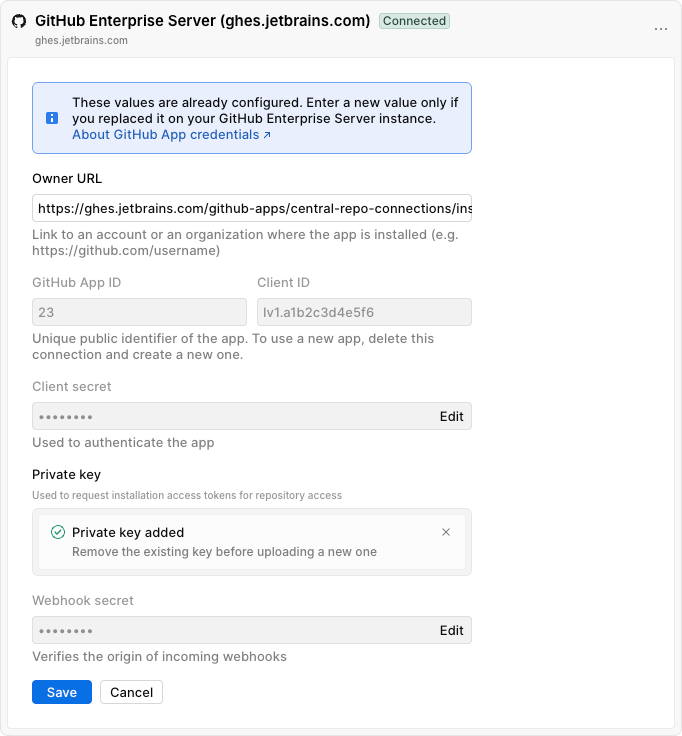
Click Save.
You have updated the connection details.
Remove a connection
In the sidebar, under Integrations, select Hosted VCS.
If you don't see this page, or the controls on this page are inactive, make sure your role has the necessary permissions.
Click
next to the connection you want to remove and select Remove connection.Click Remove to confirm the action.
The connection card is removed from the page.