# Emmet
> **TL;DR**
> `File | Settings | Editor | Emmet` for Windows and Linux
>
>
>
> `IntelliJ IDEA | Settings | Editor | Emmet` for macOS
>
>
>
> `Ctrl+Alt+S` (Windows), `⌘ Comma` (macOS), `⌘ Comma` (IntelliJ IDEA Classic (macOS)), `⌘ Comma` (macOS System Shortcuts), `Ctrl+Alt+S` (XWin), `Ctrl+Alt+S` (GNOME), `Ctrl+Alt+S` (KDE), `Ctrl+Alt+S` (Emacs), `Ctrl+Alt+S` (Sublime Text), `⌘ Comma` (Sublime Text (macOS)), `Ctrl+Alt+S` (NetBeans), `Ctrl+Alt+S` (Visual Studio), `⌘ Comma` (Visual Studio (macOS)), `Ctrl+Alt+S` (Eclipse), `⌘ Comma` (Eclipse (macOS)) 
On this page, configure [Emmet](using-zen-coding-support.html) preferences for HTML, XML, JavaScript (JSX Harmony) files and Style Sheets.
> **Note:**
> IntelliJ IDEA expands abbreviations only if their output does not exceed 15 KB.
| Item | Description |
| --- | --- |
| Expand abbreviation with | From this list, select the default key to expand Emmet selectors with. This key will also expand [Emmet live templates](https://github.com/emmetio/emmet). |
## Emmet.HTML
| Item | Description |
| --- | --- |
| Enable XML/HTML Emmet | Select this checkbox to enable Emmet support for XML and HTML. If this checkbox is not selected, complicated abbreviations, such as `div.class>ul#list>.item$)` and similar, will not work in the editor. |
| Enable abbreviation preview | Select this checkbox to have IntelliJ IDEA show a popup with a preview of the entered abbreviation before actually expanding it. 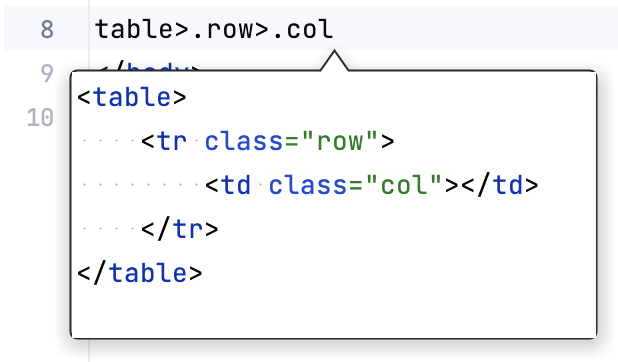 |
| Enable automatic URL recognition while wrapping text with tag | * If this checkbox is cleared, and you wrap (`Ctrl+Alt+J` (Windows), `⌘ ⌥ J` (macOS), `⌘ ⌥ J` (IntelliJ IDEA Classic (macOS)), `⌘ ⌥ J` (macOS System Shortcuts), `Ctrl+Alt+J` (XWin), `Ctrl+Alt+J` (GNOME), `Ctrl+Alt+J` (KDE), `Ctrl+Alt+J` (Emacs), `Ctrl+Alt+J` (Sublime Text), `⌘ ⌥ J` (Sublime Text (macOS)), `Ctrl+Alt+J` (NetBeans), `Ctrl+E, U` (Visual Studio), `⌘ E, U` (Visual Studio (macOS)), `Ctrl+Alt+J` (Eclipse), `⌘ ⌥ J` (Eclipse (macOS))) a URL address with the `` tag, IntelliJ IDEA encloses the URL address in `` and places the caret inside the double quotes in the `href` attribute. For example, wrapping `https://www.jetbrains.com.cn/en-us` will result in the following: `https://www.jetbrains.com.cn/en-us` * If this checkbox is selected, and you wrap (`Ctrl+Alt+J` (Windows), `⌘ ⌥ J` (macOS), `⌘ ⌥ J` (IntelliJ IDEA Classic (macOS)), `⌘ ⌥ J` (macOS System Shortcuts), `Ctrl+Alt+J` (XWin), `Ctrl+Alt+J` (GNOME), `Ctrl+Alt+J` (KDE), `Ctrl+Alt+J` (Emacs), `Ctrl+Alt+J` (Sublime Text), `⌘ ⌥ J` (Sublime Text (macOS)), `Ctrl+Alt+J` (NetBeans), `Ctrl+E, U` (Visual Studio), `⌘ E, U` (Visual Studio (macOS)), `Ctrl+Alt+J` (Eclipse), `⌘ ⌥ J` (Eclipse (macOS))) a URL address with the `` tag, IntelliJ IDEA inserts the URL address inside the double quotes as the value of the `href` attribute and encloses the URL in ``. For example, wrapping `https://www.jetbrains.com.cn/en-us` will result in the following: `https://www.jetbrains.com.cn/en-us` |
| Add edit point at the end of template | * If this checkbox is selected, an editing position adds to the end of an HTML template ($END$). * if this checkbox is not selected, then the new edit point is not added. Compare the following: 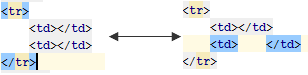 |
| BEM | In this area, specify the BEM separators for the class names, modifiers and short elements. For more information, refer to the [Emmet documentation](https://docs.emmet.io/filters/bem/). |
| Filters enabled by default | In this area, specify which Emmet filters you want to be applied to an expanded abbreviation before it is shown in the editor. Learn more about filters at [https://docs.emmet.io/filters/](https://docs.emmet.io/filters/). To have a filter always applied by default, select the checkbox next to it. The available options are: * [XSL tuning](https://docs.emmet.io/filters/#xsl-tuning-xsl) * [Comment tags](https://docs.emmet.io/filters/#comment-tags-c) * [Escape](https://docs.emmet.io/filters/#escape-e) * [Single line](https://docs.emmet.io/filters/#single-line-s) * [BEM](https://docs.emmet.io/filters/bem/) * [Trim line markers](https://docs.emmet.io/filters/#trim-line-markers-t) |
## Emmet.CSS
| Item | Description |
| --- | --- |
| Enable CSS Emmet | Select this checkbox to enable Emmet support for Style Sheets. If this checkbox is not selected, the complicated abbreviations, like `bdci:n` expanding into `border-corner-image: none;`, will not work in the editor. |
| Enable fuzzy search among CSS abbreviations | When this checkbox is selected, every unknown abbreviation will be scored against available template names. The match with the best score will be used to resolve the template. For example, with this option enabled, the following abbreviations can be equal to: * `ov:h` * `ov-h` * `o-h` * `oh` |
| Enable expansion of unknown properties ('unknown' to 'unknown:;') | * When this checkbox is selected, any entered word will be expanded into the same word followed with a colon and a semicolon; * When this checkbox is cleared, only known properties (for example, `color`) will be expanded this way `color:;` |
| Auto insert CSS vendor prefixes | If this checkbox is selected, the CSS properties listed in the table below are expanded into constructs that contain pre-pending vendor prefixes. Learn more at [Vendor prefixes](https://docs.emmet.io/css-abbreviations/vendor-prefixes/). If this checkbox is cleared, the entire table of properties is disabled. |
| Properties and vendor prefixes | The table contains a list of CSS properties and vendor prefixes that correspond to various browsers. * To enable or disable a property in a browser, select or clear the checkbox under the browser column. * To add a new property to the list, click the Add button  or press `Alt+Insert` (Windows), `⌘ N` (macOS), `⌃ N` (IntelliJ IDEA Classic (macOS)), `⌘ N` (macOS System Shortcuts), `Alt+Insert` (XWin), `Alt+Insert` (GNOME), `Alt+Insert` (KDE), `Alt+Insert` (Emacs), `Alt+Insert` (Sublime Text), `⌘ N` (Sublime Text (macOS)), `Alt+Insert` (NetBeans), `Alt+Insert` (Visual Studio), `⌘ ⌃ N` (Visual Studio (macOS)), `Alt+Insert` (Eclipse), `⌘ N` (Eclipse (macOS)). Then type the name of the property in the dialog that opens and enable it in the relevant browsers. * To delete one or more properties from the list, select them and click Remove  or press `Alt+Delete` (Windows), `⌘ ⌦` (macOS), `⌘ ⌦` (IntelliJ IDEA Classic (macOS)), `⌘ ⌦` (macOS System Shortcuts), `Alt+Delete` (XWin), `Alt+Delete` (GNOME), `Alt+Delete` (KDE), `Alt+Delete` (Emacs), `Alt+Delete` (Sublime Text), `⌘ ⌦` (Sublime Text (macOS)), `Alt+Delete` (NetBeans), `Ctrl+R, D` (Visual Studio), `⌘ R, D` (Visual Studio (macOS)), `Alt+Delete` (Eclipse), `Alt+Delete` (Eclipse (macOS)). |
## Emmet.JSX
| Item | Description |
| --- | --- |
| Enable JSX Emmet | Select this checkbox to use Emmet within XML fragments in the [JSX Harmony](https://facebook.github.io/jsx/) context. |
## See also
### Procedures
[Emmet](using-zen-coding-support.html) [Live Templates](settings-live-templates.html)
### External Links
[Emmet documentation](https://docs.emmet.io/) [BEM filters](https://docs.emmet.io/filters/bem/)