Injected SQL statements
Enable the Database Tools and SQL plugin
This functionality relies on the Database Tools and SQL plugin, which is bundled and enabled in IntelliJ IDEA by default. If the relevant features are not available, make sure that you did not disable the plugin.
Press Ctrl+Alt+S to open settings and then select .
Open the Installed tab, find the Database Tools and SQL plugin, and select the checkbox next to the plugin name.
Temporarily inject a language
Place the caret inside a string literal, tag, or attribute, in which you want to inject a language and press Alt+Enter (or use the intention action icon
 ).
).Select Inject language or reference and choose the language you want to inject.

Automatic injection in selected frameworks
If your project is based on Jakarta EE, Hibernate, or Spring, IntelliJ IDEA can automatically detect the applicable SQL dialect and inject it into native SQL queries in your code. This is supported for native queries and statements from the following technologies:
Spring Data JDBC
Spring Data JPA
IntelliJ IDEA determines the SQL dialect from your project setup. It checks the following configurations until it can identify exactly one dialect: a query console attached to the file, a data source from a running Spring Debugger session, data source URLs in Spring Boot configuration files, data sources in the Database tool window, data source assignments in the Persistence tool window, and JDBC drivers in the project's build file. If IntelliJ IDEA cannot determine exactly one SQL dialect, it injects generic SQL instead.
Open a code fragment in the dedicated editor section
Place the caret within the injected code piece and press Alt+Enter (or use the intention action icon
).Select Edit <language ID> Fragment.
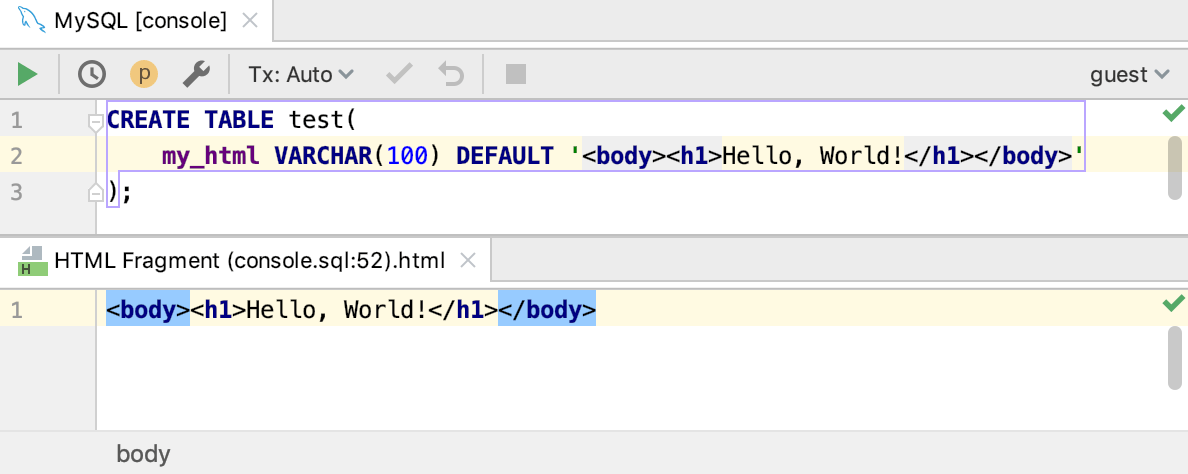
IntelliJ IDEA will open a dedicated editor section for editing the code with the injected language. This editor provides full coding assistance, including code completion, inspections, intentions and code style actions.
Cancel injections
Place the caret at the code fragment and press Alt+Enter (or use the intention action icon
).Select Uninject language or reference.
Configure injection rules
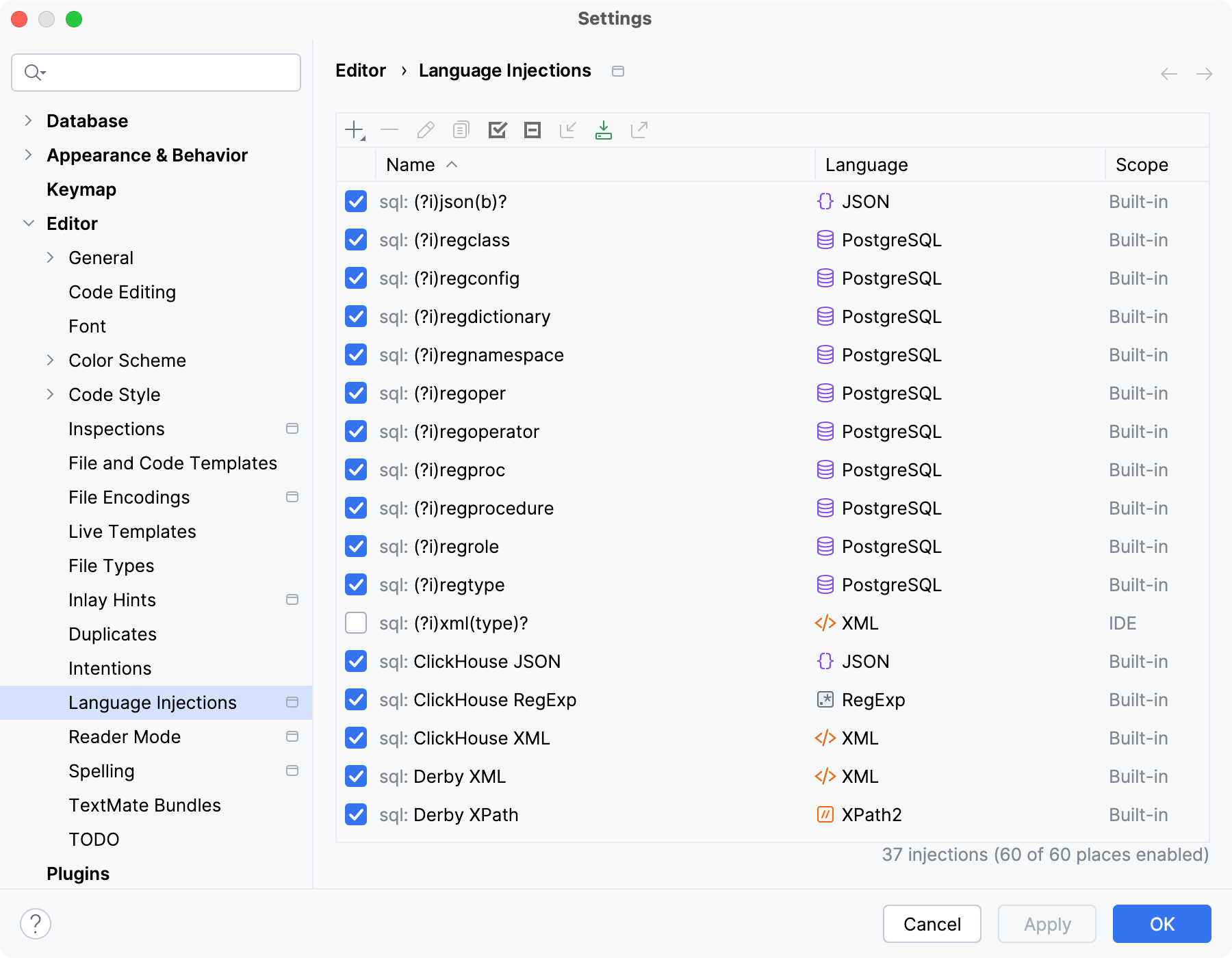
You can configure language injection rules on the Editor | Language Injections settings page Ctrl+Alt+S.
All pre-defined injection rules are configured for the Built-in scope. In other words, they are global (and therefore available in all IntelliJ IDEA projects). Custom rules can be configured for the IDE or for one project only. To change the scope of custom injections, use the Move to Project/IDE Scope icon  .
.
To configure custom injection rules, click the Add icon  to add a new rule, or copy a predefined rule and change its settings.