` and so on for headings.
* Use `![]() ` to add images, for example: `
` to add images, for example: ` `.
* Use `
`.
* Use `` to preserve whitespaces.
* For lists, use `
` (unordered), `` (ordered), `- ` for items in ordered and unordered lists.
Inline Javadoc tags:
* Use `{@code text}` to format inline text as code.
* Use `{@literal text}` to display special characters like < and >.
* Use `{@link ClassName}` to insert a hyperlink to another class or method.
Block Javadoc tags:
* Use `@param name description` to describe a method parameter.
* Use `@return description` to describe what a method returns.
* Use `@deprecated reason` to mark a method or class as deprecated.
* Use `@author name` to specify the author of a class or interface.
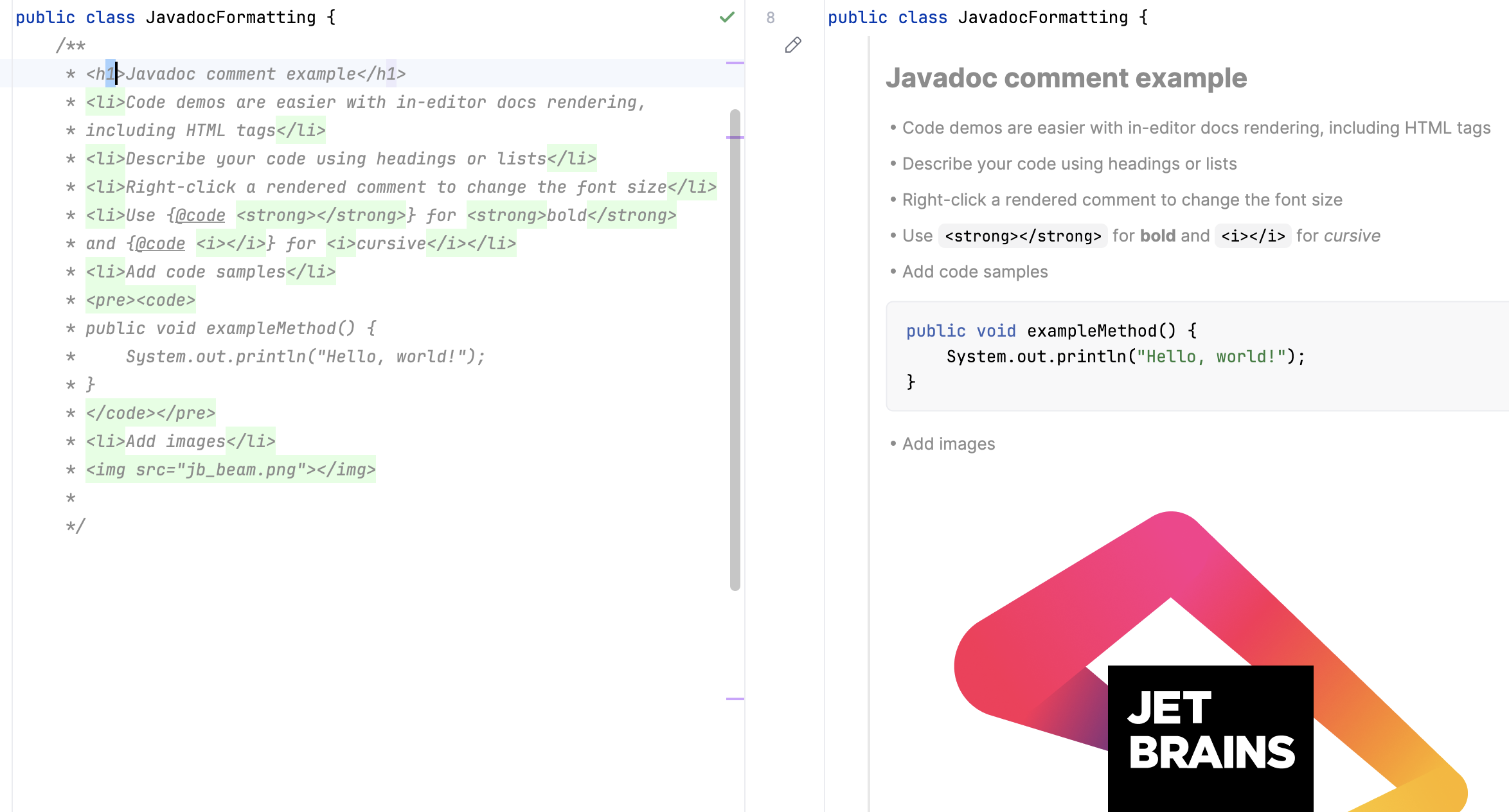
## Render Javadocs in the editor
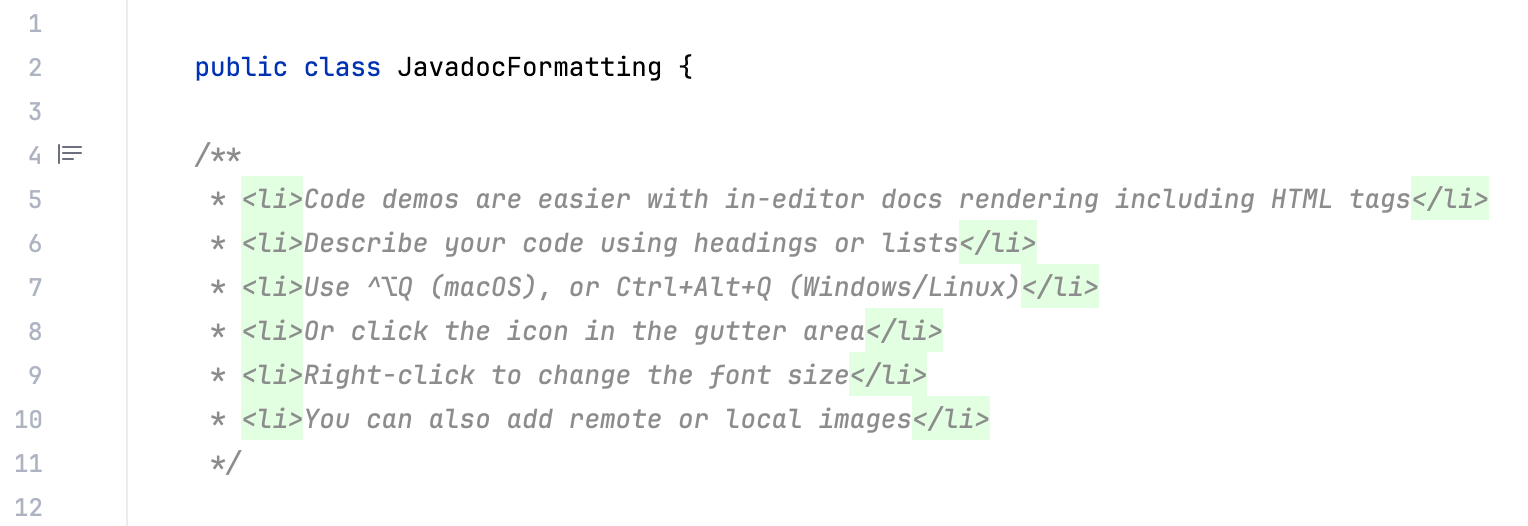
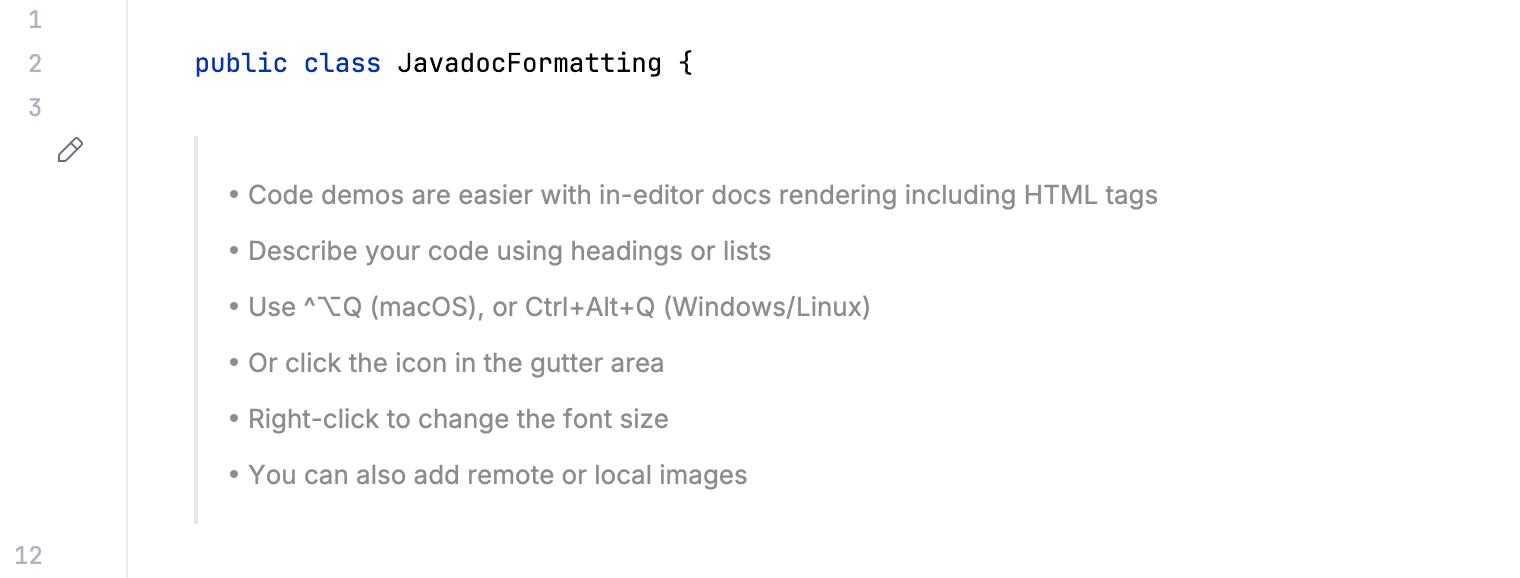
IntelliJ IDEA allows you to render Javadoc comments in the editor. Rendered comments are easier to read, they let you click links to go to referenced web pages, and they do not overload your code with extra tags.
To render a Javadoc comment, click  Toggle Rendered View in the gutter (or press `Ctrl+Alt+Q` (Windows), `⌃ ⌥ Q` (macOS), `⌃ ⌥ Q` (IntelliJ IDEA Classic (macOS)), `⌃ ⌥ Q` (macOS System Shortcuts), `Ctrl+Alt+Q` (XWin), `Ctrl+Alt+Q` (GNOME), `Ctrl+Alt+Q` (KDE), `Ctrl+Alt+Q` (Emacs), `Ctrl+Alt+Q` (Sublime Text), `⌃ ⌥ Q` (Sublime Text (macOS)), `Ctrl+Alt+Q` (NetBeans), `Ctrl+K, V` (Visual Studio), `⌘ K, V` (Visual Studio (macOS)), `Ctrl+Alt+Q` (Eclipse), `⌃ ⌥ Q` (Eclipse (macOS))). To edit the comment, click  Toggle Rendered View.
Regular view:
Rendered view:
Procedure: Render Javadoc comments by default
You can configure the IDE to always render Javadoc comments in the editor.
* In the gutter, right-click  Toggle Rendered View (or  Toggle Rendered View) and select Render All Doc Comments.
* Alternatively, open Settings (`Ctrl+Alt+S` (Windows), `⌘ Comma` (macOS), `⌘ Comma` (IntelliJ IDEA Classic (macOS)), `⌘ Comma` (macOS System Shortcuts), `Ctrl+Alt+S` (XWin), `Ctrl+Alt+S` (GNOME), `Ctrl+Alt+S` (KDE), `Ctrl+Alt+S` (Emacs), `Ctrl+Alt+S` (Sublime Text), `⌘ Comma` (Sublime Text (macOS)), `Ctrl+Alt+S` (NetBeans), `Ctrl+Alt+S` (Visual Studio), `⌘ Comma` (Visual Studio (macOS)), `Ctrl+Alt+S` (Eclipse), `⌘ Comma` (Eclipse (macOS))), go to `Editor | General | Appearance`, and select Render documentation comments.
To edit a rendered Javadoc comment, click  Toggle Rendered View in the gutter.
Procedure: Change the font size of rendered Javadoc comments
1. Right-click a rendered Javadoc comment and select Adjust Appearance.
2. In the popup that appears, adjust the Font size slider.
Note that rendered comments use the same font size as the [Quick
Documentation](viewing-reference-information.html#inline-quick-documentation) popup.
## Generate a Javadoc reference
IntelliJ IDEA provides a utility that lets you generate a Javadoc reference for your project.
Procedure:
1. In the main menu, go to `Tools | Generate Javadoc`.
2. In the dialog that opens, select a scope: a set of files or directories for which you want to generate the reference.
3. In the Output directory, specify the folder where the generated documentation will be placed.
> **Note:**
> The Output directory is a mandatory field: you cannot generate a Javadoc file if it is empty.
4. From the Visibility level list, select the visibility level of members that will be included in the generated documentation:
* Public: include only public classes and members. The level corresponds to the `-public` Javadoc parameter.
* Protected: include only public and protected classes and members. The level corresponds to the `-protected` Javadoc parameter.
* Package: include all classes and members except the private ones. The level corresponds to the `-package` Javadoc parameter.
* Private: include all classes and members. The level corresponds to the `-private` Javadoc parameter.
5. You can specify a locale (for example `en_US.UTF-8`), command line arguments, and the maximum heap size. For descriptions of all controls, refer to [the reference](#generate-javadoc-dialog-controls).
6. Click Generate to generate the reference.
### Reference: Generate JavaDoc dialog
The controls of the Generate JavaDoc dialog correspond to the options and tags of the [Javadoc utility](https://docs.oracle.com/en/java/javase/25/docs/specs/man/javadoc.html).
| Item | Description |
| --- | --- |
| JavaDoc Scope | Use this area to specify the subset of files, folders, and packages for which Javadoc should be generated. This [scope](configuring-scopes-and-file-colors.html) can be the whole project, recently modified files, current file, custom scope, and so on. |
| Include test sources | Include documentation comments for test to the generated Javadoc. |
| Include JDK and library sources in -sourcepath | If this checkbox is selected, then paths to the JDK and library sources will be passed to the Javadoc utility. For more information, refer to the [Javadoc documentation](https://docs.oracle.com/javase/8/docs/technotes/tools/windows/javadoc.html#CHDEHCDG). |
| Link to JDK documentation (use -link option) | If this checkbox is selected, the references to the classes and packages from JDK will turn into links, which corresponds to using the [-link](https://docs.oracle.com/javase/8/docs/technotes/tools/windows/javadoc.html#CHDEDJFI) option of the Javadoc utility. This checkbox is only enabled when a link to the online documentation is specified in the Documentation Paths tab of the SDK settings. For more information, refer to the [Javadoc](https://docs.oracle.com/javase/8/docs/technotes/tools/windows/javadoc.html) documentation. |
| Output directory | Specify the fully qualified path to the directory where the generated documentation will be stored. Type the path manually or click  Browse and select the location in the dialog. The specified value is passed to the `-d` parameter of the Javadoc utility. If the specified directory does not exist in your system, you will be prompted to create it. > **Note:** > Note that unless the output directory is specified, the OK button is disabled. |
| Visibility level | Specify the visibility level of members that you want to include in the generated documentation: * Public: include only public classes and members. The level corresponds to the `-public` Javadoc parameter. * Protected: include only public and protected classes and members. The level corresponds to the `-protected` Javadoc parameter. * Package: include all classes and members except the private ones. The level corresponds to the `-package` Javadoc parameter. * Private: include all classes and members. The level corresponds to the `-private` Javadoc parameter. |
| Generate hierarchy tree | Generate the class hierarchy. If this checkbox is cleared, the `-notree` parameter is passed to Javadoc. |
| Generate navigator bar | Generate the navigator bar. If this checkbox is cleared, the `-nonavbar` parameter is passed to Javadoc. |
| Generate index | Generate the documentation index. If this checkbox is cleared, the `-noindex` parameter is passed to Javadoc. |
| Separate index per letter | Generate a separate index file for each letter. If this checkbox is cleared, the `-splitindex` parameter is passed to Javadoc. The checkbox is available only if the Generate index checkbox is selected. |
| @use | Document the use of the class and the package. When selected, the checkbox corresponds to the `-use` Javadoc parameter. |
| @author | Include the `@author` paragraphs. When selected, the checkbox corresponds to the `-author` Javadoc parameter. |
| @version | Include the `@version` paragraphs. When selected, the checkbox corresponds to the `-version` Javadoc parameter. |
| @deprecated | Include the `@deprecated` information. When the checkbox is cleared, the `-nodeprecated` parameter is passed to Javadoc. |
| Deprecated list | Generate the deprecated list. When the checkbox is cleared, the `-nodeprecatedlist` parameter is passed to Javadoc. The checkbox is available only if the @deprecated checkbox is selected. |
| Locale | Type the required locale. |
| Command line arguments | Type additional arguments to be passed to a Javadoc. Use the command line syntax. |
| Maximum heap size | Type the maximum heap size in Mb to be used by Java VM for running Javadoc. |
| Open generated documentation in browser | Automatically open the generated Javadoc in a browser. |
## Use custom tags in Javadocs
In addition to the predefined tags, you can also use custom tags in your Javadoc comments. Later on, when you generate a Javadoc reference, you can choose to [include the custom tags in the generated documentation](#include-custom-tags-in-api).
Procedure: Recognize custom tags
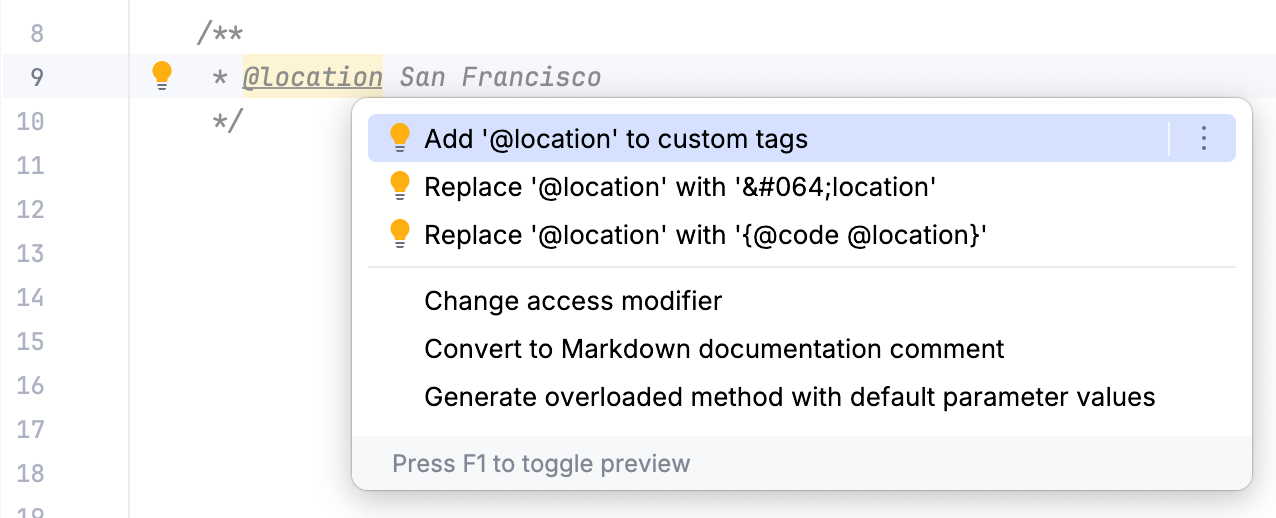
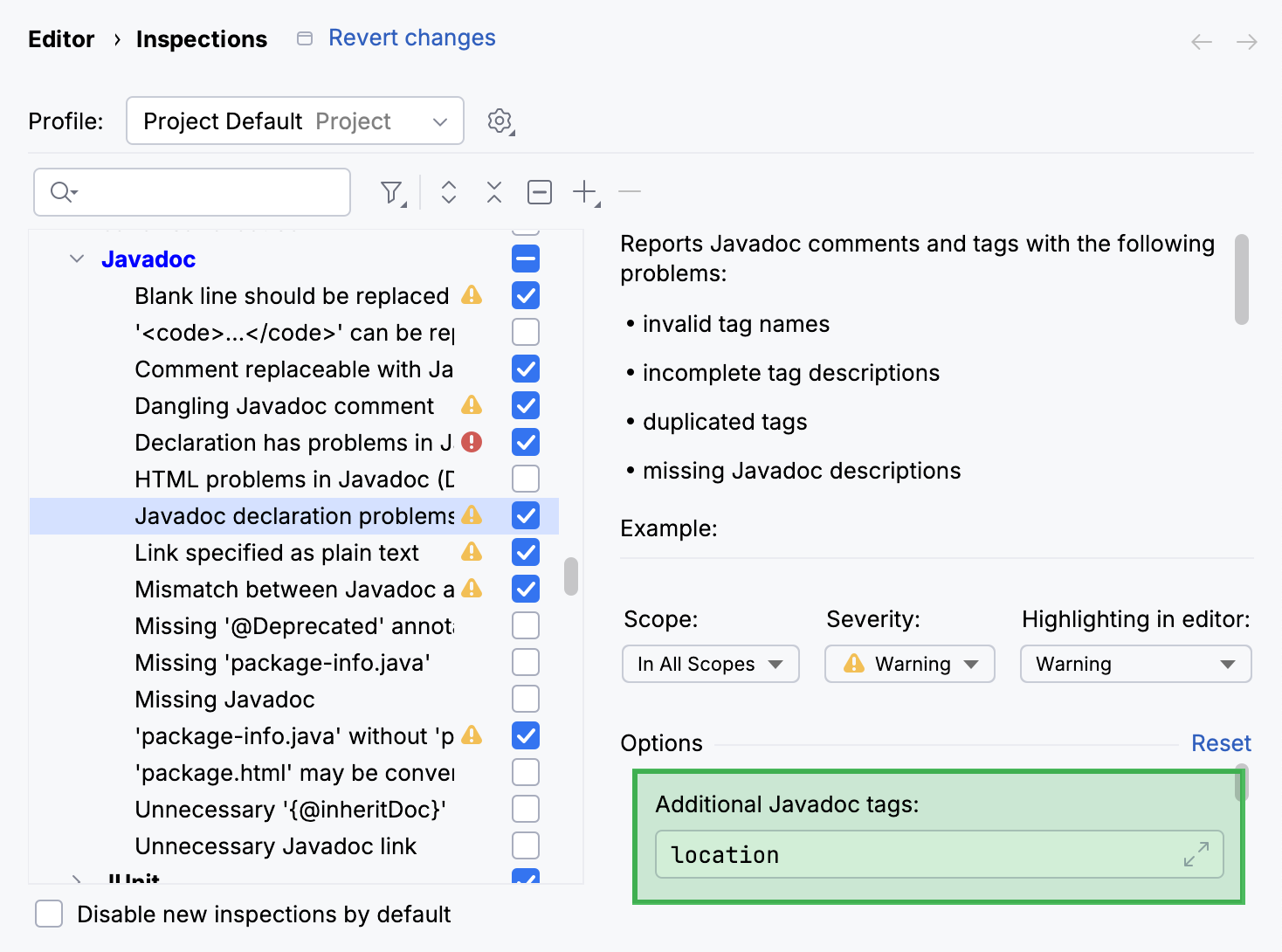
When you use a custom tag for the first time, the Javadoc declaration problems inspection highlights it in the editor as a wrong tag. To avoid that, add the tag to the list of recognized tags.
* Place the caret at your custom tag, press `Alt+Enter` (Windows), `⌥ ⏎` (macOS), `⌥ ⏎` (IntelliJ IDEA Classic (macOS)), `⌥ ⏎` (macOS System Shortcuts), `Alt+Enter` (XWin), `Alt+Enter` (GNOME), `Alt+Enter` (KDE), `Alt+Enter` (Emacs), `Alt+Enter` (Sublime Text), `⌥ ⏎` (Sublime Text (macOS)), `Alt+Enter` (NetBeans), `Alt+Enter` (Visual Studio), `⌥ ⏎` (Visual Studio (macOS)), `Ctrl+1` (Eclipse), `⌘ 1` (Eclipse (macOS)), and select Add '@tagname' to custom tags.
* Alternatively, open Settings (`Ctrl+Alt+S` (Windows), `⌘ Comma` (macOS), `⌘ Comma` (IntelliJ IDEA Classic (macOS)), `⌘ Comma` (macOS System Shortcuts), `Ctrl+Alt+S` (XWin), `Ctrl+Alt+S` (GNOME), `Ctrl+Alt+S` (KDE), `Ctrl+Alt+S` (Emacs), `Ctrl+Alt+S` (Sublime Text), `⌘ Comma` (Sublime Text (macOS)), `Ctrl+Alt+S` (NetBeans), `Ctrl+Alt+S` (Visual Studio), `⌘ Comma` (Visual Studio (macOS)), `Ctrl+Alt+S` (Eclipse), `⌘ Comma` (Eclipse (macOS))) and go to `Editor | Inspections`. Locate the Javadoc declaration problems inspection in the list and add your tag to the Additional Javadoc tags list.
Procedure: Include custom tags in a Javadoc reference
To include your custom tags in an HTML Javadoc reference, add them as command-line arguments.
1. Go to `Tools | Generate Javadoc` and in the Command line arguments field, specify `-tag tagname:Xaoptcmf:"taghead"`.
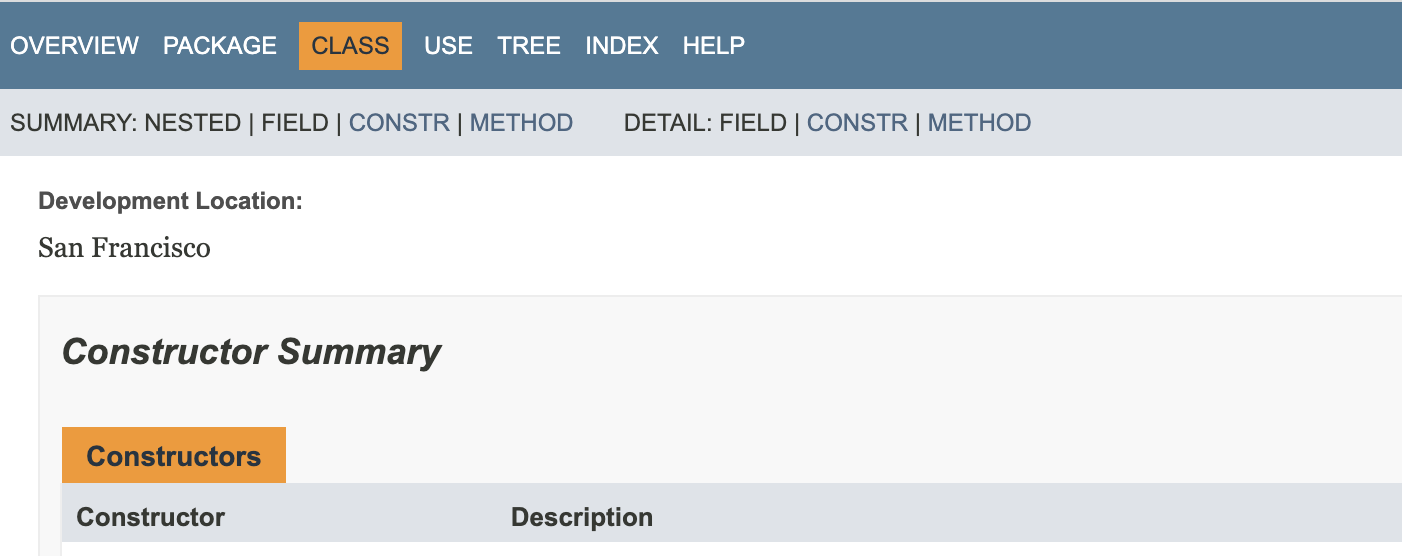
Example: `-tag location:a:"Development Location:"`
`Xaoptcmf` determines where in the source code the tag is allowed to be placed. You can use `a` to allow the tag in all places. Learn more about block tags in Javadocs from the [Javadoc documentation](https://docs.oracle.com/javase/8/docs/technotes/tools/windows/javadoc.html#tag).
2. Configure other options as described in [Generate a Javadoc reference](#generate-javadoc) and generate the reference guide.
The information from the tag is displayed on the corresponding pages.
## Customize the Javadoc code style
The Javadoc code style defines how IntelliJ IDEA formats Javadoc comments in the editor.
Procedure:
1. Open Settings (`Ctrl+Alt+S` (Windows), `⌘ Comma` (macOS), `⌘ Comma` (IntelliJ IDEA Classic (macOS)), `⌘ Comma` (macOS System Shortcuts), `Ctrl+Alt+S` (XWin), `Ctrl+Alt+S` (GNOME), `Ctrl+Alt+S` (KDE), `Ctrl+Alt+S` (Emacs), `Ctrl+Alt+S` (Sublime Text), `⌘ Comma` (Sublime Text (macOS)), `Ctrl+Alt+S` (NetBeans), `Ctrl+Alt+S` (Visual Studio), `⌘ Comma` (Visual Studio (macOS)), `Ctrl+Alt+S` (Eclipse), `⌘ Comma` (Eclipse (macOS))) and go to `Editor | Code Style | Java`.
2. Locate the JavaDoc tab.
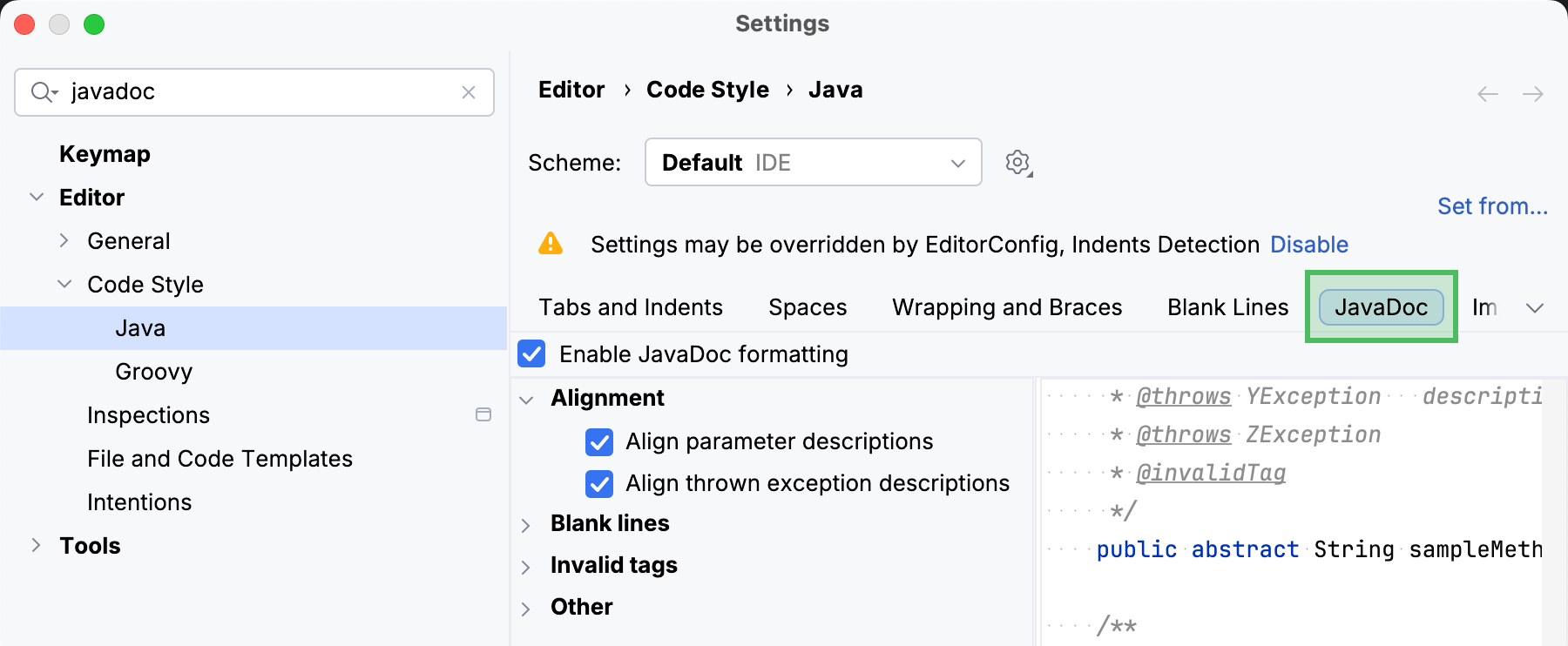
3. Configure the [code style settings](#javadoc-code-style-settings) as necessary. Use the right part of the dialog to preview the changes.
> **Tip:**
> After you edit the code style, you can [reformat your code](reformat-and-rearrange-code.html) to apply the changes to existing Javadoc comments.
### Reference: Javadoc code style settings
| Item | Description |
| --- | --- |
| Alignment | Define the way Javadoc comments should be aligned. * Align parameter descriptions: align parameter descriptions against the longest parameter name. Otherwise, the description is separated from the corresponding parameter name by a single space. * Align thrown exception descriptions: align thrown exception descriptions against the longest exception name. Otherwise, the description is separated from the exception name by a single space. |
| Blank lines | Define where blank lines should be inserted in Javadoc comments. * After description: automatically insert a blank line after the description section of a Javadoc comment. * After parameter descriptions: automatically insert a blank line after the group of `@param` tags. * After return tag:automatically insert a blank line after the `@return` tag. |
| Invalid tags | In this area, define whether invalid tags should be preserved or not. * Keep invalid tags: preserve the `@invalidTag`. * Keep empty @param tags: preserve the `@param` tags without the description. * Keep empty @return tags: preserve the `@return` tags without the description. * Keep empty @throws tags: preserve the `@throws` tags without the description. |
| Other | In this area, specify additional formatting options for Javadoc comments. * Enable leading asterisks: start each line of a Javadoc comment with an asterisk. * Use @throws rather than @exception: use the `@throws` tag. * Wrap at right margin: wrap the text that exceeds the right margin to the next line. * Generate "
" on empty lines: automatically insert the `
` tag on an empty line. * Keep empty lines: select this checkbox to have manually added empty lines preserved. * Do not wrap one line comments: keep short comments on one line with the opening and closing tags. * Preserve line feeds: if this checkbox is not selected (by default), line feeds are not preserved on reformatting. This is convenient when comments should be formatted within the boundaries of a paragraph, to occupy minimum space. If this checkbox is selected, line feeds will be preserved. * Parameter descriptions on new line: place the description of a Javadoc parameter (if any) to a new line. It uses the indent based on the continuation indent value. * Indent continuation lines: indent subsequent lines in multiline comments. |
## Use Javadocs with libraries
Apart from Javadoc comments in your code, IntelliJ IDEA can also render Javadocs for libraries used in your project. You can view external Javadocs for any symbol or method signature right from the editor as long as the Javadocs are [added to the
library](#add-library-javadocs) in the project settings.
Procedure: View library Javadocs in IntelliJ IDEA
Invoke the [Quick Documentation](viewing-reference-information.html#inline-quick-documentation) popup in one of the following ways:
* Hover over the necessary symbol in the editor.
* Place the caret at the symbol and press `Ctrl+Q` (Windows), `F1` (macOS), `⌃ J` (IntelliJ IDEA Classic (macOS)), `⌘ I` (macOS System Shortcuts), `Ctrl+Q` (XWin), `Ctrl+Q` (GNOME), `Ctrl+Q` (KDE), `Ctrl+Q` (Emacs), `Ctrl+Q` (Sublime Text), `Ctrl+Q` (Sublime Text (macOS)), `Ctrl+Q` (NetBeans), `Ctrl+K, I` (Visual Studio), `⌘ K, I` (Visual Studio (macOS)), `Alt+Middle-Click` (Eclipse), `⌥ Middle-Click` (Eclipse (macOS)) ( `View | Quick Documentation`).
* Place the caret at the end of the symbol, type `..`, and select Quick Documentation.
To open the documentation in a dedicated tool window, press `Ctrl+Q` (Windows), `F1` (macOS), `⌃ J` (IntelliJ IDEA Classic (macOS)), `⌘ I` (macOS System Shortcuts), `Ctrl+Q` (XWin), `Ctrl+Q` (GNOME), `Ctrl+Q` (KDE), `Ctrl+Q` (Emacs), `Ctrl+Q` (Sublime Text), `Ctrl+Q` (Sublime Text (macOS)), `Ctrl+Q` (NetBeans), `Ctrl+K, I` (Visual Studio), `⌘ K, I` (Visual Studio (macOS)), `Alt+Middle-Click` (Eclipse), `⌥ Middle-Click` (Eclipse (macOS)) one more time.
[Video](https://resources.jetbrains.com.cn/help/img/idea/2026.2/quick-doc-popup.mp4)
> **Tip:**
> You can configure the Quick Documentation feature so that it skips the popup and opens the tool window right away. For more information, refer to [Quick
> Documentation in the tool window](viewing-reference-information.html#quick-docs-tool-window).
If a library in your project is normally provided with Javadocs, but they are not available in IntelliJ IDEA, you can download the Javadocs (using built-in download options) or add them manually.
### Download library Javadocs
The quickest way to add Javadocs to a library is to download them. The location of the download option is different depending on the build tool that your project is using.
Maven:
Procedure:
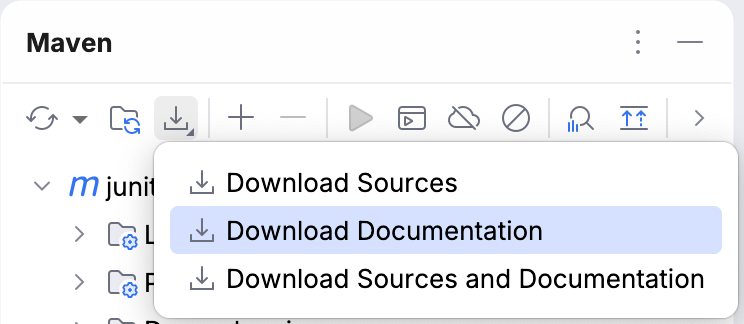
1. Open the Maven tool window.
2. Click  Download Sources and/or Documentation and select Download Documentation.
> **Tip:**
> You can configure Maven to automatically download library documentation by editing the [Importing settings](maven-importing.html).
Gradle:
Procedure:
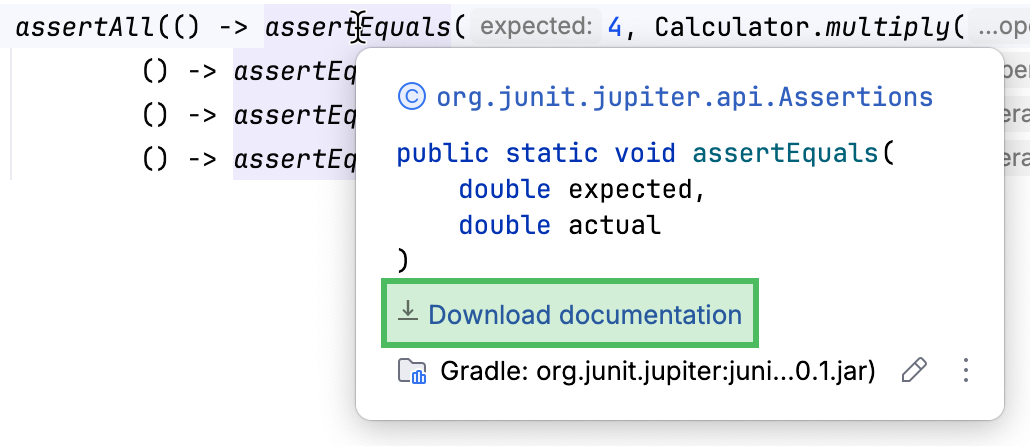
1. In the editor, hover over a symbol or a method signature from the library.
2. In the popup that appears, click  Download documentation.
IntelliJ build tool:
Procedure:
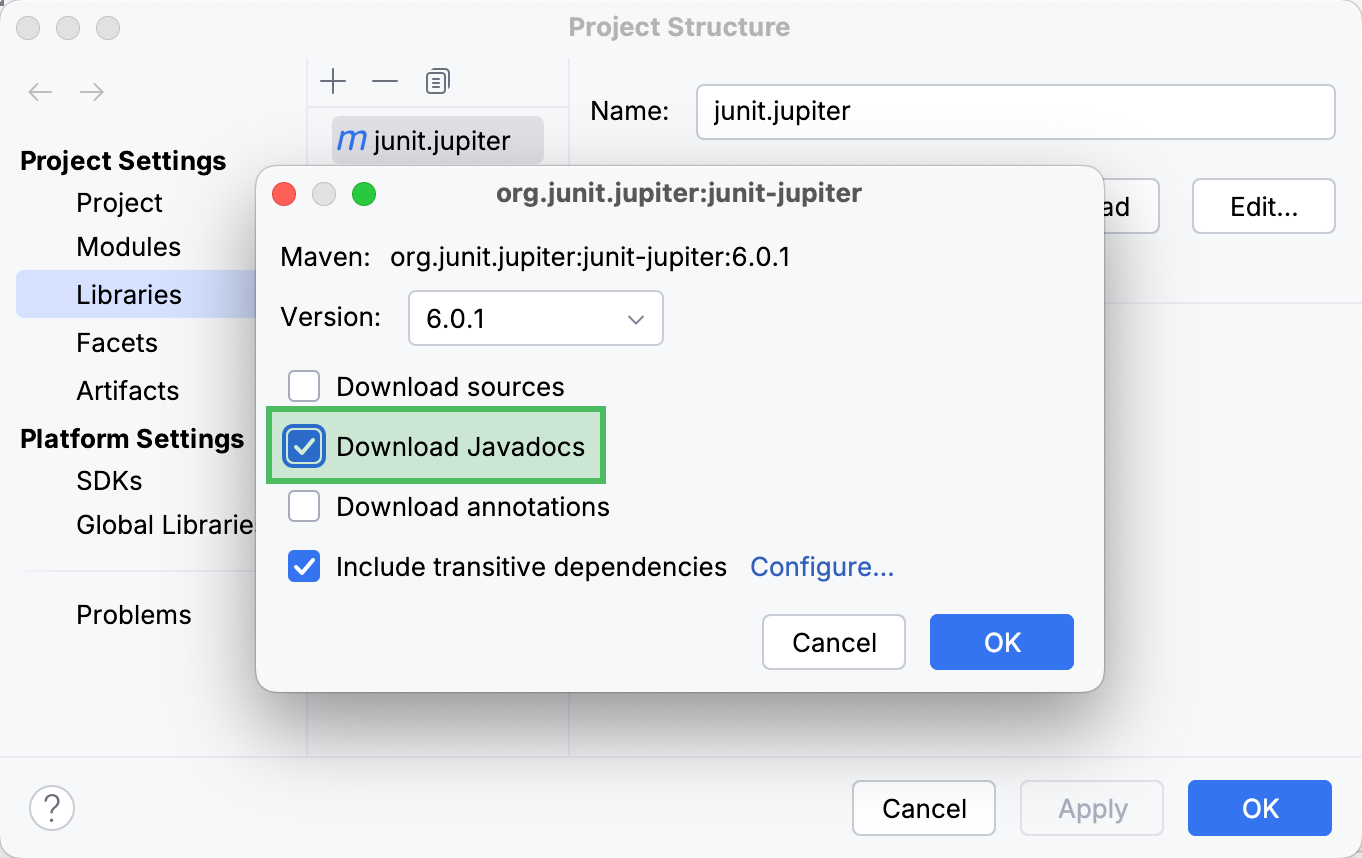
1. Open the Project Structure dialog (`Ctrl+Alt+Shift+S` (Windows), `⌘ ;` (macOS), `⌘ ;` (IntelliJ IDEA Classic (macOS)), `⌘ ⇧ Comma` (macOS System Shortcuts), `Ctrl+Alt+Shift+S` (XWin), `Ctrl+Alt+Shift+S` (GNOME), `Ctrl+Alt+Shift+S` (KDE), `Ctrl+Alt+Shift+S` (Emacs), `Ctrl+Alt+Shift+S` (Sublime Text), `⌘ ;` (Sublime Text (macOS)), `Ctrl+Alt+Shift+S` (NetBeans), `Ctrl+Alt+Shift+S` (Visual Studio), `⌘ ;` (Visual Studio (macOS)), `Ctrl+Alt+Shift+S` (Eclipse), `⌘ ;` (Eclipse (macOS))) and select Libraries.
2. Select the necessary library and click Edit in the right section of the dialog.
3. In the dialog that opens, select Download Javadocs and click OK.
4. Apply the changes and close the dialog.
### Manually add Javadocs to a library
You can add Javadocs to a library manually by providing an external URL or by adding a JAR file that includes Javadocs.
Procedure: Specify a Javadocs URL
1. Open the Project Structure dialog (`Ctrl+Alt+Shift+S` (Windows), `⌘ ;` (macOS), `⌘ ;` (IntelliJ IDEA Classic (macOS)), `⌘ ⇧ Comma` (macOS System Shortcuts), `Ctrl+Alt+Shift+S` (XWin), `Ctrl+Alt+Shift+S` (GNOME), `Ctrl+Alt+Shift+S` (KDE), `Ctrl+Alt+Shift+S` (Emacs), `Ctrl+Alt+Shift+S` (Sublime Text), `⌘ ;` (Sublime Text (macOS)), `Ctrl+Alt+Shift+S` (NetBeans), `Ctrl+Alt+Shift+S` (Visual Studio), `⌘ ;` (Visual Studio (macOS)), `Ctrl+Alt+Shift+S` (Eclipse), `⌘ ;` (Eclipse (macOS))) and go to Libraries.
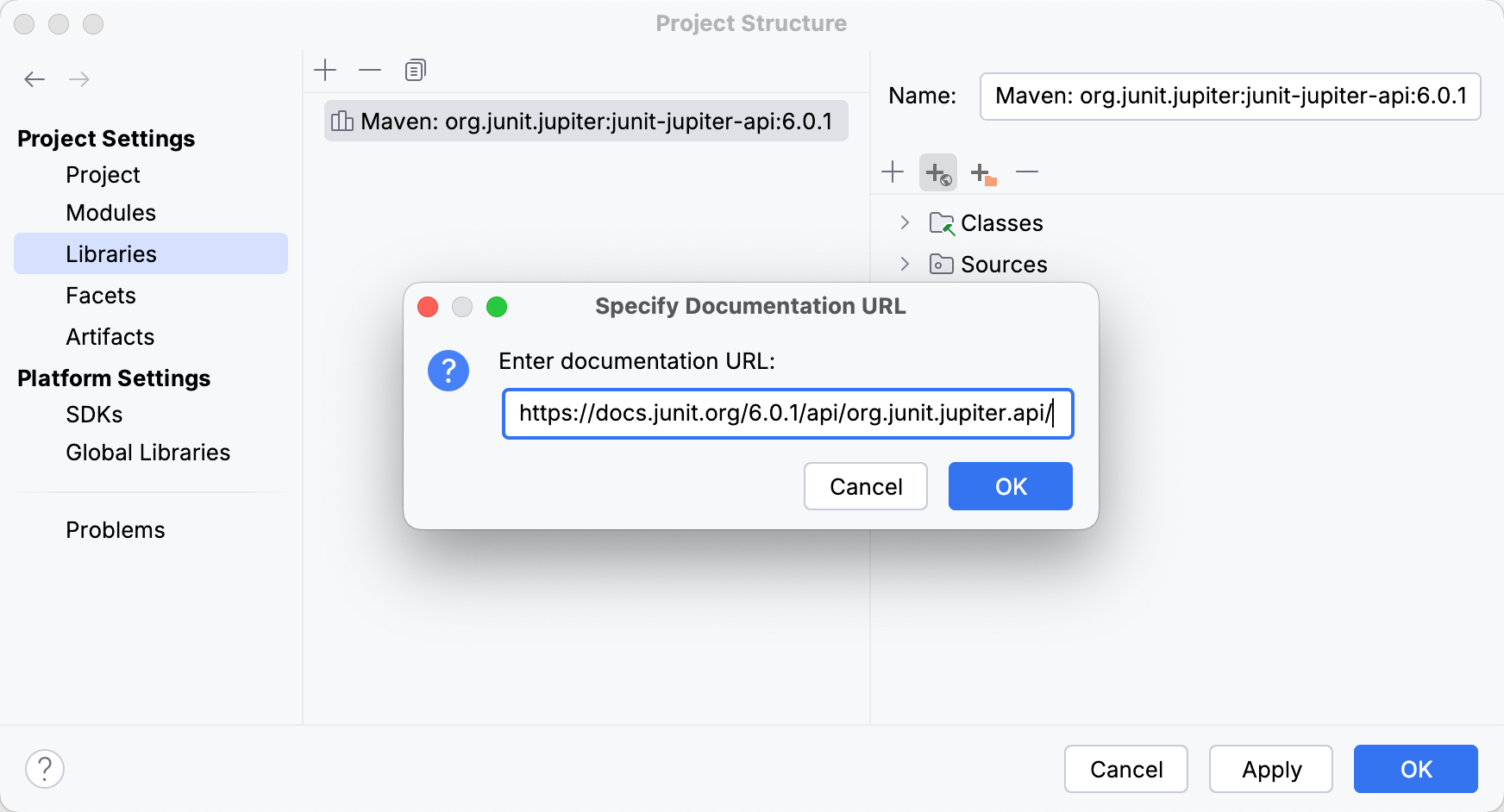
2. Select a library from the list and click  Specify Documentation URL in the right section of the dialog.
3. In the dialog that opens, enter the documentation URL and click OK.
4. Apply the changes and close the dialog.
Procedure: Add a JAR file with Javadocs
1. Open the Project Structure dialog (`Ctrl+Alt+Shift+S` (Windows), `⌘ ;` (macOS), `⌘ ;` (IntelliJ IDEA Classic (macOS)), `⌘ ⇧ Comma` (macOS System Shortcuts), `Ctrl+Alt+Shift+S` (XWin), `Ctrl+Alt+Shift+S` (GNOME), `Ctrl+Alt+Shift+S` (KDE), `Ctrl+Alt+Shift+S` (Emacs), `Ctrl+Alt+Shift+S` (Sublime Text), `⌘ ;` (Sublime Text (macOS)), `Ctrl+Alt+Shift+S` (NetBeans), `Ctrl+Alt+Shift+S` (Visual Studio), `⌘ ;` (Visual Studio (macOS)), `Ctrl+Alt+Shift+S` (Eclipse), `⌘ ;` (Eclipse (macOS))) and go to Libraries.
2. Select a library from the list and click  Add in the right section of the dialog.
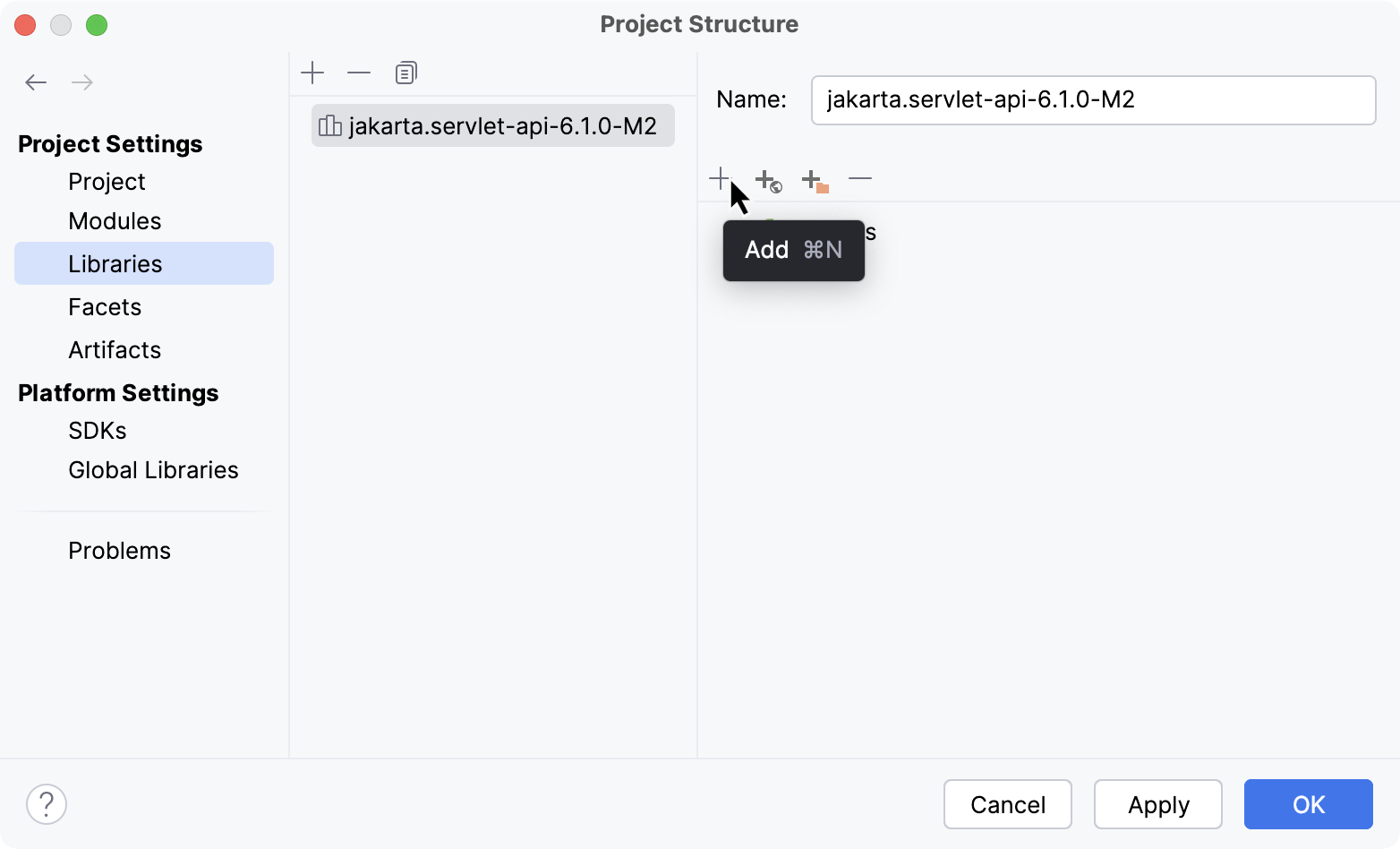
3. In the dialog that opens, select the JAR file that includes the documentation and click Open.
4. Apply the changes and close the dialog.
## Troubleshoot Javadoc issues
### Javadoc inspection problems
If a method signature has been changed, IntelliJ IDEA highlights the tag that does not match the method signature and suggests a quick-fix.
Procedure: Fix using context actions
* Place the caret at the tag, press `Alt+Enter` (Windows), `⌥ ⏎` (macOS), `⌥ ⏎` (IntelliJ IDEA Classic (macOS)), `⌥ ⏎` (macOS System Shortcuts), `Alt+Enter` (XWin), `Alt+Enter` (GNOME), `Alt+Enter` (KDE), `Alt+Enter` (Emacs), `Alt+Enter` (Sublime Text), `⌥ ⏎` (Sublime Text (macOS)), `Alt+Enter` (NetBeans), `Alt+Enter` (Visual Studio), `⌥ ⏎` (Visual Studio (macOS)), `Ctrl+1` (Eclipse), `⌘ 1` (Eclipse (macOS)), and select an action. You can change the tag or delete it.

Procedure: Fix using the Fix doc comment action
1. Place the caret at the tag and press `Ctrl+Shift+A` (Windows), `⌘ ⇧ A` (macOS), `⌘ ⇧ A` (IntelliJ IDEA Classic (macOS)), `⌘ ⇧ P` (macOS System Shortcuts), `Ctrl+Shift+A` (XWin), `Ctrl+Shift+A` (GNOME), `Ctrl+Shift+A` (KDE), `Escape, X` (Emacs), `Ctrl+Shift+P` (Sublime Text), `⌘ ⇧ P` (Sublime Text (macOS)), `Ctrl+I` (NetBeans), `Ctrl+Shift+A` (Visual Studio), `⌘ ⇧ A` (Visual Studio (macOS)), `Ctrl+Shift+A` (Eclipse), `⌘ 3` (Eclipse (macOS)).
2. Type `fix doc comment` and press `Enter` (Windows), `⏎` (macOS), `⏎` (IntelliJ IDEA Classic (macOS)), `⏎` (macOS System Shortcuts), `Enter` (XWin), `Enter` (GNOME), `Enter` (KDE), `Enter` (Emacs), `Enter` (Sublime Text), `⏎` (Sublime Text (macOS)), `Enter` (NetBeans), `Enter` (Visual Studio), `⏎` (Visual Studio (macOS)), `Enter` (Eclipse), `⏎` (Eclipse (macOS)).
> **Tip:**
> You can also use the Fix Doc Comment action to add a missing documentation stub with its corresponding tags: place the caret within the declaration of a class, method, or function, and invoke the action.
### Javadoc generation errors
If IntelliJ IDEA encounters any errors while [generating a Javadoc
reference](#generate-javadoc), it displays the error details in the Run tool window (`Alt+4` (Windows), `⌘ 4` (macOS), `⌘ 4` (IntelliJ IDEA Classic (macOS)), `⌘ 4` (macOS System Shortcuts), `Alt+4` (XWin), `Alt+4` (GNOME), `Alt+4` (KDE), `Alt+4` (Emacs), `Alt+4` (Sublime Text), `⌘ 4` (Sublime Text (macOS)), `Alt+4` (NetBeans), `Alt+4` (Visual Studio), `⌘ 4` (Visual Studio (macOS)), `Alt+4` (Eclipse), `⌘ 4` (Eclipse (macOS))).
Procedure: Fix malformed locale name caused by UTF-8 encoding
If you encounter `javadoc: error – Malformed locale name: en_US.UTF-8`, try moving the UTF-8 encoding to the command line arguments:
1. In the main menu, go to `Tools | Generate Javadoc`.
2. Clear the Locale field.
3. In the Command line arguments field, type `-encoding utf8 -docencoding utf8 -charset utf8`.
* `-encoding`: encoding used in your source files.
* `-docencoding`: encoding that should be used in the output HTML files.
* `-charset`: charset that Javadoc should insert into the HTML head section of every output file.
4. Generate the Javadoc reference again.
## See also
### Procedures
[JSDoc comments](creating-jsdoc-comments.html) [PHPDoc comments](https://www.jetbrains.com.cn/en-us/help/phpstorm/phpdoc-comments.html) [Documenting Source Code in RubyMine](https://www.jetbrains.com.cn/en-us/help/ruby/documenting-source-code.html)
### JetBrains Blog Posts
[Markdown in Java Docs? Shut Up and Take My Comments!](https://blog.jetbrains.com/idea/2025/04/markdown-in-java-docs-shut-up-and-take-my-comments/)
### External Links
[JavaDoc Documentation Comment Specification for the Standard Doclet](https://docs.oracle.com/en/java/javase/25/docs/specs/javadoc/doc-comment-spec.html) [How to Write Doc Comments for the Javadoc Tool](https://www.oracle.com/technical-resources/articles/java/javadoc-tool.html)
- ` (ordered), `
- ` for items in ordered and unordered lists.
Inline Javadoc tags:
* Use `{@code text}` to format inline text as code.
* Use `{@literal text}` to display special characters like < and >.
* Use `{@link ClassName}` to insert a hyperlink to another class or method.
Block Javadoc tags:
* Use `@param name description` to describe a method parameter.
* Use `@return description` to describe what a method returns.
* Use `@deprecated reason` to mark a method or class as deprecated.
* Use `@author name` to specify the author of a class or interface.

## Render Javadocs in the editor
IntelliJ IDEA allows you to render Javadoc comments in the editor. Rendered comments are easier to read, they let you click links to go to referenced web pages, and they do not overload your code with extra tags.
To render a Javadoc comment, click  Toggle Rendered View in the gutter (or press `Ctrl+Alt+Q` (Windows), `⌃ ⌥ Q` (macOS), `⌃ ⌥ Q` (IntelliJ IDEA Classic (macOS)), `⌃ ⌥ Q` (macOS System Shortcuts), `Ctrl+Alt+Q` (XWin), `Ctrl+Alt+Q` (GNOME), `Ctrl+Alt+Q` (KDE), `Ctrl+Alt+Q` (Emacs), `Ctrl+Alt+Q` (Sublime Text), `⌃ ⌥ Q` (Sublime Text (macOS)), `Ctrl+Alt+Q` (NetBeans), `Ctrl+K, V` (Visual Studio), `⌘ K, V` (Visual Studio (macOS)), `Ctrl+Alt+Q` (Eclipse), `⌃ ⌥ Q` (Eclipse (macOS))). To edit the comment, click  Toggle Rendered View.
Regular view:

Rendered view:

Procedure: Render Javadoc comments by default
You can configure the IDE to always render Javadoc comments in the editor.
* In the gutter, right-click  Toggle Rendered View (or  Toggle Rendered View) and select Render All Doc Comments.
* Alternatively, open Settings (`Ctrl+Alt+S` (Windows), `⌘ Comma` (macOS), `⌘ Comma` (IntelliJ IDEA Classic (macOS)), `⌘ Comma` (macOS System Shortcuts), `Ctrl+Alt+S` (XWin), `Ctrl+Alt+S` (GNOME), `Ctrl+Alt+S` (KDE), `Ctrl+Alt+S` (Emacs), `Ctrl+Alt+S` (Sublime Text), `⌘ Comma` (Sublime Text (macOS)), `Ctrl+Alt+S` (NetBeans), `Ctrl+Alt+S` (Visual Studio), `⌘ Comma` (Visual Studio (macOS)), `Ctrl+Alt+S` (Eclipse), `⌘ Comma` (Eclipse (macOS))), go to `Editor | General | Appearance`, and select Render documentation comments.
To edit a rendered Javadoc comment, click  Toggle Rendered View in the gutter.
Procedure: Change the font size of rendered Javadoc comments
1. Right-click a rendered Javadoc comment and select Adjust Appearance.
2. In the popup that appears, adjust the Font size slider.
Note that rendered comments use the same font size as the [Quick
Documentation](viewing-reference-information.html#inline-quick-documentation) popup.
## Generate a Javadoc reference
IntelliJ IDEA provides a utility that lets you generate a Javadoc reference for your project.
Procedure:
1. In the main menu, go to `Tools | Generate Javadoc`.
2. In the dialog that opens, select a scope: a set of files or directories for which you want to generate the reference.
3. In the Output directory, specify the folder where the generated documentation will be placed.
> **Note:**
> The Output directory is a mandatory field: you cannot generate a Javadoc file if it is empty.
4. From the Visibility level list, select the visibility level of members that will be included in the generated documentation:
* Public: include only public classes and members. The level corresponds to the `-public` Javadoc parameter.
* Protected: include only public and protected classes and members. The level corresponds to the `-protected` Javadoc parameter.
* Package: include all classes and members except the private ones. The level corresponds to the `-package` Javadoc parameter.
* Private: include all classes and members. The level corresponds to the `-private` Javadoc parameter.
5. You can specify a locale (for example `en_US.UTF-8`), command line arguments, and the maximum heap size. For descriptions of all controls, refer to [the reference](#generate-javadoc-dialog-controls).
6. Click Generate to generate the reference.
### Reference: Generate JavaDoc dialog
The controls of the Generate JavaDoc dialog correspond to the options and tags of the [Javadoc utility](https://docs.oracle.com/en/java/javase/25/docs/specs/man/javadoc.html).
| Item | Description |
| --- | --- |
| JavaDoc Scope | Use this area to specify the subset of files, folders, and packages for which Javadoc should be generated. This [scope](configuring-scopes-and-file-colors.html) can be the whole project, recently modified files, current file, custom scope, and so on. |
| Include test sources | Include documentation comments for test to the generated Javadoc. |
| Include JDK and library sources in -sourcepath | If this checkbox is selected, then paths to the JDK and library sources will be passed to the Javadoc utility. For more information, refer to the [Javadoc documentation](https://docs.oracle.com/javase/8/docs/technotes/tools/windows/javadoc.html#CHDEHCDG). |
| Link to JDK documentation (use -link option) | If this checkbox is selected, the references to the classes and packages from JDK will turn into links, which corresponds to using the [-link](https://docs.oracle.com/javase/8/docs/technotes/tools/windows/javadoc.html#CHDEDJFI) option of the Javadoc utility. This checkbox is only enabled when a link to the online documentation is specified in the Documentation Paths tab of the SDK settings. For more information, refer to the [Javadoc](https://docs.oracle.com/javase/8/docs/technotes/tools/windows/javadoc.html) documentation. |
| Output directory | Specify the fully qualified path to the directory where the generated documentation will be stored. Type the path manually or click  Browse and select the location in the dialog. The specified value is passed to the `-d` parameter of the Javadoc utility. If the specified directory does not exist in your system, you will be prompted to create it. > **Note:** > Note that unless the output directory is specified, the OK button is disabled. |
| Visibility level | Specify the visibility level of members that you want to include in the generated documentation: * Public: include only public classes and members. The level corresponds to the `-public` Javadoc parameter. * Protected: include only public and protected classes and members. The level corresponds to the `-protected` Javadoc parameter. * Package: include all classes and members except the private ones. The level corresponds to the `-package` Javadoc parameter. * Private: include all classes and members. The level corresponds to the `-private` Javadoc parameter. |
| Generate hierarchy tree | Generate the class hierarchy. If this checkbox is cleared, the `-notree` parameter is passed to Javadoc. |
| Generate navigator bar | Generate the navigator bar. If this checkbox is cleared, the `-nonavbar` parameter is passed to Javadoc. |
| Generate index | Generate the documentation index. If this checkbox is cleared, the `-noindex` parameter is passed to Javadoc. |
| Separate index per letter | Generate a separate index file for each letter. If this checkbox is cleared, the `-splitindex` parameter is passed to Javadoc. The checkbox is available only if the Generate index checkbox is selected. |
| @use | Document the use of the class and the package. When selected, the checkbox corresponds to the `-use` Javadoc parameter. |
| @author | Include the `@author` paragraphs. When selected, the checkbox corresponds to the `-author` Javadoc parameter. |
| @version | Include the `@version` paragraphs. When selected, the checkbox corresponds to the `-version` Javadoc parameter. |
| @deprecated | Include the `@deprecated` information. When the checkbox is cleared, the `-nodeprecated` parameter is passed to Javadoc. |
| Deprecated list | Generate the deprecated list. When the checkbox is cleared, the `-nodeprecatedlist` parameter is passed to Javadoc. The checkbox is available only if the @deprecated checkbox is selected. |
| Locale | Type the required locale. |
| Command line arguments | Type additional arguments to be passed to a Javadoc. Use the command line syntax. |
| Maximum heap size | Type the maximum heap size in Mb to be used by Java VM for running Javadoc. |
| Open generated documentation in browser | Automatically open the generated Javadoc in a browser. |
## Use custom tags in Javadocs
In addition to the predefined tags, you can also use custom tags in your Javadoc comments. Later on, when you generate a Javadoc reference, you can choose to [include the custom tags in the generated documentation](#include-custom-tags-in-api).
Procedure: Recognize custom tags
When you use a custom tag for the first time, the Javadoc declaration problems inspection highlights it in the editor as a wrong tag. To avoid that, add the tag to the list of recognized tags.
* Place the caret at your custom tag, press `Alt+Enter` (Windows), `⌥ ⏎` (macOS), `⌥ ⏎` (IntelliJ IDEA Classic (macOS)), `⌥ ⏎` (macOS System Shortcuts), `Alt+Enter` (XWin), `Alt+Enter` (GNOME), `Alt+Enter` (KDE), `Alt+Enter` (Emacs), `Alt+Enter` (Sublime Text), `⌥ ⏎` (Sublime Text (macOS)), `Alt+Enter` (NetBeans), `Alt+Enter` (Visual Studio), `⌥ ⏎` (Visual Studio (macOS)), `Ctrl+1` (Eclipse), `⌘ 1` (Eclipse (macOS)), and select Add '@tagname' to custom tags.

* Alternatively, open Settings (`Ctrl+Alt+S` (Windows), `⌘ Comma` (macOS), `⌘ Comma` (IntelliJ IDEA Classic (macOS)), `⌘ Comma` (macOS System Shortcuts), `Ctrl+Alt+S` (XWin), `Ctrl+Alt+S` (GNOME), `Ctrl+Alt+S` (KDE), `Ctrl+Alt+S` (Emacs), `Ctrl+Alt+S` (Sublime Text), `⌘ Comma` (Sublime Text (macOS)), `Ctrl+Alt+S` (NetBeans), `Ctrl+Alt+S` (Visual Studio), `⌘ Comma` (Visual Studio (macOS)), `Ctrl+Alt+S` (Eclipse), `⌘ Comma` (Eclipse (macOS))) and go to `Editor | Inspections`. Locate the Javadoc declaration problems inspection in the list and add your tag to the Additional Javadoc tags list.

Procedure: Include custom tags in a Javadoc reference
To include your custom tags in an HTML Javadoc reference, add them as command-line arguments.
1. Go to `Tools | Generate Javadoc` and in the Command line arguments field, specify `-tag tagname:Xaoptcmf:"taghead"`.
Example: `-tag location:a:"Development Location:"`
`Xaoptcmf` determines where in the source code the tag is allowed to be placed. You can use `a` to allow the tag in all places. Learn more about block tags in Javadocs from the [Javadoc documentation](https://docs.oracle.com/javase/8/docs/technotes/tools/windows/javadoc.html#tag).
2. Configure other options as described in [Generate a Javadoc reference](#generate-javadoc) and generate the reference guide.
The information from the tag is displayed on the corresponding pages.

## Customize the Javadoc code style
The Javadoc code style defines how IntelliJ IDEA formats Javadoc comments in the editor.
Procedure:
1. Open Settings (`Ctrl+Alt+S` (Windows), `⌘ Comma` (macOS), `⌘ Comma` (IntelliJ IDEA Classic (macOS)), `⌘ Comma` (macOS System Shortcuts), `Ctrl+Alt+S` (XWin), `Ctrl+Alt+S` (GNOME), `Ctrl+Alt+S` (KDE), `Ctrl+Alt+S` (Emacs), `Ctrl+Alt+S` (Sublime Text), `⌘ Comma` (Sublime Text (macOS)), `Ctrl+Alt+S` (NetBeans), `Ctrl+Alt+S` (Visual Studio), `⌘ Comma` (Visual Studio (macOS)), `Ctrl+Alt+S` (Eclipse), `⌘ Comma` (Eclipse (macOS))) and go to `Editor | Code Style | Java`.
2. Locate the JavaDoc tab.

3. Configure the [code style settings](#javadoc-code-style-settings) as necessary. Use the right part of the dialog to preview the changes.
> **Tip:**
> After you edit the code style, you can [reformat your code](reformat-and-rearrange-code.html) to apply the changes to existing Javadoc comments.
### Reference: Javadoc code style settings
| Item | Description |
| --- | --- |
| Alignment | Define the way Javadoc comments should be aligned. * Align parameter descriptions: align parameter descriptions against the longest parameter name. Otherwise, the description is separated from the corresponding parameter name by a single space. * Align thrown exception descriptions: align thrown exception descriptions against the longest exception name. Otherwise, the description is separated from the exception name by a single space. |
| Blank lines | Define where blank lines should be inserted in Javadoc comments. * After description: automatically insert a blank line after the description section of a Javadoc comment. * After parameter descriptions: automatically insert a blank line after the group of `@param` tags. * After return tag:automatically insert a blank line after the `@return` tag. |
| Invalid tags | In this area, define whether invalid tags should be preserved or not. * Keep invalid tags: preserve the `@invalidTag`. * Keep empty @param tags: preserve the `@param` tags without the description. * Keep empty @return tags: preserve the `@return` tags without the description. * Keep empty @throws tags: preserve the `@throws` tags without the description. |
| Other | In this area, specify additional formatting options for Javadoc comments. * Enable leading asterisks: start each line of a Javadoc comment with an asterisk. * Use @throws rather than @exception: use the `@throws` tag. * Wrap at right margin: wrap the text that exceeds the right margin to the next line. * Generate "
" on empty lines: automatically insert the `
` tag on an empty line. * Keep empty lines: select this checkbox to have manually added empty lines preserved. * Do not wrap one line comments: keep short comments on one line with the opening and closing tags. * Preserve line feeds: if this checkbox is not selected (by default), line feeds are not preserved on reformatting. This is convenient when comments should be formatted within the boundaries of a paragraph, to occupy minimum space. If this checkbox is selected, line feeds will be preserved. * Parameter descriptions on new line: place the description of a Javadoc parameter (if any) to a new line. It uses the indent based on the continuation indent value. * Indent continuation lines: indent subsequent lines in multiline comments. | ## Use Javadocs with libraries Apart from Javadoc comments in your code, IntelliJ IDEA can also render Javadocs for libraries used in your project. You can view external Javadocs for any symbol or method signature right from the editor as long as the Javadocs are [added to the library](#add-library-javadocs) in the project settings. Procedure: View library Javadocs in IntelliJ IDEA Invoke the [Quick Documentation](viewing-reference-information.html#inline-quick-documentation) popup in one of the following ways: * Hover over the necessary symbol in the editor. * Place the caret at the symbol and press `Ctrl+Q` (Windows), `F1` (macOS), `⌃ J` (IntelliJ IDEA Classic (macOS)), `⌘ I` (macOS System Shortcuts), `Ctrl+Q` (XWin), `Ctrl+Q` (GNOME), `Ctrl+Q` (KDE), `Ctrl+Q` (Emacs), `Ctrl+Q` (Sublime Text), `Ctrl+Q` (Sublime Text (macOS)), `Ctrl+Q` (NetBeans), `Ctrl+K, I` (Visual Studio), `⌘ K, I` (Visual Studio (macOS)), `Alt+Middle-Click` (Eclipse), `⌥ Middle-Click` (Eclipse (macOS)) ( `View | Quick Documentation`). * Place the caret at the end of the symbol, type `..`, and select Quick Documentation. To open the documentation in a dedicated tool window, press `Ctrl+Q` (Windows), `F1` (macOS), `⌃ J` (IntelliJ IDEA Classic (macOS)), `⌘ I` (macOS System Shortcuts), `Ctrl+Q` (XWin), `Ctrl+Q` (GNOME), `Ctrl+Q` (KDE), `Ctrl+Q` (Emacs), `Ctrl+Q` (Sublime Text), `Ctrl+Q` (Sublime Text (macOS)), `Ctrl+Q` (NetBeans), `Ctrl+K, I` (Visual Studio), `⌘ K, I` (Visual Studio (macOS)), `Alt+Middle-Click` (Eclipse), `⌥ Middle-Click` (Eclipse (macOS)) one more time. [Video](https://resources.jetbrains.com.cn/help/img/idea/2026.2/quick-doc-popup.mp4) > **Tip:** > You can configure the Quick Documentation feature so that it skips the popup and opens the tool window right away. For more information, refer to [Quick > Documentation in the tool window](viewing-reference-information.html#quick-docs-tool-window). If a library in your project is normally provided with Javadocs, but they are not available in IntelliJ IDEA, you can download the Javadocs (using built-in download options) or add them manually. ### Download library Javadocs The quickest way to add Javadocs to a library is to download them. The location of the download option is different depending on the build tool that your project is using. Maven: Procedure: 1. Open the Maven tool window. 2. Click  Download Sources and/or Documentation and select Download Documentation.  > **Tip:** > You can configure Maven to automatically download library documentation by editing the [Importing settings](maven-importing.html). Gradle: Procedure: 1. In the editor, hover over a symbol or a method signature from the library. 2. In the popup that appears, click  Download documentation.  IntelliJ build tool: Procedure: 1. Open the Project Structure dialog (`Ctrl+Alt+Shift+S` (Windows), `⌘ ;` (macOS), `⌘ ;` (IntelliJ IDEA Classic (macOS)), `⌘ ⇧ Comma` (macOS System Shortcuts), `Ctrl+Alt+Shift+S` (XWin), `Ctrl+Alt+Shift+S` (GNOME), `Ctrl+Alt+Shift+S` (KDE), `Ctrl+Alt+Shift+S` (Emacs), `Ctrl+Alt+Shift+S` (Sublime Text), `⌘ ;` (Sublime Text (macOS)), `Ctrl+Alt+Shift+S` (NetBeans), `Ctrl+Alt+Shift+S` (Visual Studio), `⌘ ;` (Visual Studio (macOS)), `Ctrl+Alt+Shift+S` (Eclipse), `⌘ ;` (Eclipse (macOS))) and select Libraries. 2. Select the necessary library and click Edit in the right section of the dialog. 3. In the dialog that opens, select Download Javadocs and click OK.  4. Apply the changes and close the dialog. ### Manually add Javadocs to a library You can add Javadocs to a library manually by providing an external URL or by adding a JAR file that includes Javadocs. Procedure: Specify a Javadocs URL 1. Open the Project Structure dialog (`Ctrl+Alt+Shift+S` (Windows), `⌘ ;` (macOS), `⌘ ;` (IntelliJ IDEA Classic (macOS)), `⌘ ⇧ Comma` (macOS System Shortcuts), `Ctrl+Alt+Shift+S` (XWin), `Ctrl+Alt+Shift+S` (GNOME), `Ctrl+Alt+Shift+S` (KDE), `Ctrl+Alt+Shift+S` (Emacs), `Ctrl+Alt+Shift+S` (Sublime Text), `⌘ ;` (Sublime Text (macOS)), `Ctrl+Alt+Shift+S` (NetBeans), `Ctrl+Alt+Shift+S` (Visual Studio), `⌘ ;` (Visual Studio (macOS)), `Ctrl+Alt+Shift+S` (Eclipse), `⌘ ;` (Eclipse (macOS))) and go to Libraries. 2. Select a library from the list and click  Specify Documentation URL in the right section of the dialog. 3. In the dialog that opens, enter the documentation URL and click OK.  4. Apply the changes and close the dialog. Procedure: Add a JAR file with Javadocs 1. Open the Project Structure dialog (`Ctrl+Alt+Shift+S` (Windows), `⌘ ;` (macOS), `⌘ ;` (IntelliJ IDEA Classic (macOS)), `⌘ ⇧ Comma` (macOS System Shortcuts), `Ctrl+Alt+Shift+S` (XWin), `Ctrl+Alt+Shift+S` (GNOME), `Ctrl+Alt+Shift+S` (KDE), `Ctrl+Alt+Shift+S` (Emacs), `Ctrl+Alt+Shift+S` (Sublime Text), `⌘ ;` (Sublime Text (macOS)), `Ctrl+Alt+Shift+S` (NetBeans), `Ctrl+Alt+Shift+S` (Visual Studio), `⌘ ;` (Visual Studio (macOS)), `Ctrl+Alt+Shift+S` (Eclipse), `⌘ ;` (Eclipse (macOS))) and go to Libraries. 2. Select a library from the list and click  Add in the right section of the dialog.  3. In the dialog that opens, select the JAR file that includes the documentation and click Open. 4. Apply the changes and close the dialog. ## Troubleshoot Javadoc issues ### Javadoc inspection problems If a method signature has been changed, IntelliJ IDEA highlights the tag that does not match the method signature and suggests a quick-fix. Procedure: Fix using context actions * Place the caret at the tag, press `Alt+Enter` (Windows), `⌥ ⏎` (macOS), `⌥ ⏎` (IntelliJ IDEA Classic (macOS)), `⌥ ⏎` (macOS System Shortcuts), `Alt+Enter` (XWin), `Alt+Enter` (GNOME), `Alt+Enter` (KDE), `Alt+Enter` (Emacs), `Alt+Enter` (Sublime Text), `⌥ ⏎` (Sublime Text (macOS)), `Alt+Enter` (NetBeans), `Alt+Enter` (Visual Studio), `⌥ ⏎` (Visual Studio (macOS)), `Ctrl+1` (Eclipse), `⌘ 1` (Eclipse (macOS)), and select an action. You can change the tag or delete it.  Procedure: Fix using the Fix doc comment action 1. Place the caret at the tag and press `Ctrl+Shift+A` (Windows), `⌘ ⇧ A` (macOS), `⌘ ⇧ A` (IntelliJ IDEA Classic (macOS)), `⌘ ⇧ P` (macOS System Shortcuts), `Ctrl+Shift+A` (XWin), `Ctrl+Shift+A` (GNOME), `Ctrl+Shift+A` (KDE), `Escape, X` (Emacs), `Ctrl+Shift+P` (Sublime Text), `⌘ ⇧ P` (Sublime Text (macOS)), `Ctrl+I` (NetBeans), `Ctrl+Shift+A` (Visual Studio), `⌘ ⇧ A` (Visual Studio (macOS)), `Ctrl+Shift+A` (Eclipse), `⌘ 3` (Eclipse (macOS)). 2. Type `fix doc comment` and press `Enter` (Windows), `⏎` (macOS), `⏎` (IntelliJ IDEA Classic (macOS)), `⏎` (macOS System Shortcuts), `Enter` (XWin), `Enter` (GNOME), `Enter` (KDE), `Enter` (Emacs), `Enter` (Sublime Text), `⏎` (Sublime Text (macOS)), `Enter` (NetBeans), `Enter` (Visual Studio), `⏎` (Visual Studio (macOS)), `Enter` (Eclipse), `⏎` (Eclipse (macOS)). > **Tip:** > You can also use the Fix Doc Comment action to add a missing documentation stub with its corresponding tags: place the caret within the declaration of a class, method, or function, and invoke the action. ### Javadoc generation errors If IntelliJ IDEA encounters any errors while [generating a Javadoc reference](#generate-javadoc), it displays the error details in the Run tool window (`Alt+4` (Windows), `⌘ 4` (macOS), `⌘ 4` (IntelliJ IDEA Classic (macOS)), `⌘ 4` (macOS System Shortcuts), `Alt+4` (XWin), `Alt+4` (GNOME), `Alt+4` (KDE), `Alt+4` (Emacs), `Alt+4` (Sublime Text), `⌘ 4` (Sublime Text (macOS)), `Alt+4` (NetBeans), `Alt+4` (Visual Studio), `⌘ 4` (Visual Studio (macOS)), `Alt+4` (Eclipse), `⌘ 4` (Eclipse (macOS))). Procedure: Fix malformed locale name caused by UTF-8 encoding If you encounter `javadoc: error – Malformed locale name: en_US.UTF-8`, try moving the UTF-8 encoding to the command line arguments: 1. In the main menu, go to `Tools | Generate Javadoc`. 2. Clear the Locale field. 3. In the Command line arguments field, type `-encoding utf8 -docencoding utf8 -charset utf8`. * `-encoding`: encoding used in your source files. * `-docencoding`: encoding that should be used in the output HTML files. * `-charset`: charset that Javadoc should insert into the HTML head section of every output file. 4. Generate the Javadoc reference again. ## See also ### Procedures [JSDoc comments](creating-jsdoc-comments.html) [PHPDoc comments](https://www.jetbrains.com.cn/en-us/help/phpstorm/phpdoc-comments.html) [Documenting Source Code in RubyMine](https://www.jetbrains.com.cn/en-us/help/ruby/documenting-source-code.html) ### JetBrains Blog Posts [Markdown in Java Docs? Shut Up and Take My Comments!](https://blog.jetbrains.com/idea/2025/04/markdown-in-java-docs-shut-up-and-take-my-comments/) ### External Links [JavaDoc Documentation Comment Specification for the Standard Doclet](https://docs.oracle.com/en/java/javase/25/docs/specs/javadoc/doc-comment-spec.html) [How to Write Doc Comments for the Javadoc Tool](https://www.oracle.com/technical-resources/articles/java/javadoc-tool.html)