# Jakarta Data
[Jakarta Data](https://jakarta.ee/specifications/data/) is a specification in the [Jakarta EE](java-ee.html) ecosystem that focuses on database operations. It provides an API that you can use to create repositories: interfaces with methods to insert, update, delete, and query entities in the database.
A key feature of Jakarta Data is that you do not need to manually implement your repository methods. As long as you use the annotations and keywords from the [Jakarta
Data API](https://jakarta.ee/specifications/data/1.0/apidocs/jakarta.data/module-summary.html), a compatible [implementation library](https://jakarta.ee/specifications/data/1.0/#compatible-implementations) will supply their underlying logic and turn your method declarations into working database calls.
IntelliJ IDEA provides the following support for Jakarta Data:
* Coding assistance for repositories: completion and validation of method names based on the entity class, validation of method parameters based on the method name
* Navigation between repositories in the [Beans tool window](beans-tool-window.html)
* Assistance for [Jakarta Data Query Language (JDQL)](https://jakarta.ee/specifications/data/1.0/jakarta-data-1.0#_jakarta_data_query_language): syntax highlighting, autocompletion of statements based on the entity class, and validation of statements
Procedure: Enable the Jakarta EE: Data plugin
> **Note:**
> The Jakarta EE: Data plugin is not available in IntelliJ IDEA without the Ultimate subscription.
This functionality relies on the [Jakarta EE: Data](https://plugins.jetbrains.com/plugin/25287) plugin, which is bundled and enabled in IntelliJ IDEA Ultimate by default. If the relevant features are not available, make sure that you did not disable the plugin.
1. Press `Ctrl+Alt+S` (Windows), `⌘ Comma` (macOS), `⌘ Comma` (IntelliJ IDEA Classic (macOS)), `⌘ Comma` (macOS System Shortcuts), `Ctrl+Alt+S` (XWin), `Ctrl+Alt+S` (GNOME), `Ctrl+Alt+S` (KDE), `Ctrl+Alt+S` (Emacs), `Ctrl+Alt+S` (Sublime Text), `⌘ Comma` (Sublime Text (macOS)), `Ctrl+Alt+S` (NetBeans), `Ctrl+Alt+S` (Visual Studio), `⌘ Comma` (Visual Studio (macOS)), `Ctrl+Alt+S` (Eclipse), `⌘ Comma` (Eclipse (macOS)) to open settings and then select `Plugins`.
2. Open the Installed tab, find the Jakarta EE: Data plugin, and select the checkbox next to the plugin name.
## Add Jakarta Data to your project
To enable Jakarta Data support in IntelliJ IDEA, you need to add its API to your project dependencies. It provides the annotations, interfaces, and keywords you need to declare repositories and repository methods. However, for these repositories to be functional, you also need the following dependencies:
* An API that provides annotations for entities, for example [Jakarta Persistence (JPA)](https://jakarta.ee/specifications/persistence/) or [Jakarta NoSQL](https://jakarta.ee/specifications/nosql/). You need this to define the entity classes that your repository methods will operate on.
* An implementation library. It implements your repository methods, manages the lifecycle of your entities, and handles the communication with your database. This is what turns your abstract repository methods into actual database operations. > **Tip:** > You can find a list of all compatible implementations on the [official Jakarta Data website](https://jakarta.ee/specifications/data/1.0/#compatible-implementations).
In this guide, we use the following dependency combinations based on whether the database is [relational](https://en.wikipedia.org/wiki/Relational_database) or [non-relational](https://en.wikipedia.org/wiki/NoSQL):
| Database type | APIs | Implementation |
| --- | --- | --- |
| Relational | Jakarta Data + Jakarta Persistence (JPA) | [Hibernate](https://docs.hibernate.org/orm/7.2/repositories/html_single/) |
| Non-relational | Jakarta Data + Jakarta NoSQL | [Eclipse JNoSQL](https://www.jnosql.org) |
Procedure: Create a new Jakarta EE project with Jakarta Data
1. Open the New Project wizard:
* If you are on the Welcome screen, click New Project.
* If you are in the IDE, go to `File | New | Project`.
2. From the Generators list, select Jakarta EE.
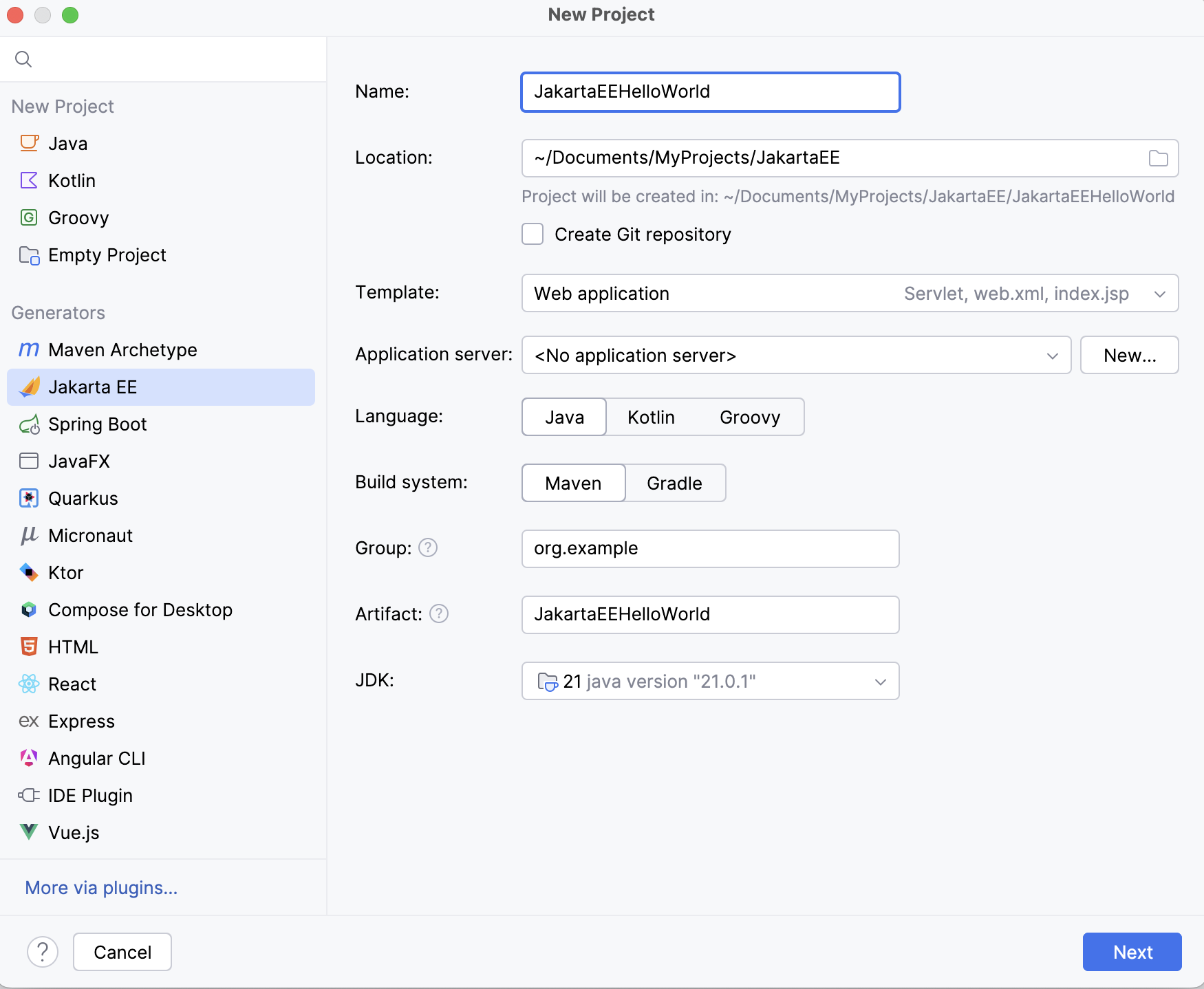
3. Set up the [Jakarta EE project settings](new-project-wizard.html#java-ee).
> **Note:**
> When selecting a JDK, note that Jakarta Data requires Java 17 or later.
4. Go to the next step of the wizard. In the upper-left corner, select the Jakarta EE version you want to use.
> **Note:**
> The earliest version that supports Jakarta Data is Jakarta EE 11.
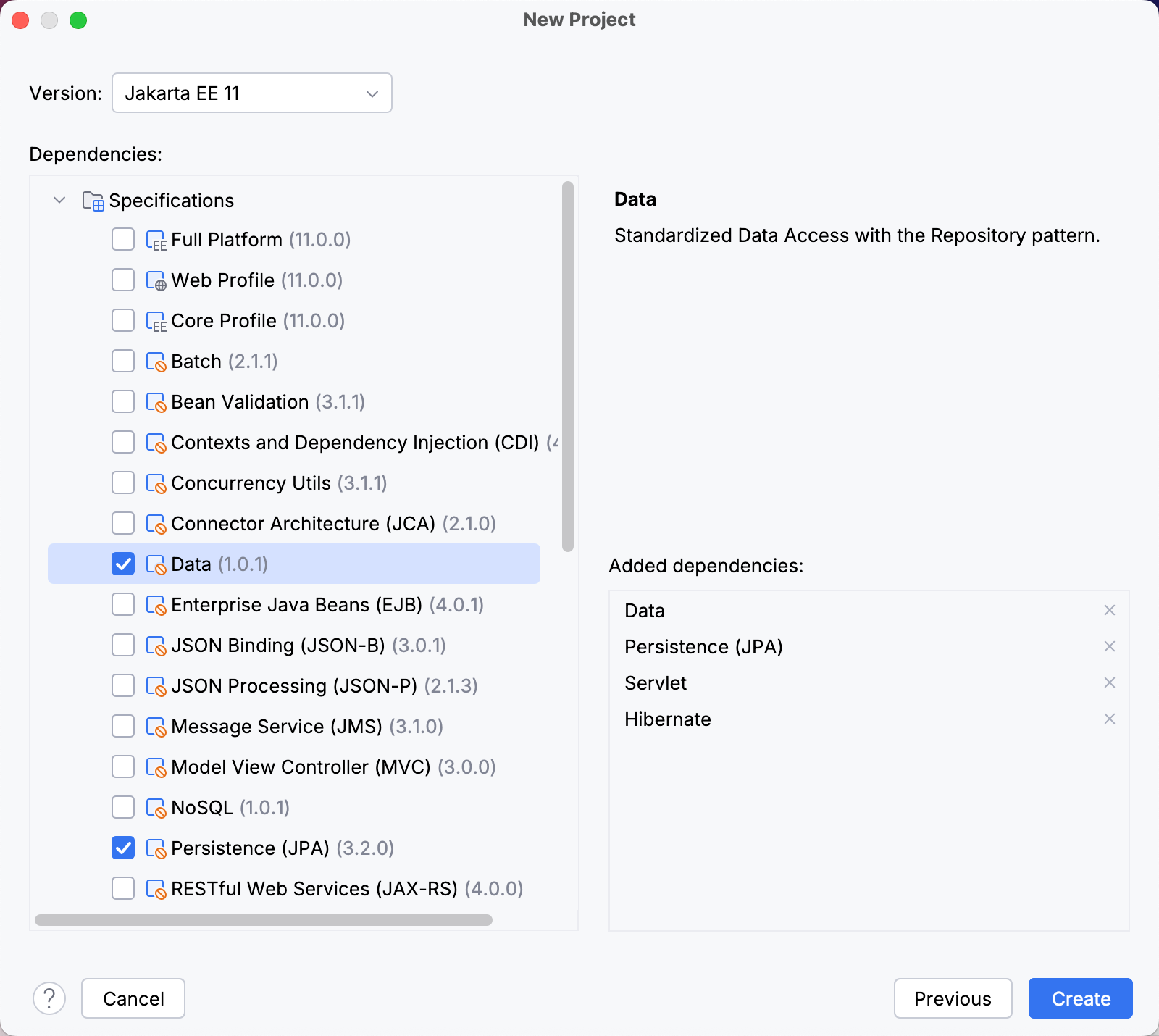
5. From the Dependencies list, select Data. Then, depending on the database type, select the following items:
* Relational: Persistence (JPA) and Hibernate.
* Non-relational: NoSQL. You will need to [add Eclipse JNoSQL manually](#add-to-existing-project) after you create the project.
6. Click Create.
For more information about creating Jakarta EE projects, such as how to set up an application server, refer to [Tutorial: Your first Jakarta EE application](creating-and-running-your-first-jakarta-ee-application.html).
Procedure: Add Jakarta Data to an existing project
1. Open the build file in the editor (`pom.xml` or `build.gradle` depending on the [build tool](build-tools.html) used in your project).
2. Depending on the database type, add the following dependencies:
Maven:
Relational databases
: ```XML
:
:
: jakarta.data
: jakarta.data-api
: 1.0.1
:
:
:
:
: jakarta.persistence
: jakarta.persistence-api
: 3.2.0
:
:
:
:
: org.hibernate.orm
: hibernate-core
: 7.4.5.Final
:
:
: ```
:
:
:
:
:
: Hibernate may require additional dependencies. Refer to the [official documentation](https://docs.hibernate.org/orm/7.4/repositories/html_single/#configuration-integration) for guidance.
Non-relational databases
: ```XML
:
:
:
: jakarta.data
: jakarta.data-api
: 1.0.1
:
:
:
:
: jakarta.nosql
: jakarta.nosql-api
: 1.0.1
:
:
:
:
: org.eclipse.jnosql.mapping
: jnosql-mapping-document
: 1.1.12
:
:
: ```
:
:
:
: Different NoSQL databases require different Eclipse JNoSQL dependencies. Refer to the [official documentation](https://github.com/eclipse-jnosql/jnosql?tab=readme-ov-file#getting-started) for guidance.
Gradle (Groovy):
Relational databases
: ```GROOVY
: // Jakarta Data specification
: implementation('jakarta.data:jakarta.data-api:1.0.1')
:
: // Jakarta Persistence specification
: implementation('jakarta.persistence:jakarta.persistence-api:3.2.0')
:
: // Implementation (Hibernate)
: implementation('org.hibernate.orm:hibernate-core:7.4.5.Final')
: ```
:
:
:
:
:
: Hibernate may require additional dependencies. Refer to the [official documentation](https://docs.hibernate.org/orm/7.4/repositories/html_single/#configuration-integration) for guidance.
Non-relational databases
: ```GROOVY
: // Jakarta Data specification
: implementation('jakarta.data:jakarta.data-api:1.0.1')
:
: // Jakarta NoSQL specification
: implementation('jakarta.nosql:jakarta.nosql-api:1.0.1')
:
: // Implementation (Eclipse JNoSQL)
: implementation('org.eclipse.jnosql.mapping:jnosql-mapping-document:1.1.12')
: ```
:
:
:
: Different NoSQL databases require different Eclipse JNoSQL dependencies. Refer to the [official documentation](https://github.com/eclipse-jnosql/jnosql?tab=readme-ov-file#getting-started) for guidance.
Gradle (Kotlin):
Relational databases
: ```KOTLIN
: // Jakarta Data specification
: implementation("jakarta.data:jakarta.data-api:1.0.1")
:
: // Jakarta Persistence specification
: implementation("jakarta.persistence:jakarta.persistence-api:3.2.0")
:
: // Implementation (Hibernate)
: implementation("org.hibernate.orm:hibernate-core:7.4.5.Final")
: ```
:
:
:
:
:
: Hibernate may require additional dependencies. Refer to the [official documentation](https://docs.hibernate.org/orm/7.4/repositories/html_single/#configuration-integration) for guidance.
Non-relational databases
: ```KOTLIN
: // Jakarta Data specification
: implementation("jakarta.data:jakarta.data-api:1.0.1")
:
: // Jakarta NoSQL specification
: implementation("jakarta.nosql:jakarta.nosql-api:1.0.1")
:
: // Implementation (Eclipse JNoSQL)
: implementation("org.eclipse.jnosql.mapping:jnosql-mapping-document:1.1.12")
: ```
:
:
:
: Different NoSQL databases require different Eclipse JNoSQL dependencies. Refer to the [official documentation](https://github.com/eclipse-jnosql/jnosql?tab=readme-ov-file#getting-started) for guidance.
3. Press `Ctrl+Shift+O` (Windows), `Ctrl+Shift+O` (macOS), `Ctrl+Shift+O` (IntelliJ IDEA Classic (macOS)), `Ctrl+Shift+O` (macOS System Shortcuts), `Ctrl+Shift+O` (XWin), `Ctrl+Shift+O` (GNOME), `Ctrl+Shift+O` (KDE), `Ctrl+Shift+O` (Emacs), `Ctrl+Shift+O` (Sublime Text), `Ctrl+Shift+O` (Sublime Text (macOS)), `Ctrl+Shift+O` (NetBeans), `Ctrl+Shift+O` (Visual Studio), `Ctrl+Shift+O` (Visual Studio (macOS)), `Ctrl+Shift+O` (Eclipse), `Ctrl+Shift+O` (Eclipse (macOS)) to import the changes.
For more information about working with build tools, refer to [Maven](maven-support.html) or [Gradle](gradle.html).
## Create a Jakarta Data repository
Jakarta Data repositories are interfaces annotated with `@Repository` that declare database operations on entities, such as finding, inserting, updating, or deleting them. Typically, one repository manages a single entity class.
Procedure:
1. Open the Project tool window (`Alt+1` (Windows), `⌘ 1` (macOS), `⌘ 1` (IntelliJ IDEA Classic (macOS)), `⌘ 1` (macOS System Shortcuts), `Alt+1` (XWin), `Alt+1` (GNOME), `Alt+1` (KDE), `Alt+1` (Emacs), `Alt+1` (Sublime Text), `⌘ 1` (Sublime Text (macOS)), `Ctrl+1` (NetBeans), `Ctrl+Alt+L` (Visual Studio), `⌘ ⌥ L` (Visual Studio (macOS)), `Alt+1` (Eclipse), `Alt+1` (Eclipse (macOS))) and go to the package where you want to create the repository.
2. Right-click the package and select `New | Java Class`.
3. In the New Java Class popup, select Interface, name the repository, and press Enter.
4. Annotate the interface declaration with `@Repository`. If prompted, import the class.
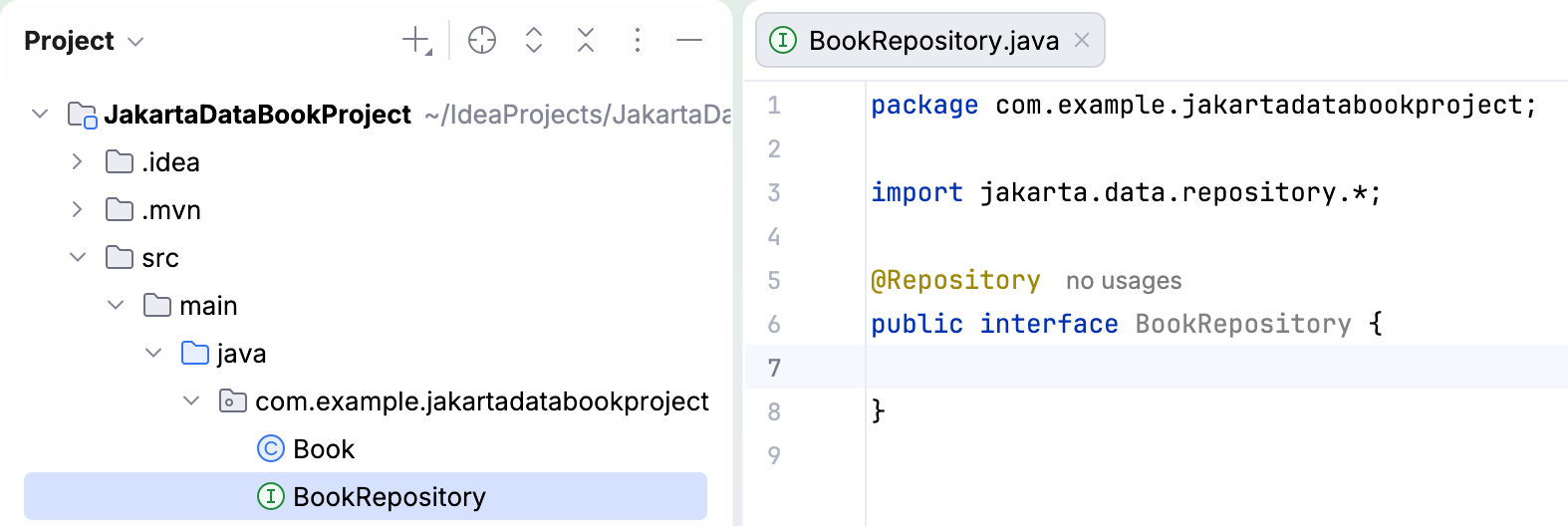
Now IntelliJ IDEA recognizes the interface as a Jakarta Data repository and can provide coding assistance.
5. (Optional) Extend one of Jakarta Data's built-in repositories:
* [DataRepository](https://jakarta.ee/specifications/platform/11/apidocs/jakarta/data/repository/datarepository): Lets you specify the entity class and its ID type but does not provide any predefined methods.
* [BasicRepository](https://jakarta.ee/specifications/platform/11/apidocs/jakarta/data/repository/basicrepository): Extends `DataRepository` with basic methods for finding, saving, and deleting entities.
* [CrudRepository](https://jakarta.ee/specifications/platform/11/apidocs/jakarta/data/repository/crudrepository): Extends `BasicRepository` with additional methods for updating and inserting entities.
After you create a repository, you can start declaring methods. Note that for Jakarta Data to recognize what type of database operation a method represents, you need to use one of its supported declaration patterns: an annotation (for example, `@Find`) or a specific prefix in the method name (for example, `findByName`). To learn more about declaring repository methods, refer to the [Jakarta Data API documentation](https://jakarta.ee/specifications/data/1.0/apidocs/jakarta.data/module-summary.html).
## Working with JDQL queries
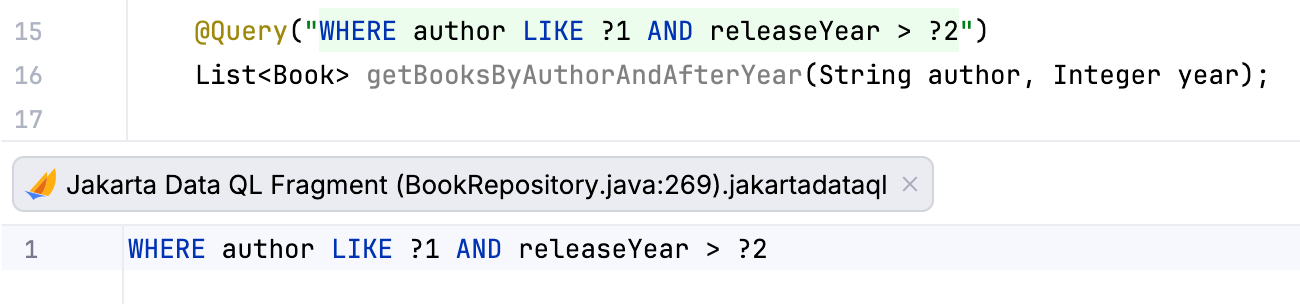
[Jakarta Data Query Language (JDQL)](https://jakarta.ee/specifications/data/1.0/jakarta-data-1.0#_jakarta_data_query_language) lets you write explicit queries for repository methods as an alternative to querying by method name or using other annotations. When you type JDQL inside a `@Query` annotation, IntelliJ IDEA automatically recognizes it, suggests field names based on the entity class, and validates the query statements.

Procedure: Edit a JDQL query in a dedicated editor
Opening JDQL in a dedicated editor helps you focus on your query without the surrounding code. This can be useful if your query is complex or spans multiple lines.
1. Place the caret at the JDQL query.
2. Press `Alt+Enter` (Windows), `⌥ ⏎` (macOS), `⌥ ⏎` (IntelliJ IDEA Classic (macOS)), `⌥ ⏎` (macOS System Shortcuts), `Alt+Enter` (XWin), `Alt+Enter` (GNOME), `Alt+Enter` (KDE), `Alt+Enter` (Emacs), `Alt+Enter` (Sublime Text), `⌥ ⏎` (Sublime Text (macOS)), `Alt+Enter` (NetBeans), `Alt+Enter` (Visual Studio), `⌥ ⏎` (Visual Studio (macOS)), `Ctrl+1` (Eclipse), `⌘ 1` (Eclipse (macOS)) (or click  Show Context Actions) and select Edit Jakarta Data QL Fragment.
IntelliJ IDEA opens the query in a dedicated fragment editor.