Work with files outside a project
You can create, open, and edit individual files on the IntelliJ IDEA Home screen without opening a project. It allows you to view files, make quick edits, take notes, or work with code snippets. Only a subset of IDE features is available in this mode. To access all features, open or create a project.
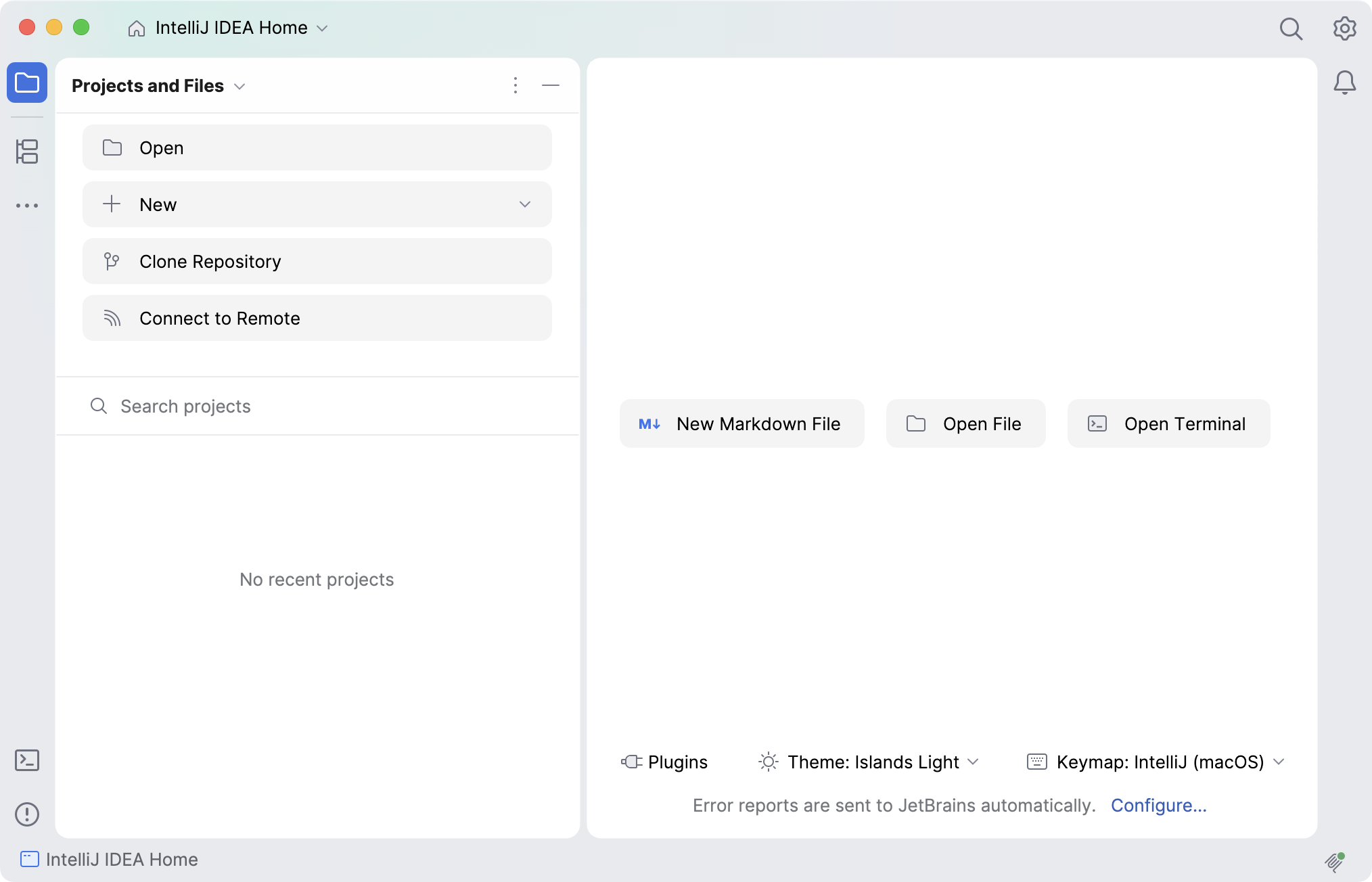
The IntelliJ IDEA Home screen opens when you start IntelliJ IDEA without a project.
Open an existing file
In the left panel of the IntelliJ IDEA Home screen, click Open and select the file you want to access.
You can also drag a file from your file manager into the IntelliJ IDEA window.
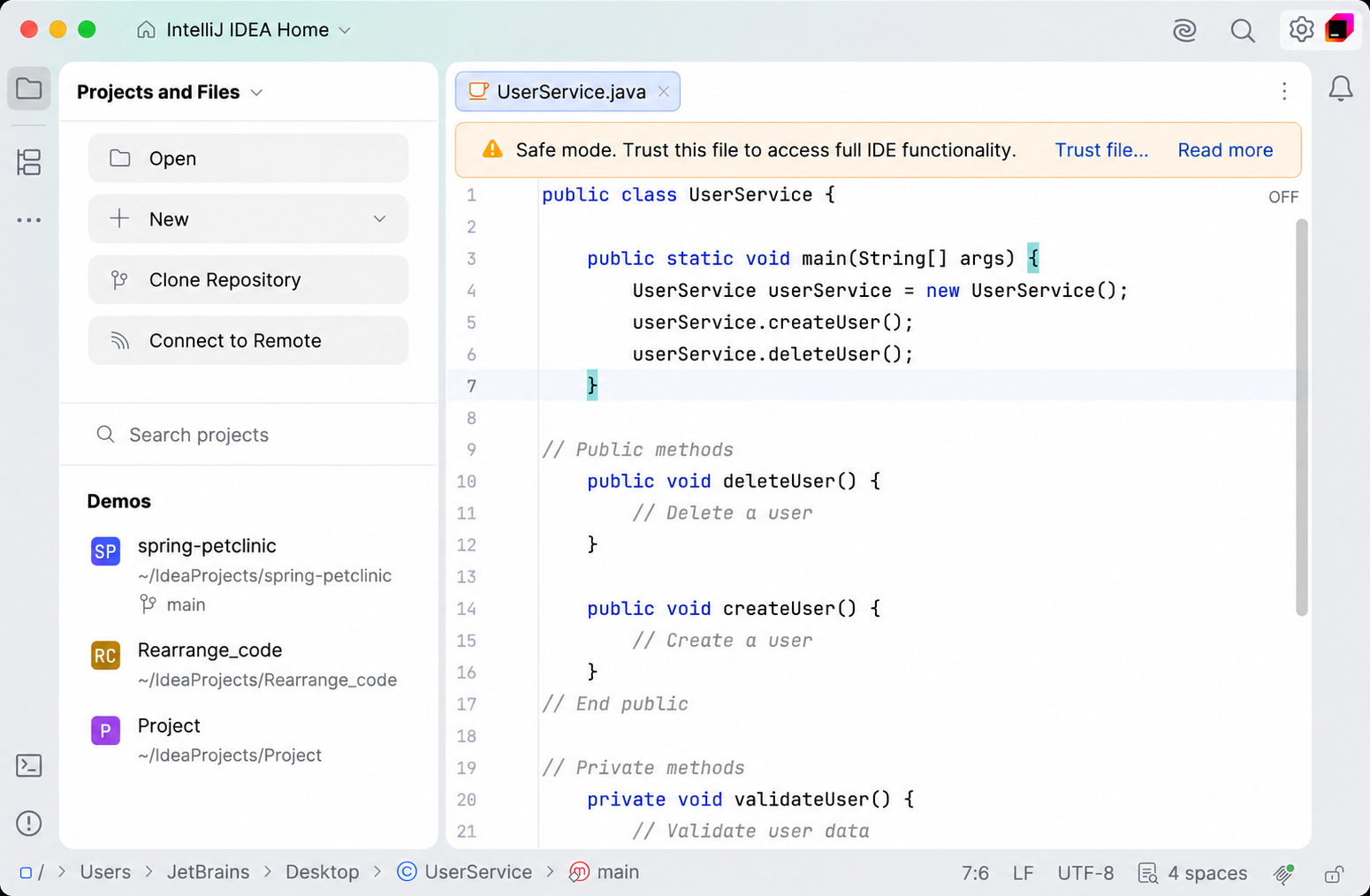
With no active project, opening a file with IntelliJ IDEA from your file manager displays it on the IntelliJ IDEA Home screen. This replaces the previous LightEdit mode behavior.
Create and manage files
Create a file
In the left panel of the IntelliJ IDEA Home screen, click New and select Text File or press Ctrl+Alt+Shift+Insert.
The file opens in a new tab with a generated name, for example Untitled.txt. You can edit it immediately, then select a language and save it to a location on your computer.
Change language for a file
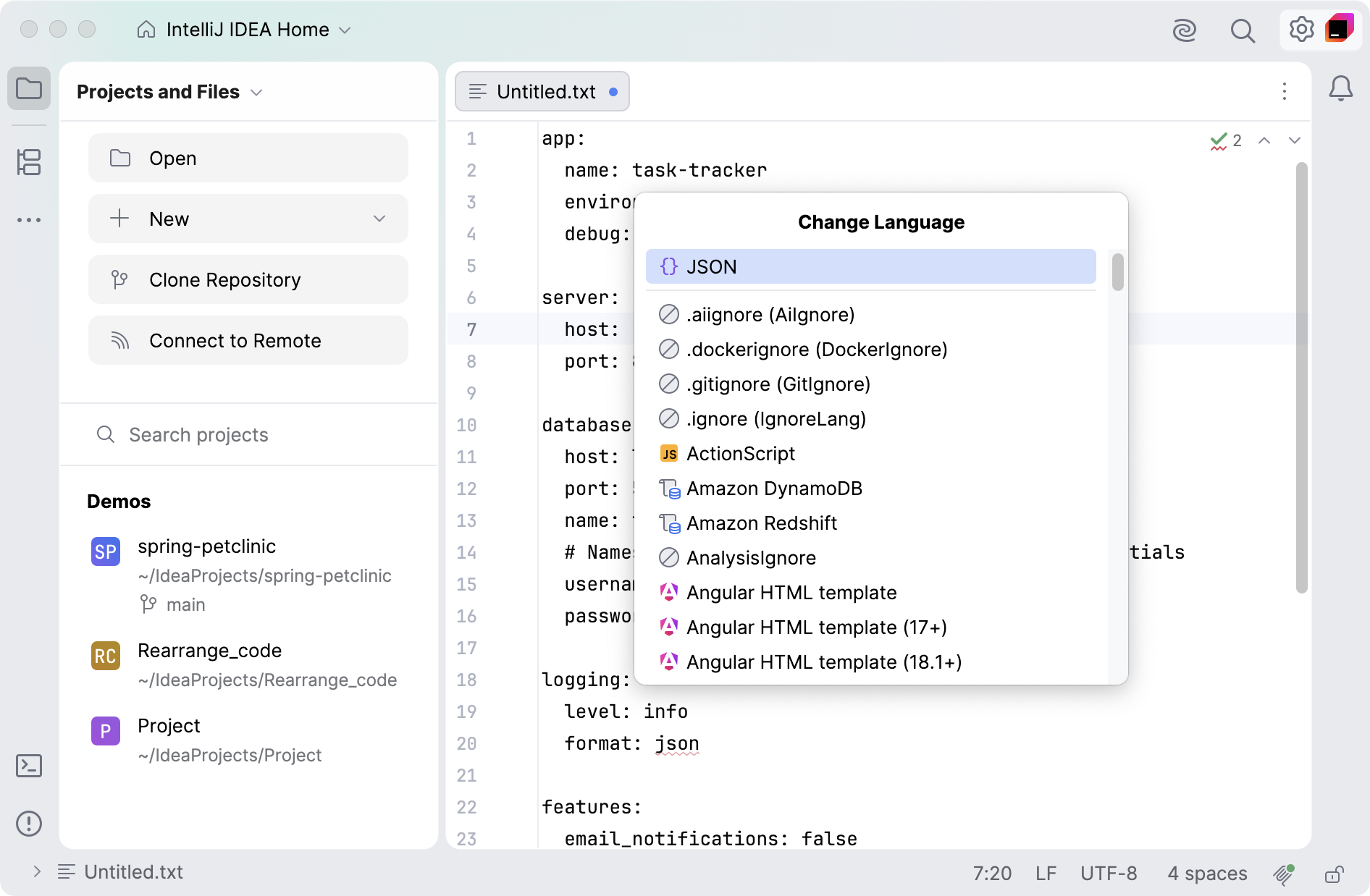
Select a language to use the corresponding syntax highlighting and other available editor features. For example, select JSON when you work with a JSON snippet.
Right-click the tab of the file for which you want to change the language on the IntelliJ IDEA Home screen.
From the menu that opens, select Change Language To and then select a language in the Change language dialog.
Save a new file
IntelliJ IDEA stores new files internally until you save them to a location of your choice. When you quit normally, the IDE retains these files for the next session.
Save newly created files to avoid losing your edits.
Make sure the file you want to save is in focus and press Ctrl+S.
Alternatively, click
 on the file tab and confirm you want to save it.
In the dialog that opens, select the destination folder and enter a file name.
After this initial save, IntelliJ IDEA saves subsequent edits according to the autosave settings.
File security
To prevent potential security risks, the IDE lets you decide how to open a file if you are not sure about its source. IntelliJ IDEA warns you about tasks or configurations that will be executed during the opening process and lets you configure sources that you can trust.
When you open a file for the first time, the IDE shows the Trust dialog.
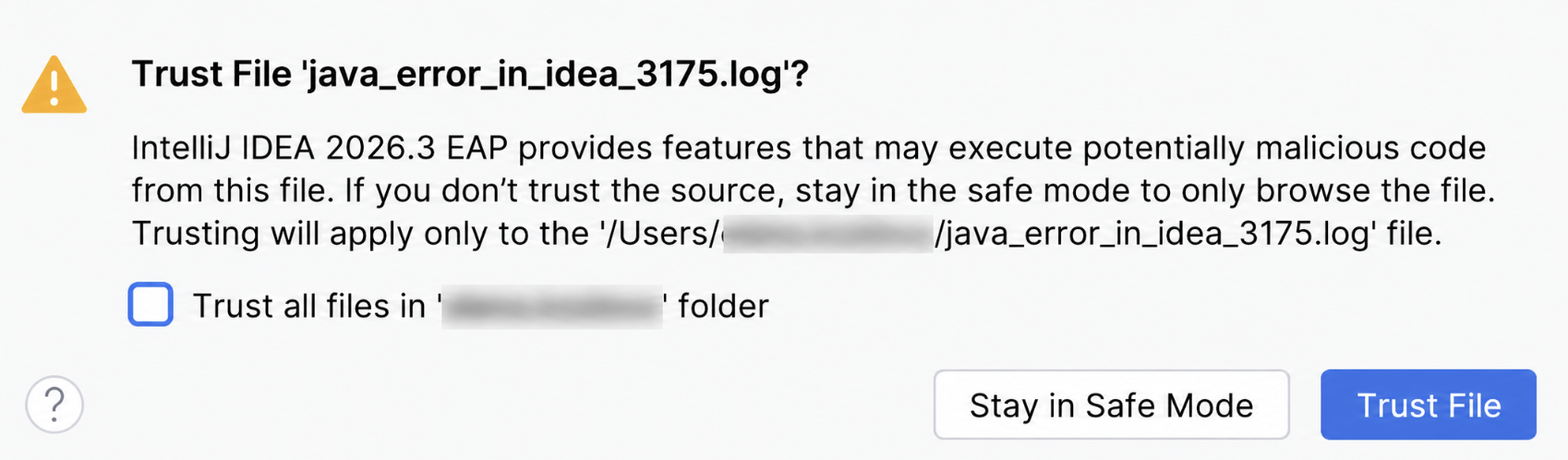
The dialog helps to ensure that the file is safe to perform the following actions:
Stay in Save Mode: in this case, IntelliJ IDEA opens the file in Safe Mode, meaning you can browse the file's content, but there are restrictions in executing code, performing build-related activities, and running scripts.
For more information about Safe Mode preview limitations, refer to Safe Mode limitations since they are applicable to a file as well as to a project.
Trust File: in this case, IntelliJ IDEA opens the file, enables all IntelliJ IDEA features and lets you perform all the available actions.
You can add certain files to the trusted locations so they would be considered safe and open automatically without any additional confirmation.
Configure trusted locations
In the Settings dialog (Ctrl+Alt+S) , go to .
On the Trusted Locations settings page, specify the local directories or files that the IDE should trust. Click OK to save the changes.
The next time you open a file from one of those locations, IntelliJ IDEA will implicitly trust it.