Publish a Java library to a Maven repository
The purpose of this tutorial is to demonstrate how to publish a Java library created in the Gradle project to a local Maven repository and then to the remote one using IntelliJ IDEA.
Let's start with creating a Gradle project.
Create a new Gradle project
On the Welcome screen, select New Project.
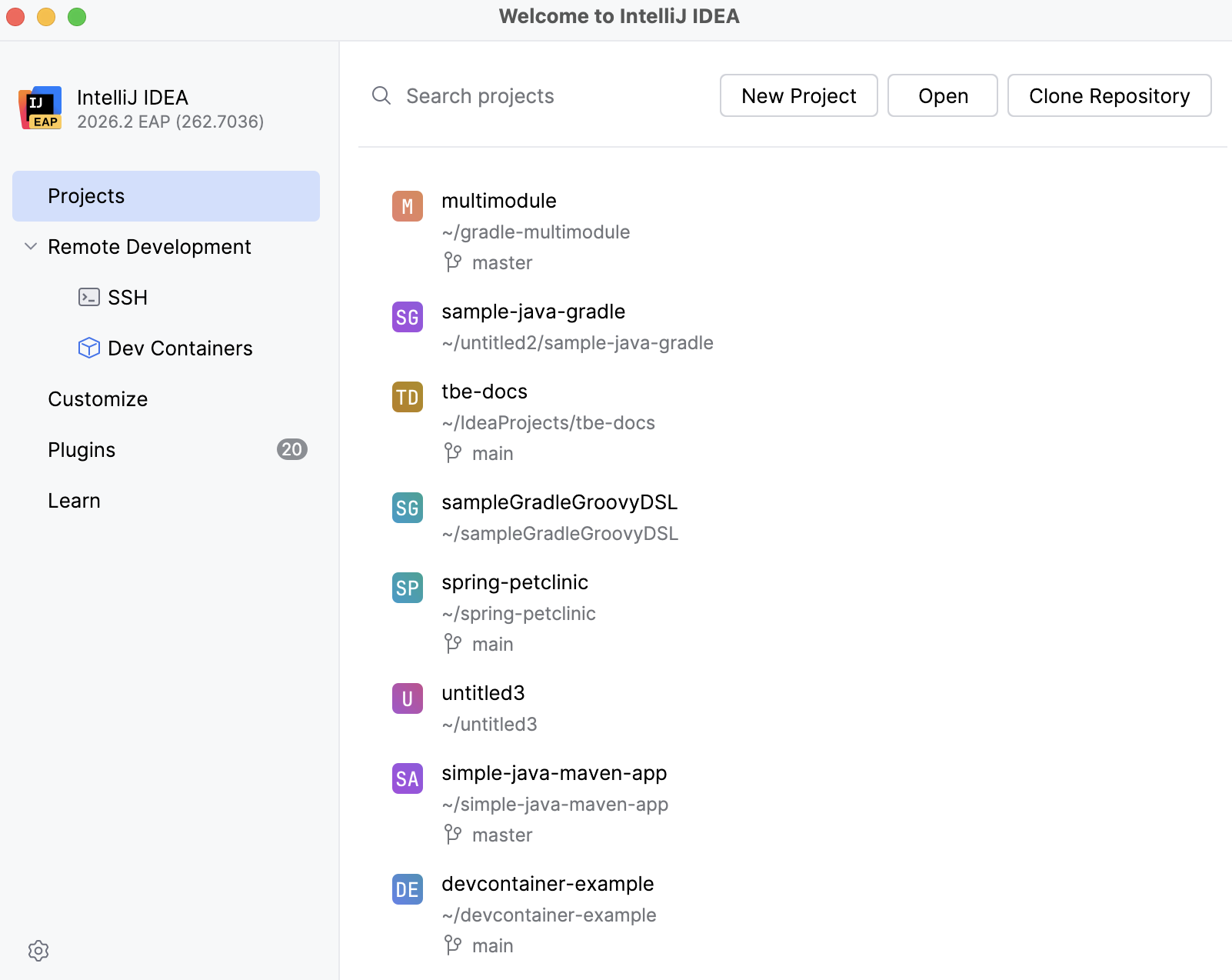
If your starting point is a project already opened in IntelliJ IDEA then go to in the main menu.
On the page that opens, select Java from the list of options on the left. Enter the name for our project. In our case it is gradle-publish, select Gradle, leave the rest of the options as default, and click Create.
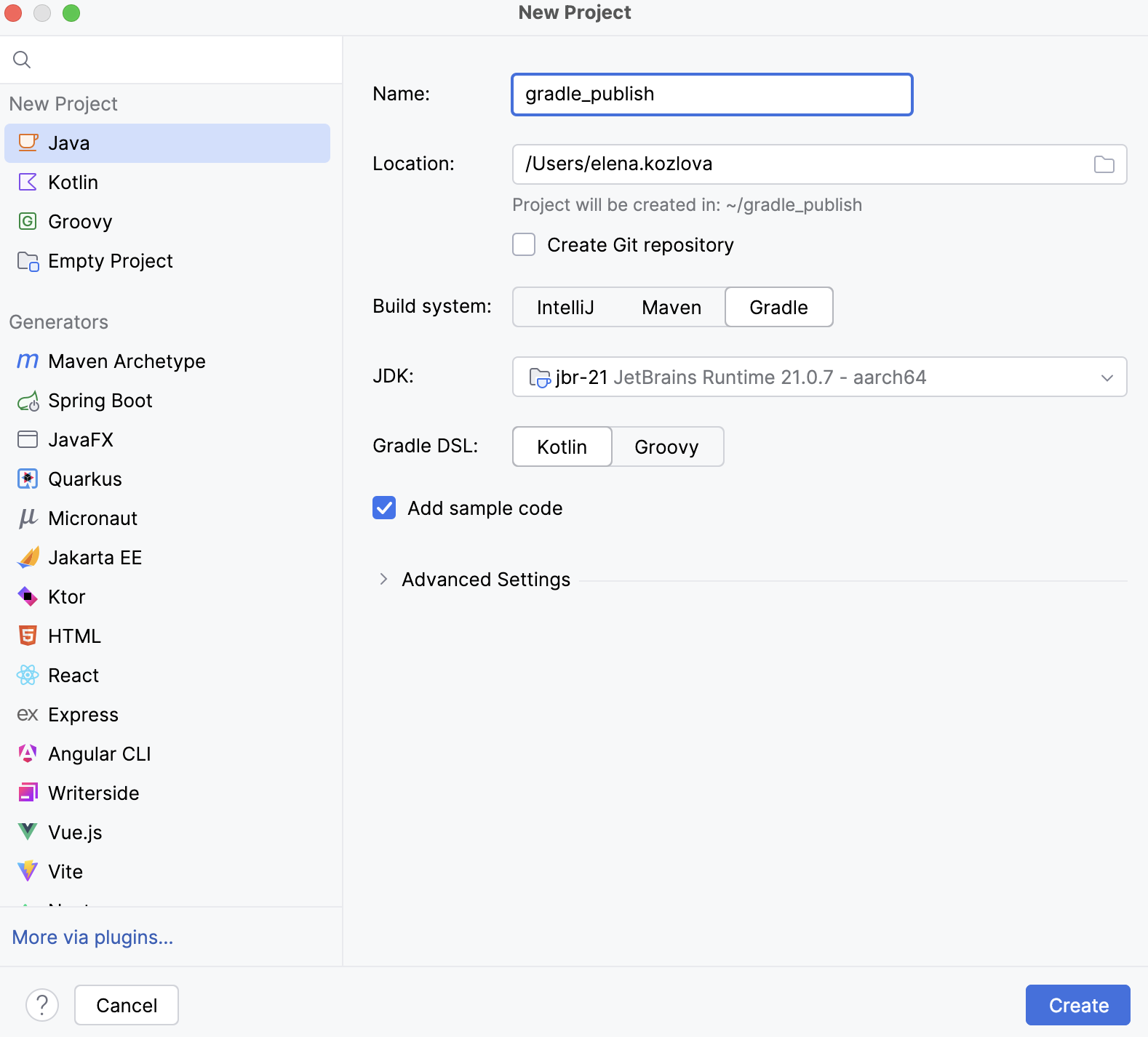
IntelliJ IDEA creates a Gradle project and enables the Gradle tool window.
Now let us tweak the build.gradle.kts file a little since we need to add support for a Java library and build our project.
Edit build.gradle.kts
In the Project tool window, double-click the build.gradle.kts file to open it in the editor.
At this point build.gradle.kts contains the following code:
plugins { id("java") } group = "org.example" version = "1.0-SNAPSHOT" repositories { mavenCentral() } dependencies { testImplementation(platform("org.junit:junit-bom:6.0.0")) testImplementation("org.junit.jupiter:junit-jupiter") testRuntimeOnly("org.junit.platform:junit-platform-launcher") } tasks.test { useJUnitPlatform() }In the
pluginssection, change"java"to"java-library".plugins { id("java-library") } group = "org.example" version = "1.0-SNAPSHOT" repositories { mavenCentral() } dependencies { testImplementation(platform("org.junit:junit-bom:6.0.0")) testImplementation("org.junit.jupiter:junit-jupiter") testRuntimeOnly("org.junit.platform:junit-platform-launcher") } tasks.test { useJUnitPlatform() }Click
 (Sync Gradle Changes) in the editor to synchronize the changes with your project.
Use the src/main/java directory to add code for your library.
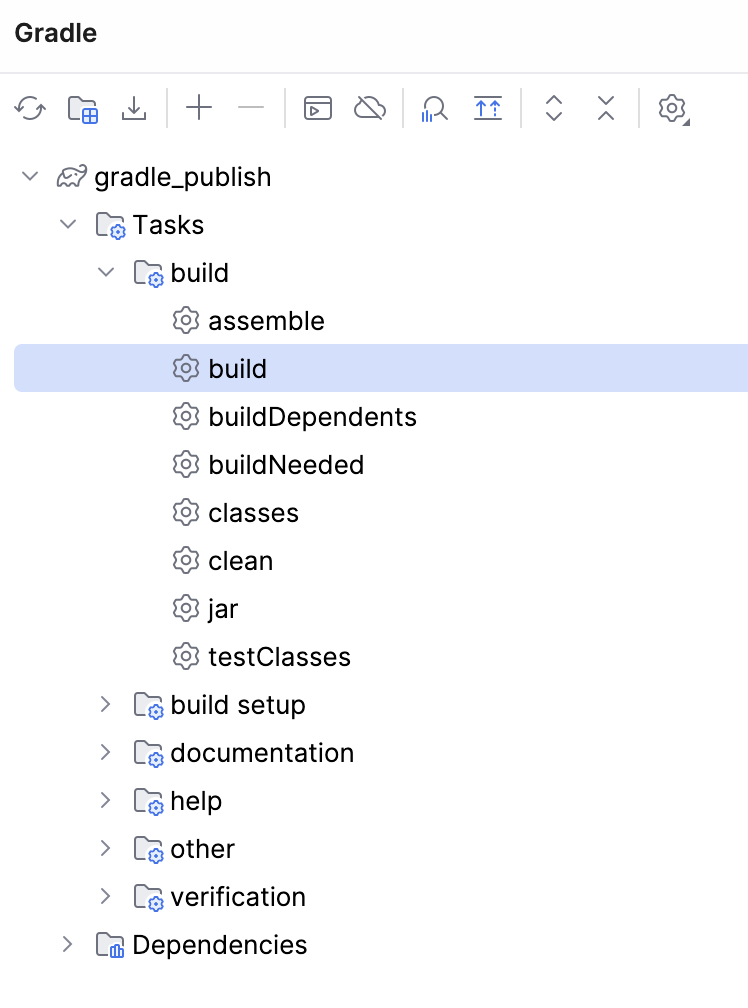
Now in the Gradle tool window, click the project node, click Tasks, and then build.
In the list that opens, double-click build to execute the build task that will generate our .jar file.
As a result, we have a generated .jar file located in the Project tool window, inside the build/libs directory.
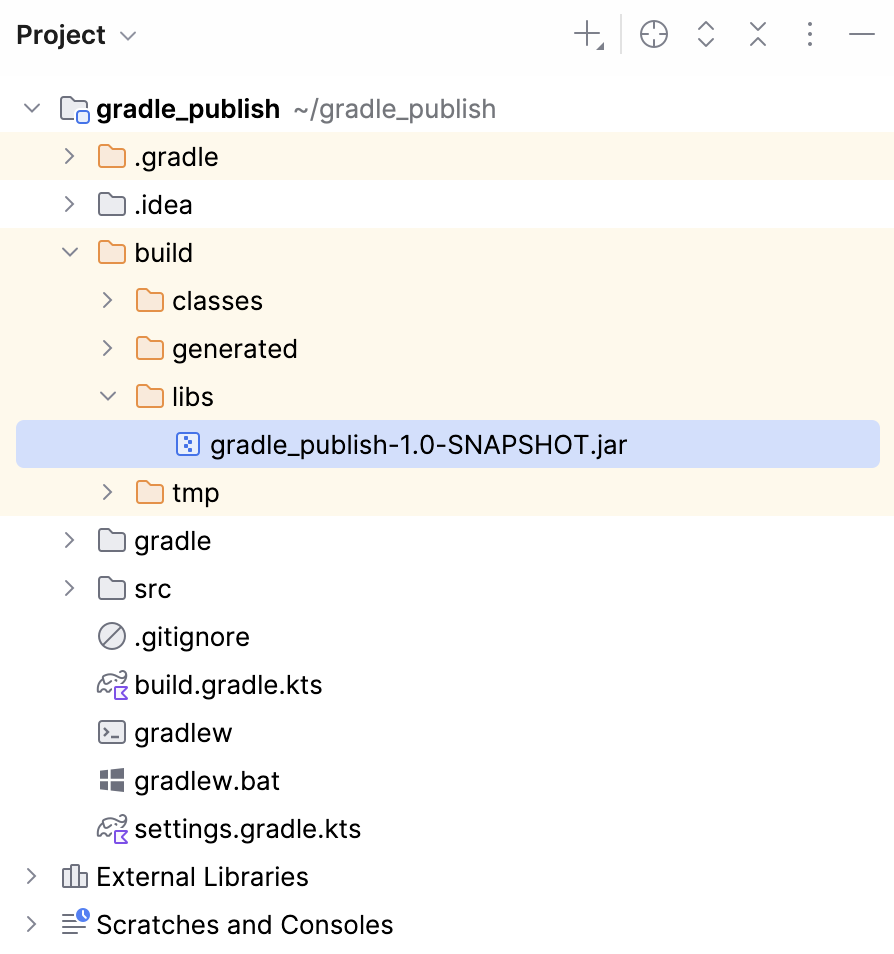
Now let us follow the Maven conventions and specify Maven coordinates for our library. Since IntelliJ IDEA has already added GroupId and Version when we created our project, the only thing that we need to change is ArtifactId.
Change the ArtifactId and generate the JAR file
In the Project tool window, double-click the settings.gradle.kts file to open it in the editor. Change
rootProject.namefromgradle-publishtomy-artifact-id.rootProject.name = "my-artifact-id"Click
Sync Gradle Changes to synchronize the changes.In the Gradle tool window, click Tasks.
In the build directory first double-click the clean task to execute it and then execute the build task.
IntelliJ IDEA will generate a .jar file with the information that is inline with the Maven naming conventions and the updated artifact name.
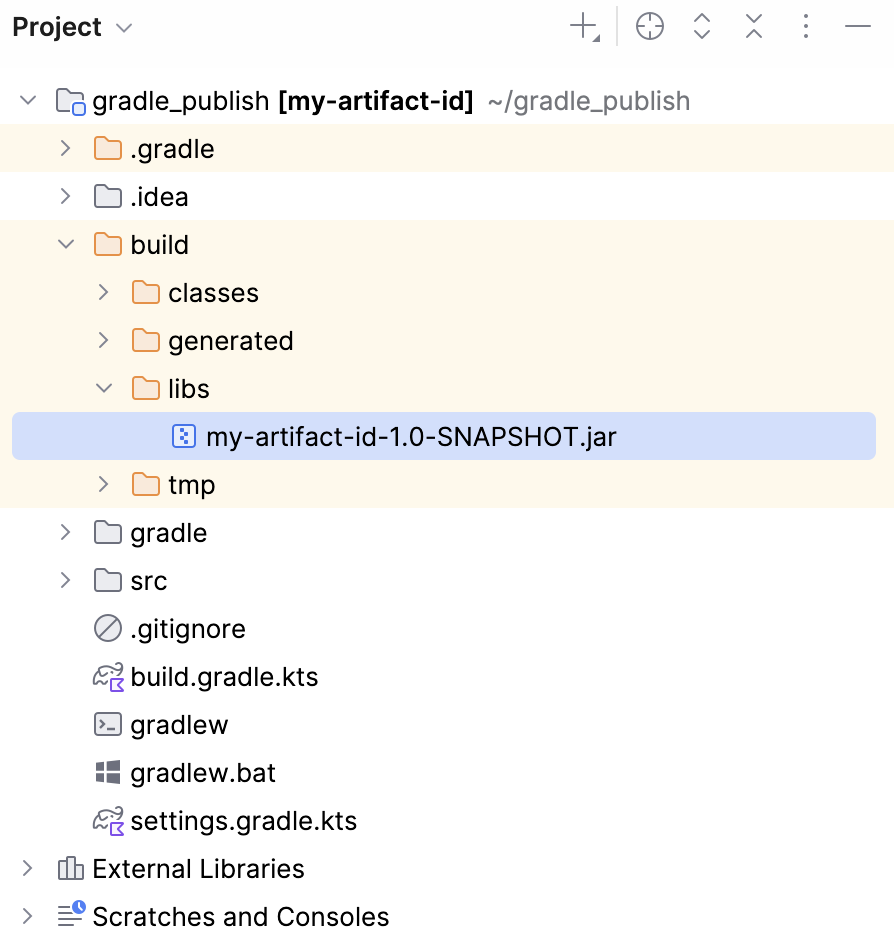
Now let us work with our build script further and publish the library into a local Maven repository.
Publish the library to a local Maven repository
Open the build.gradle.kts file and add
id("maven-publish")to thepluginssection.Click
(Sync Gradle Changes) to synchronize the changes with your project.In the Gradle tool window, in the publishing section, double-click publishToMavenLocal to run the task.
IntelliJ IDEA creates a JAR file and adds it, depending on your operating system, to the following directory:
/Users/<user_name>/.m2/[Artifact GroupID]/[Artifact Name]/[Artifact Version]
/home/<user_name>/.m2/[Artifact GroupID]/[Artifact Name]/[Artifact Version]
C:\Users\<User_Name>\.m2\[Artifact GroupID]\[Artifact Name]\[Artifact Version]
We can edit the build.gradle file further to publish our library to the remote repository.
Publish to the remote repository
In the build.gradle.kts file add the following section:
publishing { publications { create<MavenPublication>("myLib") { from(components["java"]) } } repositories { maven { name = "MyRepo" // optional target repository name url = uri("http://my.org.server/repo/url") credentials { username = "alice" password = "my-password" } } } }Click
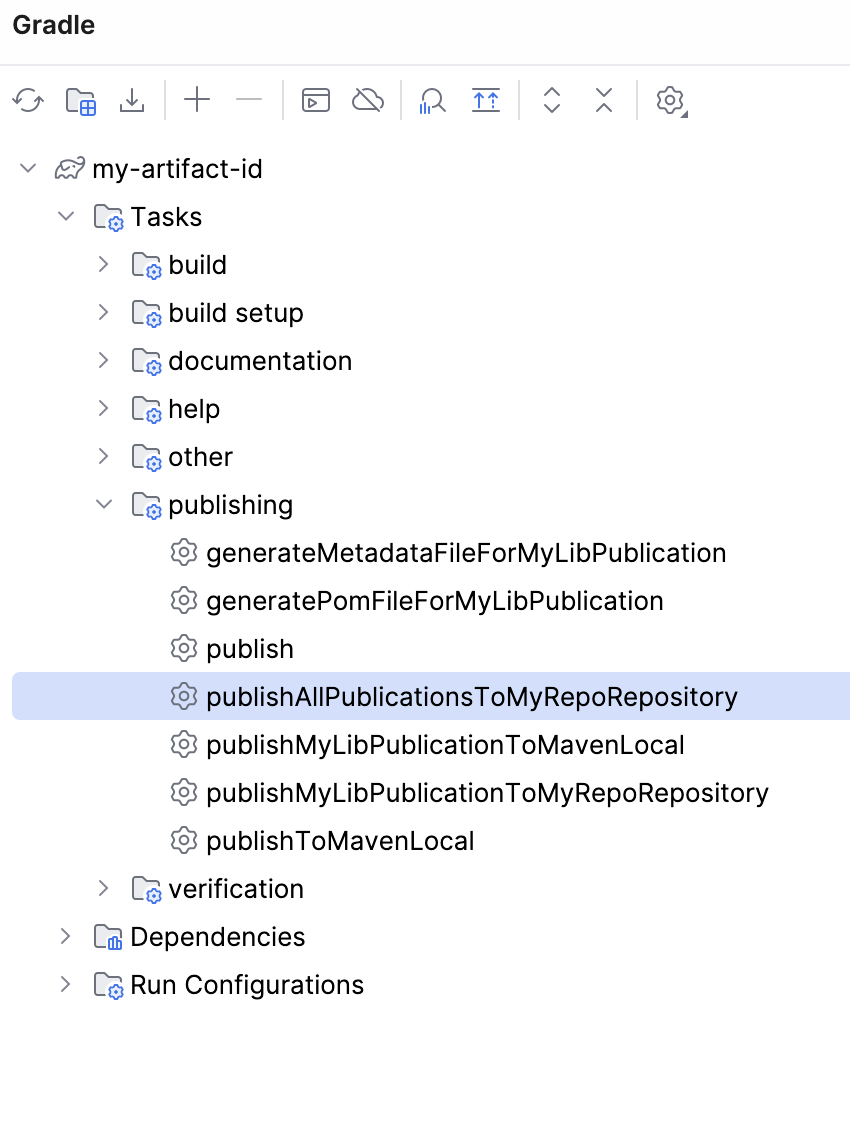
(Sync Gradle Changes) to load the changes to your project.In the Gradle tool window, open the publishing section and double-click publishAllPublicationsToMyRepository to run the task.
For more information about customizing the POM file, using a different snapshot, or releasing repositories, refer to Gradle documentation.