License distribution policy and access rules
Access rules and priorities help you control access to licenses in your organization. You can limit access to specific users or profiles, decide which product licenses they can get, and set the required IDE hosting type.
Until you create your first rule, License Vault's default license distribution policy lets all authorized users access all licenses.
Default license distribution policy
License Vault's default policy is allowed unless explicitly prohibited: all authorized users can get licenses unless a rule says otherwise. You don't need rules to grant access – only to restrict it.
When someone requests a license, License Vault looks for rules that apply to this user or their profiles.
If no rule applies:
🟢 The user can access all available licenses. To restrict access, create a rule.If rules apply:
🟡 The user can only access the licenses included in those rules.
License distribution example
Let's say your License Vault has just one rule that gives Sarah access to PyCharm licenses. Here's how it'll work:
If
Sarahrequests aPyCharmlicense, she'll get one.If
Sarahrequests aCLionlicense, the request will be denied because your rule only lets her usePyCharm.If
Johnrequests aCLionorPyCharmlicense, he'll get one because no rule restricts his access.
- FAQ: Do rules affect automatic allocation of pack licenses via smart license allocation?
Yes, rules can influence how smart license allocation works.
Impact on pack licenses:
By default, smart license allocation can assign a pack license, such as
All Products Pack, to users who use multiple IDEs. However, if you create rules that restrict these users to product-specific licenses, smart license allocation will be unable to assign a pack license to them.Best practice when creating rules:
When creating rules for users who work with multiple IDEs, include the
All Products Packin the rule. This allows smart license allocation to offer a pack license when needed.
Strict license distribution policy
You can choose a stricter policy – prohibited unless explicitly allowed. In this mode, only the users and profiles included in your rules can access licenses.
With this setting, rules change from restricting access to granting it. When someone requests a license, License Vault checks for rules that apply to this user or their profiles:
If no rule applies:
🔴 The user doesn't get access to licenses. To allow access, create a rule.If rules apply:
🟡 The user can only access the licenses included in those rules.
License distribution example
Going back to the example with a single rule that gives Sarah access to PyCharm, here's what will change:
If
Sarahrequests aPyCharmlicense, she'll still get one.If
Sarahrequests aCLionlicense, her request will still be denied.But if
Johnrequests aCLionorPyCharmlicense, his request will now also be denied because no rule gives him access to licenses.
Set a strict distribution policy
In the main menu, select Licenses.
In the menu on the left, select Rules.
At the top of the page, clear the Allow users that are not mentioned in the rules to get licenses checkbox.

Confirm your action in the dialog that pops up.
Access rules
Access rules give you finer control over who can use licenses. They work differently depending on your license distribution policy:
With the default license distribution policy, rules are there to limit access. Without rules, every authorized user can access all licenses in your License Vault.
With the strict distribution policy, rules grant access instead of limiting it.
View access rules
To view your access rules, select Rules in the menu on the left.
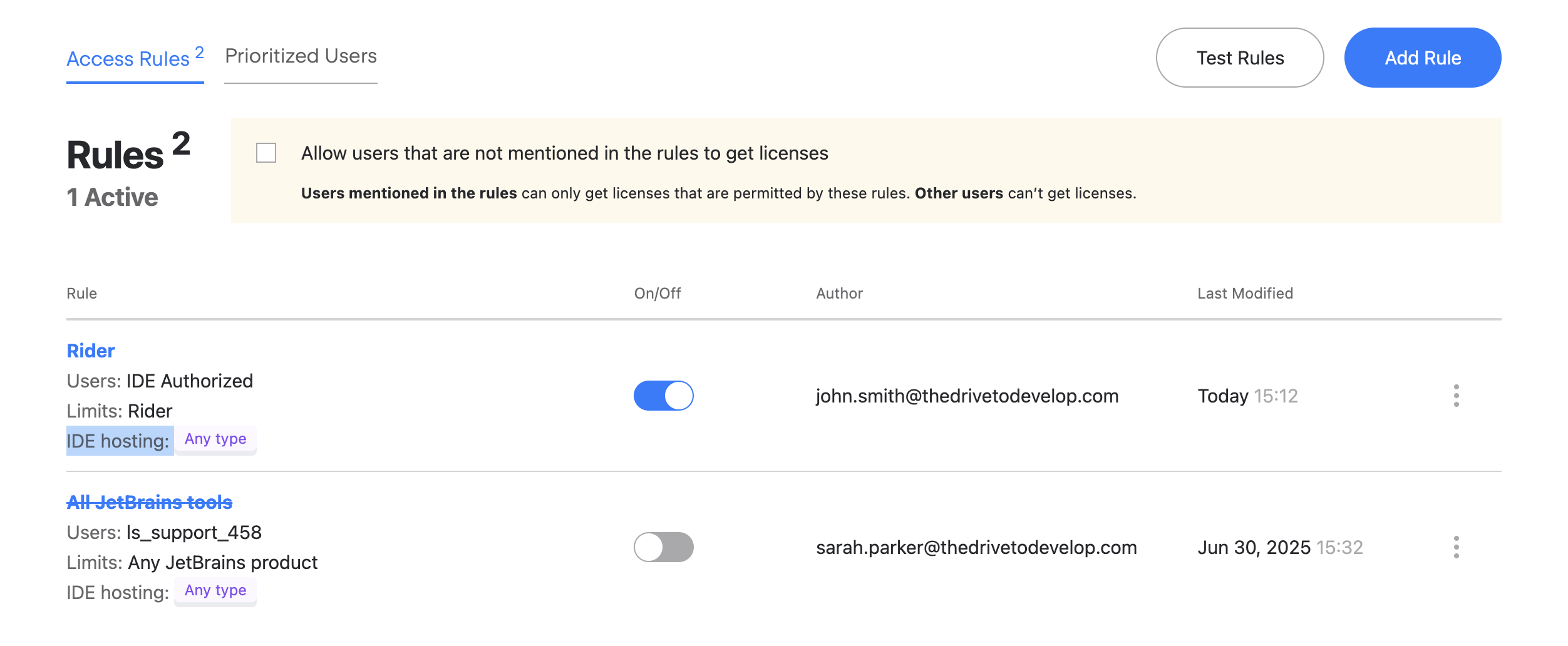
The list shows all rules with these details:
Rule name: Chosen by the administrator when the rule was created.
Users: Users or profiles to which the rule applies.
Limits: Product licenses these users are allowed to get.
IDE hosting: Where the IDE must be hosted to get a license.
On/off: Toggle to enable or disable the rule.
Author: The user who created the rule.
Last modified: The date the rule was last updated.
Rule parameters
You can add new ones or edit existing ones. Each rule includes the following parameters:
Users or groups
Who the rule applies to. You can select any number of users or profiles from your authentication module.
Products
Which product licenses these users can get. You can select all products or specific ones.
IDE hosting type
Where the IDE must be hosted to get a license. You can allow only local machines, only remote servers, or both.
Use this setting to enforce or prohibit remote development in your organization.
Add an access rule
In the main menu, select Licenses.
In the menu on the left, select Rules.
In the top-right corner, click Add rule.
In the dialog that pops up, enter the name of your rule.
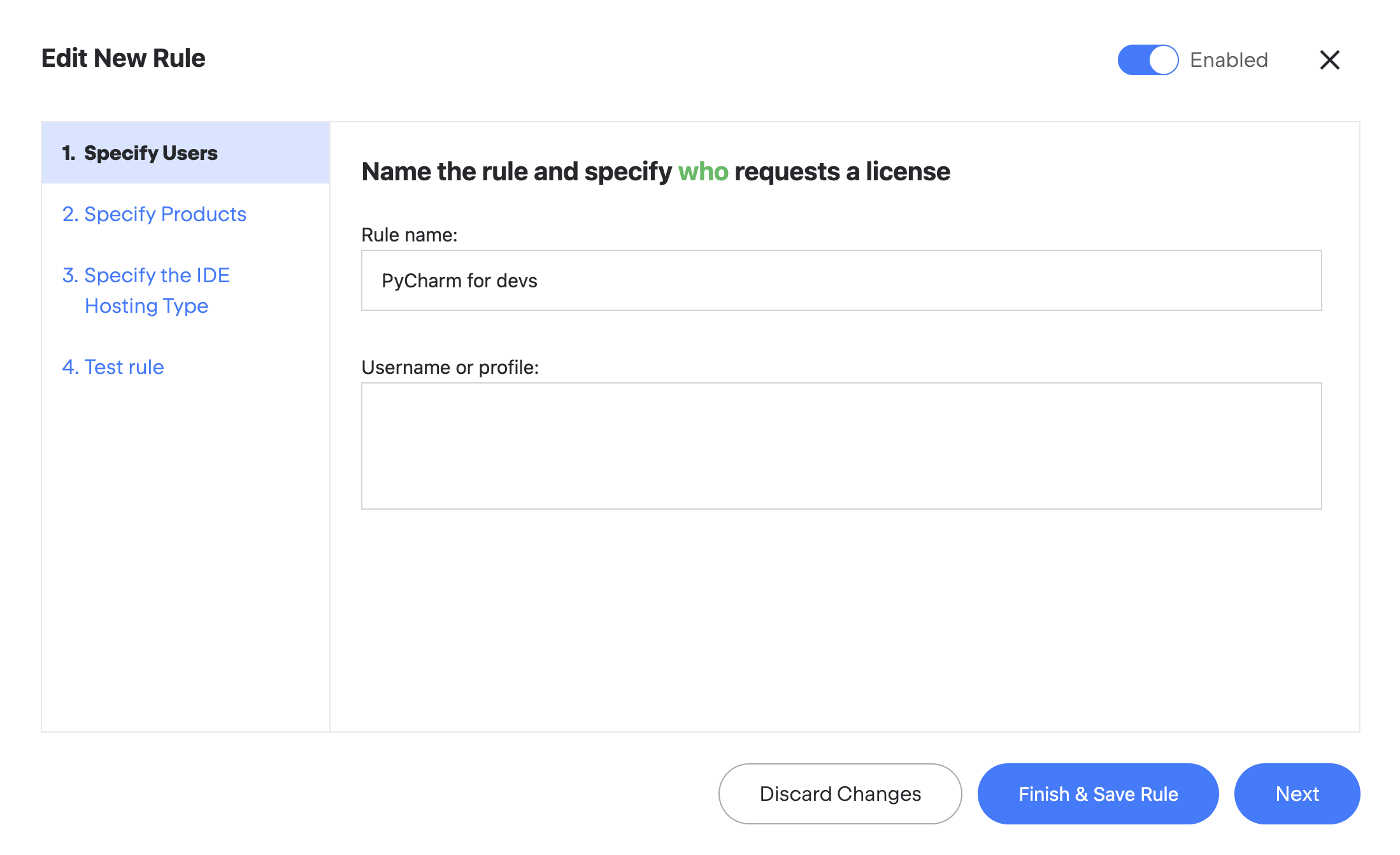
Under Username or profile, enter users or profiles to which this rule will apply.
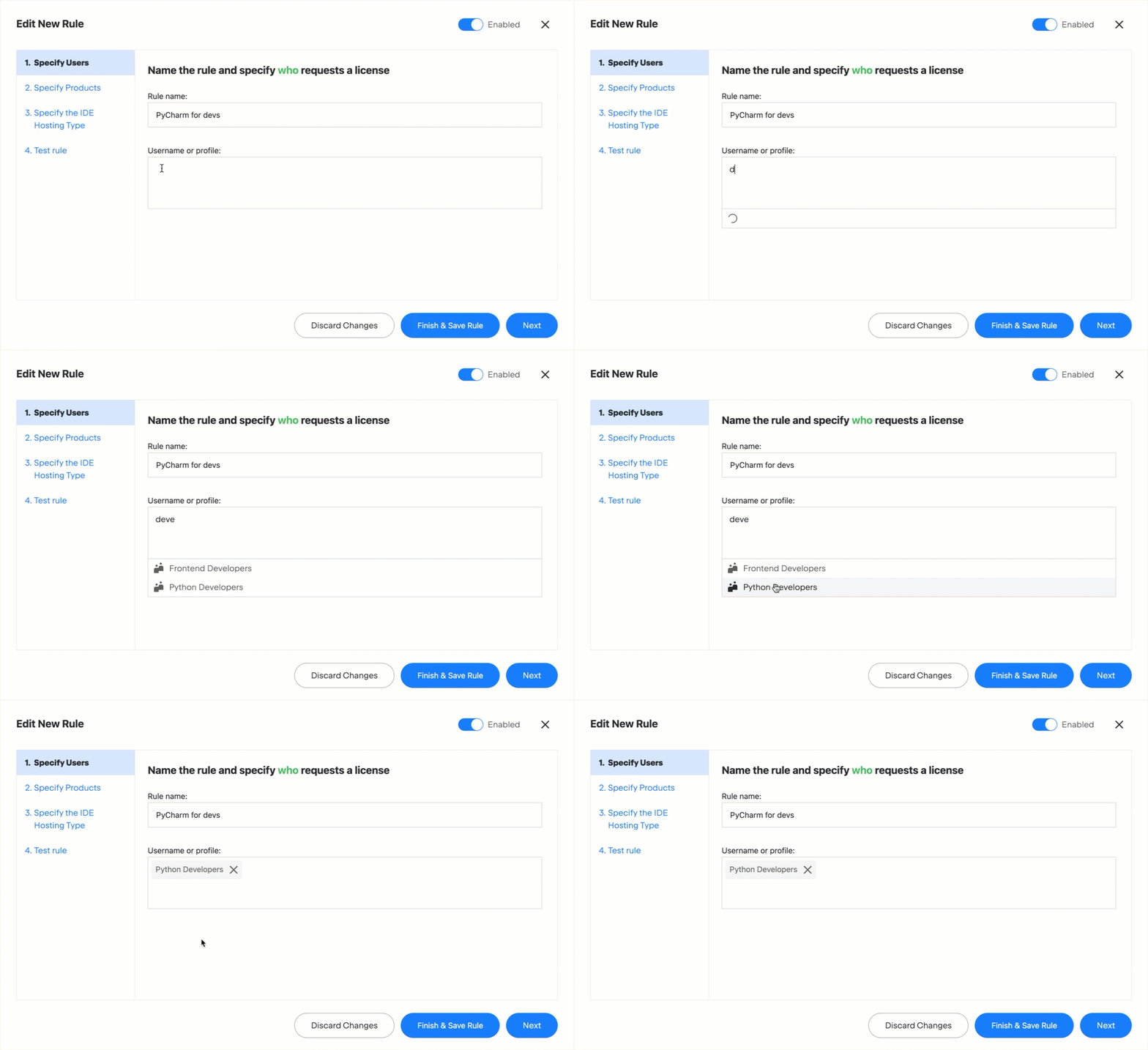
Click Next to move on to the Specify Products tab.
Choose which product licenses these users can get. You can give them access to all licenses or specific products.
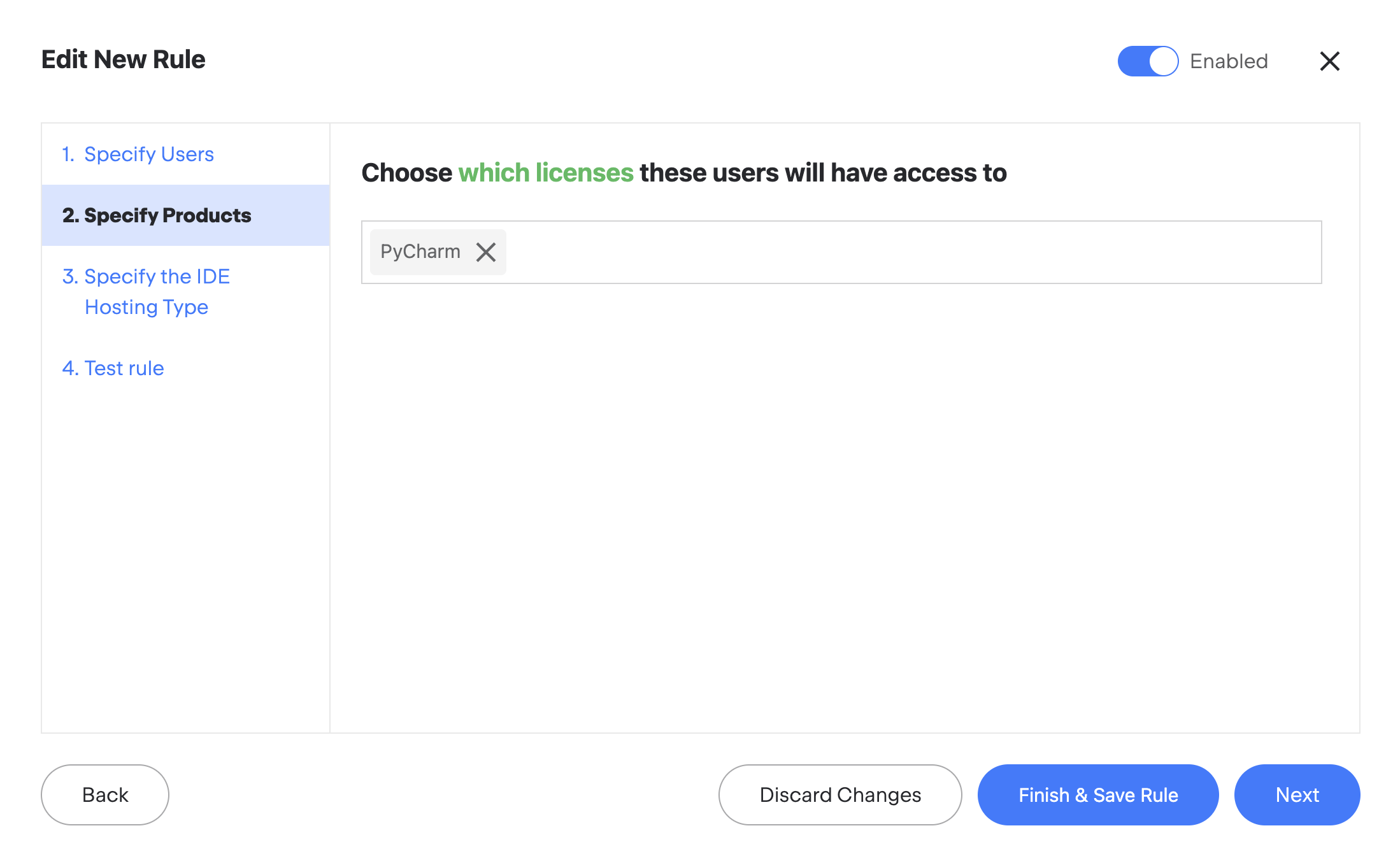
Click Next to move on to the Specify the IDE Hosting Type tab.
Specify the allowed IDE hosting type – whether the user’s IDE must run on their local machine or on a remote server to get a license. By default, licenses are available regardless of where the IDE runs.
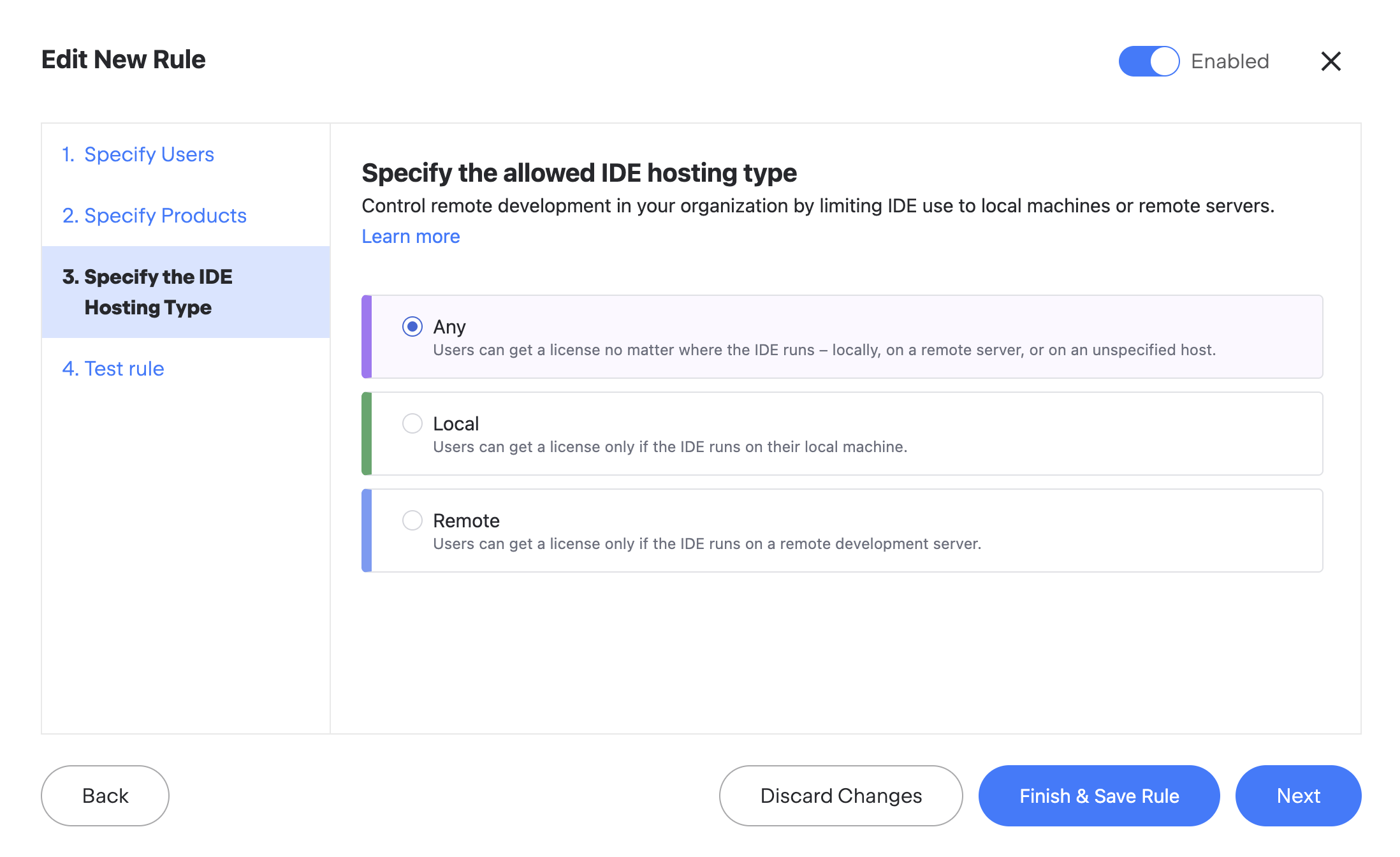
Click Next to move on to the Test rule tab.
In this step, you can check the effective permissions users will get based on your current rules, including the one you’re creating.
Select a user or profile, product, and IDE hosting type from the dropdown lists and click Check effective permissions.
On the Effective permissions tab, you'll see if the selected user or profile can use this product.
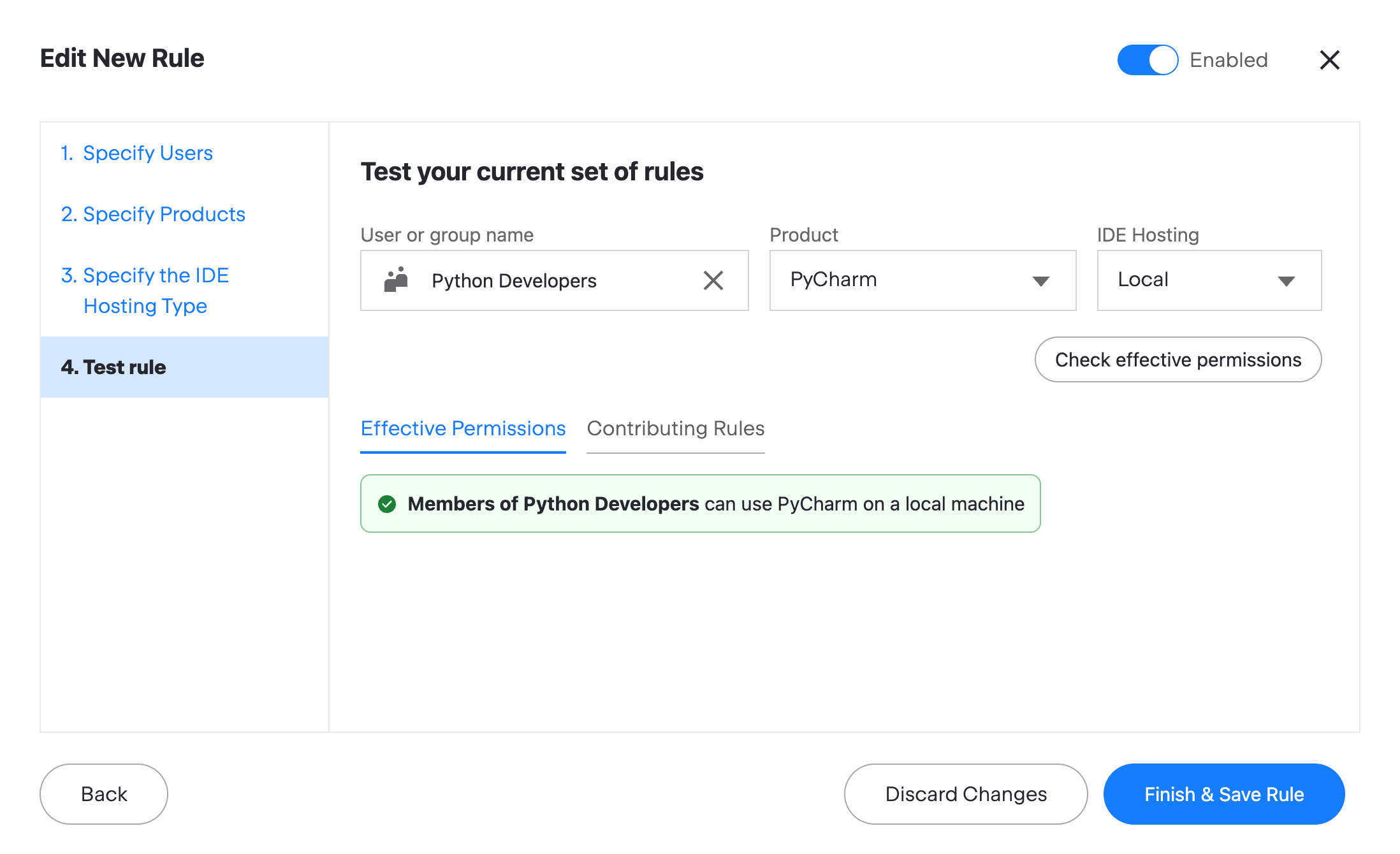
On the Contributing Rules tab, you'll see which rules affect their permissions.
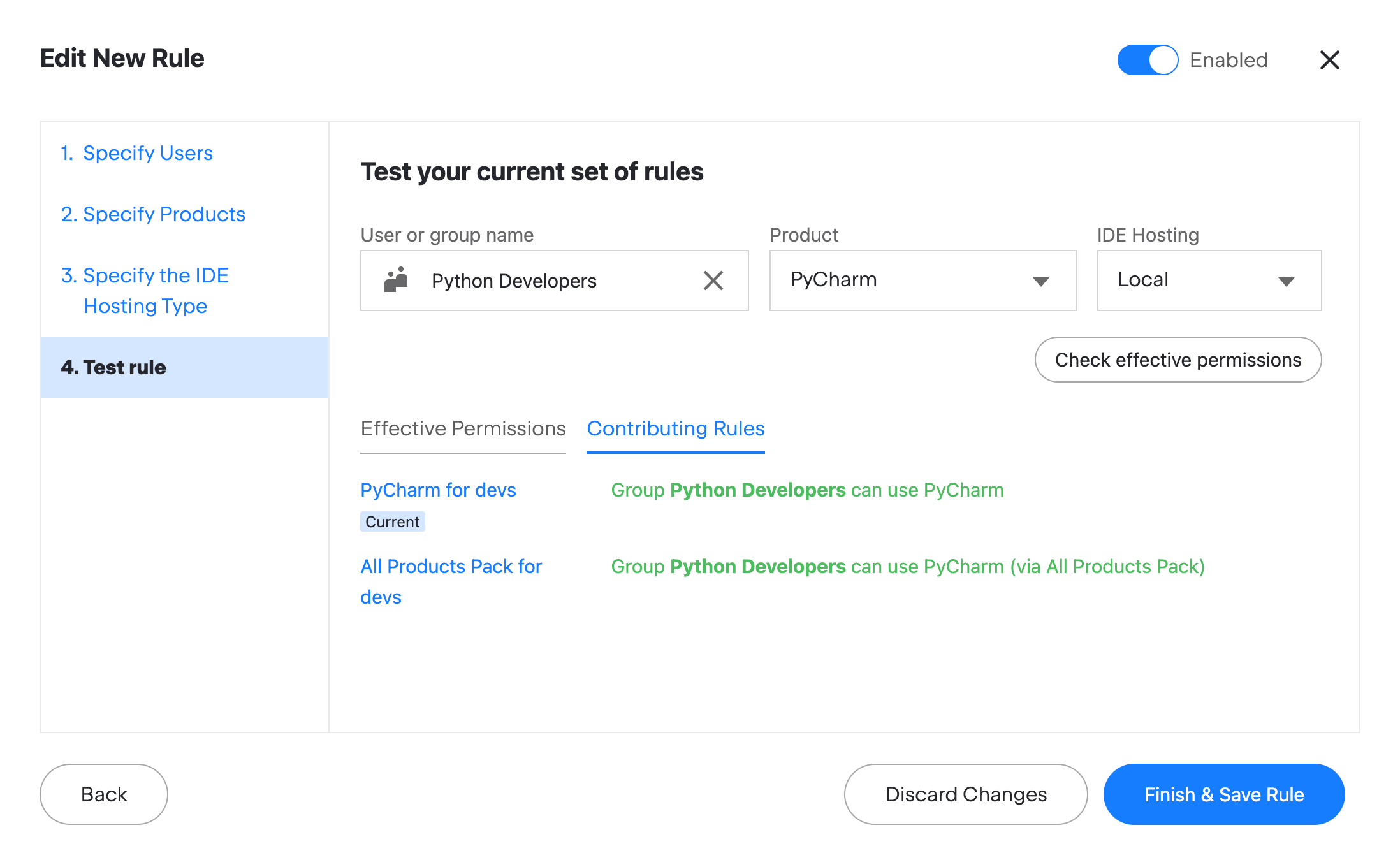
If your rule works correctly, click Finish & Save Rule.
How multiple rules interact
If multiple rules apply to a user, this user can access licenses for all products included in those rules. For example, if one rule lets Sarah use PyCharm and another lets her use CLion, she’ll be able to get licenses for both.
You can always check the effective permissions granted to any user or profile based on your current set of rules.
Check effective permissions
From the main menu, select Licenses.
In the menu on the left, select Rules.
In the top-right corner, click Test rules.
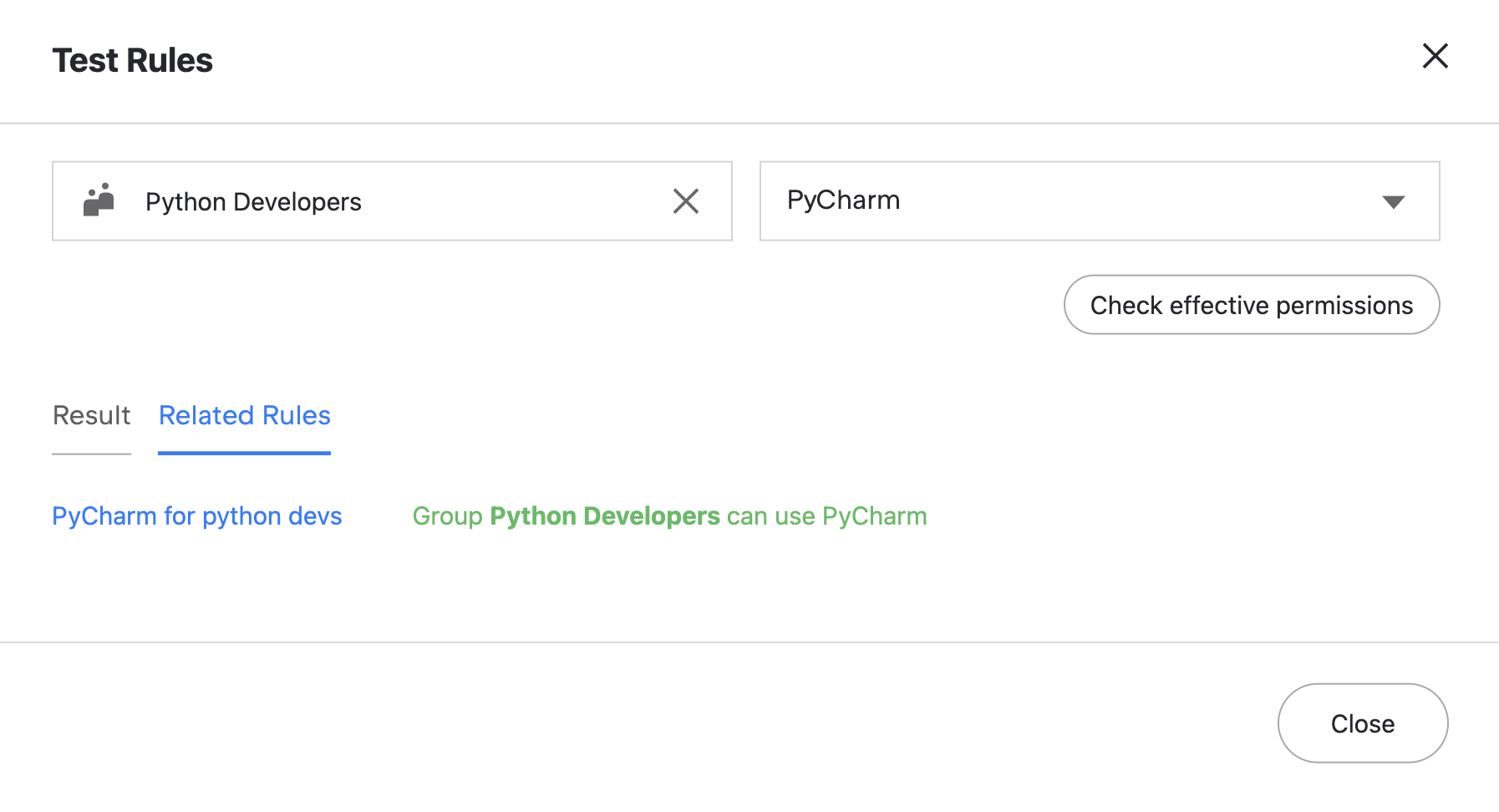
Select a user or profile and a product from their respective dropdown lists and click Check effective permissions.
On the Effective permissions tab, you'll see if the selected user or profile can use this product.
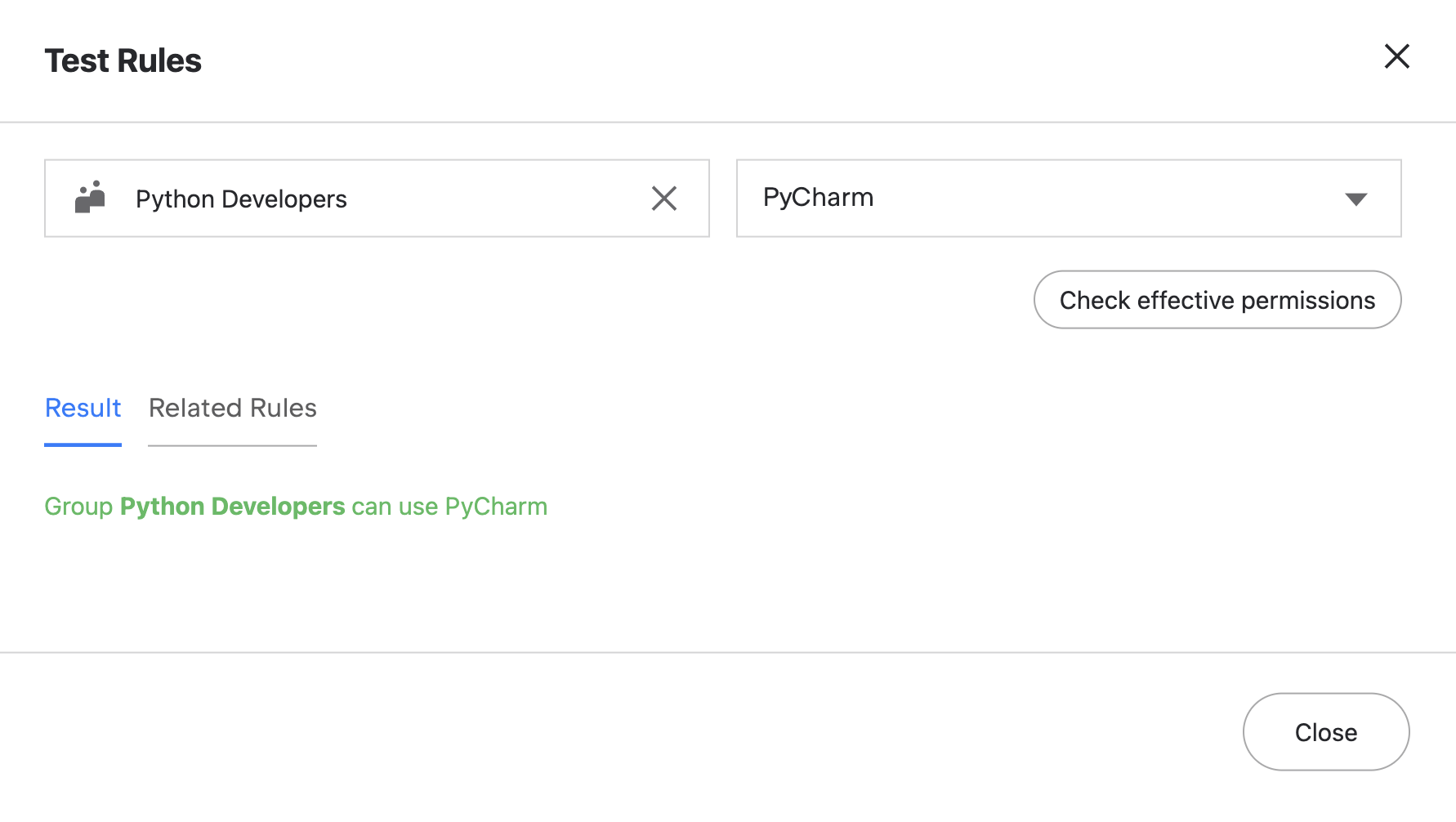
On the Contributing Rules tab, you'll see which rules affect their permissions.
Manage rules
You can edit, disable, and remove rules.
Disable a rule
From the main menu, select Licenses.
In the menu on the left, select Rules.
In the rule list, locate the rule you want to disable.
Click on the toggle next to that rule, situated in the column.
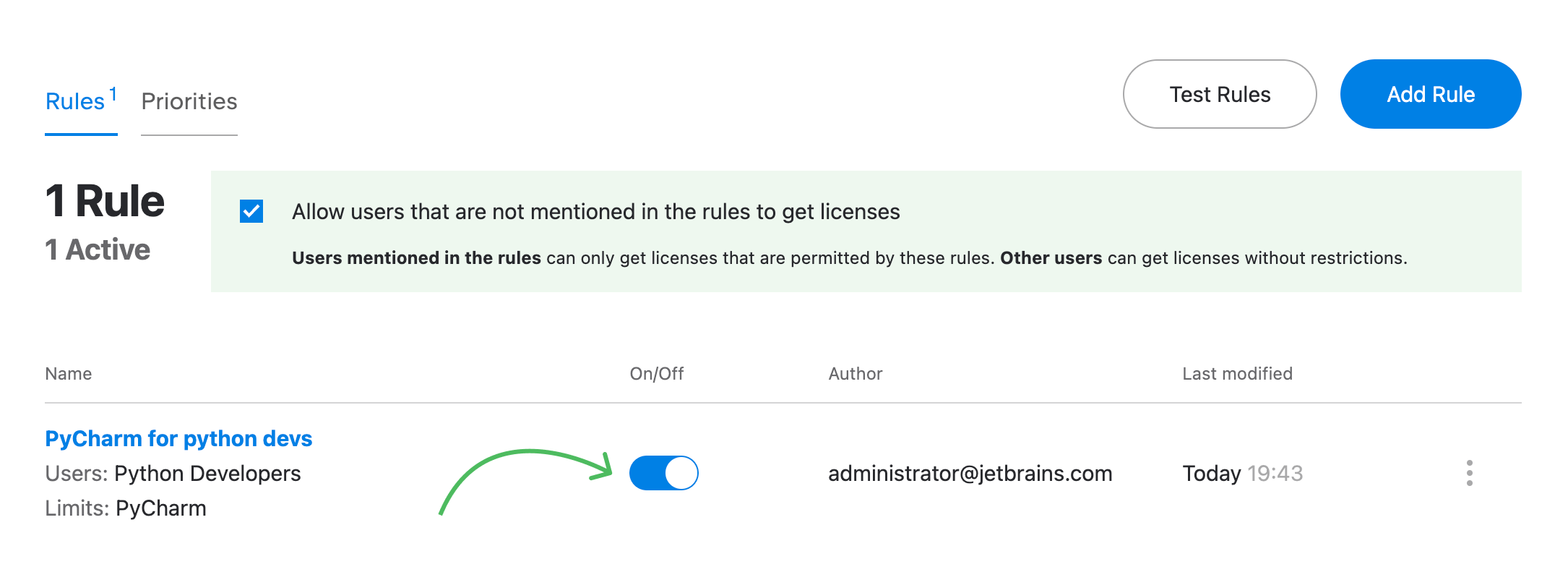
The rule will remain on the list, but it will no longer affect the users' effective permissions. You can always re-enable it by clicking on the toggle again.
Remove a rule
From the main menu, select Licenses.
In the menu on the left, select Rules.
In the rule list, locate the rule you want to remove.
Click the menu icon with three dots next to the rule.
In the menu, select Remove.
Edit a rule
From the main menu, select Licenses.
In the menu on the left, select Rules.
In the rule list, locate the rule you want to edit.
Click the menu icon with three dots next to the rule.
In the menu, select Edit.
To edit the rule, follow the same steps you followed when adding it.
Prioritized users
Add users or profiles to the priority list to ensure they can get licenses even if your team reaches the maximum license capacity.
How distribution priority works
As long as IDE Services has enough licenses for everyone, prioritized users are treated the same as everyone else.
Priority settings start working when all the licenses are taken. In this case, IDE Services denies requests from non-prioritized users. However, if a prioritized user requests a license, IDE Services revokes one from a non-prioritized user and transfers it to the prioritized user.
Whose license will IDE Services revoke?
IDE Services picks a non-prioritized user at random to revoke their license.
Can IDE Services deny a license request from a prioritized user?
A prioritized user's request can only be denied in one of the following cases:
IDE Services has no licenses that match the user's request. For example, if the IDE Services administrator only added
PyCharmlicenses, and the user requests a license forCLion.All the licenses that match the user's request are already taken by other prioritized users.
Rules prohibit that this user obtains the requested license. Priority does not override rule restrictions.
Add or remove a prioritized user
From the main menu, select Licenses.
In the menu on the left, select Rules.
At the top of the page, select the Priorities tab.
In the top-right corner, click Edit Priorities.
Edit the list of prioritized users and profiles.
To add a new prioritized user or profile, enter their name into the corresponding field.
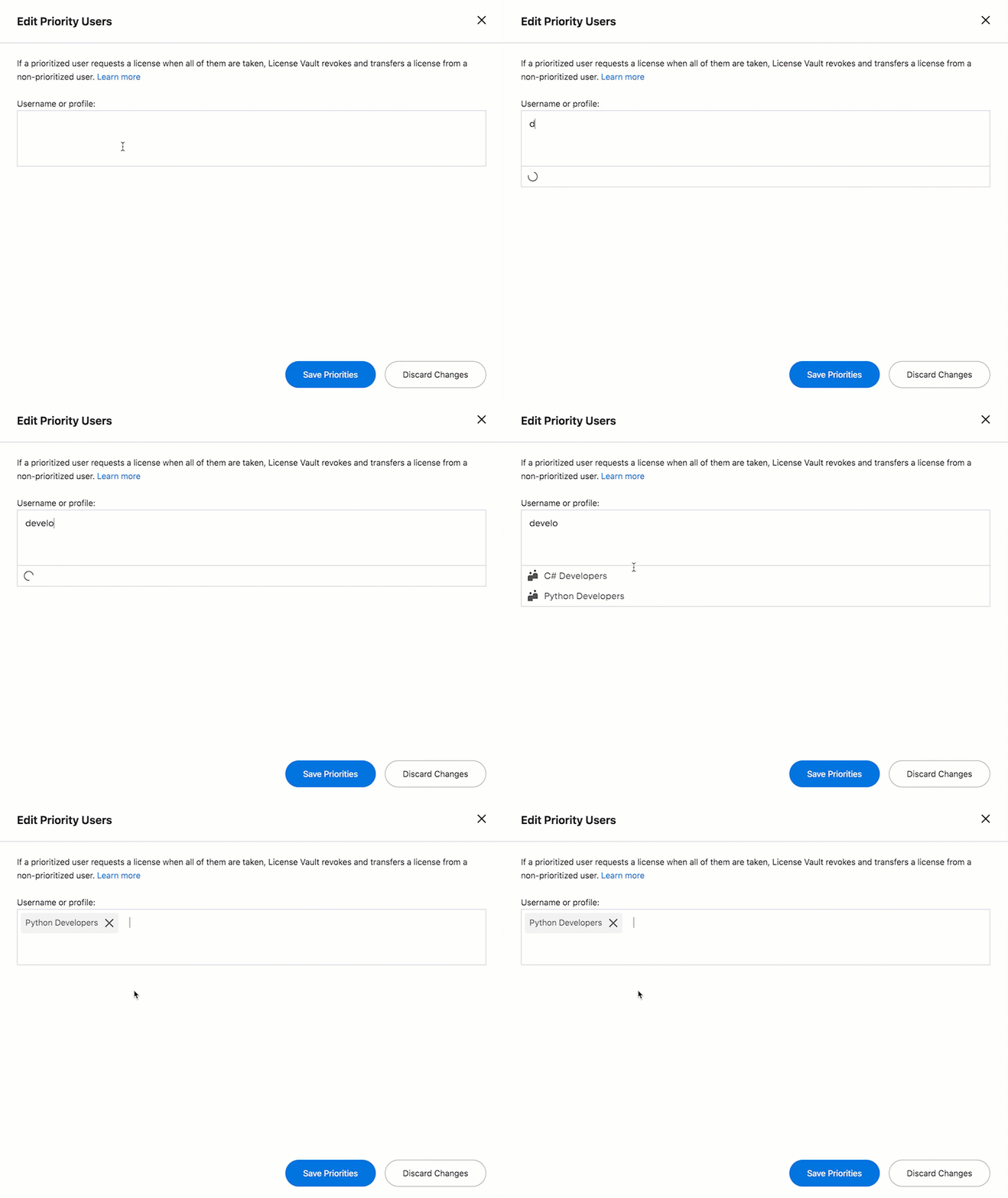
To remove a prioritized user or profile, click on the x button next to their name.
Click Save Priorities to save your changes.