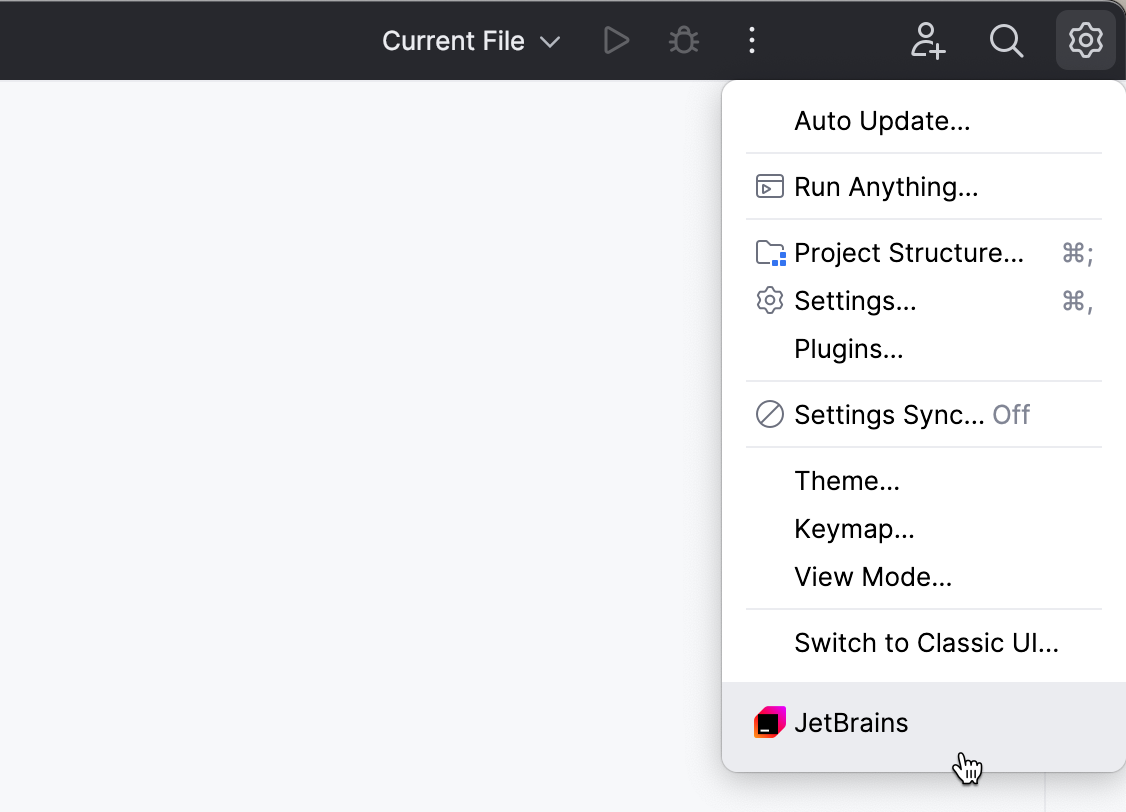
User Guide: Connect to IDE Services Server
To use IDE Provisioner, and AI Enterprise you need to connect to the IDE Services Server through the Toolbox App.
Install the Toolbox App
Before connecting to the company's IDE Services Server, you need to download and install the Toolbox App from the JetBrains website. The Toolbox App acts as an intermediary for managing IntelliJ-based IDEs and simplifies downloading, updating, and configuring your IDEs.
Download the installer .exe from the Toolbox App web page.
Run the installer and follow the wizard steps.
Download the disk image .dmg from the Toolbox App web page.
Mount the image and drag the Toolbox App to the Applications folder.
Install the Toolbox App
Download the tarball .tar.gz.
Unpack the downloaded the Toolbox App distribution archive to the location where you want to install the application (
<installation-directory>):tar -xvf jetbrains-toolbox-<version>.tar.gz -C <installation-directory>To start the application, open a console, navigate to the installation directory (
cdinto<installation-directory>), and run the following command:./bin/jetbrains-toolboxThis will initialize various Toolbox application files in the application directory:
~/.local/share/JetBrains/ToolboxUpon the first launch, the Toolbox App will also create a
.desktopentry file in~/.local/share/applications.Select the product that you want to install.
To install a specific version, click
 and select Available versions.
Log in to your JetBrains Account from the Toolbox App, and it will automatically activate the available licenses for any IDE that you install.
Join your organization
Join the organization from the IDE Services Server
Ask your administrator to provide you with a link to access the IDE Services Web UI and open it in your browser.
On the login page, click the Join <Your Organization> button.

Clicking the button redirects you to the Toolbox App. You will see the confirmation dialog suggesting joining your organization.
Click Log in and specify the credentials of the identity provider used in your organization to connect to the IDE Services Server.

Join using the configuration file
Ensure that the configuration file provided by your administrator is placed in a dedicated system location on your machine:
%PROGRAMDATA%\JetBrains\Toolbox\enterprise-config.json(Windows)/Library/Application Support/JetBrains/Toolbox/enterprise-config.json(macOS)/usr/share/jetbrains-toolbox/enterprise-config.json(Linux)
Launch the Toolbox App and log in with the credentials of the OAuth 2.0 provider used within your organization.
After joining, you will see a label stating that your Toolbox App is managed by your organization.
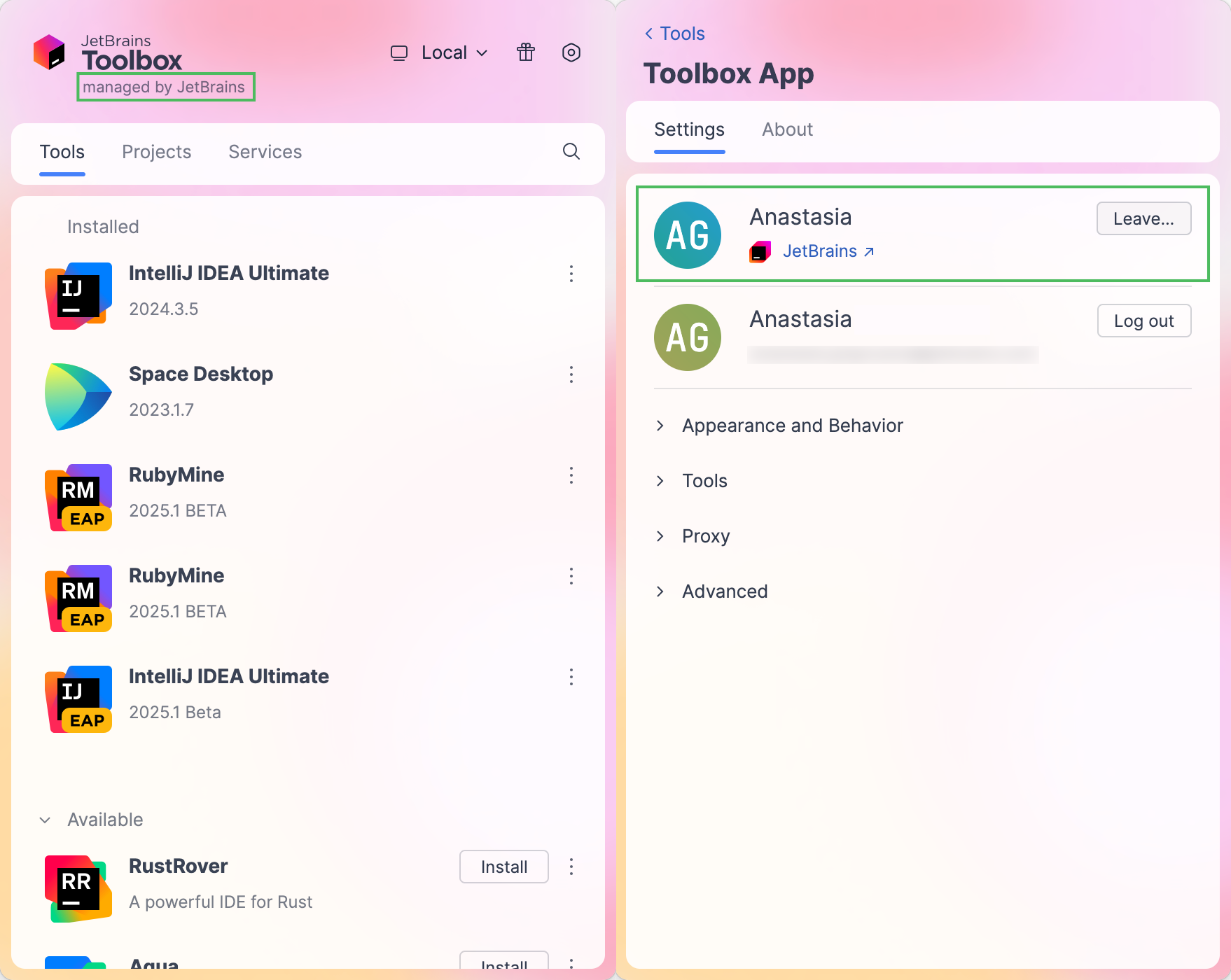
While using the IDE, you will see an indicator that the current IDE is managed by your organization.