Google Auth Module
This authentication module lets users log in to Hub with the email addresses and passwords they manage in Google.
When you enable Google authentication in Hub:
Your users log in to Hub with the credentials they use for their Google accounts.
Your Hub users have fewer accounts and passwords to remember.
New users with Google accounts can create their own accounts in Hub.
Enable Google Authentication
To let users log in to Hub with existing Google accounts, create and enable the Google authentication module.
To create a Google authentication module:
From the main navigation menu, select Auth Modules.
Click the New module button.
The Select an identity provider dialog opens.
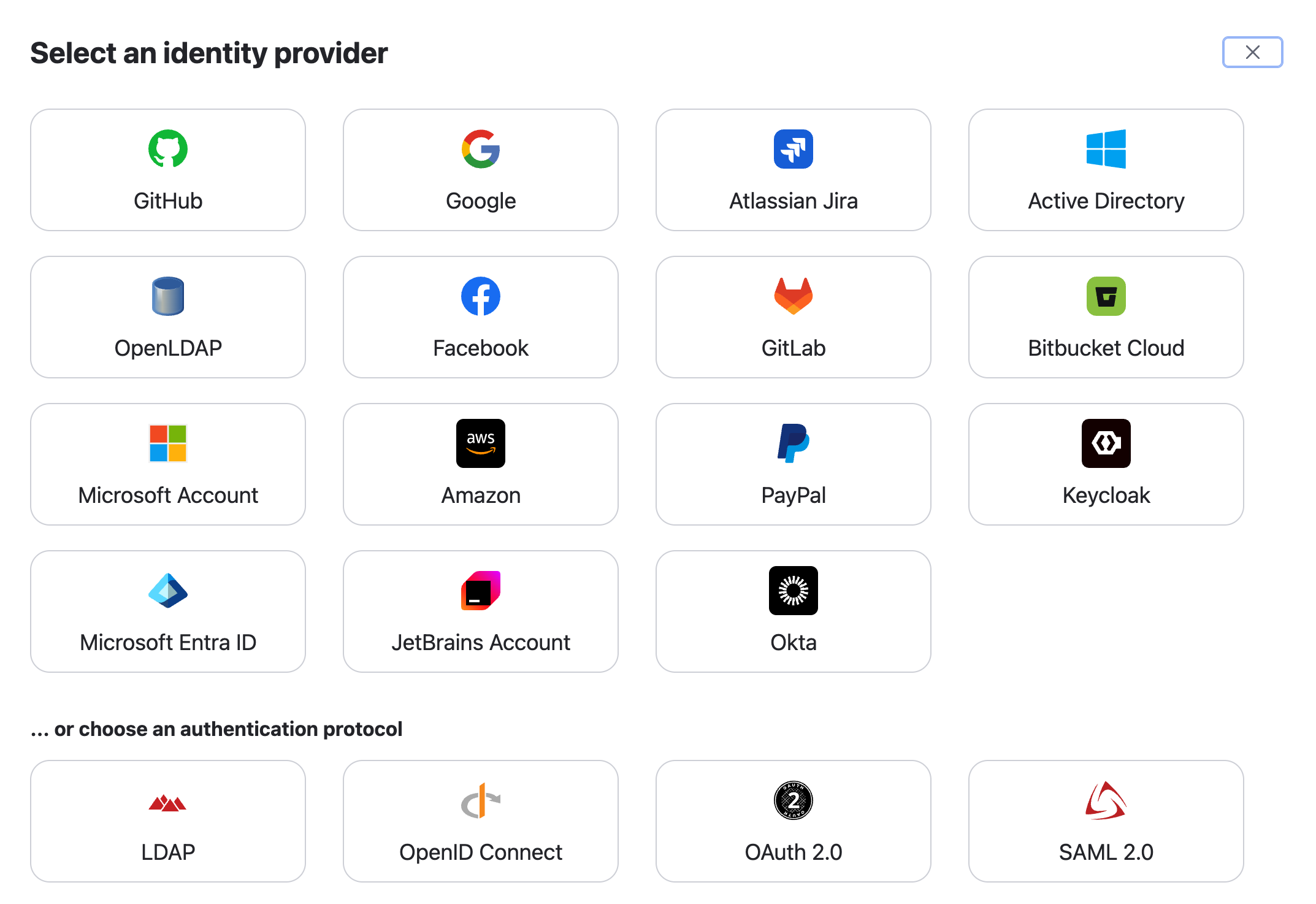
In the Select an identity provider dialog, select Google.
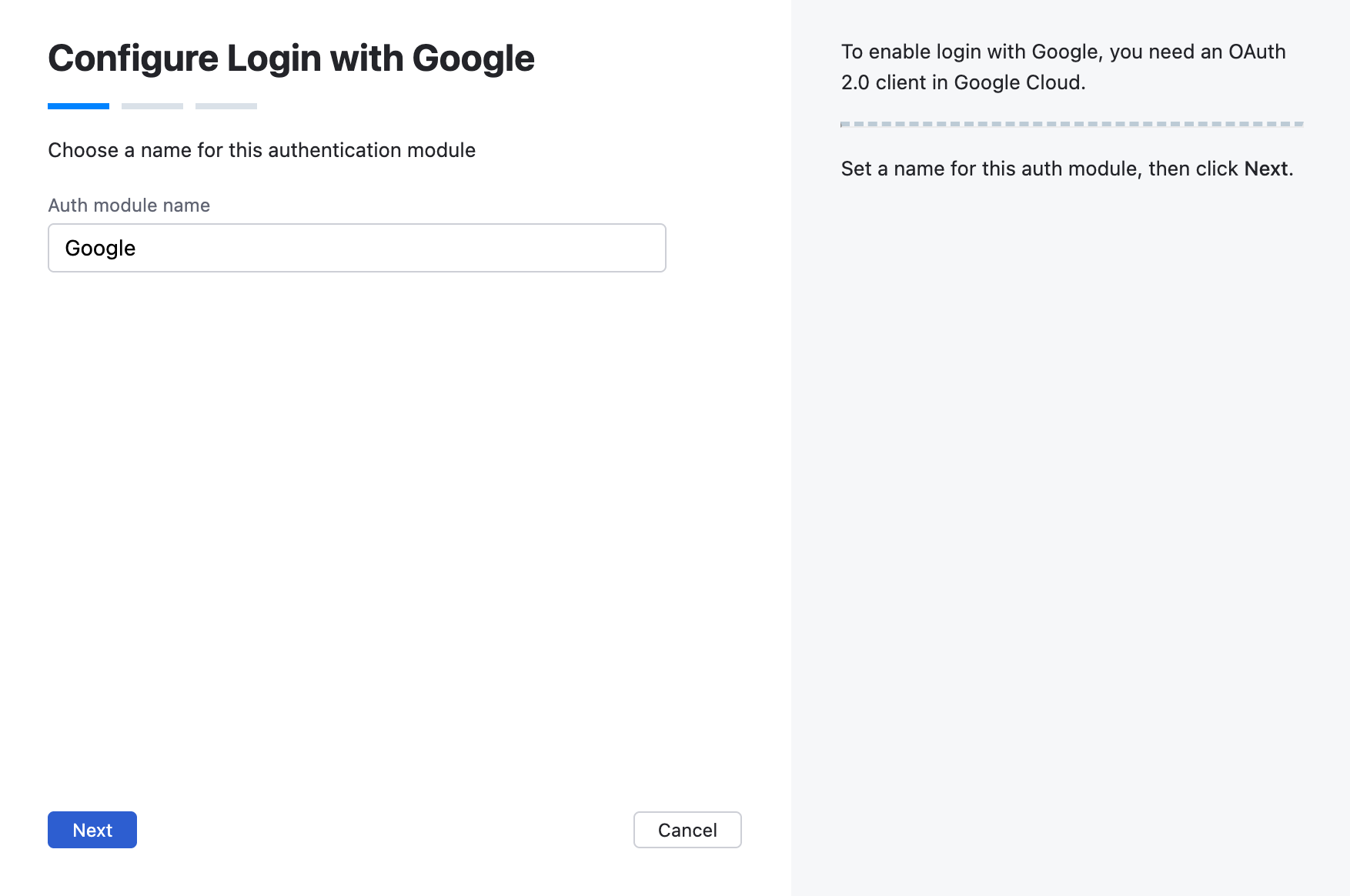
The Configure Login with Google wizard opens.
Enter a name for the authentication module, then click Next.
Copy the generated Redirect URI.
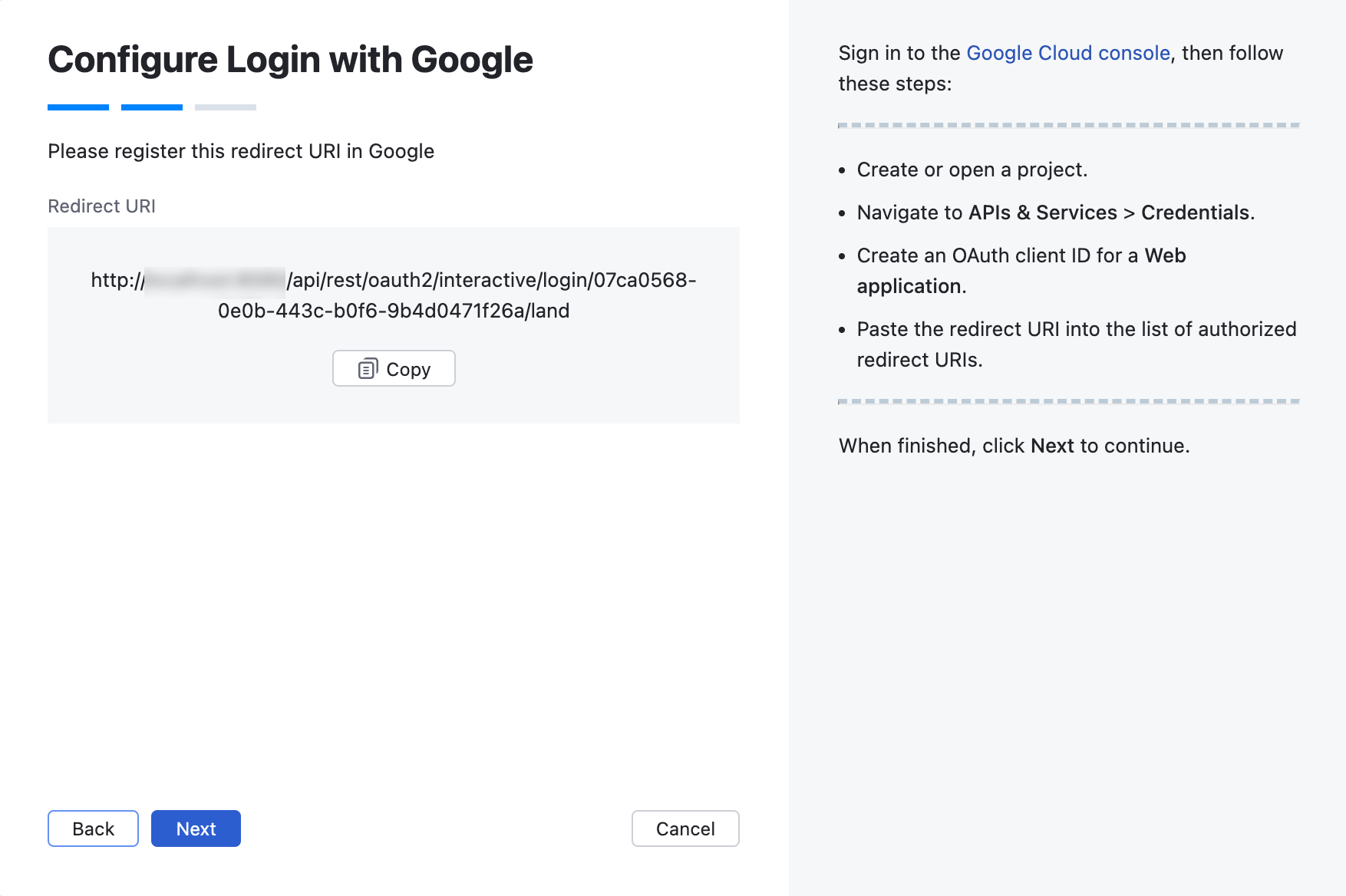
Sign in to the Google Cloud console.
Create or open a project.
Navigate to .
Create an OAuth client ID for a Web application.
Paste the copied redirect URI into the list of authorized redirect URIs.
When finished, click Next in Hub.
Copy the Client ID and Client secret from your Google OAuth application and paste them into the corresponding fields in Hub.
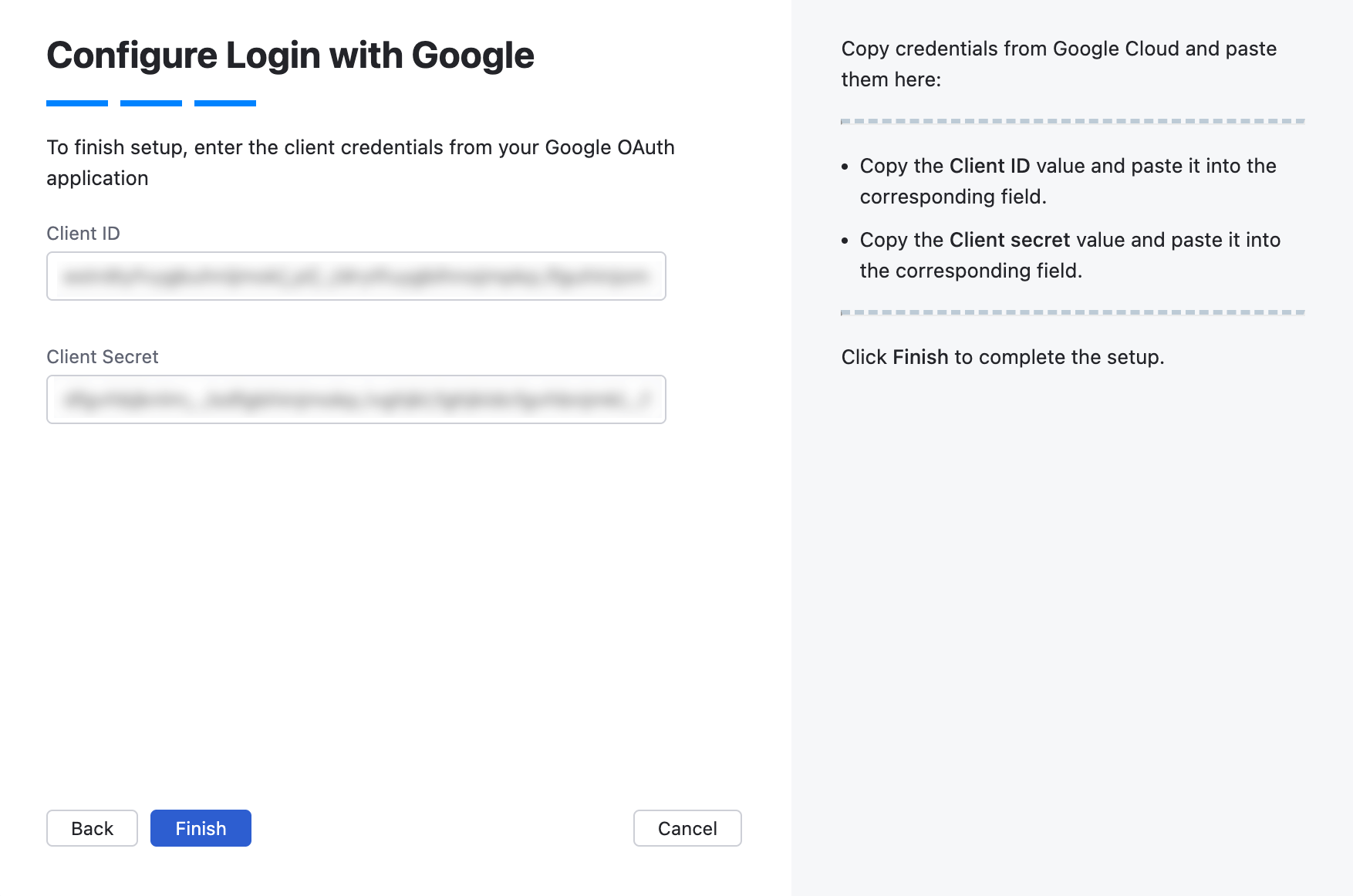
Click Finish.
The Google authentication module is created and its configuration page opens.
To enable the Google auth module:
Review and configure optional settings for the authentication module. For more information, see Settings and Additional Settings.
Click Save to apply the settings.
Click Enable:
The Google authentication module is enabled.
The Google auth module icon is added to the login dialog window. Users can click this icon to log in to Hub with their Google accounts.
To verify that the authentication module is configured correctly, click Test login.
Hub opens the Google authentication flow.
If you are authenticated successfully, the configuration is correct.
Settings
In the header of the settings page, you can find the general information about the authentication module.
Setting | Description |
|---|---|
Name | Stores the name of the authentication module. Use this setting to distinguish this module from other authentication modules in the Auth Modules list. You can change the name of the authentication module using the Rename action. For more details, refer to Actions. |
Button Image | Displays the image used for the button that a user clicks to log in to Hub with a Google account. You can change the image using the Rename action. For more details, refer to Actions. |
Accounts imported to Hub | Displays the number of users that have been imported to your Hub installation. |
Accounts discovered in Google | Displays the number of user accounts that Hub has discovered in Google. |
Last sync | Displays the last time when Hub synchronized user accounts and groups between Hub and Google. |
On the General Settings tab, you find the general settings for the authentication module. This includes the redirect URI used to register Hub in Google and the input fields that store the client credentials.
Field | Description |
|---|---|
Redirect URI | Displays the redirect URI used to register the connection to Hub in Google. |
Client ID | Stores the identifier Google uses to validate a login request. You generate this value in the Google Cloud Platform when you configure the authorization settings for a web application and enter an authorized redirect URI. |
Client Secret | Stores the secret or password used to validate the client ID. You generate this value in the Google Cloud Platform together with the client ID. |
Default | Designates the authentication module as the default for your installation. Only one authentication module can be set as the default at any time. If no authentication module is set as the default, unauthenticated users are directed to the Hub login page. |
Admin account email | The email address of a Google Workspace administrator account. Hub uses this account when synchronizing users and groups from Google. |
Service account JSON | Upload a JSON key file for a Google service account. The file must contain the credentials that Hub uses to access the Google Directory API and synchronize users and groups. For details, see Configure Google API Access. |
Refresh | Verifies the Google API configuration and refreshes synchronization data retrieved from Google. |
Rediscover | Runs a new discovery process and updates the list of users and groups that are available for import from Google. |
Users & Groups
The settings on the Users & Groups tab let you manage how users and groups are synchronized between Google and Hub.
Configure Google API Access
To synchronize users and groups from Google Workspace, configure Google API access for the authentication module.
Without Google API access, Hub only synchronizes user profile data when users authenticate with their Google accounts. This synchronization is performed per user when they log in.
When Google API access is configured, Hub can discover users and groups in Google Workspace, import selected groups, and synchronize user and group data independently of user login activity.
Sign in to the Google Cloud console.
Go to and create a service account.
Open the service account and copy its Client ID.
Sign in to the Google Admin console.
Go to .
Click Add new. Paste the service account client ID and add the following scopes:
https://www.googleapis.com/auth/admin.directory.user.readonly https://www.googleapis.com/auth/admin.directory.group.readonly https://www.googleapis.com/auth/admin.directory.group.member.readonlyIn the Google Cloud console, open the service account.
Go to the Keys tab and create a new key.
Select JSON as the key type.
The key file is downloaded to your computer.
In the Google Cloud console, enable the Admin SDK API for your project.
In Hub, go to the General Settings tab of your Google authentication module.
Enter the email address of your Google Workspace administrator account in the Admin account email field.
Upload the downloaded JSON key file in the Service account JSON field.
Click Refresh.
If the configuration is valid, the status changes to API access is configured.
Hub can discover users and groups from Google Workspace.
Import Groups
Setting | Description |
|---|---|
Filter groups by name | Filters the list of discovered Google groups. |
Scheduled sync | Determines the frequency with which user attributes and group memberships are synchronized with Google Workspace. If the setting is enabled, you can choose from one of three predefined intervals:
You can also launch the synchronization manually at any time by clicking the Sync users and groups now button in the header. If the setting is disabled, group memberships are still synchronized on a per-user basis during login. The synchronization feature is only active when the authentication module is Enabled. |
Group Mappings
Group mappings let you synchronize memberships between Google groups and existing groups in Hub.
For each mapped group, Hub performs the following operations:
Users who belong to the Google group but are not members of the mapped Hub group are added to the group in Hub.
Users who are members of the mapped Hub group but no longer belong to the Google group are removed from the group in Hub.
Add a Group Mapping
Use group mappings to synchronize memberships between Google groups and existing groups in Hub.
On the Users & Groups tab of the Google auth module, click Map Existing Groups.
Click Add mapping.
In the Add Mapping dialog, enter the name of the group from Google Workspace.
From the Target group list, select the Hub group that should be synchronized with the Google group.
Click Add.
Click Save.
The group mapping is added. When users authenticate with Google accounts, Hub synchronizes their membership in the mapped Hub group with their membership in the corresponding Google group.
Additional Settings
The following options are located at the bottom of the page. Use these settings to manage Hub account creation and group membership and to reduce the loss of processing resources consumed by idle connections.
Option | Description |
|---|---|
User creation | Enables creation of Hub accounts for unregistered users who log in with an account that is stored in the connected authorization service. Hub uses the email address to determine whether the user has an existing account. |
Restricted domains and emails | Restricts the creation of user accounts to users with email addresses from the specified domains or specific email addresses. To specify multiple domains or email addresses, enter each value on a new line. Hub recognizes domains with or without the This option is only available when you enable the User creation option. If a user attempts to log in with a Google account that does not match the specified domain, then:
|
Auto-join groups | Adds users to a group when they log in with an account that is stored in the connected authorization service. You can select one or more groups. New users that auto-join a group inherit all the permissions assigned to this group. We recommend that you add users to at least one group. Otherwise, a new user is only granted the permissions that are currently assigned to the All Users group. |
Connection timeout | Sets the period of time to wait to establish a connection to the authorization service. The default setting is 5000 milliseconds (5 seconds). |
Read timeout | Sets the period of time to wait to read and retrieve user profile data from the authorization service. The default setting is 5000 milliseconds (5 seconds). |
Changes made to Google | Links to the Audit Events page in Hub. There, you can view a list of changes that were applied to this authentication module. |
Actions
The following actions are available in the header of the authentication module settings page:
Action | Description |
|---|---|
Enable | Enables the authentication module. This option is only shown when the authentication module is currently disabled. |
Disable | Disables the authentication module. This option is only shown when the authentication module is currently enabled. |
Test login | Lets you enter a username and password to test the connection with the authentication service. |
Rename | Changes the name and the button image of the authentication module. |
Delete | Removes the authentication module from Hub. Use only when you have configured additional authentication modules that let users log into Hub. |