GitHub Auth Module
This authentication module lets users log in to Hub with their GitHub or GitHub Enterprise accounts.
Enable GitHub Authentication
To let users log in to Hub with existing GitHub accounts, create and enable the GitHub authentication module.
To create a GitHub authentication module:
From the main navigation menu, select Auth Modules.
Click the New module button.
The Select an identity provider dialog opens.
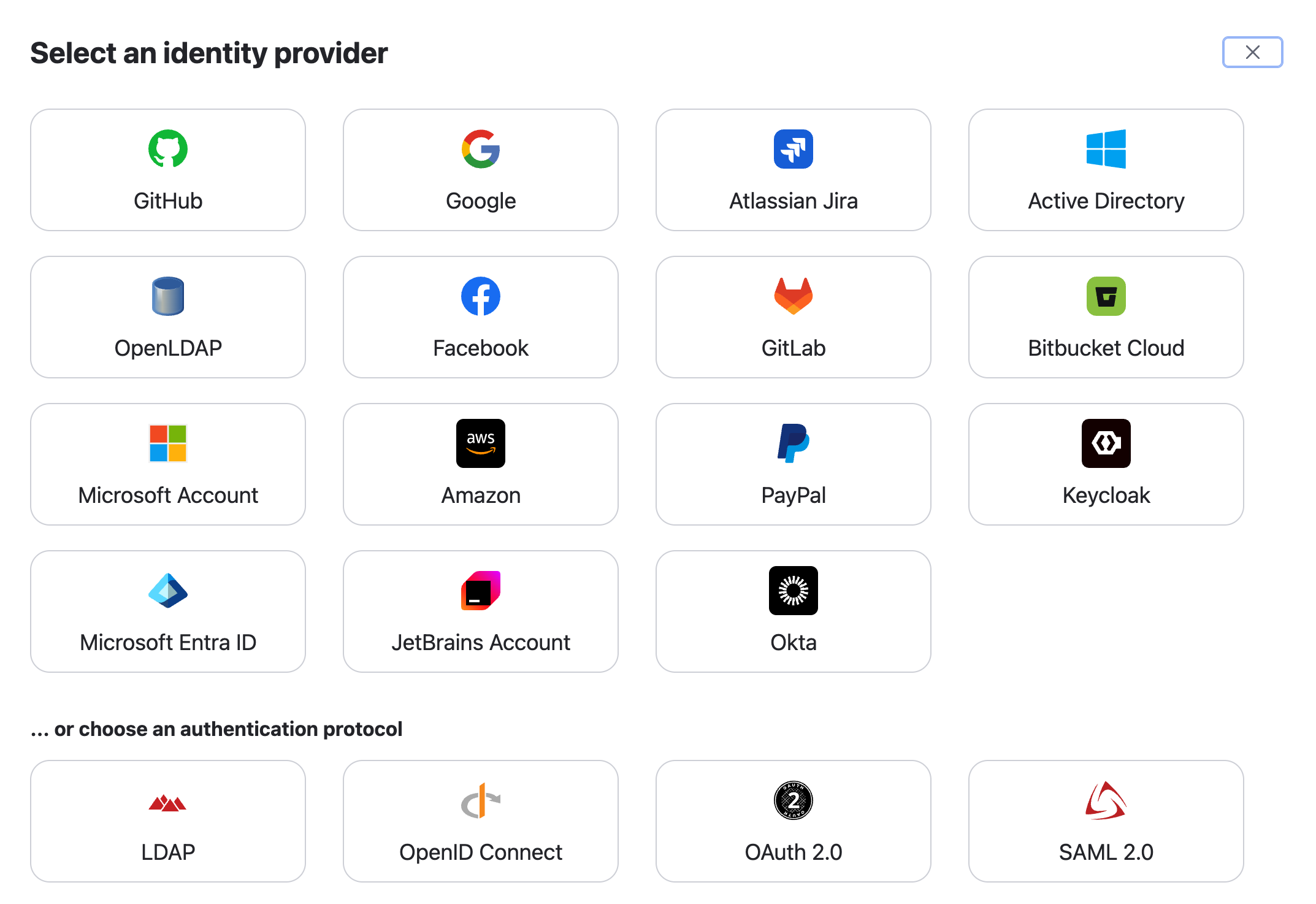
In the Select an identity provider dialog, select GitHub.
The Configure Login with GitHub wizard opens.
Enter the URL of your GitHub server, then click Next.
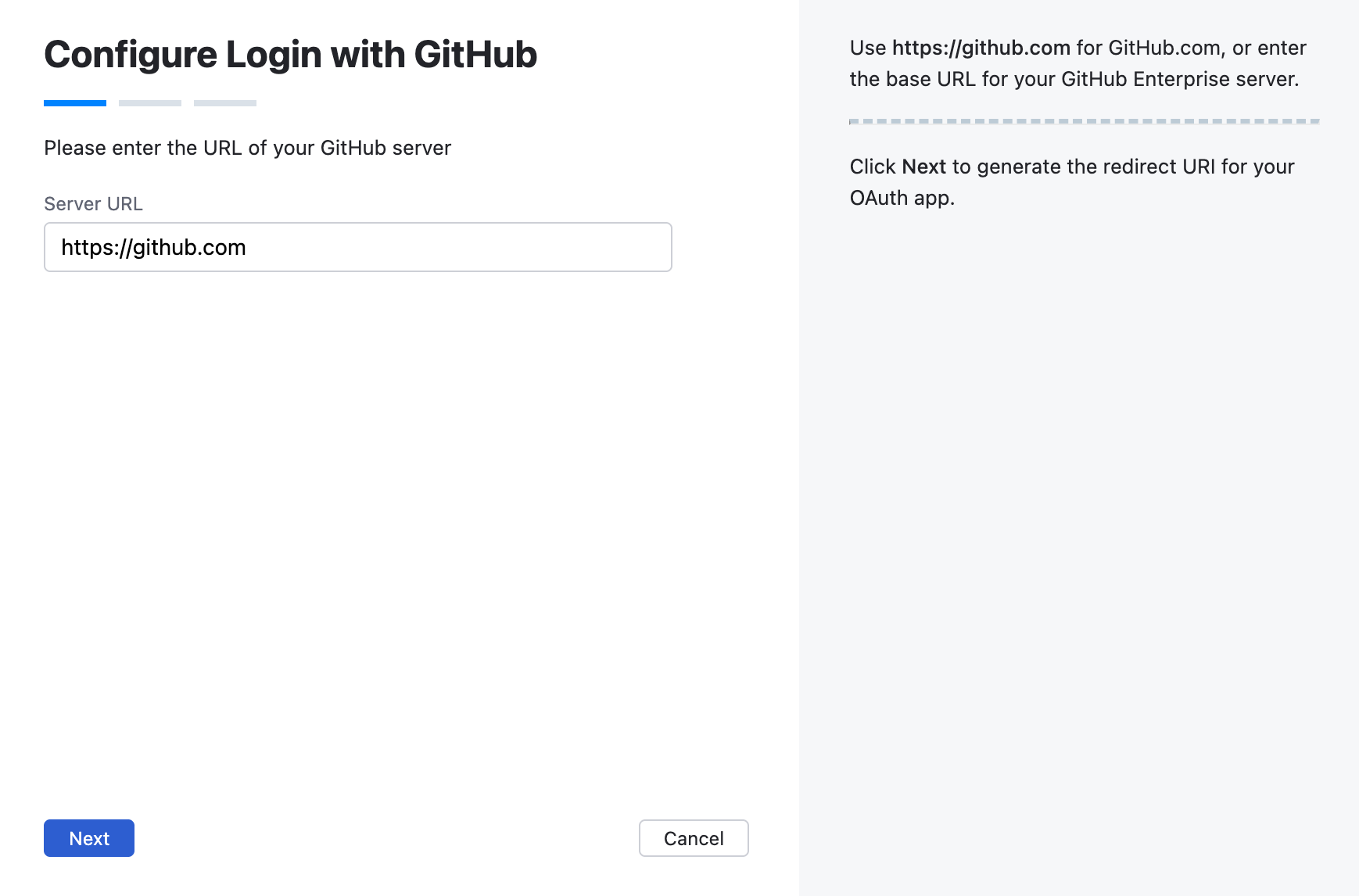
For GitHub.com, enter
https://github.com.For GitHub Enterprise Server, enter the base URL of your GitHub Enterprise Server instance.
Copy the generated Redirect URI.
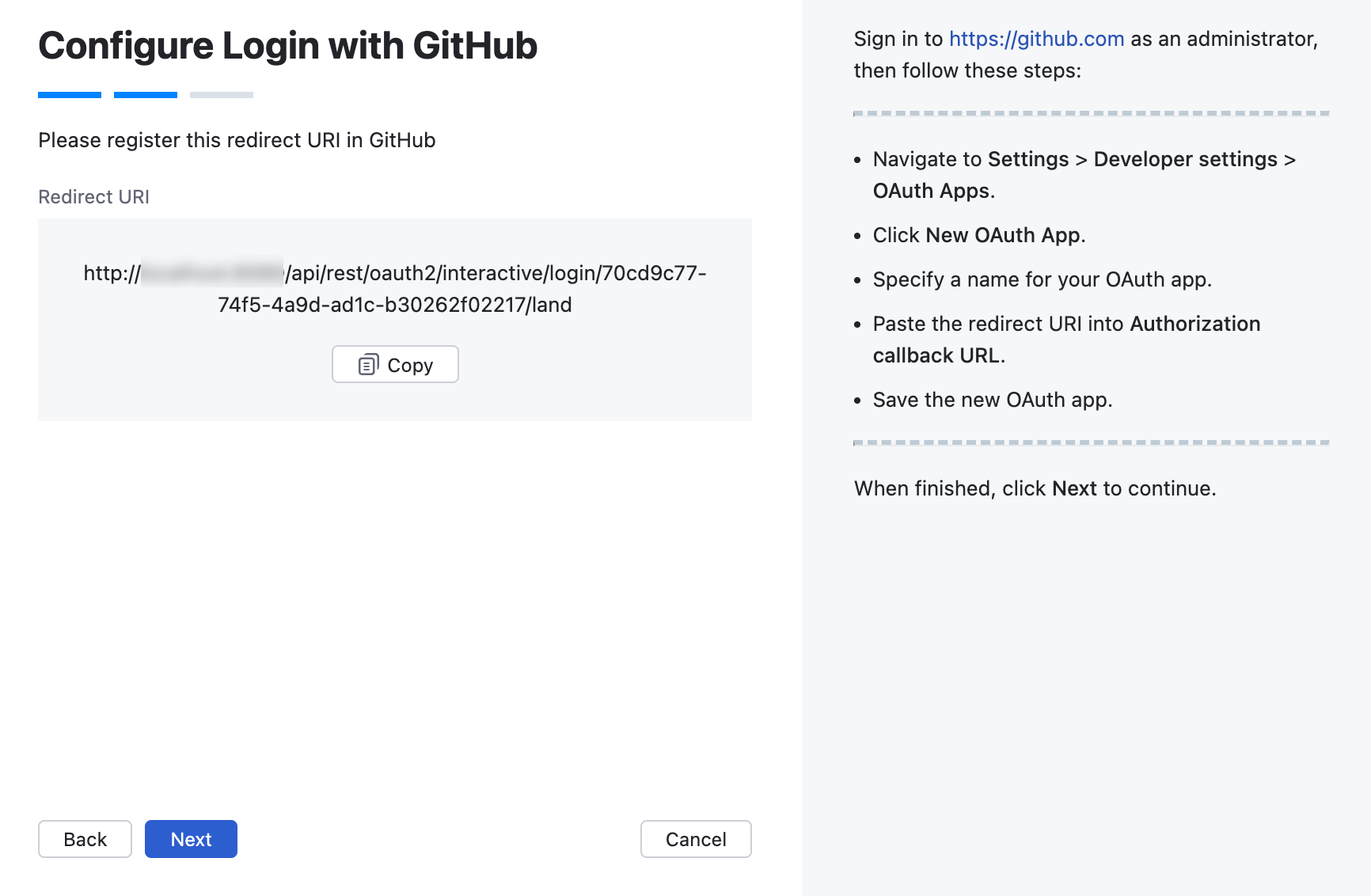
Sign in to GitHub.
Start creating an OAuth app.
Paste the copied redirect URI into the Authorization callback URL field.
Save the new OAuth app.
When finished, click Next in Hub.
Copy the Client ID and Client secret from your GitHub OAuth app and paste them into the corresponding fields in Hub.
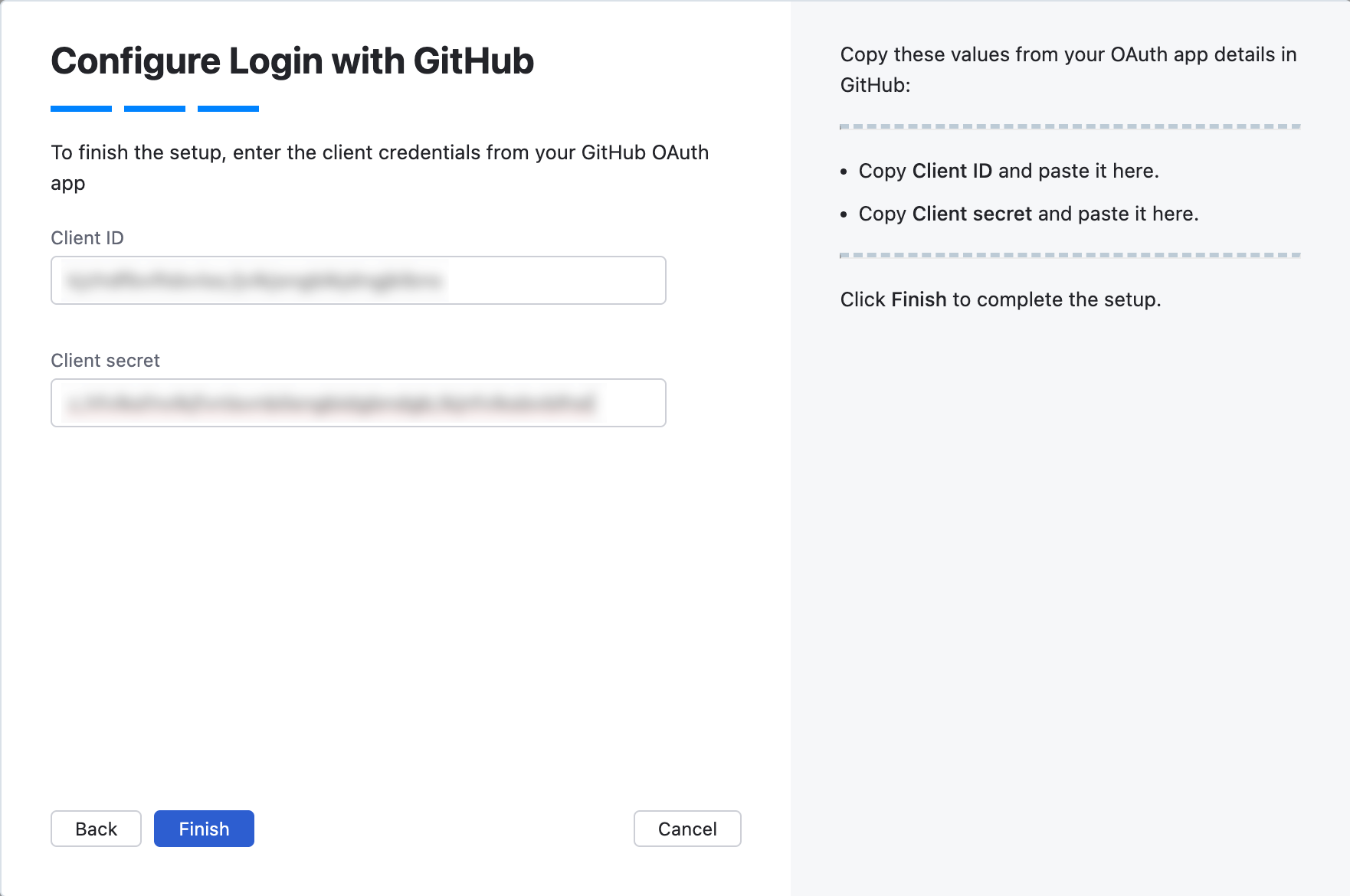
Click Finish.
The GitHub authentication module is created and its configuration page opens.
To enable the GitHub auth module:
Review and configure optional settings for the authentication module. For more information, see Settings and Additional Settings.
Click Save to apply the settings.
Click Enable:
The GitHub authentication module is enabled.
The GitHub auth module icon is added to the login dialog window. Users can click this icon to log in to Hub with their GitHub accounts.
To verify that the authentication module is configured correctly, click Test login.
Hub opens the GitHub authentication flow.
If you are authenticated successfully, the configuration is correct.
Authorize the GitHub OAuth Application
The first time you attempt to log in using the GitHub authentication module, you are prompted to authorize access to the OAuth application in GitHub.
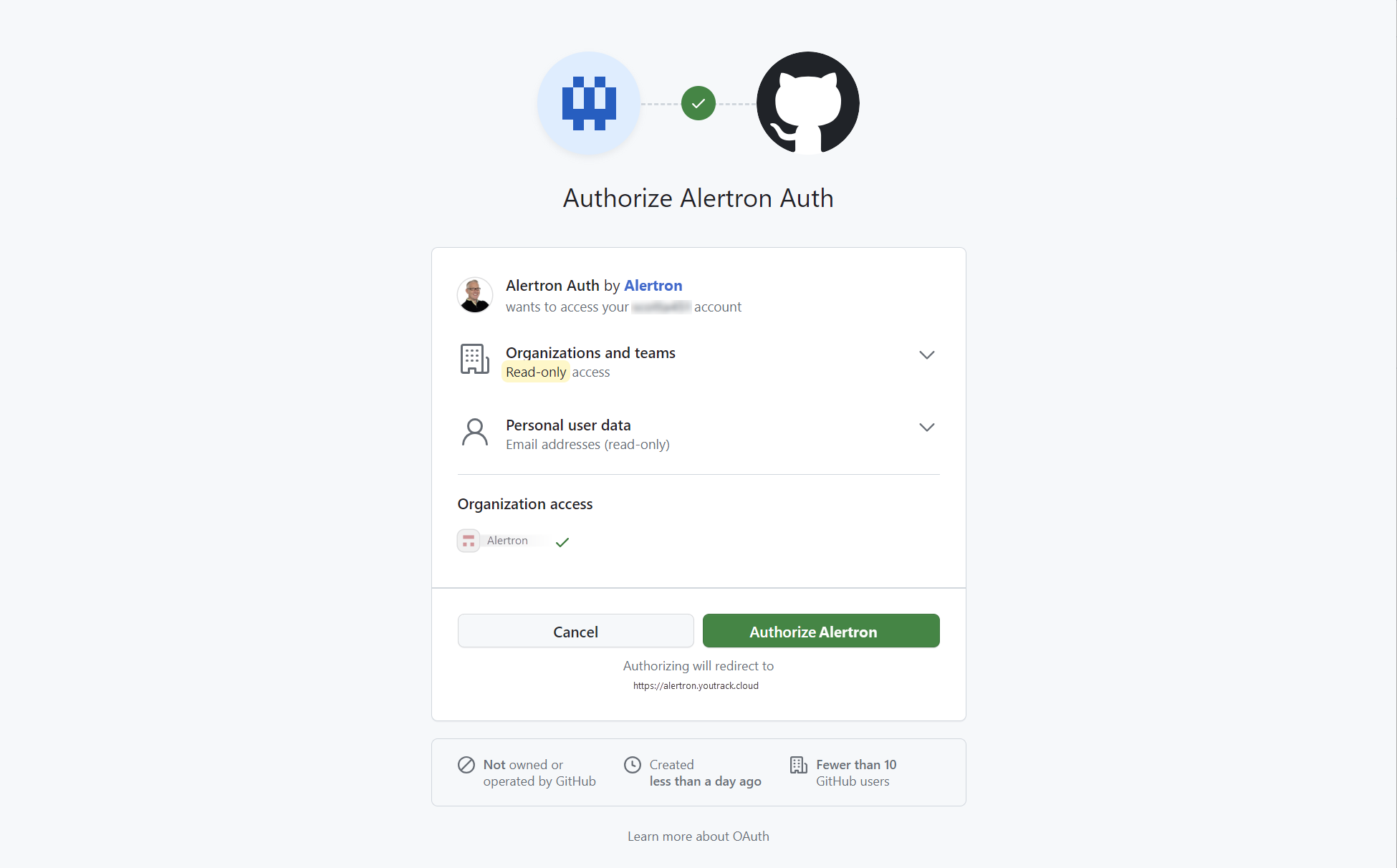
If you are unable to grant the application access at this point in time, access the settings for your organization and grant them there. For specific instructions, please refer to the GitHub documentation.
Settings
In the header of the settings page, you can find the general information about the authentication module.
Setting | Description |
|---|---|
Name | Stores the name of the authentication module. Use this setting to distinguish this module from other authentication modules in the Auth Modules list. You can change the name of the authentication module using the Rename action. For more details, refer to Actions. |
Button Image | Displays the image used for the button that a user clicks to log in to Hub with a GitHub account. You can change the image using the Rename action. For more details, refer to Actions. |
Server | Displays the GitHub server URL used by this authentication module. |
Accounts imported to Hub | Displays the number of users that have been imported to your Hub installation. |
On the General Settings tab, you find the general settings for the authentication module. This includes the redirect URI used to register Hub in GitHub and the input fields that store the client credentials.
Setting | Description |
|---|---|
Redirect URI | Displays the redirect URI used to register the connection to Hub in GitHub. |
Client ID | Stores the identifier GitHub uses to validate a login request. You generate this value in GitHub when you create the OAuth app. |
Client secret | Stores the secret used to validate the client ID. You generate this value in GitHub together with the client ID. |
Default | Designates the authentication module as the default for your installation. Only one authentication module can be set as the default at any time. If no authentication module is set as the default, unauthenticated users are directed to the Hub login page. |
Server URL | Stores the URL of the GitHub server to which Hub sends login requests. |
Scope | Displays the scope for the access request. The default value is |
Allowed organizations | Restricts logins for this authentication module to users who belong to specific GitHub organizations. Enter a comma-separated list of organizations. If empty, any user with a GitHub account can log in using this authentication module. |
Additional Settings
On the Additional Settings tab, you can manage Hub account creation, group membership, and connection timeouts.
Setting | Description |
|---|---|
User creation | Enables creation of Hub accounts for unregistered users who log in with GitHub. Hub uses the email address to determine whether the user has an existing account. |
Auto-join groups | Adds users to a group when they log in with an account that is stored in the connected authorization service. You can select one or more groups. New users that auto-join a group inherit all the permissions assigned to this group. We recommend that you add users to at least one group. Otherwise, a new user is only granted the permissions that are currently assigned to the All Users group. |
Connection timeout | Sets the period of time to wait to establish a connection to GitHub. The default value is |
Read timeout | Sets the period of time to wait to read and retrieve user profile data from GitHub. The default value is |
Changes Made to GitHub | Links to the Audit Events page in Hub, where you can view changes applied to this authentication module. |
Actions
The following actions are available in the header of the authentication module settings page:
Action | Description |
|---|---|
Enable | Enables the authentication module. This option is only shown when the authentication module is currently disabled. |
Disable | Disables the authentication module. This option is only shown when the authentication module is currently enabled. |
Test login | Lets you enter a username and password to test the connection with the authentication service. |
Rename | Changes the name and the button image of the authentication module. |
Delete | Removes the authentication module from Hub. Use only when you have configured additional authentication modules that let users log into Hub. |