Create a Group
In Hub, a group defines how a collection of users gains access to resources. The access rights are defined by assigning one or more roles to the group.
Use groups to provide a uniform set of permissions to a collection of users who perform similar tasks and require a non-standard level of access.
In addition to the default user groups, you can create as many user groups as you need for your Hub instance.
To create a group:
From the main navigation menu, select Groups.
Click the New group button.
In the New Group dialog, enter a name for the new group.
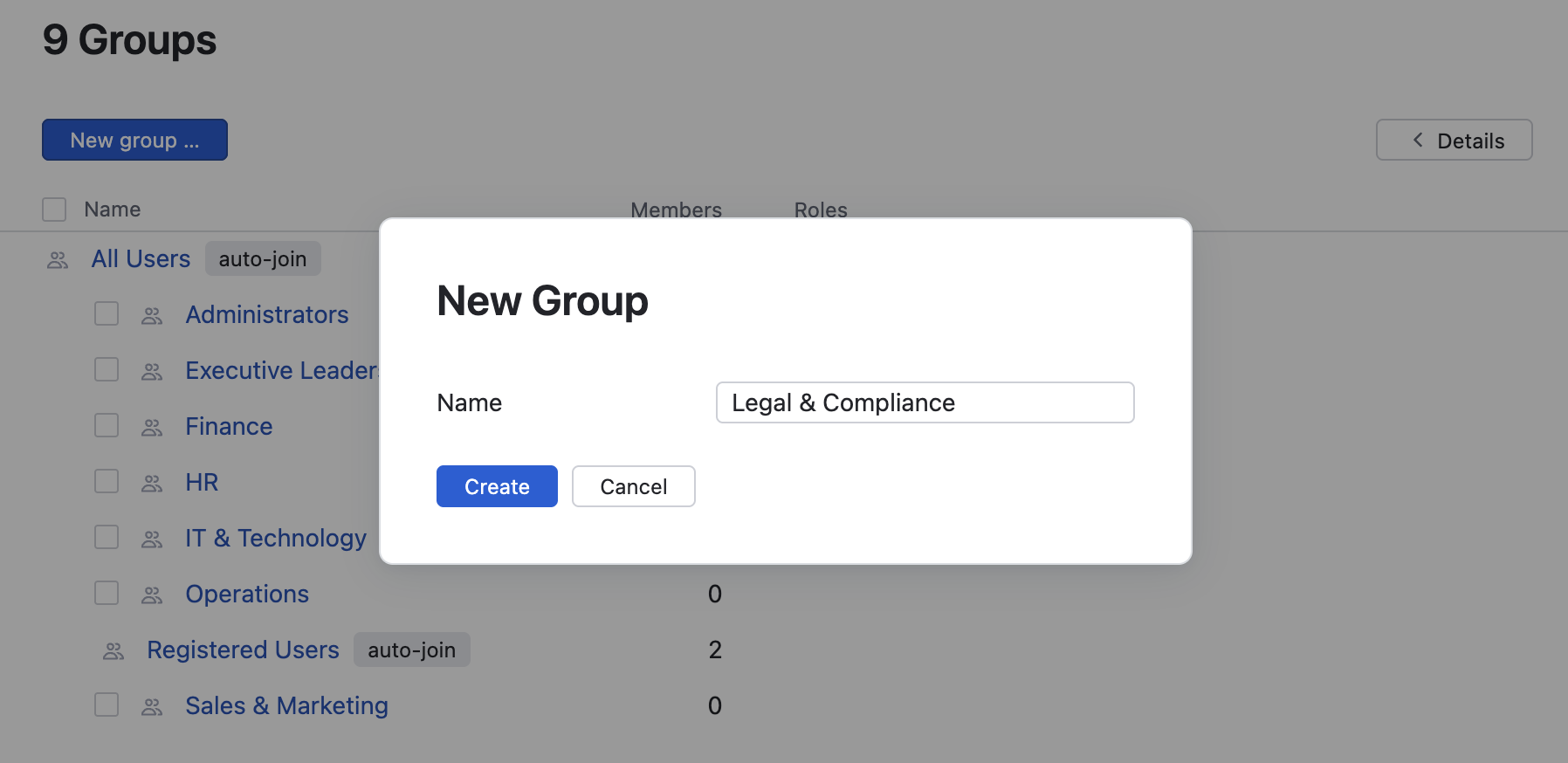
Click the Create button.
The new group is created. However, it does not have any members or role assignments. Select one of the following tabs to perform the corresponding operation:
Tab
Operation
Members
Add one or more users to the group. For more information, see Add and Remove Members.
Settings
Edit the basic settings for the group. For more information, see Edit Basic Group Settings.
Roles
Grant a role to every member of the group. For more information, see Manage Group Access.
Note that all the groups in Hub are subgroups of the All Users group. Any new group inherits all the roles that are assigned to the All Users group.