Tutorial: Create a live template with variables and functions
In this tutorial, you will learn how to create and use a simple live template that includes variables and functions.
As an example, you will make a live template that generates a new Go struct, adds a field with a selectable value, and implements a method using these values.
Create a new Go struct type that embeds an existing
Petstruct.Add a
foodfield of typestring, with the value chosen from a list.Implement a
PetFood()method that prints a message using the struct's name and food.
To showcase how variables and functions work in templates, we will add the following variables to the template text:
Create a live template with variables
Press Ctrl+Alt+S to open settings and then select .
Select the Go group, click
 , and select Live Template.
In the Abbreviation field, specify the characters that will be used to expand the template. For example,
pet.In the Template text field, paste the following template:
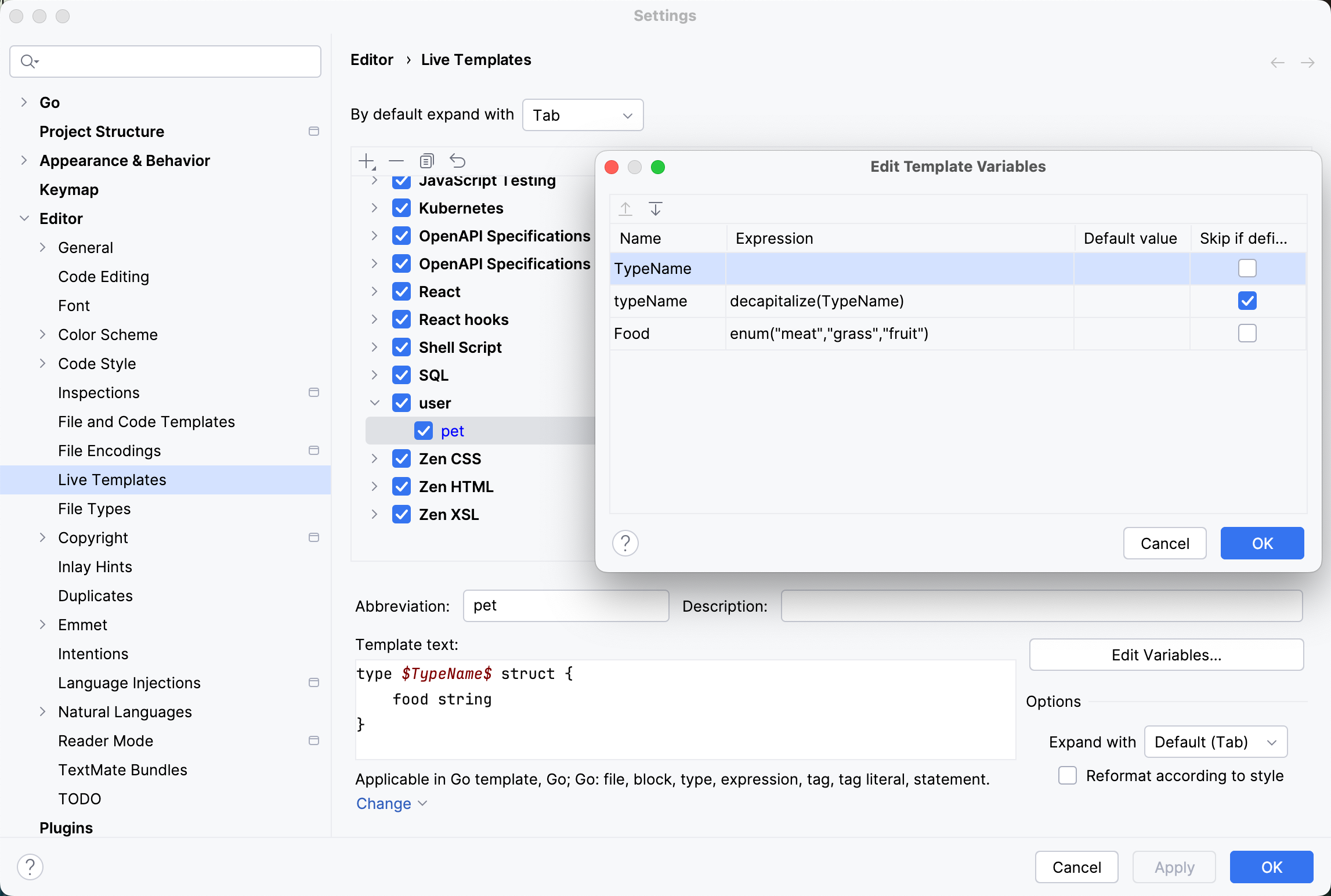
type $TypeName$ struct { food string } func (p *$TypeName$) PetFood() { food := "$Food$" println("The $typeName$ eats " + food) }Click Edit Variables… and, in the Edit Template Variables dialog, configure the variables:
$TypeName$: leave the Expression field empty. When using the template, GoLand will prompt the user to enter a type name after inserting the template.$typeName$: in the Expression field, enterdecapitalize (TypeName). This converts the first letter of$TypeName$to lower case. Select Skip if defined.$Food$: in the Expression field, enterenum("meat","grass", "fruit"). When using the template, GoLand will display a list of these values in the editor to choose from.
Use the created template
In the editor, start typing the template abbreviation (
petin our example) and select it from the completion dropdown.Enter the type name as a variable value:
Horse. Press Tab to jump to the next variable.Using the keyboard arrows, select
grassas a value of thefoodstring and press Enter.