SQL templates
A structural search lets you find code fragments that match a user-defined search template. If the template matches part of the source code, the corresponding expression is highlighted. A search template is essentially a query made up of text, variables, filters, scopes, and context. Using these elements, you can refine your search and achieve more precise results.
Search tools
A variable is a sequence of characters enclosed in dollar signs, for example, $name$ or $field$.
The screenshot below shows a template used to search for structs.
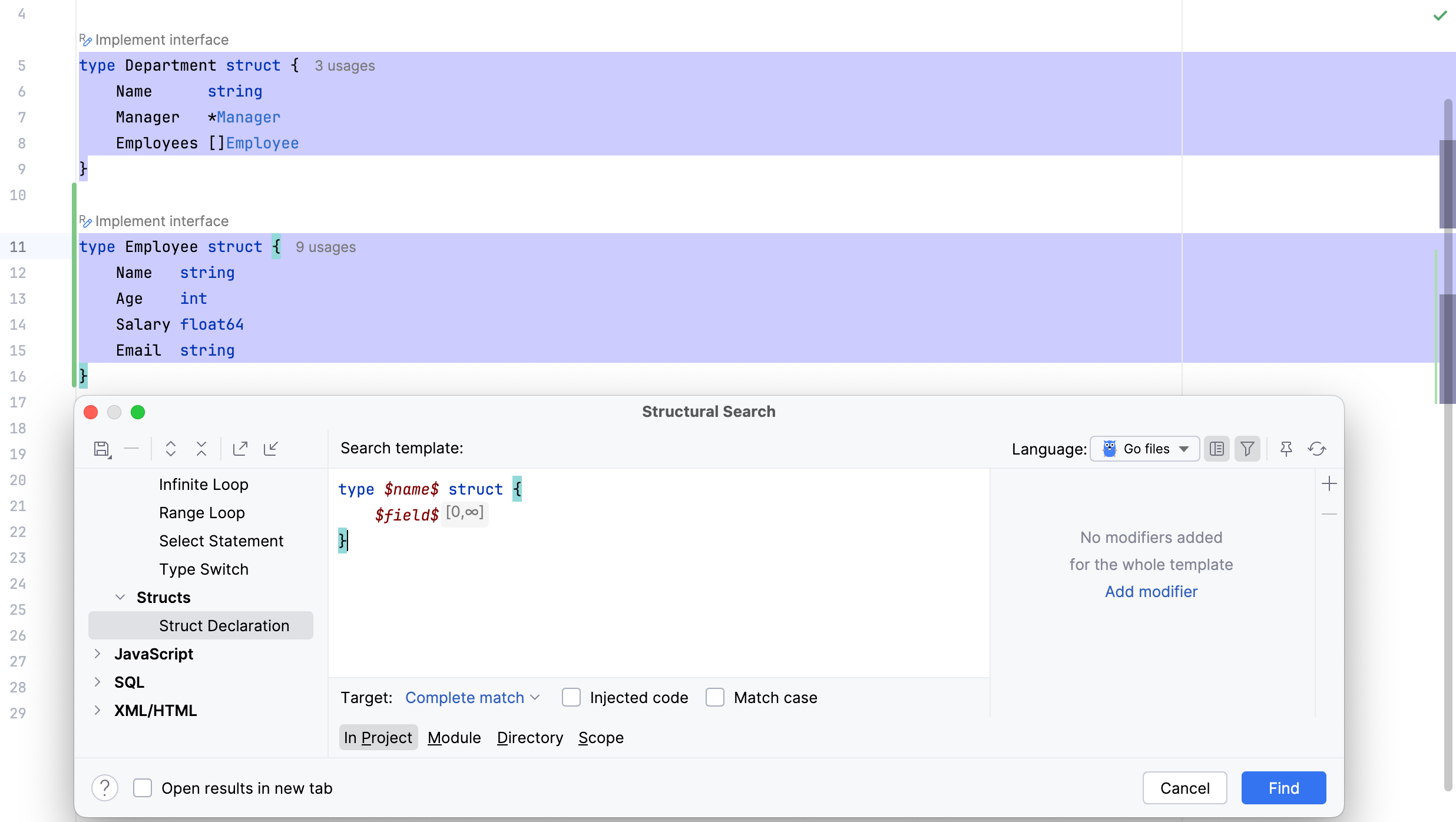
Modifiers are user-defined conditions that can be applied to variables and search templates. They allow you to:
check how many times a variable occurs,
validate the variable’s type,
match the variable against plain text or a regular expression,
apply a Groovy script.
For the complete list of available modifiers, see Search templates, modifiers, and script constraints.
The next example shows the same template as before, but with the $name$ variable using the Text modifier set to Employee. Notice how the highlighted search results in the editor have changed.
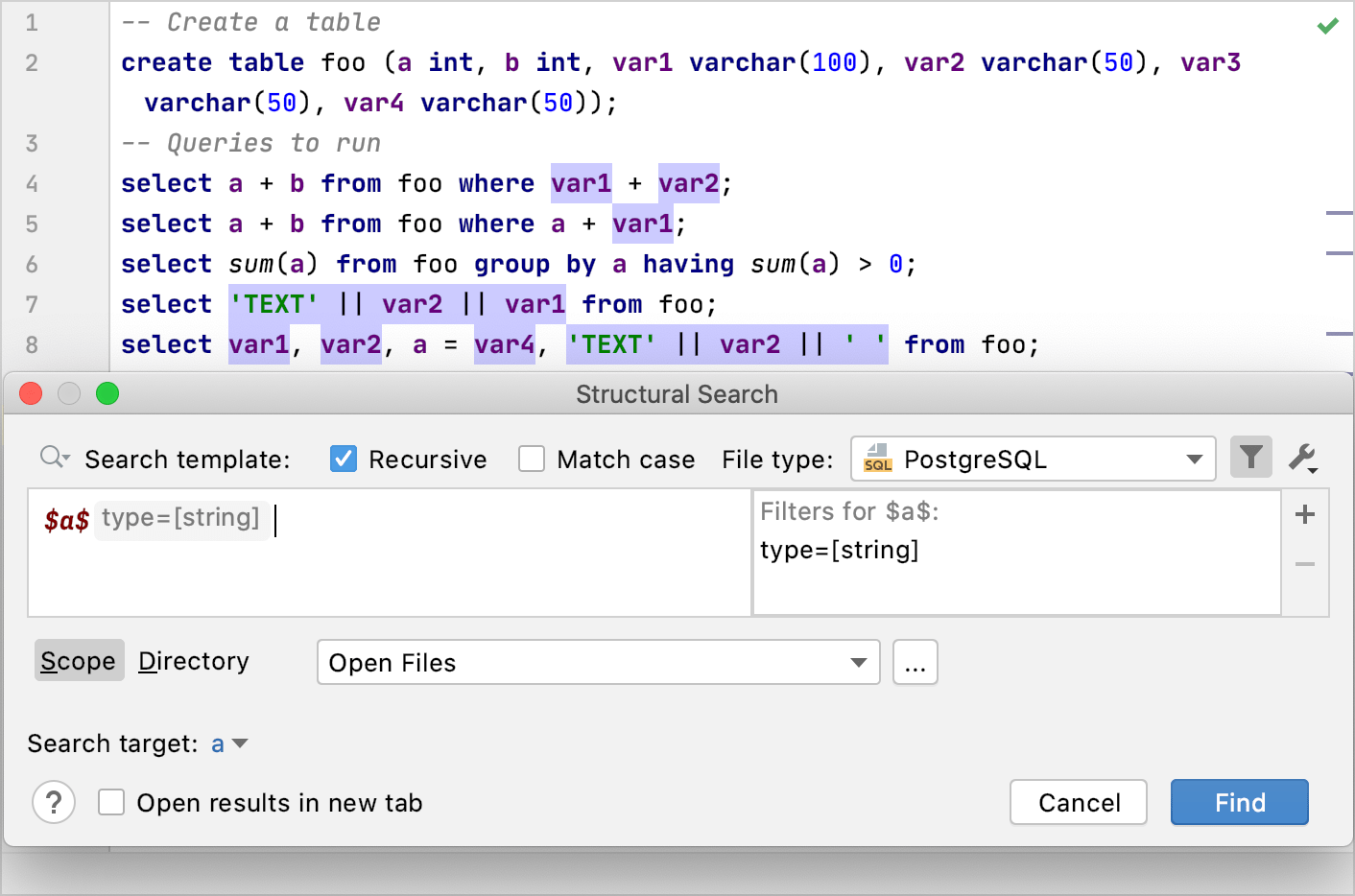
If we apply the type modifier with the [string] value, we will find all the string values in our SELECT statements. But to find all the string types in the table definition (the CREATE TABLE statement), you need to apply the types context. To set context, you also use filters. But in contrast to variables, where the filter is applied to a specific variable, context filters are applied to the whole search template.
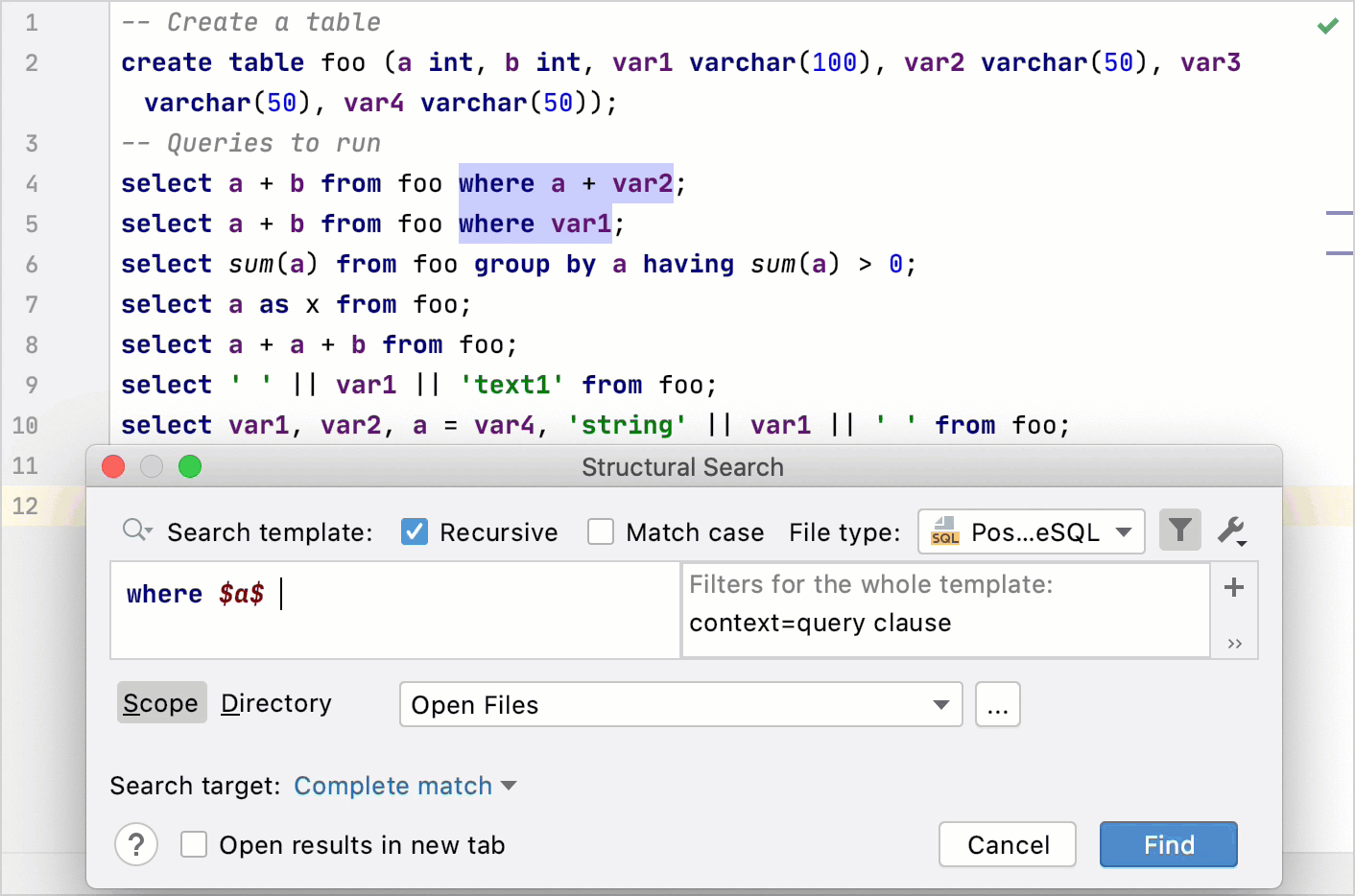
Contexts are built-in internal templates that help the search engine identify the variable. Contexts are used only for SQL to eliminate language ambiguities. By using context, you can tell the search engine where and what variable to search. You can set the following contexts for search templates:
expressions: one or more values, operators, or SQL functions that result in to a value. With the expressions context, IDE will look for
$expression_1$and$expression_2$in structures likeSELECT $expression_1$ FROM table_name where $expression_2$.types: the type of value that can be stored in a table column (for example,
varchar(100)). With the types context, IDE will look for$type_1$and$type_2$in structures likeCREATE TABLE table_name (id_1 $type_1$, id_2 $type_2$).query clauses: query clauses like
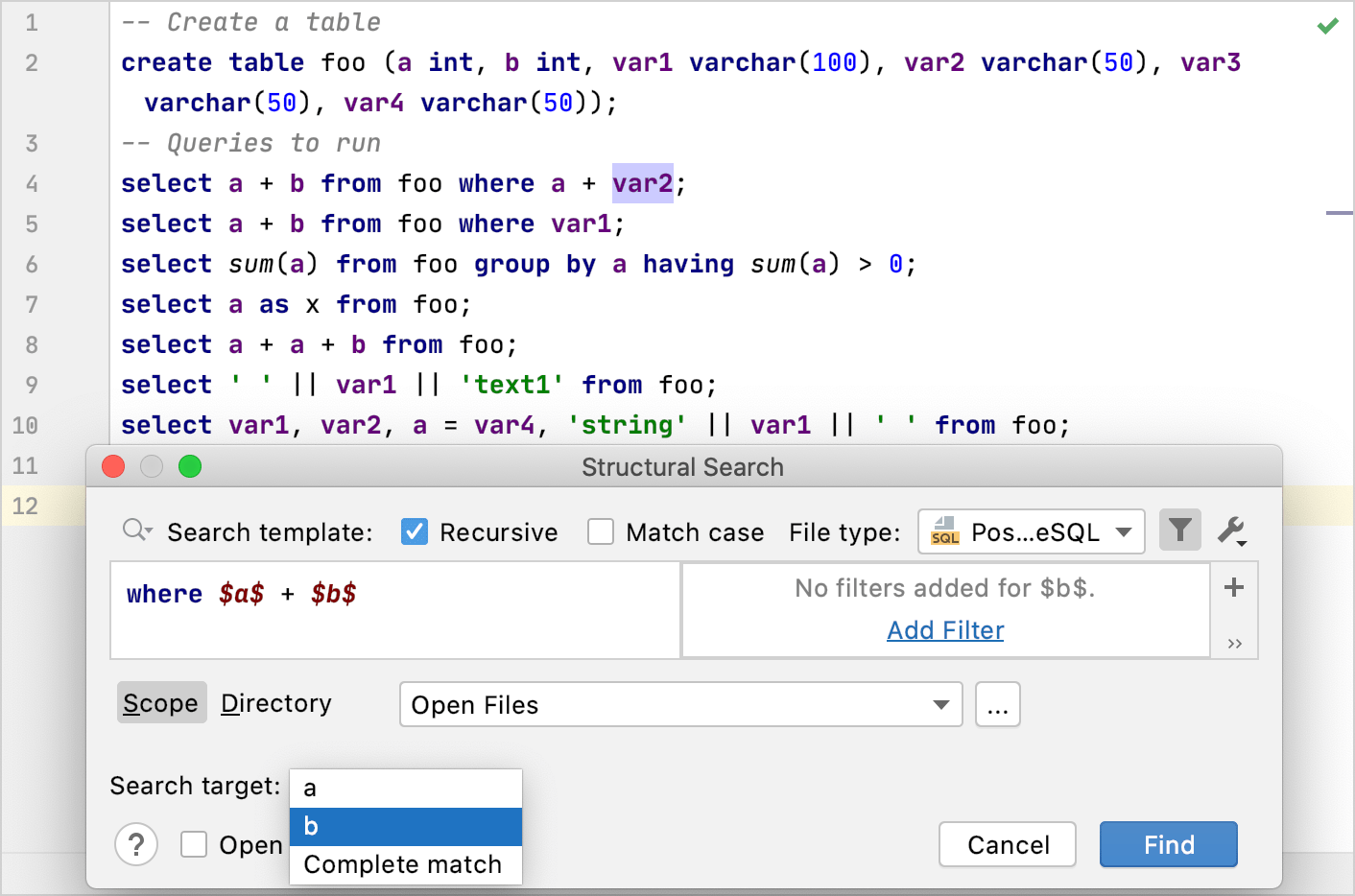
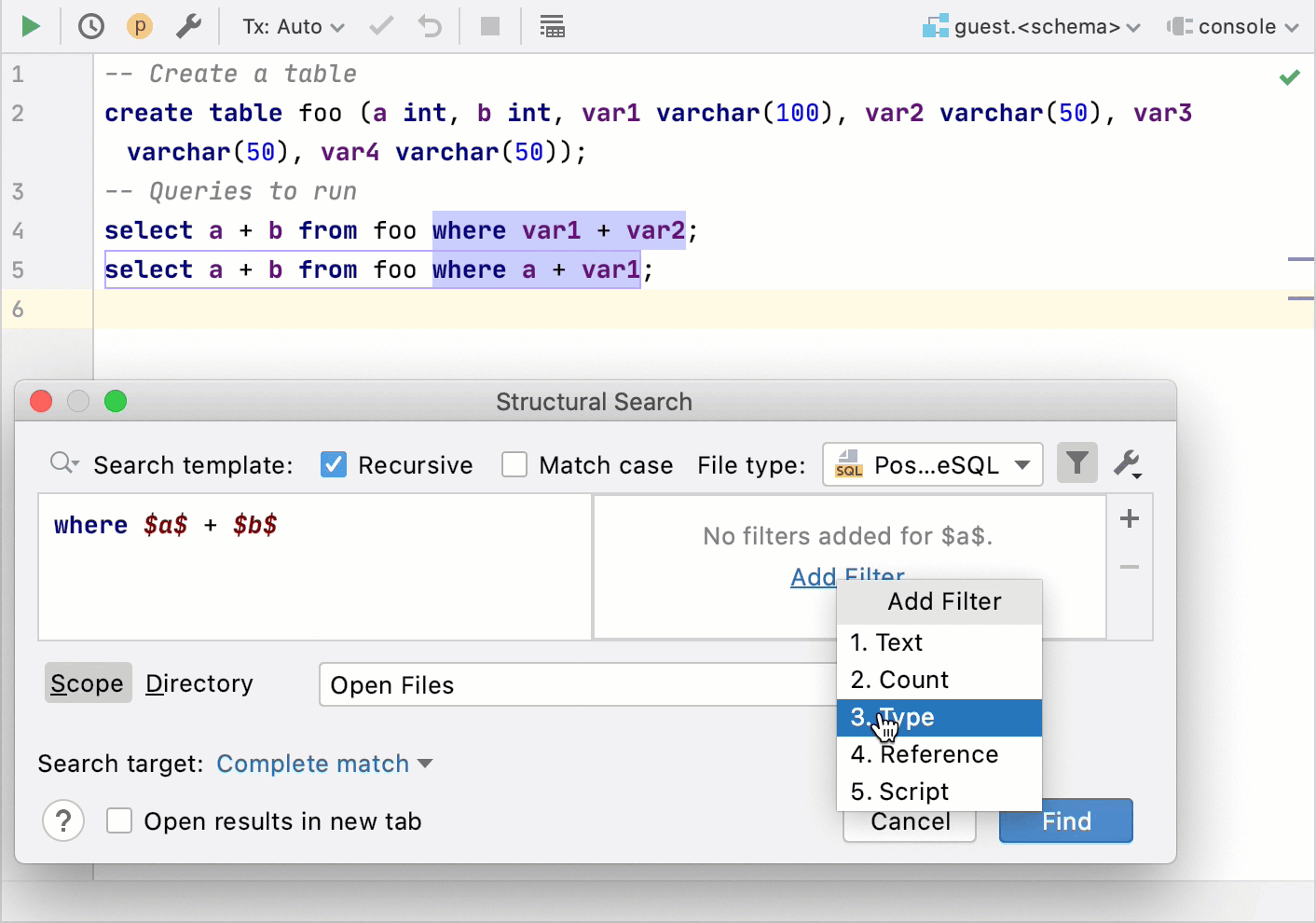
DISTINCT,FROM,WHERE,ORDER BY,GROUP BY, orHAVING. In the query clauses context, you need to use a clause keyword with a variable. For example, the IDE will look forwhere $variables$in structures likeselect * from table_name $variables$;. If you have an expression likea + bin theWHEREclause, you can specify your variables explicitly likewhere $variable_1$ + $variable_2$;. And define any variable as a search target.
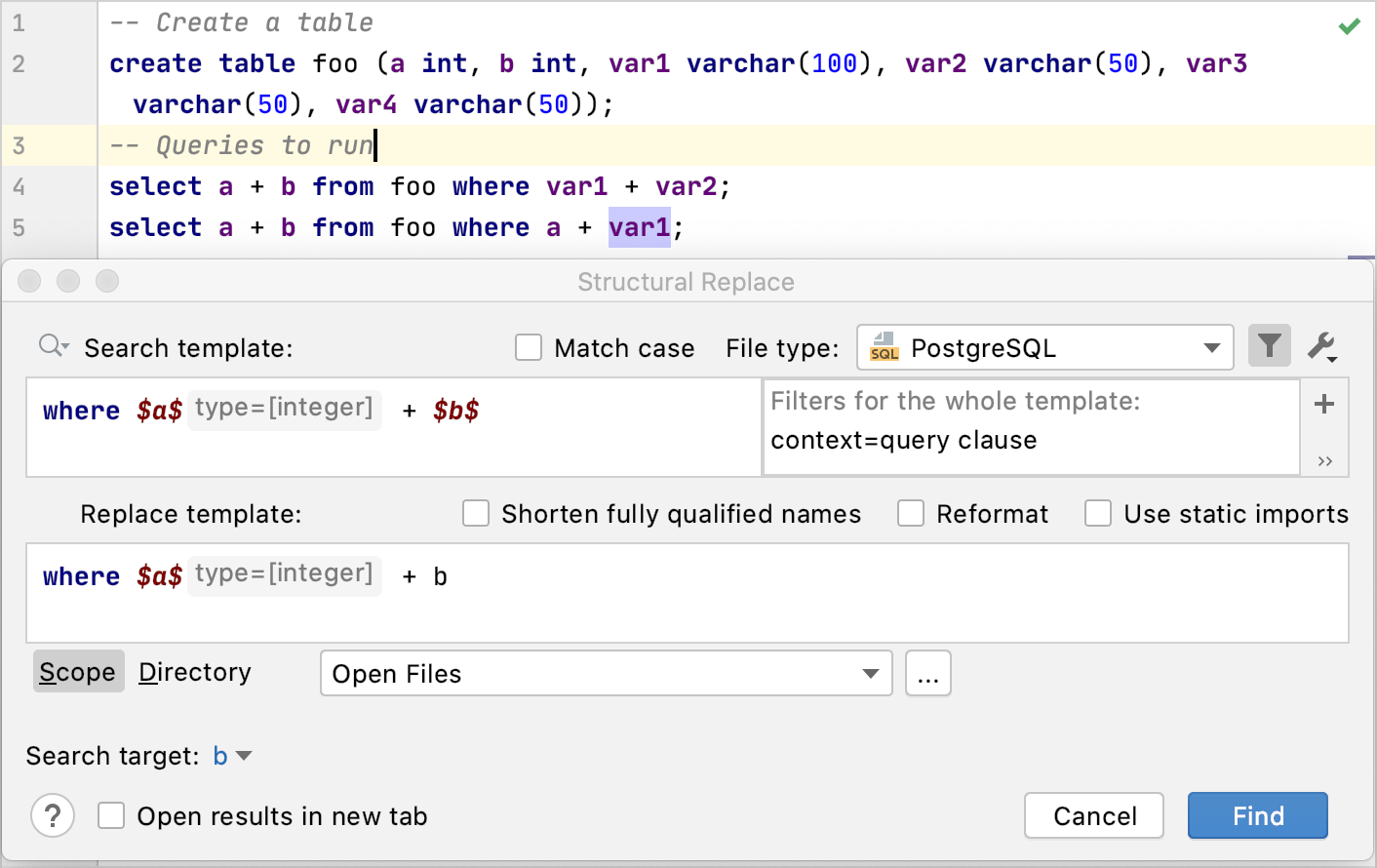
The Search target is a list in which you can specify what part of your template the IDE should search: a single variable or the whole template. For example, you can use search targets to find the $b$ value from the where $a$ + $b$ search template with context = query clause.
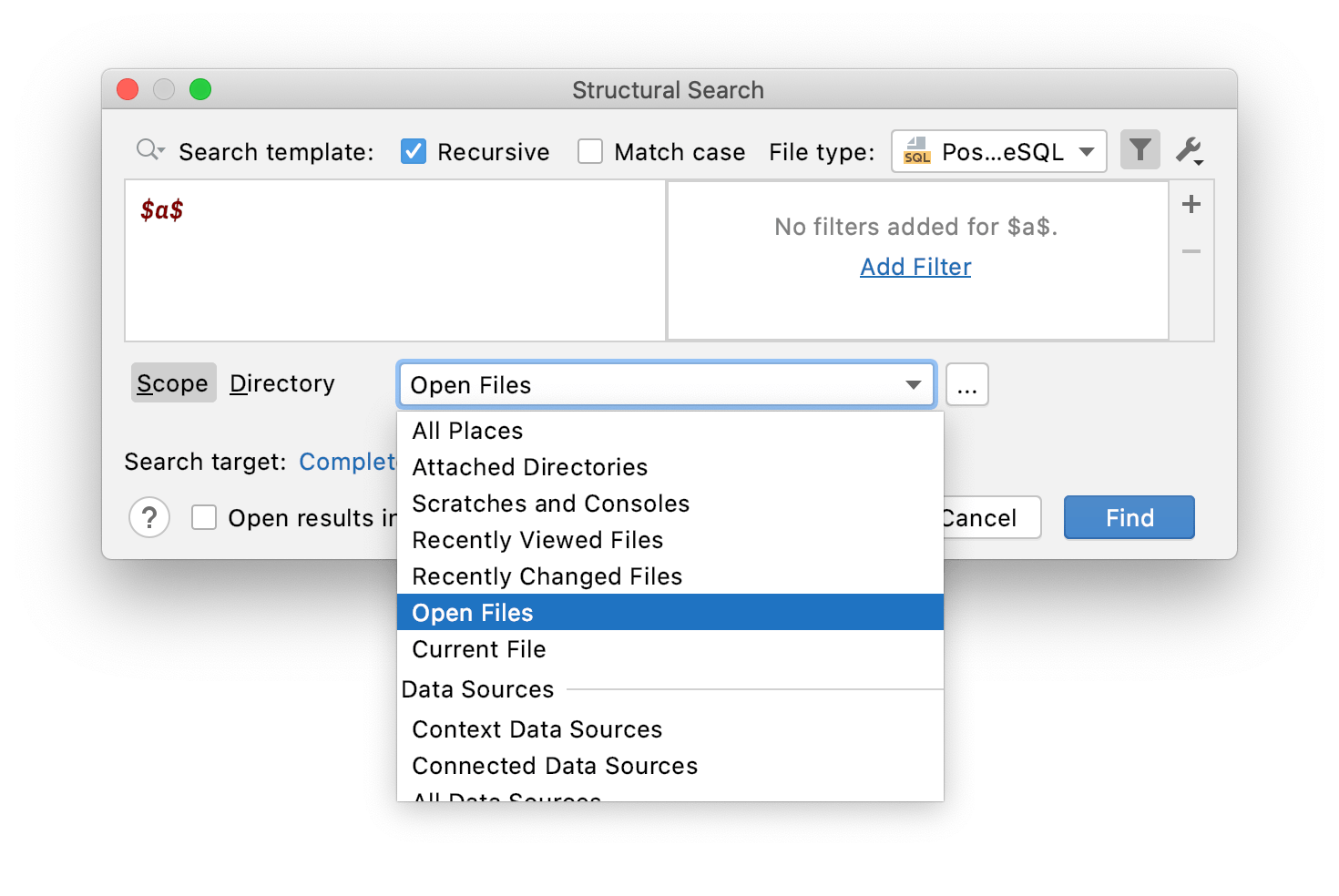
The Scope defines sources of information where you want to perform your search. It can be open or current files, directories in the Project tool window (Alt+1) , recently changed files, and other sources. To search in the specific directory, select Directory, press the Browse button.
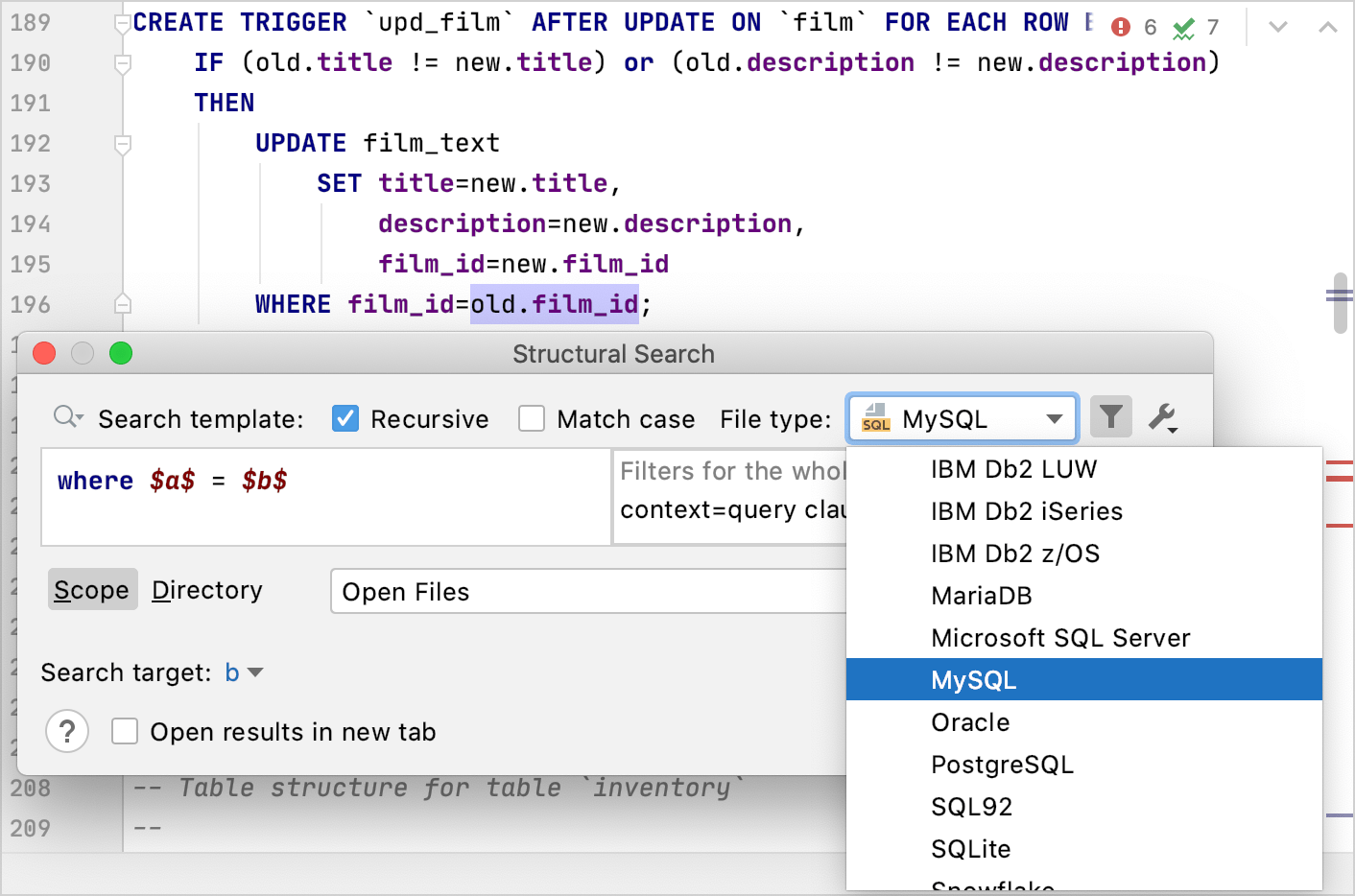
The File type defines dialects of files in which you want to search.
How do SQL templates for structural search work
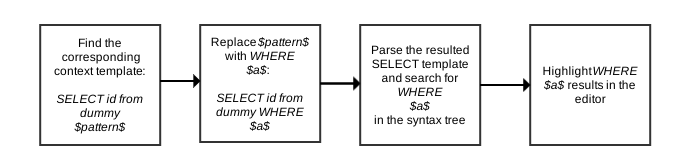
Let's see how the search engine processes search templates. Consider that you have the WHERE $a$ search template in the search field, and you set context = query clause.
GoLand takes the definition of the query clauses context template. For the query clauses context template, the definition is
SELECT id from dummy $pattern$. You can see all existing context templates under the Existing Templates menu item.The IDE replaces the
$pattern$variable with the value that you defined in the search template. In our case, it isWHERE $a$. The replacement result will look like:SELECT id from dummy WHERE $a$.The IDE parses the final
SELECTstatement and searches forWHERE $a$in the syntax tree.When
WHERE $a$is found, the IDE highlights it in the editor.
Search and replace structurally
Search structurally
Click .
From the File type list, select a language that you want to use in your search.
In the Search template field, type a search template or select the existing template.
Do not select templates under the node, these templates are used internally by the search engine to eliminate language ambiguities. Saved SQL templates are under the node.
If the modifier panel is hidden, click the Toggle Modifier Panel button (
 ).
).Click each template variable and set a search modifier. To set the modifier, click the Add modifier link.
GoLand instantly highlights the found code occurrences in the editor.
(SQL only) Add the SQL context.
In the Search template field, place the caret at the beginning of the template and click the Add modifier link. From the list, select Context.
(Optional) From the Scope list, select where you want to search: in a project, module, directory, or within a custom scope.
(Optional) From the Search target list, select what part of the template you want to search for: separate variables or the whole template (Complete match).
Click Find.
Replace structurally
In the main menu, go to .
In the Search template field, type a search template or select the existing template.
Do not select templates under the node, these templates are used internally by the search engine to eliminate language ambiguities. Saved SQL templates are under the node.
In the Replace template field, type a search template or select the existing template.
If you need to add a modifier for the variable in the replace template, place the caret at the variable and use the modifier area to manage modifiers.
Click Find. GoLand displays the results in the Find tool window.
In the Find tool window, you can work with the results further, replacing found items one by one, all of them at once, or previewing your potential changes.