Run GoLand for the first time
You can use the Toolbox App to run any JetBrains product. In the case of a standalone installation, running GoLand depends on the operating system:
To run GoLand, find it in the Windows Start menu or use the desktop shortcut. You can also run the launcher batch script or executable in the installation directory under bin.
Run the GoLand app from the Applications directory, Launchpad, or Spotlight.
Run the goland.sh shell script in the installation directory under bin. You can also use the desktop shortcut if it was created during installation.
Import settings
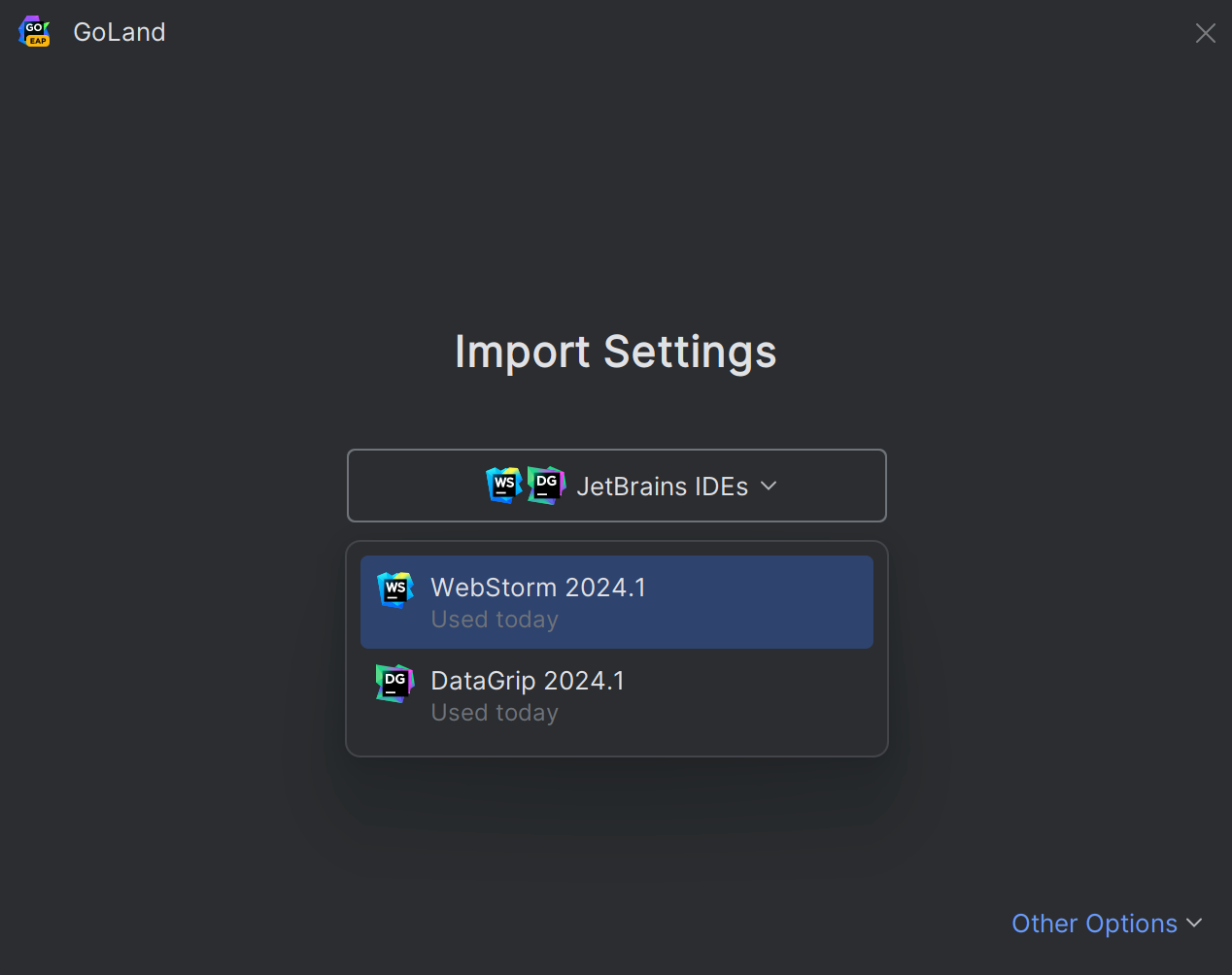
When you launch your GoLand for the first time, you will see the Import Settings dialog with the list of other IDE's settings found on your machine.
Select from which IDE you want to import settings.
If you use several JetBrains IDEs, select the one with the preferred settings from the drop-down list or click Other Options to select IDEs used more than 6 months ago.
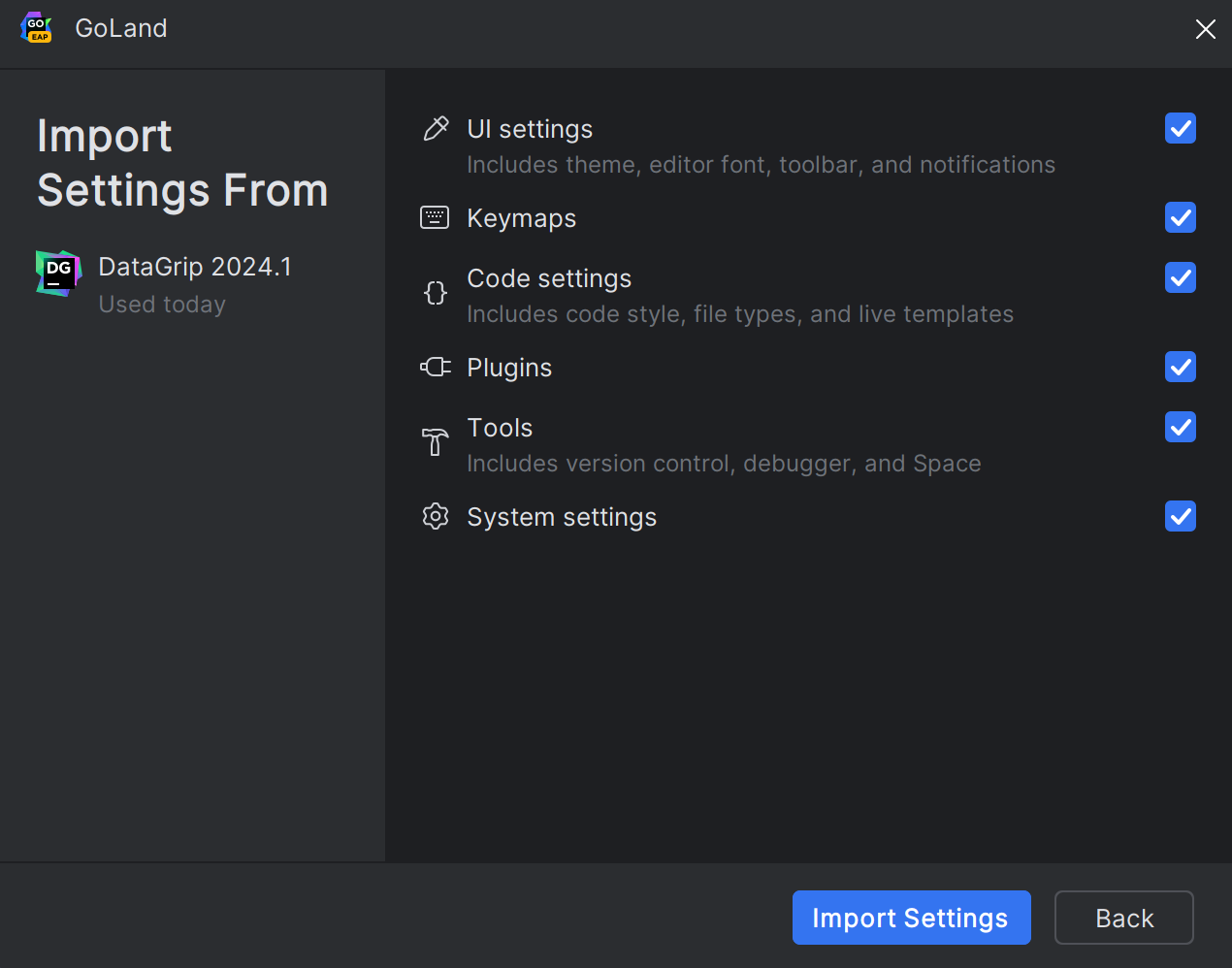
Select which settings you want to import and click Import Settings.
You will see a confirmation that the settings have been successfully imported.
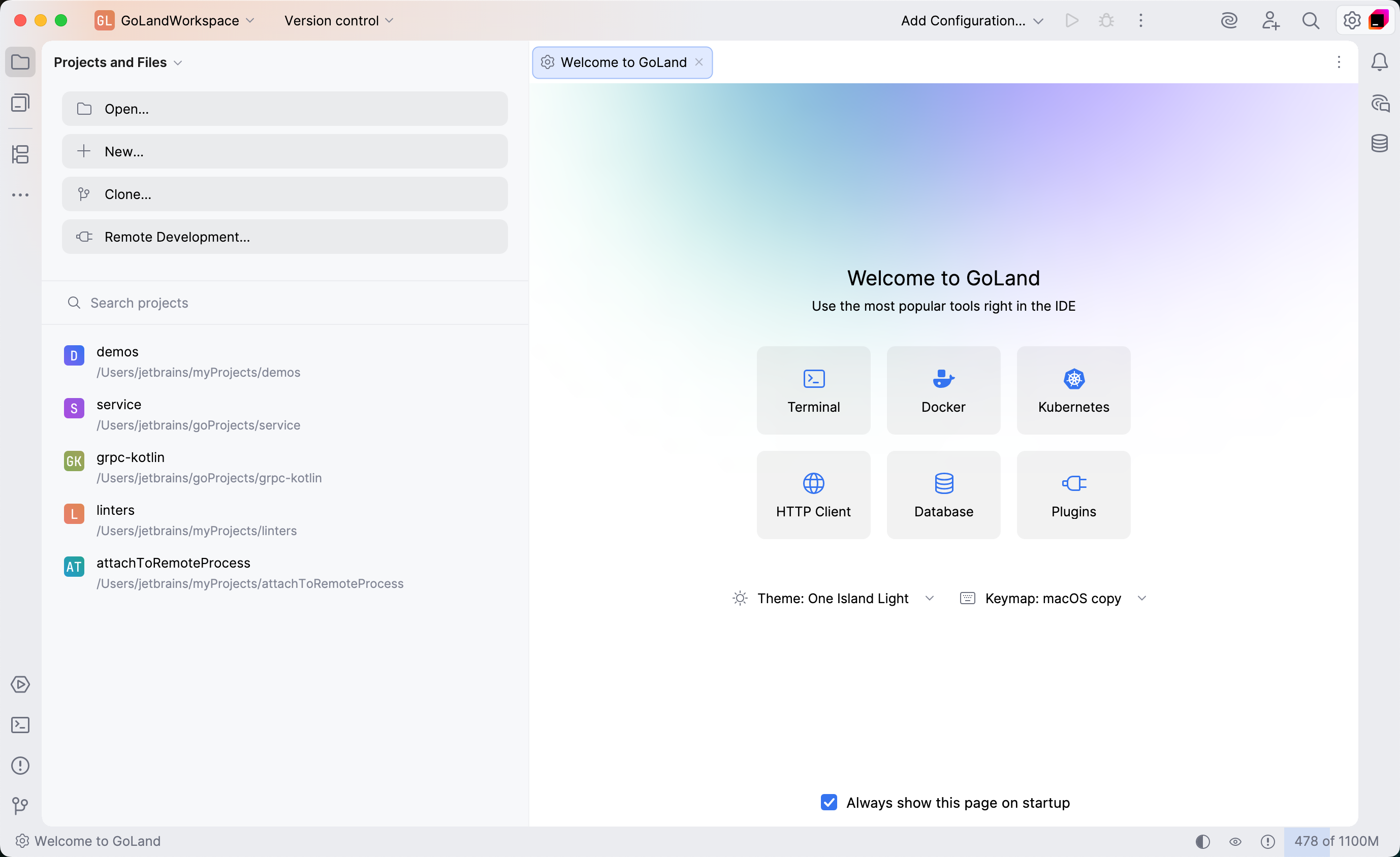
You will see the Welcome screen, the starting point to your work with the IDE. This screen also appears when you close all opened projects.
Customize the IDE appearance
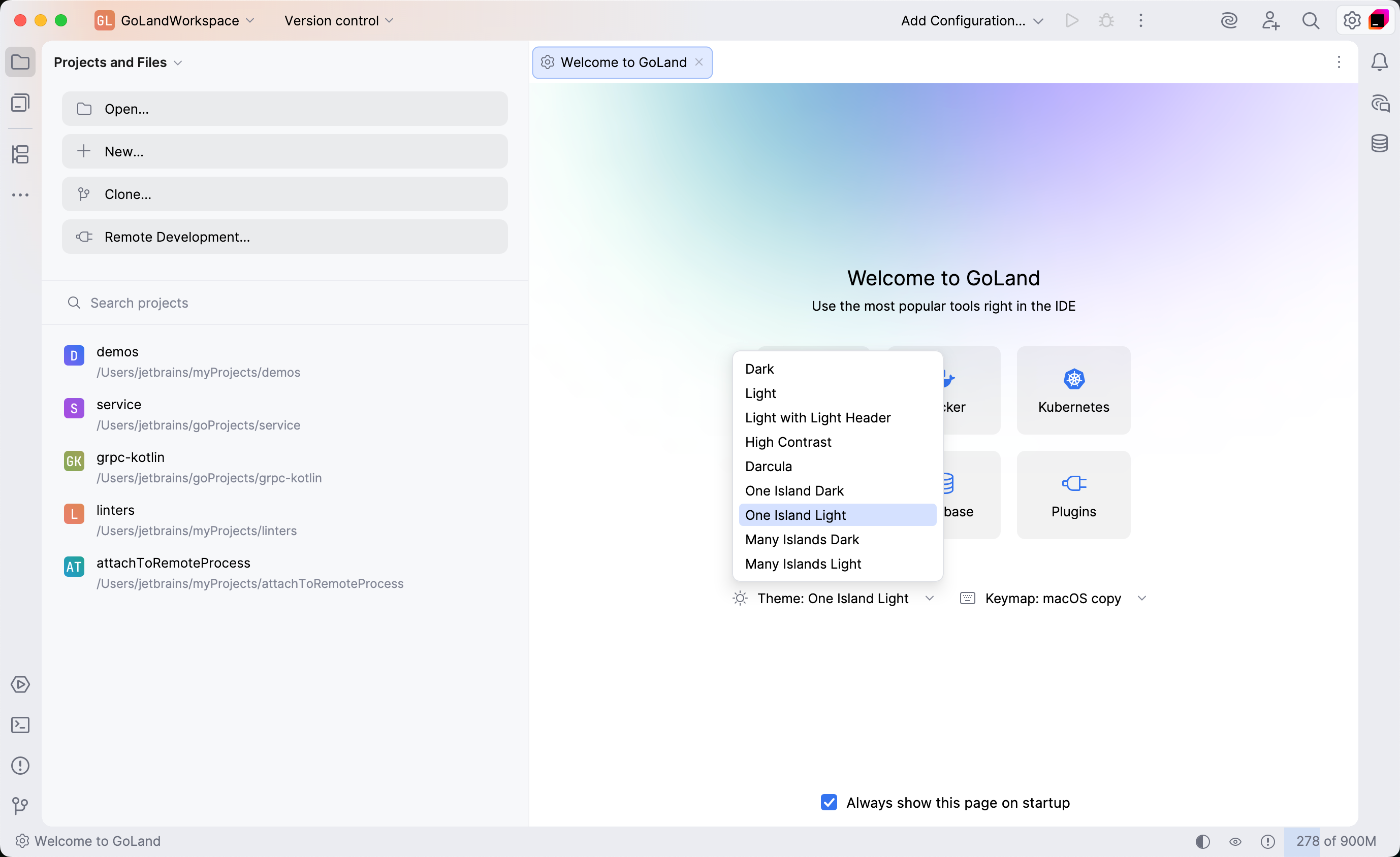
On the Welcome screen, you can select another color theme or a keymap. If you would like to configure other IDE settings, consider using the Settings tab.
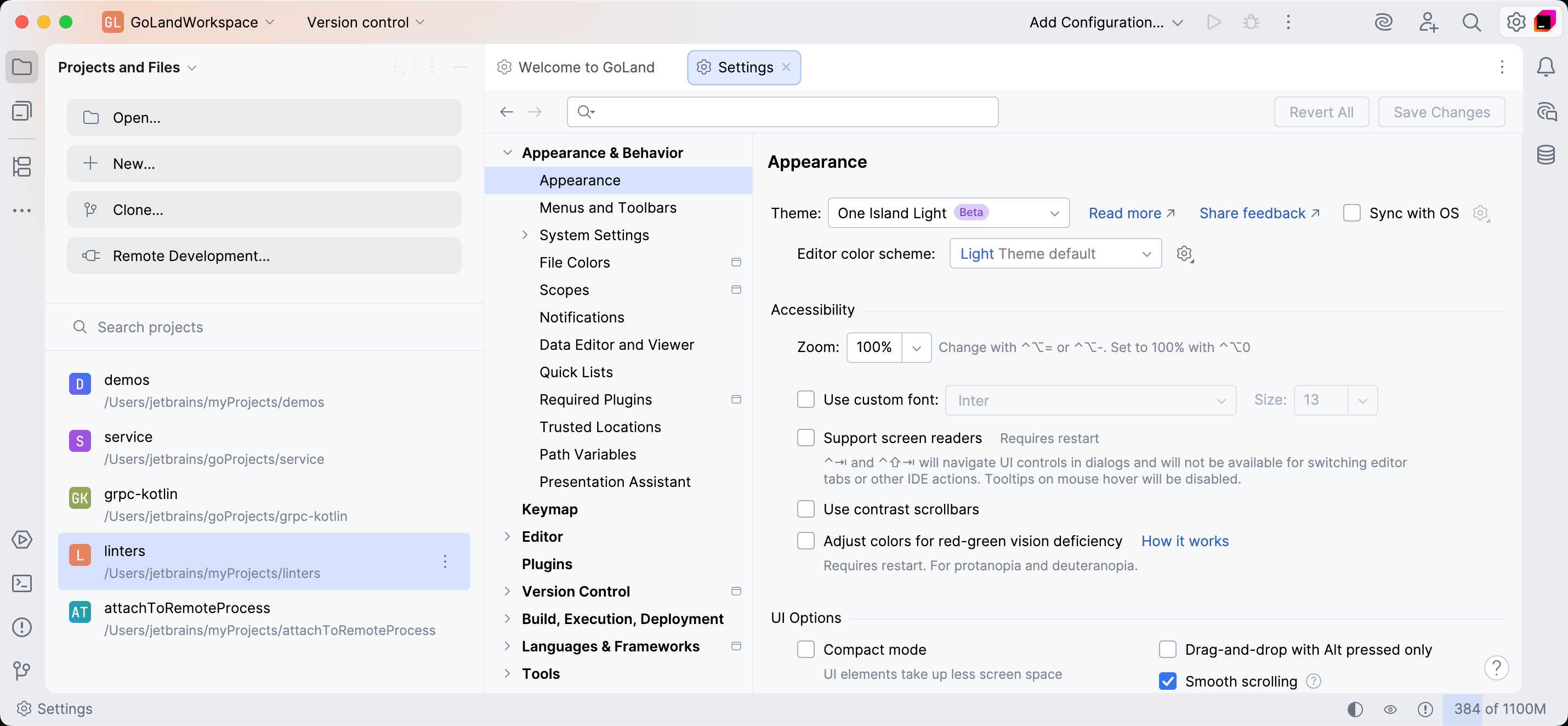
Configuring GoLand by using the Settings tab
You can fine-tune the appearance and other options of the IDE in the settings.
Press Ctrl+Alt+S to open settings and select Appearance & Behavior.
The Settings tab will open in the next tab.
Run and install plugins
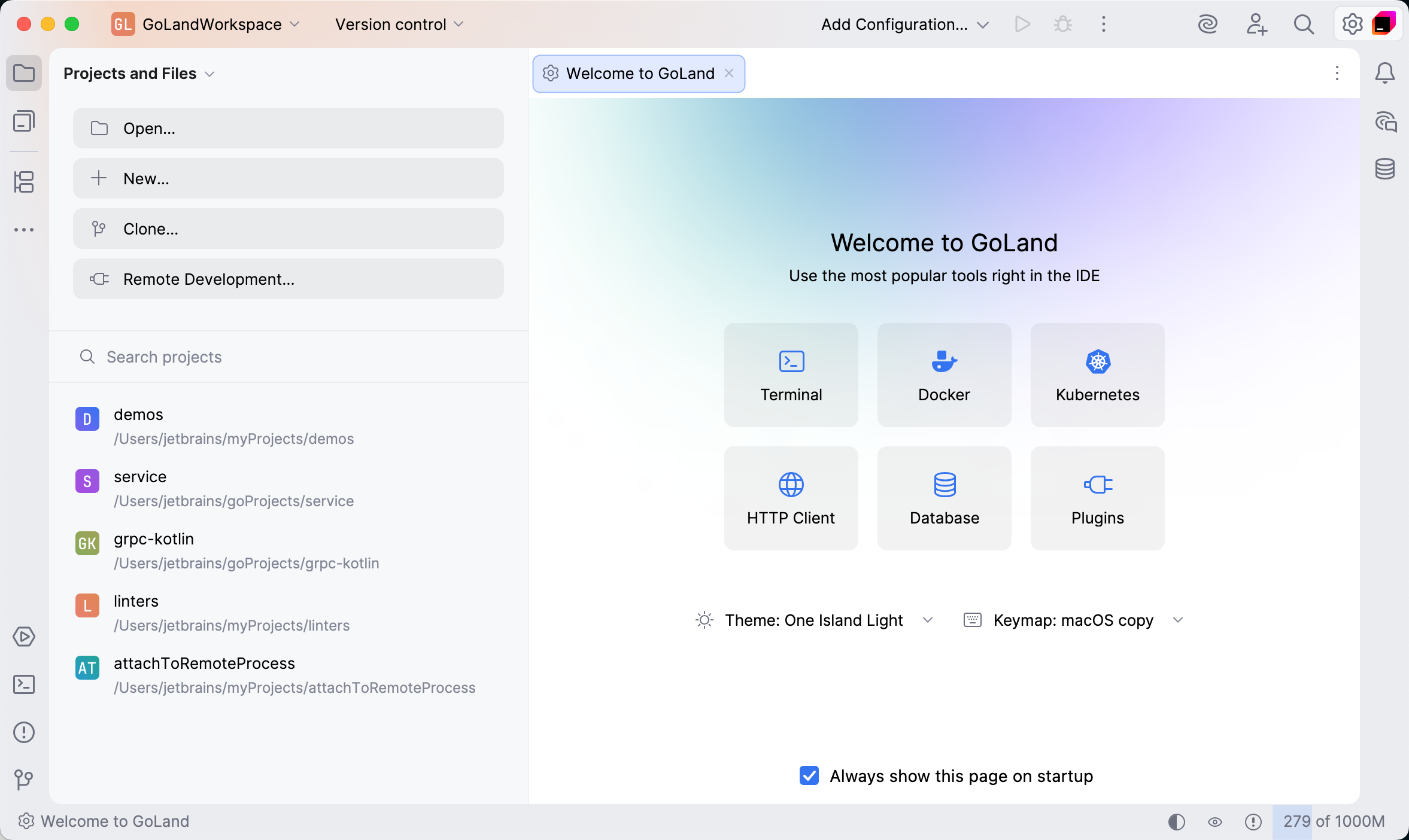
The right pane of the Welcome screen presents the most popular plugins that can facilitate your development workflow. These plugins are built-in and do not require installation. If you are looking for a specific plugin that is not installed, click the Plugin button and search for it in the Marketplace. For more information about plugin installation, refer to Plugins.
Click the Plugins button on the Welcome screen. Download and install additional plugins from JetBrains Marketplace.
Learn GoLand
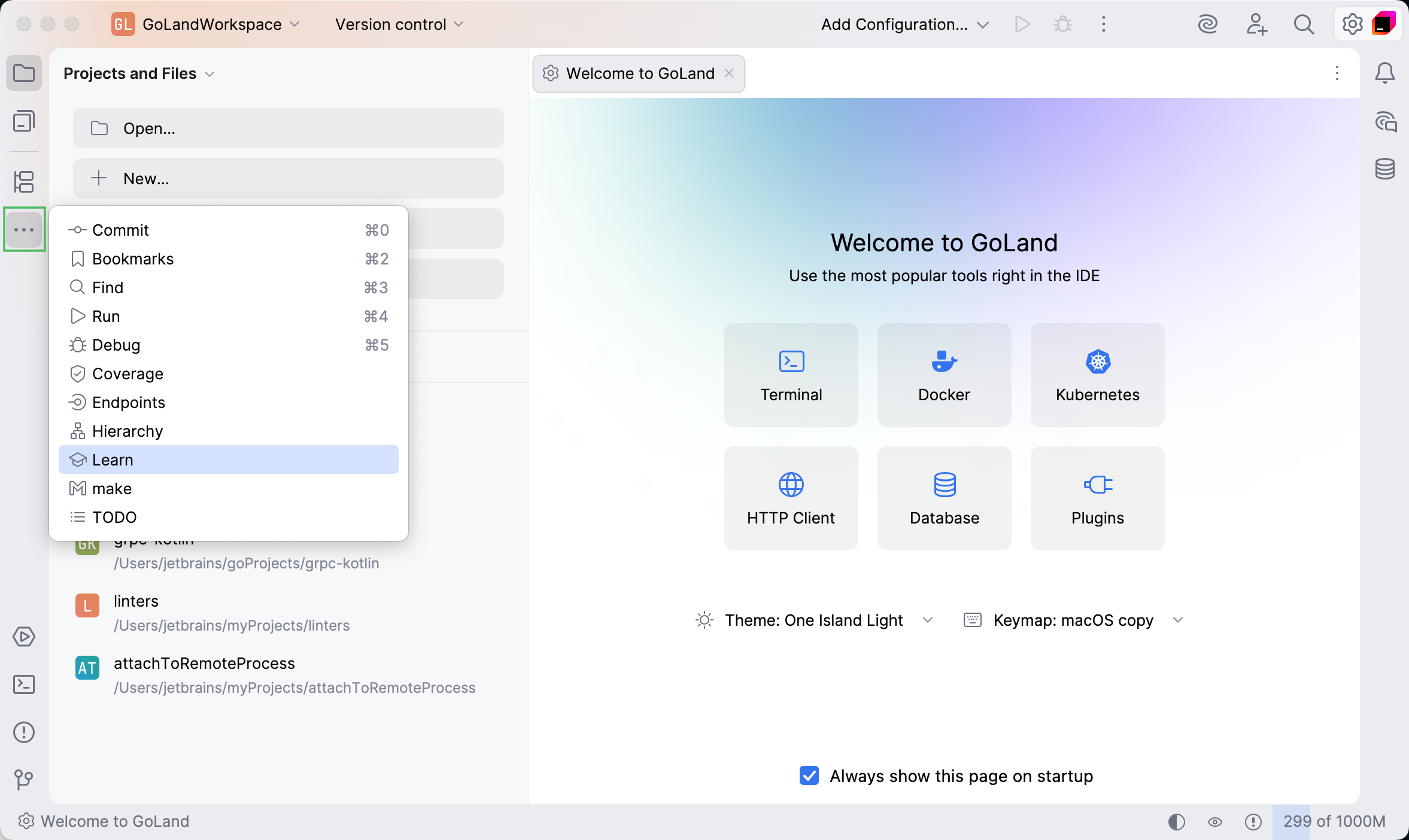
GoLand offers learning possibilities for users to get more familiar with the shortcuts, features, and workflows that the IDE has to offer. For more information, refer to Learn IDE features.
To run the learning module, click the more button on the tool window pane and select Learn.
Develop your applications remotely
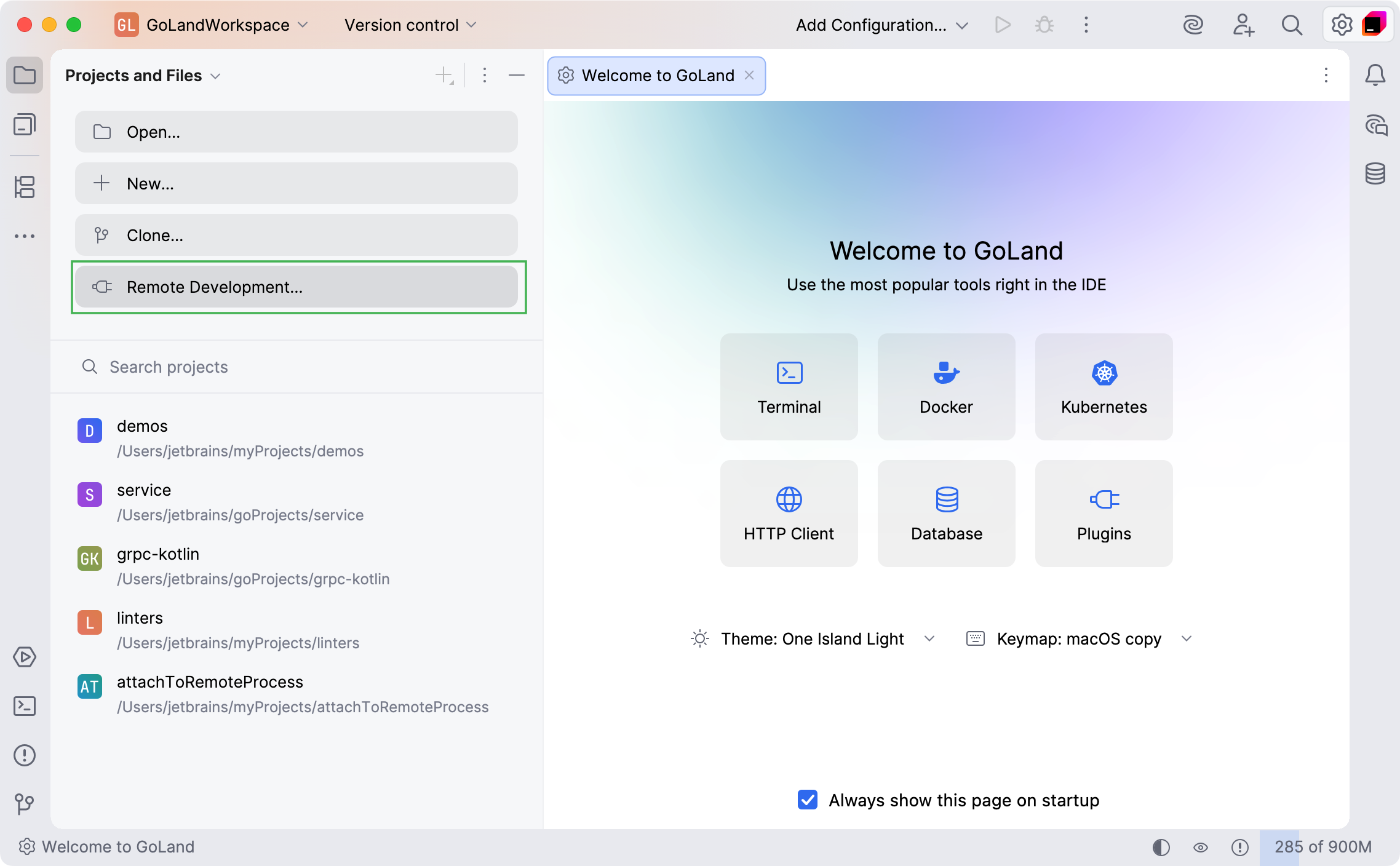
Click Remote Development to configure an entry point to connect to a remote server and code, run, debug, and deploy your projects remotely. For more information, refer to Connect to a remote server from GoLand.
Start a project in GoLand
From the Welcome to GoLand dialog, you can do the following: