Code completion
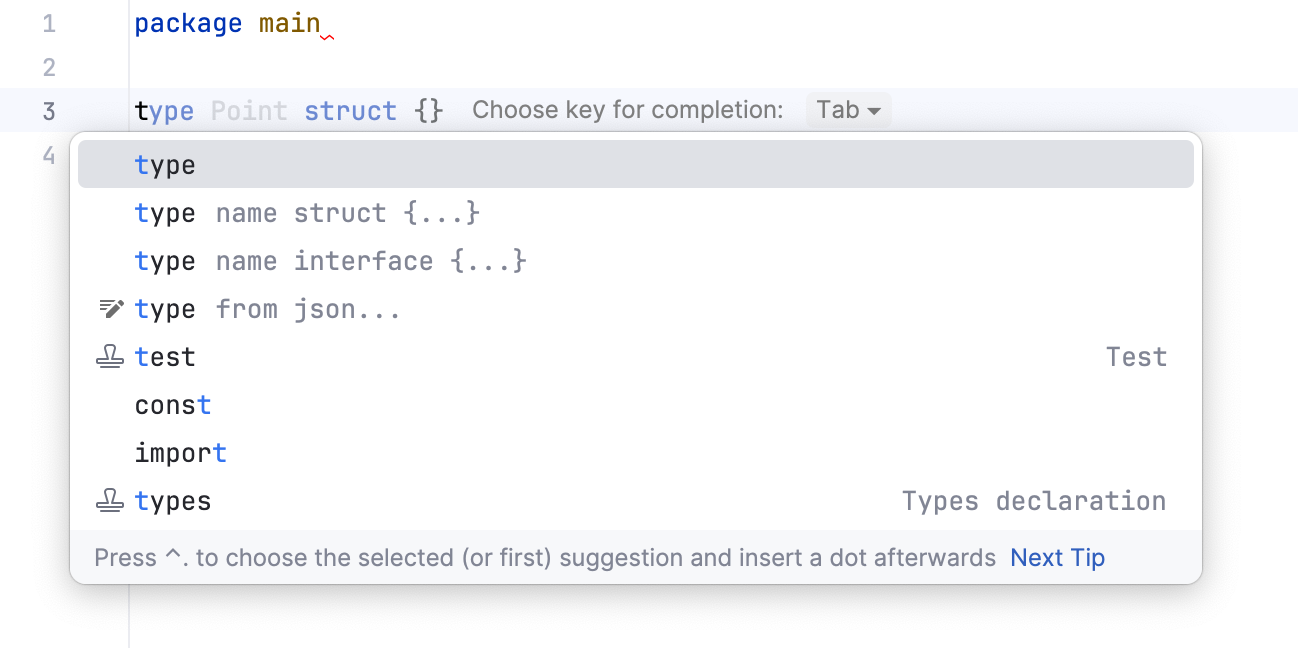
Basic code completion helps you complete names of types, interfaces, methods, and keywords within the visibility scope.
GoLand analyzes the context and suggests the choices that are reachable from the current caret position. Suggestions also include Live templates. Completion is available for a non-English keyboard layout.
Invoke basic completion
By default, GoLand displays the code completion popup automatically as you type.
Alternatively, you can press Ctrl+Space or select from the main menu.
Code completion is available for custom file types. However, GoLand does not recognize the structure of such files and suggests options regardless of whether they are appropriate in the current context.
Accept a suggestion from the list
Press Enter or double-click the relevant list item to insert it to the left of the caret.
Press Tab to replace the characters to the right from the caret.
Use Ctrl+Shift+Enter to make the current code construct syntactically correct (balance parentheses, add missing braces and semicolons, and so on).
Use specific keys and custom characters to accept the selected completion suggestion. To enable these features, go to the Editor | General | Code Completion | Popup settings page Ctrl+Alt+S and do the following:
To use specific keys, select the Insert selected suggestion by pressing space, dot, or other context-dependent keys checkbox. These keys depend on the language, your context, and so on.
To also use custom characters, enter the characters into the Additional characters to accept the completion field.
Invoke completion for functions
To view and complete functions that are suitable for a value of a certain type, hold Ctrl and press Space twice.
For example, you have the
tvariable of the string type. When you typet., hold Ctrl and press Space twice, you see a list of functions that accept thestringtype as the first argument.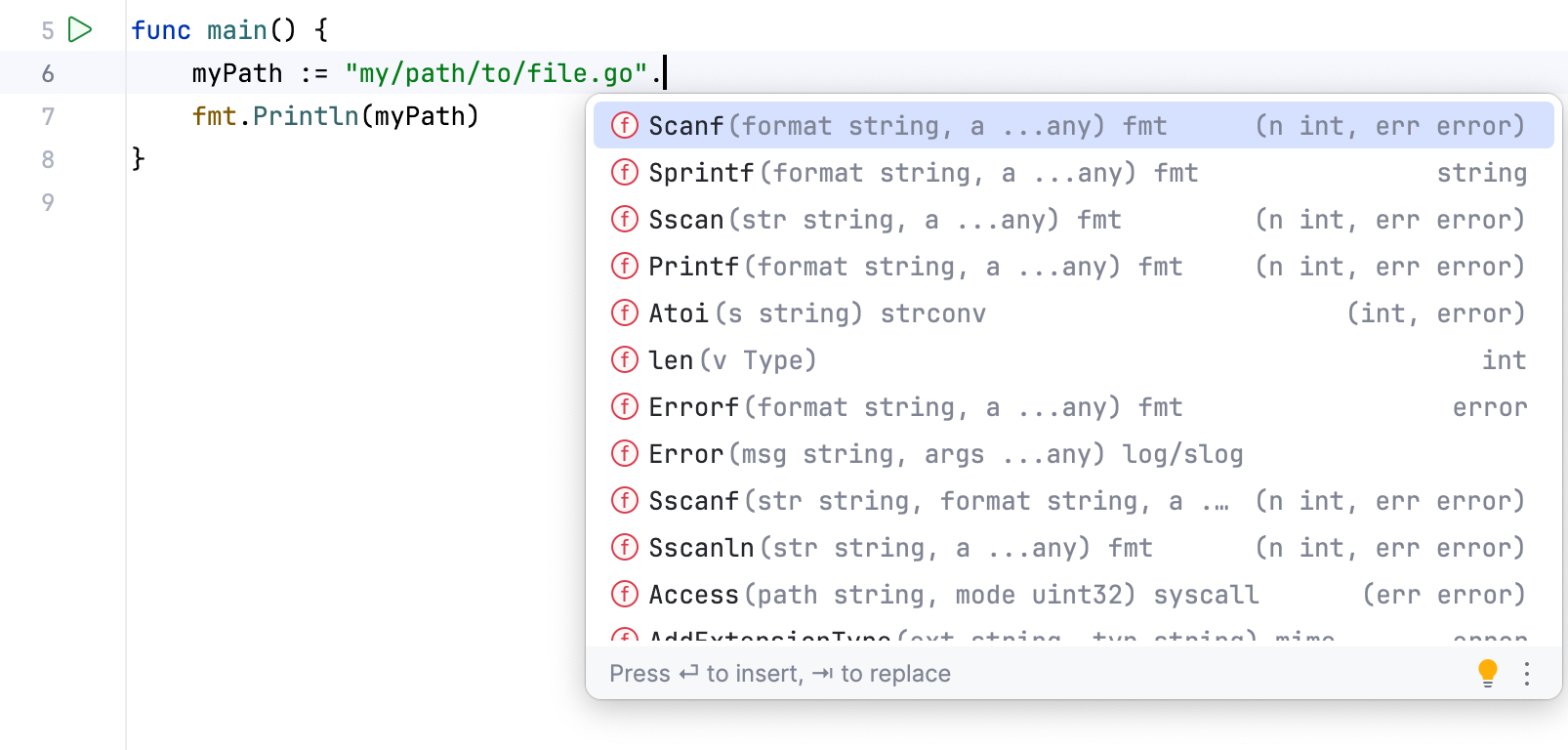
Machine learning-assisted completion ranking
GoLand allows you to prioritize completion suggestions based on choices that other users made in similar situations.
The ML completion mechanism does not add any new elements but orders the elements retrieved from code. Data is not exposed anywhere; it is collected locally.
Enable ML completion ranking
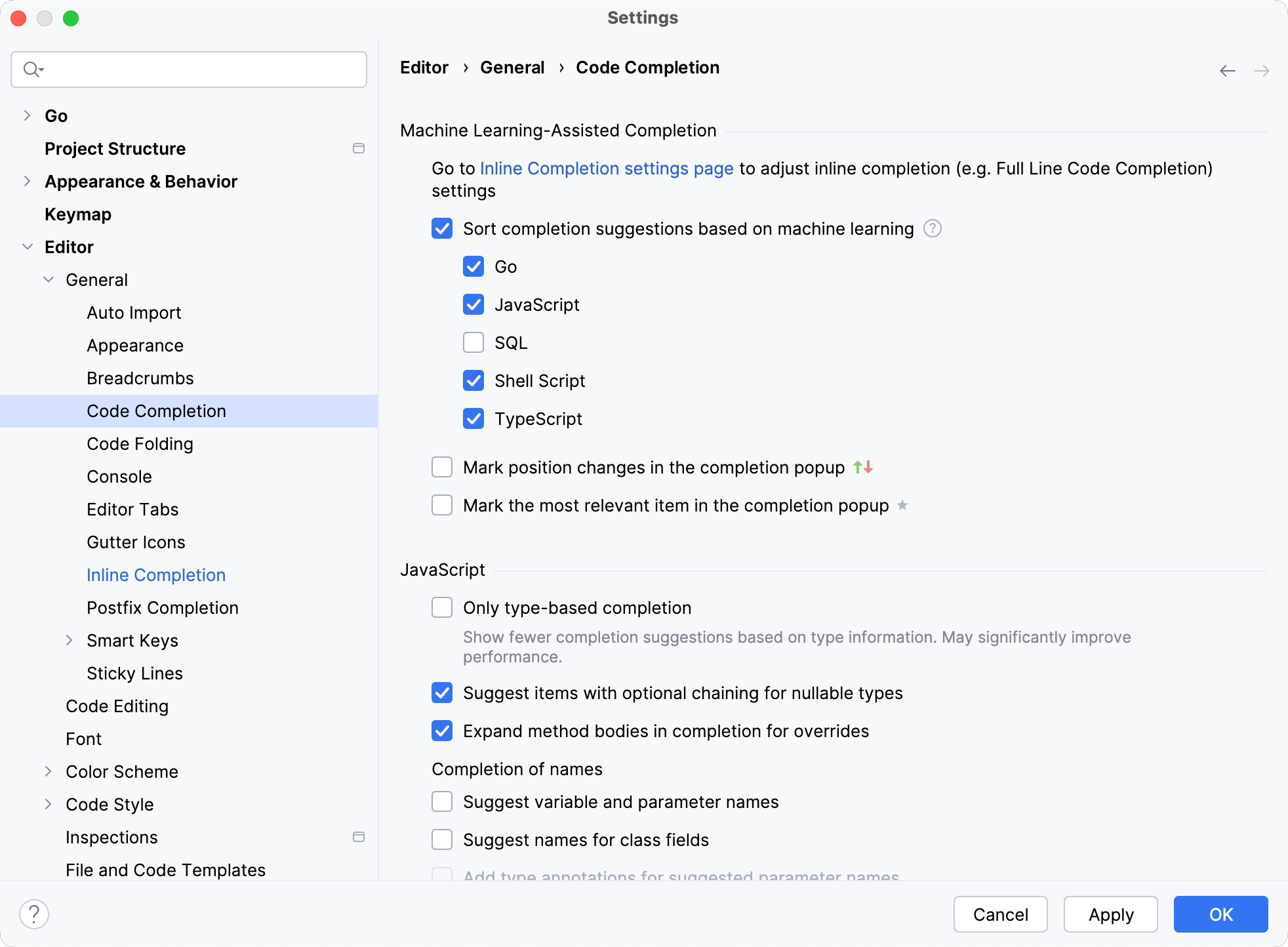
Press Ctrl+Alt+S to open settings and select Editor | General | Code Completion | Popup.
Under Sort Suggestions with ML, enable the Sort completion suggestions based on machine learning option and select the languages for which you want to use the ML completion.
Enable relevance markers
Press Ctrl+Alt+S to open settings and select Editor | General | Code Completion | Popup.
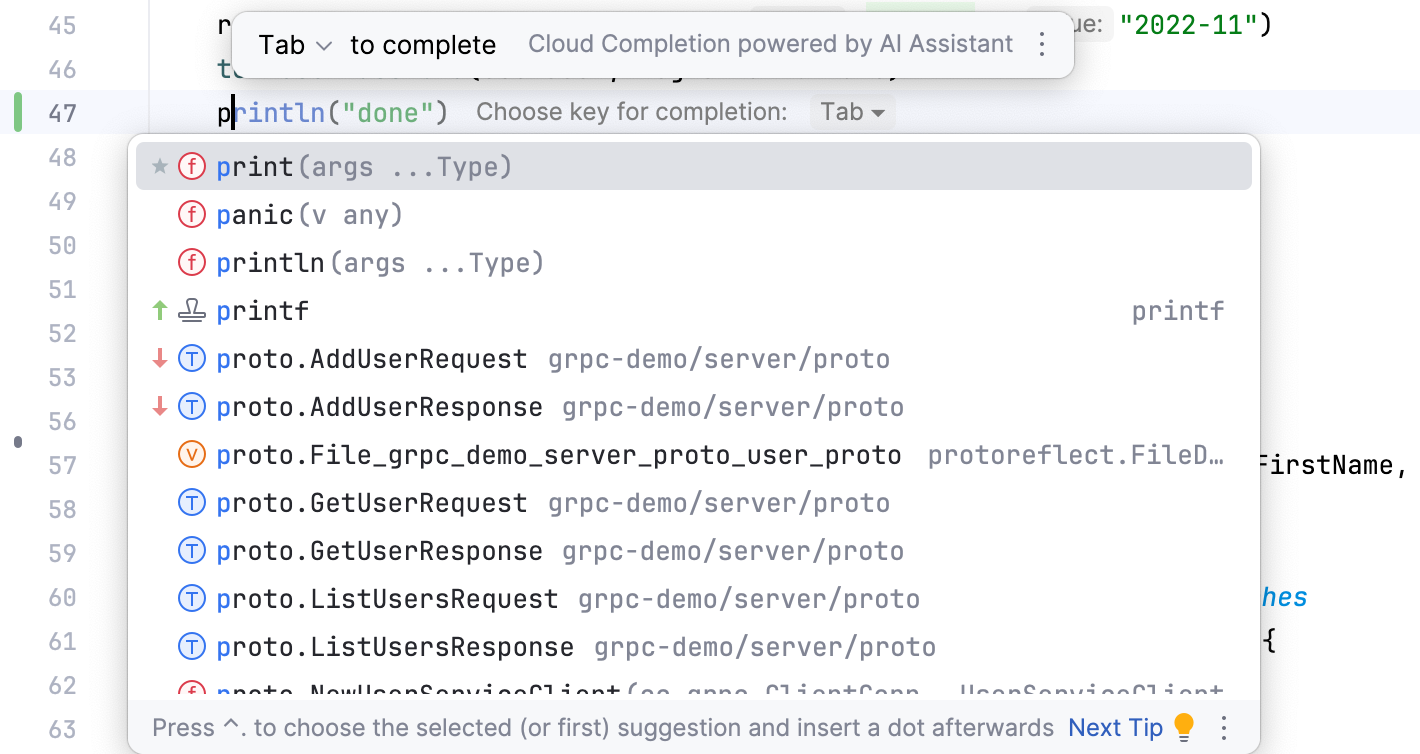
Enable the following options:
Mark position changes in the completion popup: use the
 and
and  icons to indicate whether the relevance of a suggestion is increasing or decreasing and therefore the suggestion has moved up or down the suggestion list.
Mark the most relevant item in the completion popup: use the
 icon to indicate the most suitable suggestion on the list.
Configure code completion settings
To configure code completion options, go to the Editor | General | Code Completion | Popup settings page Ctrl+Alt+S.
You can choose the following settings:
Item | Description | |
|---|---|---|
Match case | Select if you want the letter case to be taken into account for completion suggestions. Choose whether you want to match the case for the first letter or for all letters. | |
Automatically insert single suggestions for | Automatically complete code if there is only one suggestion for basic and smart type-matching completion. | |
Sort suggestions alphabetically | Select if you want to sort items in the suggestion list in the alphabetical order instead of sorting them by relevance. You can change this behavior at any time by clicking | |
Show suggestions as you type | Select if you want the suggestion list to be invoked automatically, without having to call completion explicitly. This option is enabled by default. | |
Insert selected suggestion by pressing space, dot, or other context-dependent keys | Select if you want to insert the selected suggestion by typing certain keys that depend on the language, your context, and so on. | |
Show the documentation popup in | Automatically show a popup for each item in the suggestion list with the documentation for the class, method, or field currently highlighted in the lookup list. When this option is disabled, press Ctrl+Q to display documentation for elements. In the field to the right, specify the delay (in milliseconds), after which the popup should appear. | |
Machine Learning-Assisted Completion | ||
Sort completion suggestions based on machine learning | Select this option if you want to use machine learning models to rank the most suitable items higher in the suggestion list. Select the languages for which you want to enable suggestions based on machine learning. | |
Mark position changes in the completion popup | Use the | |
Mark the most relevant item in the completion popup | Use the | |
Configure completion options
Press Ctrl+Alt+S to open settings and then select .
To automatically display the suggestion list, select the Show suggestions as you type checkbox. If the checkbox is cleared, you have to call code completion explicitly by pressing Ctrl+Space for basic completion or Ctrl+Shift+Space for type-matching completion.
You can also choose to automatically insert suggestions when there is just one option: select the completion type under Automatically insert single suggestions for.
To sort suggestions in the alphabetical order, instead of sorting them by relevance, select the Sort suggestions alphabetically checkbox.
You can change this behavior at any time by clicking
 in the suggestion list and toggling the Sort by Name option.
If you want the documentation popup to be displayed automatically for each item in the suggestion list as you scroll it, select the Show documentation popup in option. In the field to the right, specify the delay (in milliseconds), after which the popup should appear.
Completion tips and tricks
Autocomplete HTTP constants by typing the code number
After you specify an imported package name, such as
http, you can type404to autocomplete the value tohttp.StatusNotFound.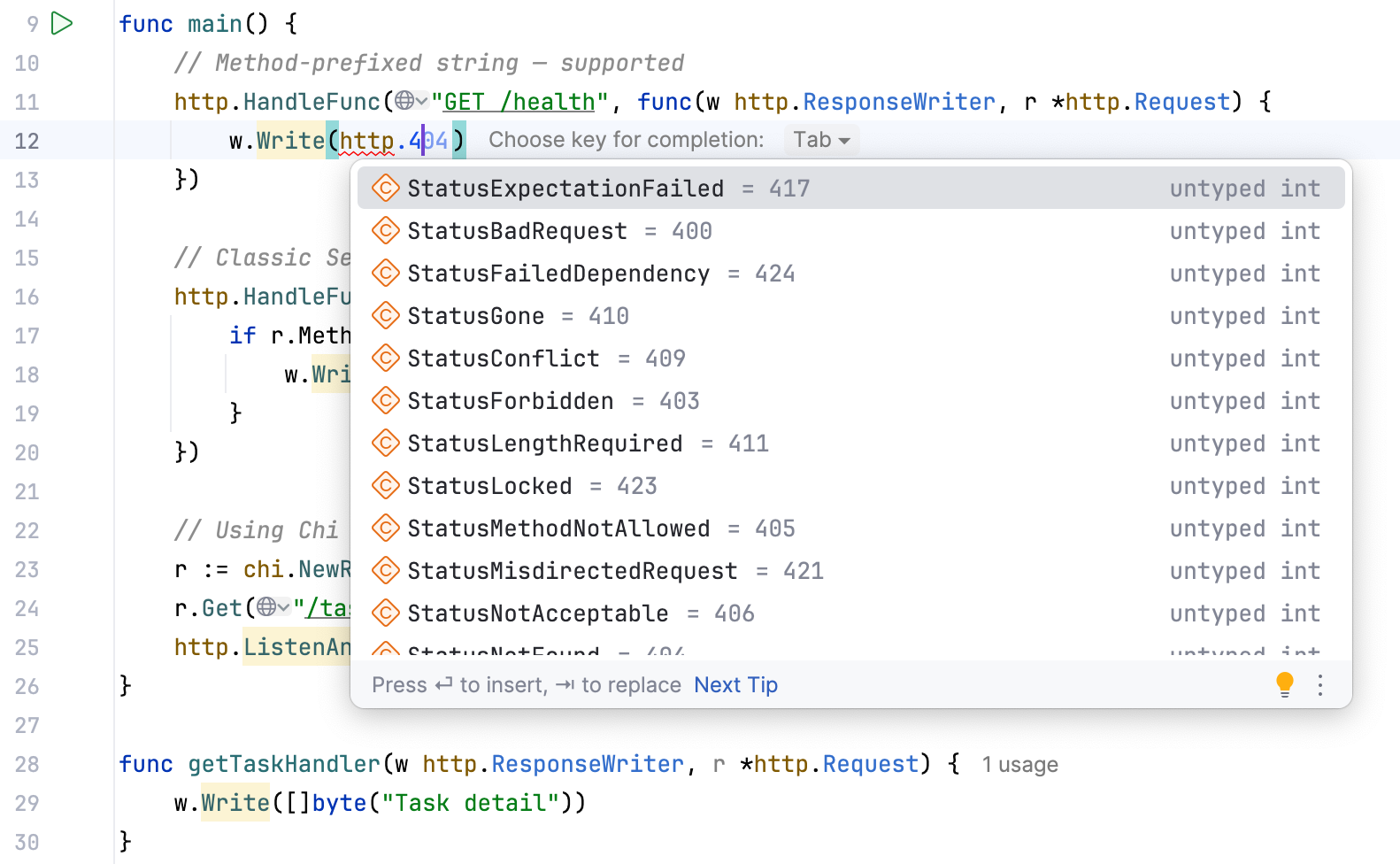
Narrow down the suggestion list
Narrow down the suggestion list by typing any part of a word (even characters from somewhere in the middle) or invoking code completion after a dot separator .
GoLand displays suggestions containing the characters you've entered, regardless of their position. This makes the use of wildcards unnecessary.
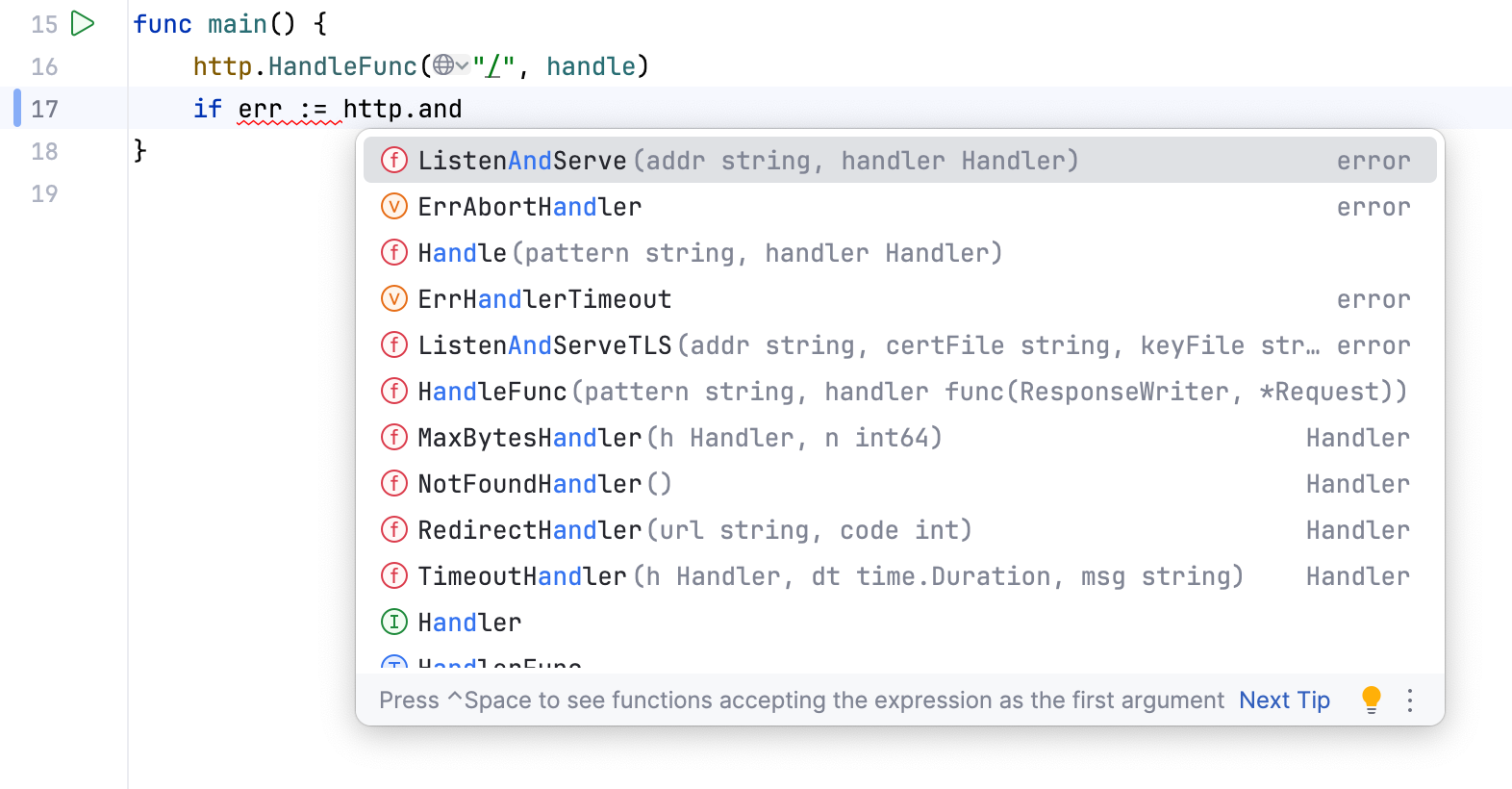
In case of CamelCase or snake_case names, type the initial letters only. GoLand automatically recognizes and matches the initial letters.
View reference
You can use the Quick Definition view by pressing Ctrl+Shift+I when you select an entry in the suggestion list:
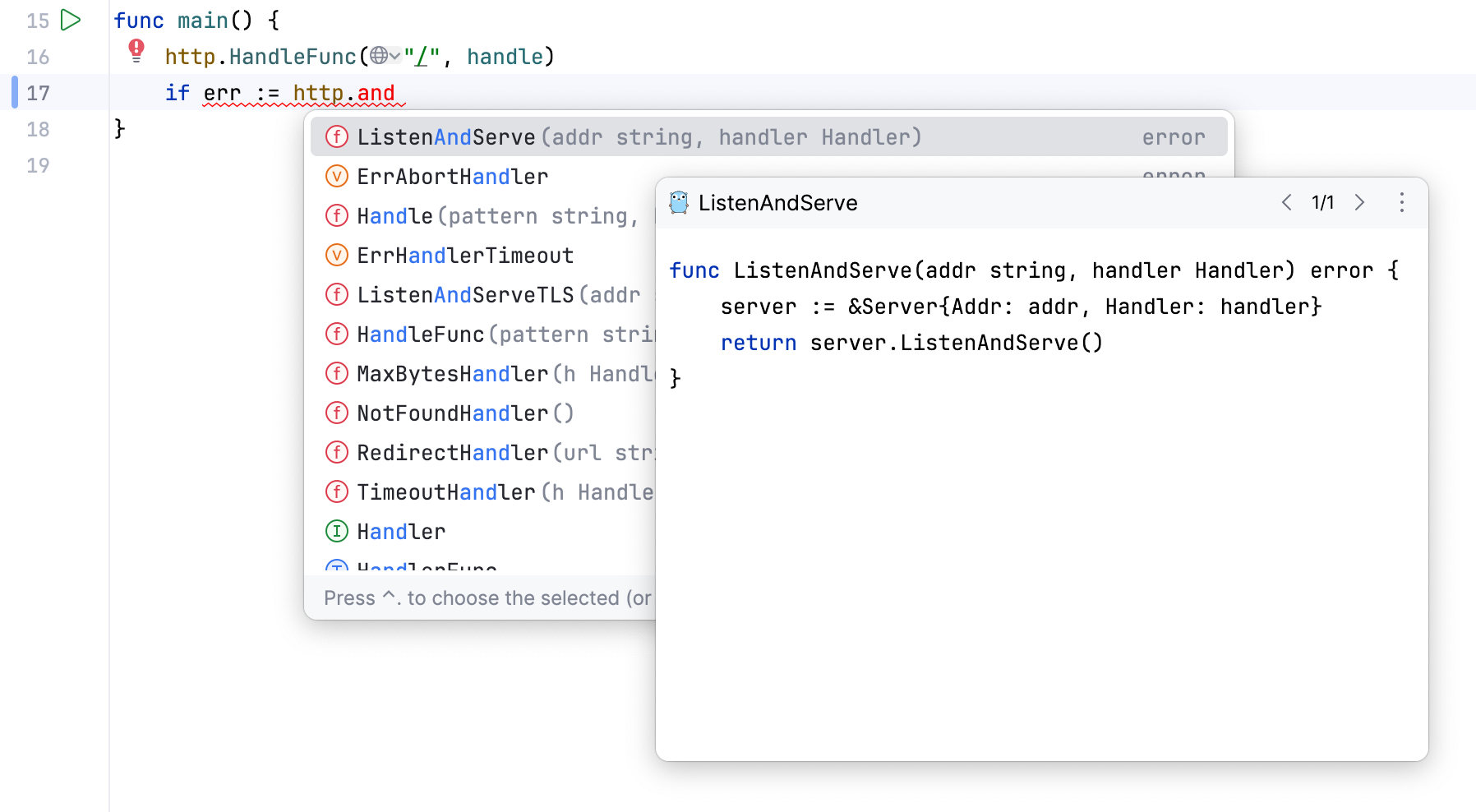
You can use the Quick Information view by pressing Ctrl+Q or automatically when you select an entry in the suggestion list:
View code hierarchy
You can view code hierarchy when you've selected an entry from the suggestion list:
Ctrl+H: view type hierarchy
Ctrl+Shift+H: view method hierarchy.
Fill struct fields
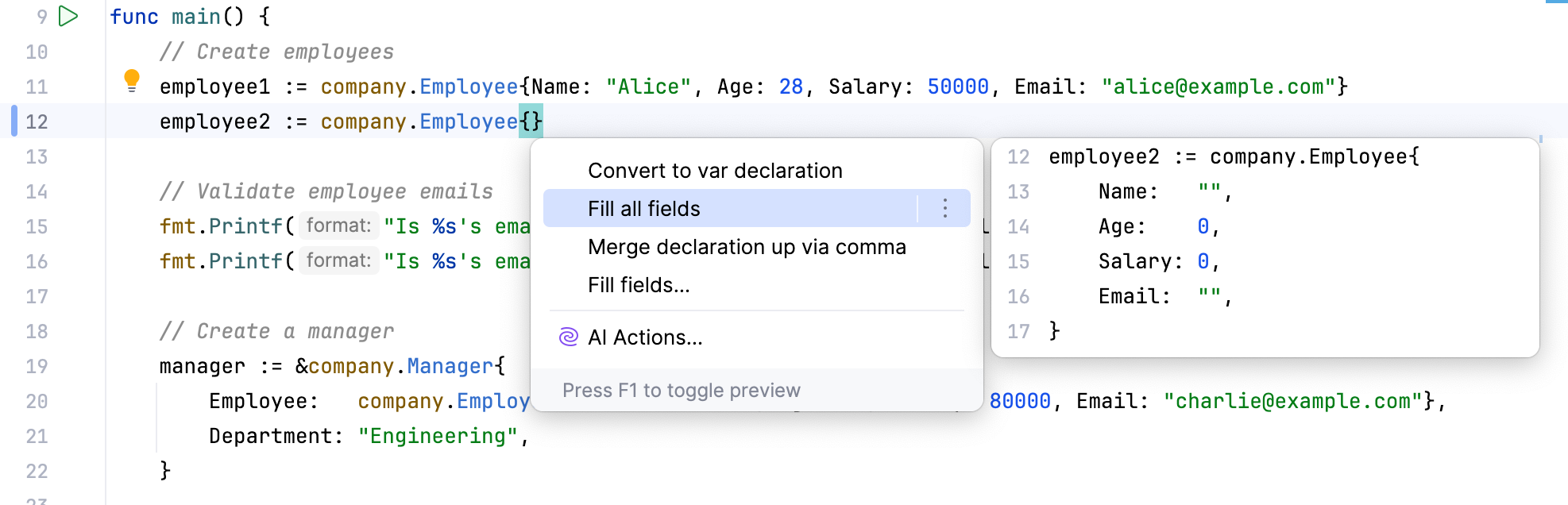
When you create a new struct, you can automatically generate field names for it. This action works for generic structs.
The IDE ignores auto-generated protocol buffer fields that start with XXX_ when you invoke the Fill all fields intention action. These fields are shown only after you invoke completion for a second time.
Start typing the struct name, select it from the completion list.
Place a caret between braces of a struct.
Press Ctrl+Space. Alternatively, press Alt+Enter.
Select between the following options:
Fill all fields: generates values for all the fields that belong to the current struct.
Fill all fields recursively: generates values for all the fields that belong to the current struct type and all the pointers to other struct types recursively.
Fill fields: displays the Select Fields dialog where you can select the fields that you want to add. Select Recursively to parse fields from all the related structs. Clear the Enforce multiline checkbox to display all fields on a single line. In the Select Fields dialog, press Ctrl and click the fields that you want to add.
Click OK.
Format date and time
The time package uses predefined layouts that you can use in
Time.Formatandtime.Parse. The reference time used in the layouts is the specific time:Mon Jan 2 15:04:05 MST 2006. It means that to define your own format, you need to write down what the reference time would look like formatted your way.In GoLand, when you press Ctrl+Space, you will see placeholders for time and data elements from ISO-8601. Code completion also suggests standard time layouts outside of the string literal.
Troubleshooting
If code completion does not work, this may be due to one of the following reasons:
The Power Save Mode is on (). Turning it on minimizes power consumption of your laptop by eliminating the background operations, including error highlighting, on-the-fly inspections, and code completion.
A file containing types and functions that you want to appear in the completion suggestion list is marked as a plain text file.
External libraries that contain functions that you want to appear in the completion suggestion list are not added as dependencies or global libraries.
Code completion popup might not appear automatically if it takes too long to gather the completion options. For example, if the computer is busy with another task. In this case, you may still activate the completion popup manually via Ctrl+Space.