Explore test results
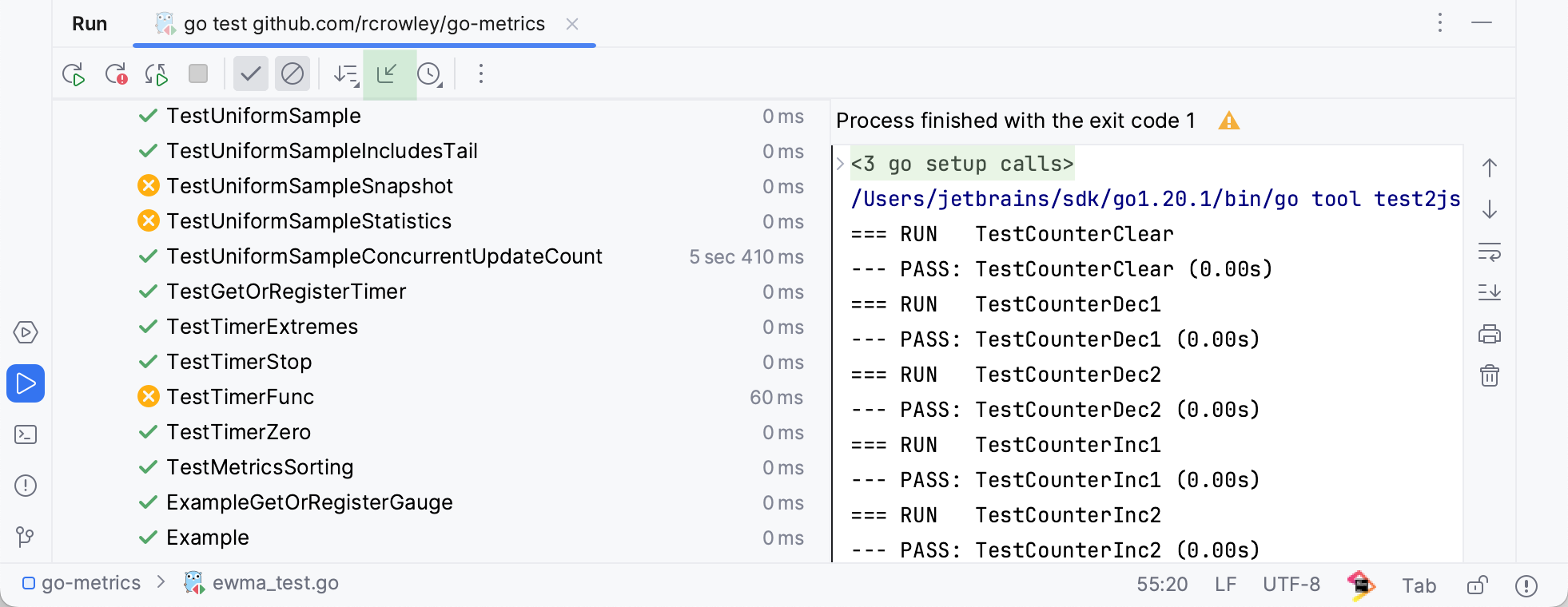
While the tests are running in GoLand, the test execution is shown in the Run tool window on a tab for that run configuration. When the test execution is finished, you can look at the test results in that tab.
The console on the right shows the output of the current test session. It allows you to see the detailed information on the test execution and why your tests failed or were ignored.
The test results toolbar located above the list of test results allows you to show and hide successful and ignored tests, display how much time it took to run each test, export, import, and sort test results.
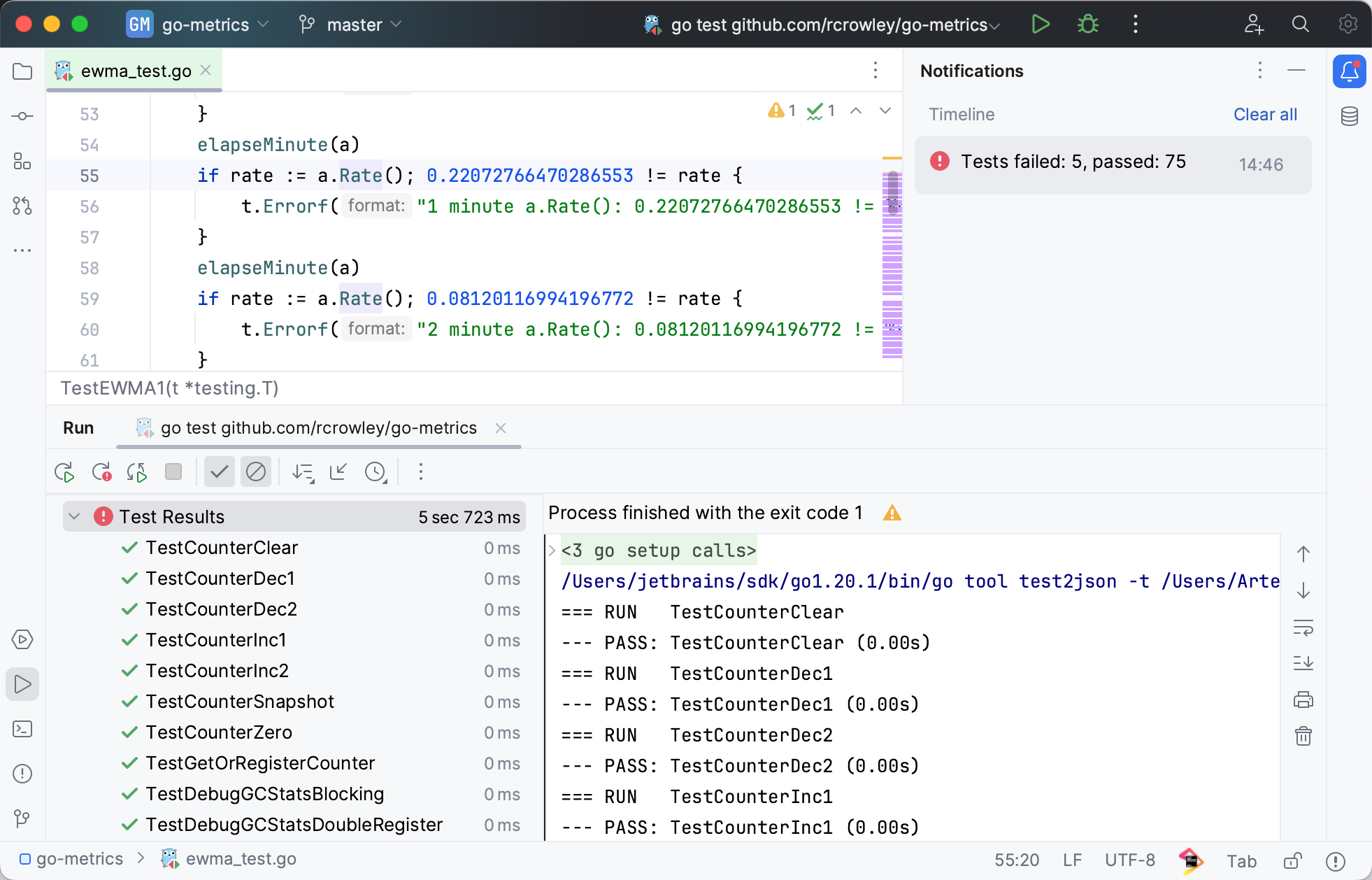
Next to each test on the run configuration tab, the IDE shows the test status icon:
Icon | Description |
|---|---|
| Test error reported by the test framework. |
| Test failed. If at least one child test fails, all its parent tests are marked as failed. |
| Test ignored. Go tests that report a skipped result also use this status. |
| Test in progress. |
| Test passed successfully. |
| Test terminated. This status is assigned to tests that were stopped. If at least one test receives this status, then all unfinished tests and their parent tests are marked as terminated. |


Sort and filter test results
Use the following options on the test results toolbar if you want to focus only on the failed tests or if you want to reorganize test results.
Disable the
 Show Passed option to hide successful tests.
Disable the
 Show Ignored option to hide ignored tests.
Click
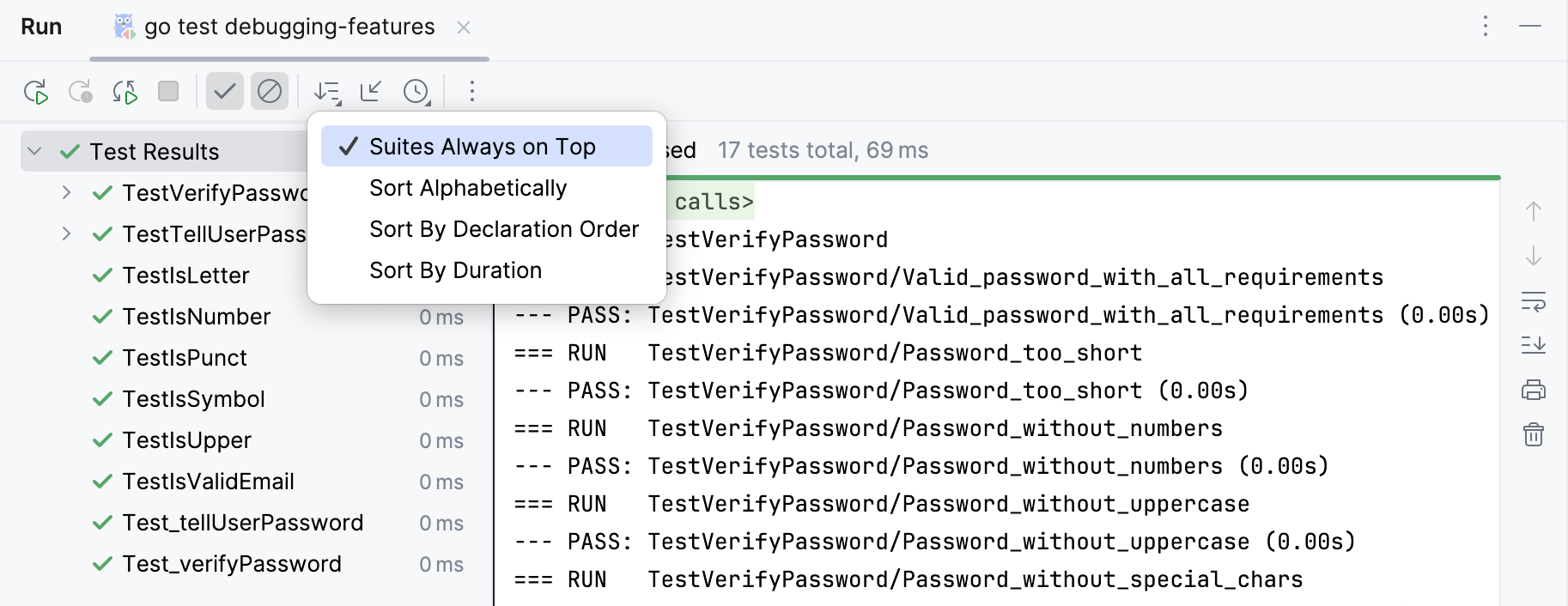
 and select how you want to sort the test results:
Suites Always on Top: display suites on top.
Sort Alphabetically: sort test results alphabetically.
By Declaration Order: sort test results in the order in which the tests are declared in the code.
Sort By Duration: after the run finishes, sort tests within each group by duration, with the longest-running tests first.
Track test execution
In large projects, test suites can include hundreds of tests and take a long time to run. To help you follow the progress of your test runs, GoLand keeps the test tree and the output pane focused on the test that is currently being executed. This is useful, for example, when your test run seems stuck and you want to check where it is being held up.
Test execution tracking is enabled by default.
To stop tracking test execution or start tracking it again, go to the toolbar and select
 More |
 Test Runner Settings | Track Running Test.
If you select a test in the tree while the run is in progress, the focus stays on that test. To focus back on the currently running test, click
 Scroll to Running Test in the toolbar.
Manage test results
Click
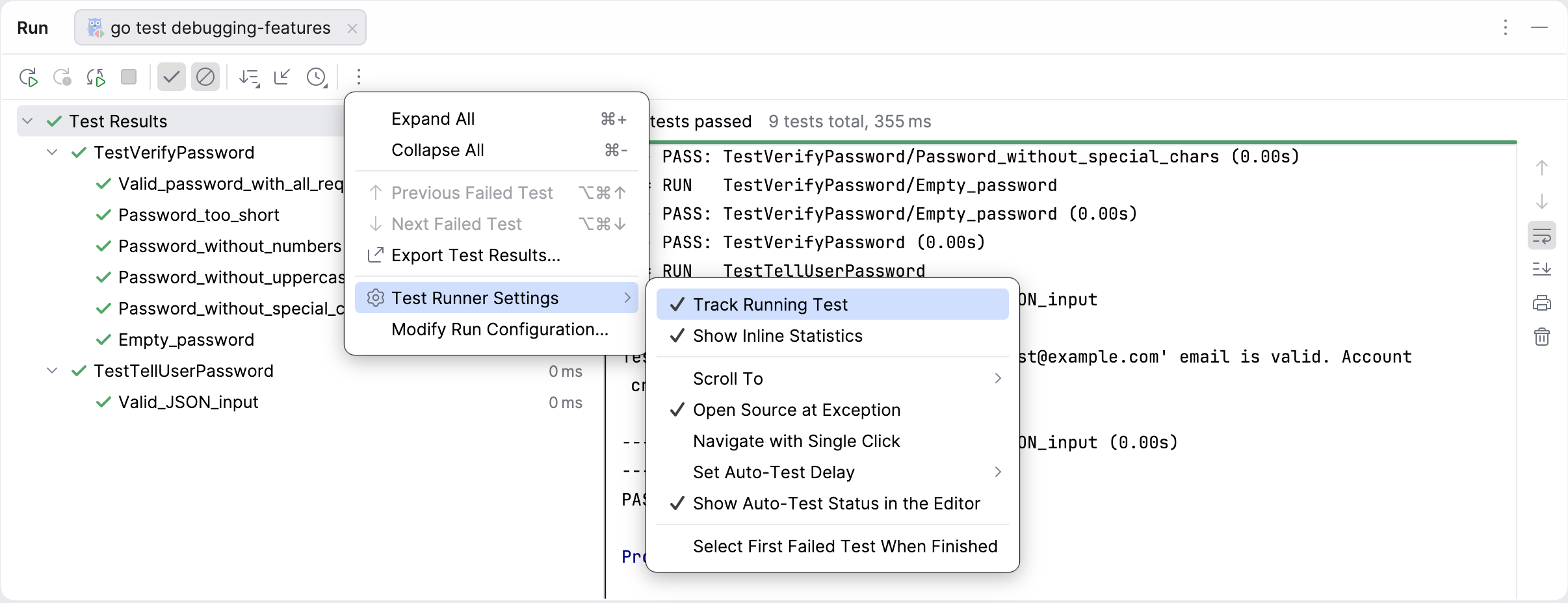
 on the test results toolbar and select Test Runner Settings and enable the following options:
Track Running Test: during test runs, keep the test tree and the output pane focused on the test that is currently being executed.
Show Inline Statistics: view the execution time for tests.
Scroll To
Scroll to Stack Trace: if a test produced a lot of output (for example, logging) before failing, this option automatically scrolls the output console to the assertion failure once you select the test in the run configuration tab.
Top: scroll to the top of the console output.
Bottom: scroll to the bottom of the console output.
Navigate with Single Click: open the code for the selected test automatically in the editor.
Set Auto-Test Delay: point to this node to reveal the list of available delays between file saving and rerunning tests. The selected value gets the check mark.
Show Auto-Test Status in the Editor: display the auto-test status indicator in the editor.
Select First Failed Test When Finished: automatically select the first failed test in the list upon completing the test session.
View statistics
Whenever you run tests in GoLand, their execution time is measured and displayed in the Run tool window, on the right side of the test tree.
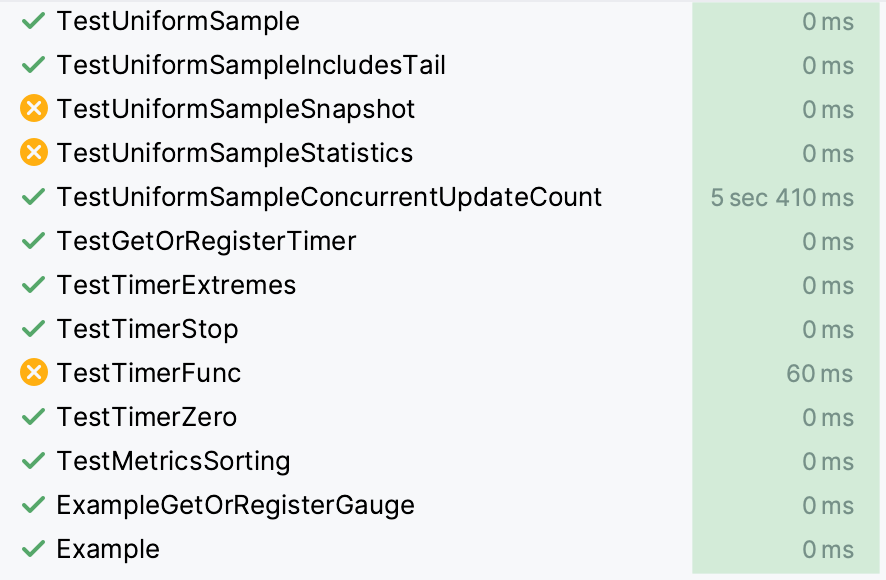
To hide the execution time statistics, click
More in the toolbar, select Test Runner Settings, and clear the Show Inline Statistics option.
Jump to test declaration
Select the necessary test from the list on the Test Runner tab and press F4.
View results of previous tests
GoLand automatically saves results of the last 10 test sessions. To open the list of recent test sessions:
Click the
 icon on the test results toolbar and select the necessary test session from the list.
For each test session, the list displays the run configuration name and a timestamp:
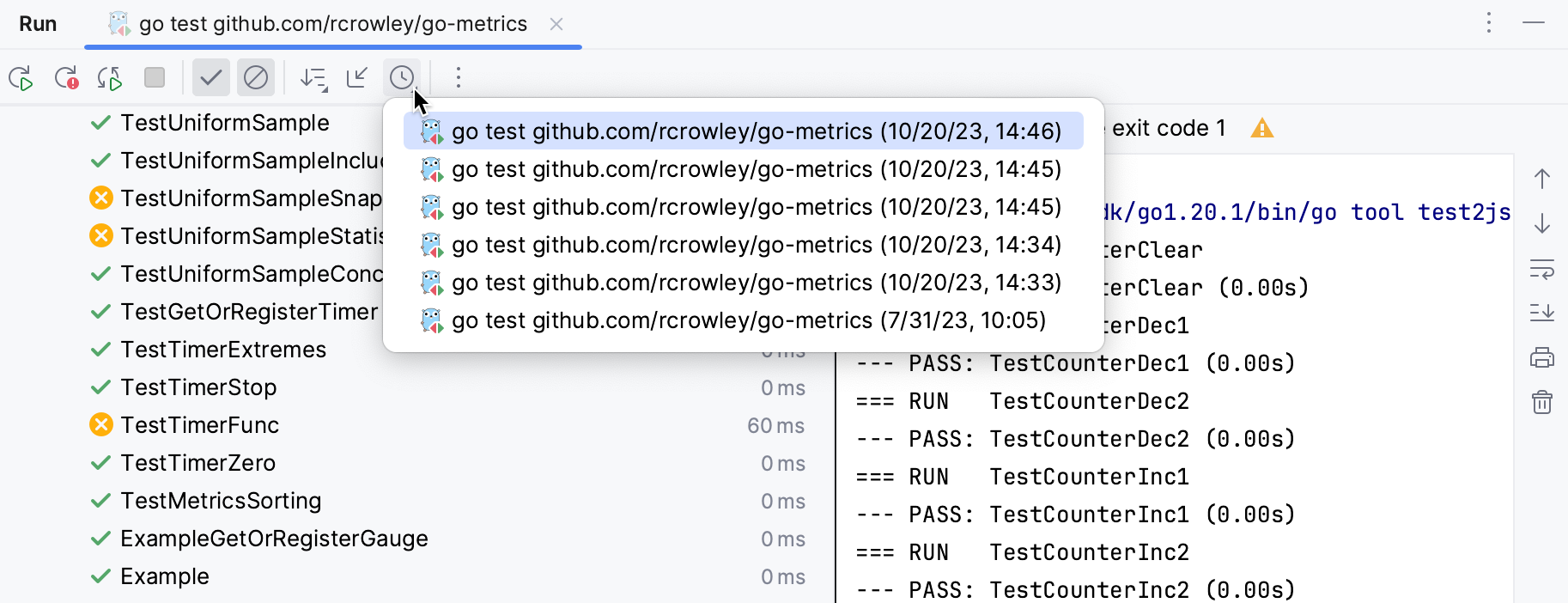
You can also export test results to a file if you want to keep them or share with your team.
Export and import test results
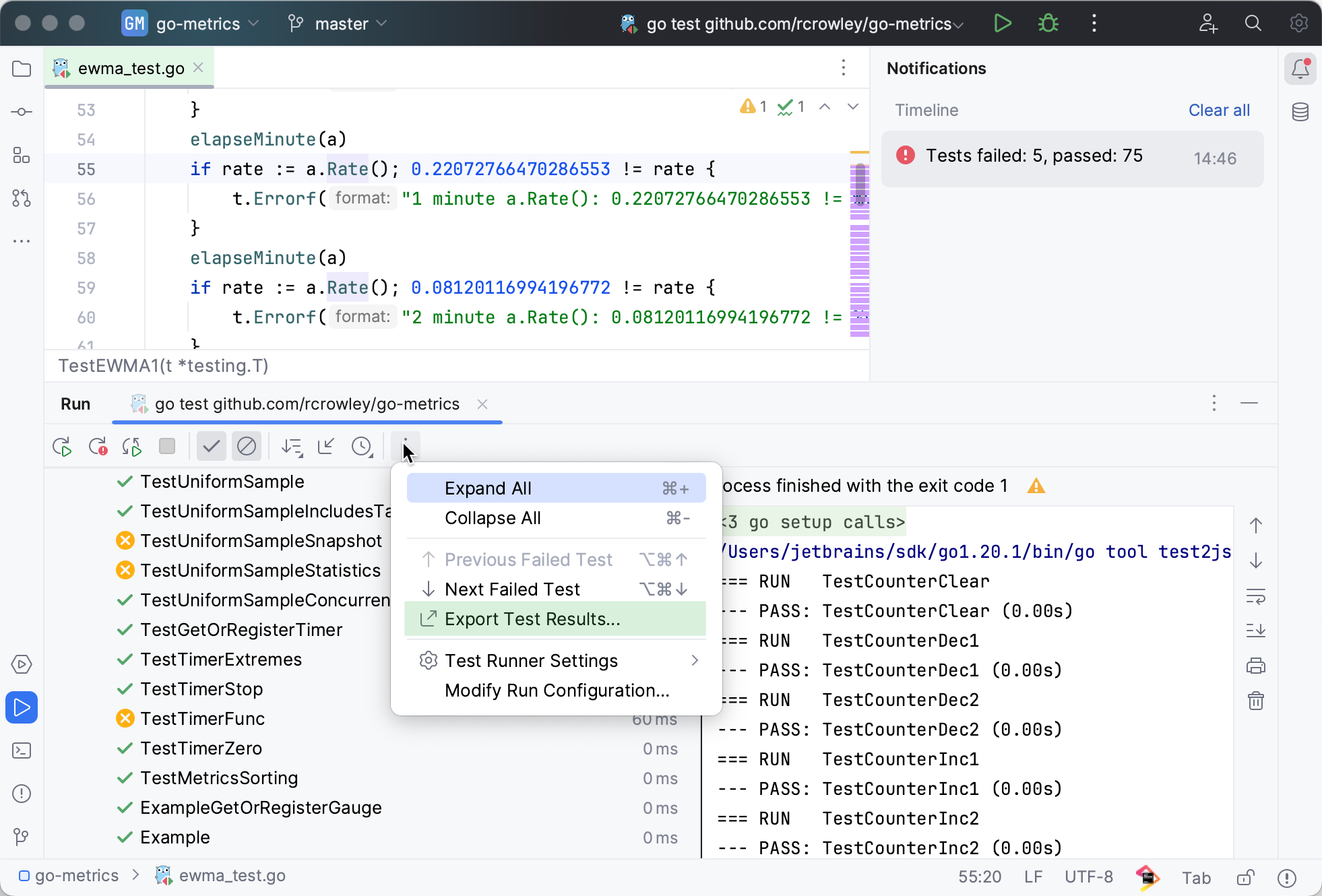
Export test results to a file
Click
on the test results toolbar, then click  Export Test Results.
Select the format in which you want to save the file:
HTML: generate an HTML file from a pre-defined template.
XML: use this format if you want to import this file later to GoLand.
Custom, apply XSL template: use your custom XSL template to generate an HTML file from the raw XML output. Click
 next to this option and select the *.xsl code style definition file.
Specify the name of the output file and its location.
If you want to open the file in your browser after you export it, select the Open exported file in browser checkbox. Click OK.
Import test results
To load a previously exported file, click
 on the test results toolbar.
If you have not run any tests yet, and the tool window with the test results toolbar is not available, press Ctrl+Shift+A and type
Import Tests from File.In the file system dialog that opens, select the .xml file with test results and click Open.