Tutorial: Create a live template with variables and functions
Create a live template that generates a Go struct and a method. Template variables let you enter a type name and select a food value when you insert the template.
Create a new struct type with a
foodfield of typestring.Implement a
PetFood()method that stores the selected food in a local variable and prints a message. The method does not read or change the struct field.
To showcase how variables and functions work in templates, we will add the following variables to the template text:
Create a live template with variables
Press Ctrl+Alt+S to open settings and then select .
Select the Go group, click
 , and select Live Template.
In the Abbreviation field, specify the characters that will be used to expand the template. For example,
pet.In the Template text field, paste the following template:
type $TypeName$ struct { food string } func (p *$TypeName$) PetFood() { food := "$Food$" println("The $typeName$ eats " + food) }Below the template text, click Define and select . This makes the template available at the top level of a Go file, outside functions and other declarations.
Click Edit Variables… and, in the Edit Template Variables dialog, configure the variables:
$TypeName$: leave the Expression field empty. When using the template, GoLand will prompt the user to enter a type name after inserting the template.$typeName$: in the Expression field, enterdecapitalize (TypeName). This converts the first letter of$TypeName$to lower case. Select Skip if defined.$Food$: in the Expression field, enterenum("meat","grass", "fruit"). When using the template, GoLand will display a list of these values in the editor to choose from.
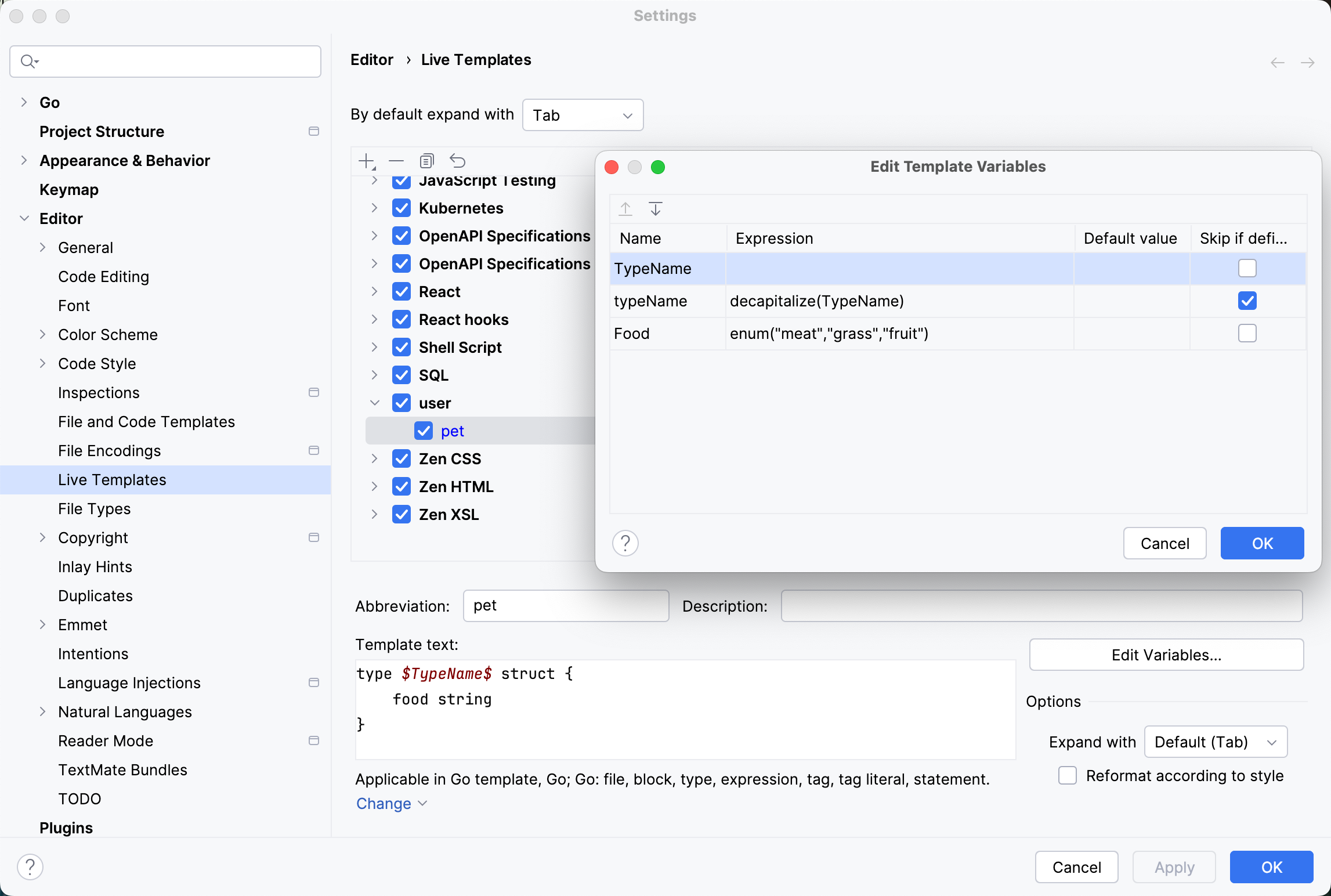
Click OK to close the variable editor, then click OK in the settings dialog to save the template.
Use the created template
Open a Go file and place the caret on a blank line after the
packageand anyimportdeclarations, outside a function or type declaration.In the editor, start typing the template abbreviation (
petin our example) and select it from the completion dropdown.Enter the type name as a variable value:
Horse. Press Tab to jump to the next variable.Using the keyboard arrows, select
grassas a value of thefoodstring and press Enter.