Start Dev Container from the IDE home screen
You can start a Dev Container from the IDE home screen to clone a project right into a Dev Container, or to open one from your local file system.
Start Dev Container from GoLand home screen
From the GoLand home screen, click Connect to Remote.
In the Connect to Remote wizard, click the Dev Containers tab .
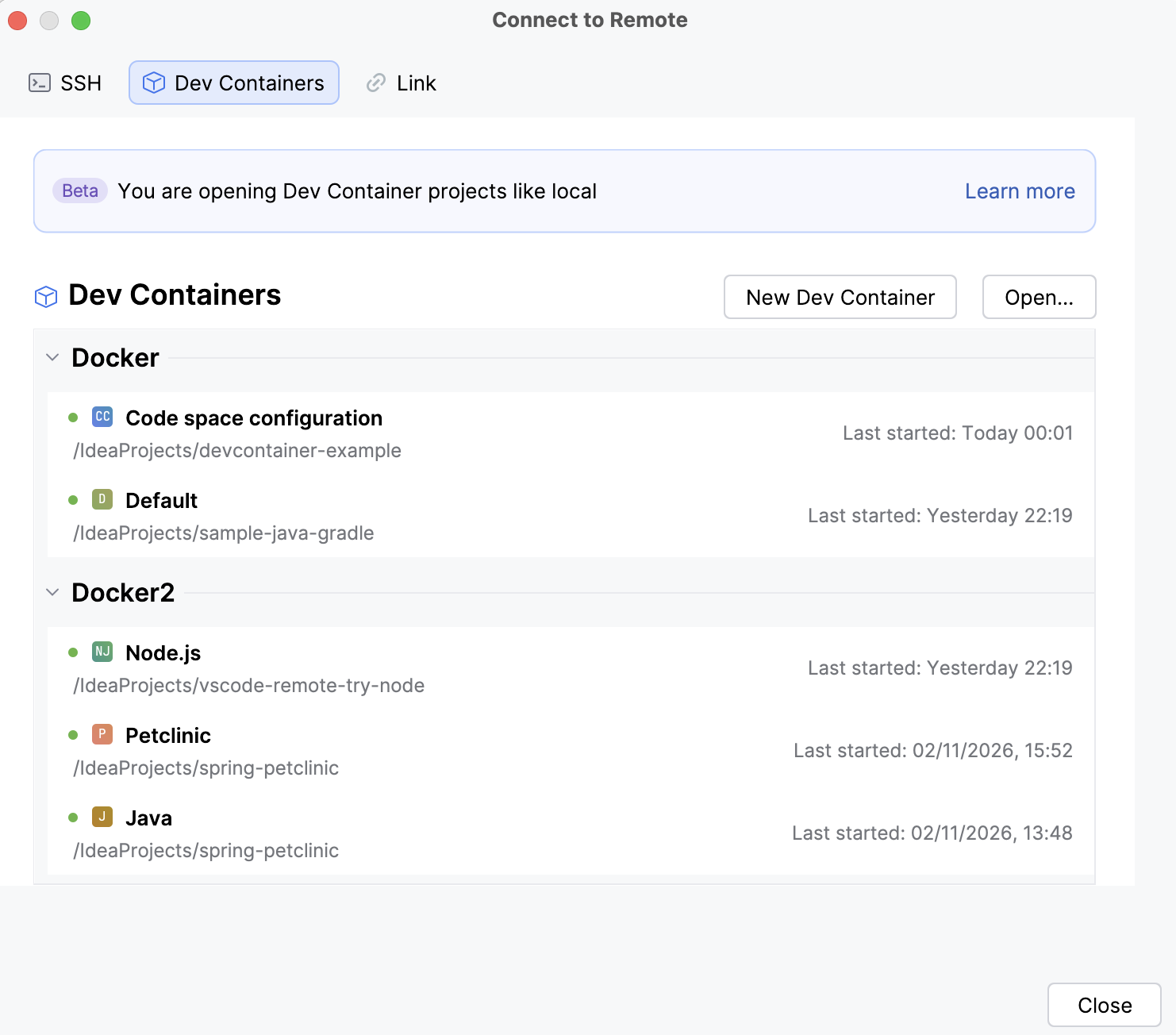
GoLand lists all recent Dev Containers, which you can click to open or manage by selecting the corresponding icon when you hover over a container. If you do not have any Dev Container configured, click New Dev Container.
Select which project you want to use either from the VCS or from the local file system and fill out the necessary fields.
Path to devcontainer.json: specify a path to the project's devcontainer.json file that you want to open from your local machine.
Git Repository: In this field, specify the path to your project on GitHub.
The project to which you are referring should have a
devcontainer.jsonfile that contains the Dev Container configuration.Detection for devcontainer.json file: select whether you want to specify the path to a
devcontainer.jsonfile manually or let it be detected automatically.
Click Build Container and Continue.
After the Dev Container is built, you can select how to open a project - in the same window or in a separate one.
Open an existing project inside a Docker Container
From the GoLand home screen, click Connect to Remote.
In the Connect to Remote wizard, click the Dev Containers tab .
The connection to your local Docker is found automatically. If there is no connection, check whether your local Docker is active.
GoLand lists all available Dev Containers. Hover over a container and use the corresponding icons to delete, rebuild, or stop it.
You can also click the Open button to select and open a project in a specific Docker container.
On the page that opens, select a container and from the drop-down list of available directories, select the needed project. Click OK.
Select how to open a project - in the same window or in a separate one.