Run targets
You can run Go Build and Go Test configurations on an SSH server, in WSL, or in a Docker container directly from GoLand.
Run targets let you test your code in a selected environment.
Prerequisites
To run Go code on a target, configure the target with a Go runtime.
In a Go Build or Go Test configuration, select the target from the Run on list. Then launch the configuration as you would locally.
You can run several configurations on the same target. You can also set a default target for the project.
Set a default target for a project
Click .
From the Project default target list, select a target that you want to use for your project.
Supported run/debug configuration types
The following run/debug configurations can run on a remote target:
Go Build
Go Test
Create a run/debug configuration
Go to . Alternatively, press Alt+Shift+F10, then 0.
In the Run/Debug Configuration dialog, click the Add button
 on the toolbar or press Alt+Insert.
Select one of the supported run/debug configuration types.
If you have already defined the target, select it from the Run on menu. Otherwise, click Manage targets… to add a new target. For more information on configuring a particular target type, refer to the following procedures:
You can also configure a run target in a run/debug configuration template, so the next time you create a new configuration of that type, its parameters already have the desired values. For more information, refer to Configure the default values for a template.
Run
Procedure for running the app on a remote target is the same as for running it locally:
Select the run/debug configuration on the main toolbar.
Click
 or press Shift+F10.
When Build on remote target is selected, GoLand copies the required source files to the target and builds the application or tests there. GoLand also builds on the target when the selected Go SDK is located in WSL. Otherwise, it builds locally and copies the compiled executable to the target.
Target types
A target describes the configuration of the environment in which the application will run.
You can create the following targets:
When you create a remote target, GoLand automatically detects the configuration available in the remote environment. If required, you can manually configure additional configuration.
WSL
In the main menu, click .
From the Add Target On window, select WSL.
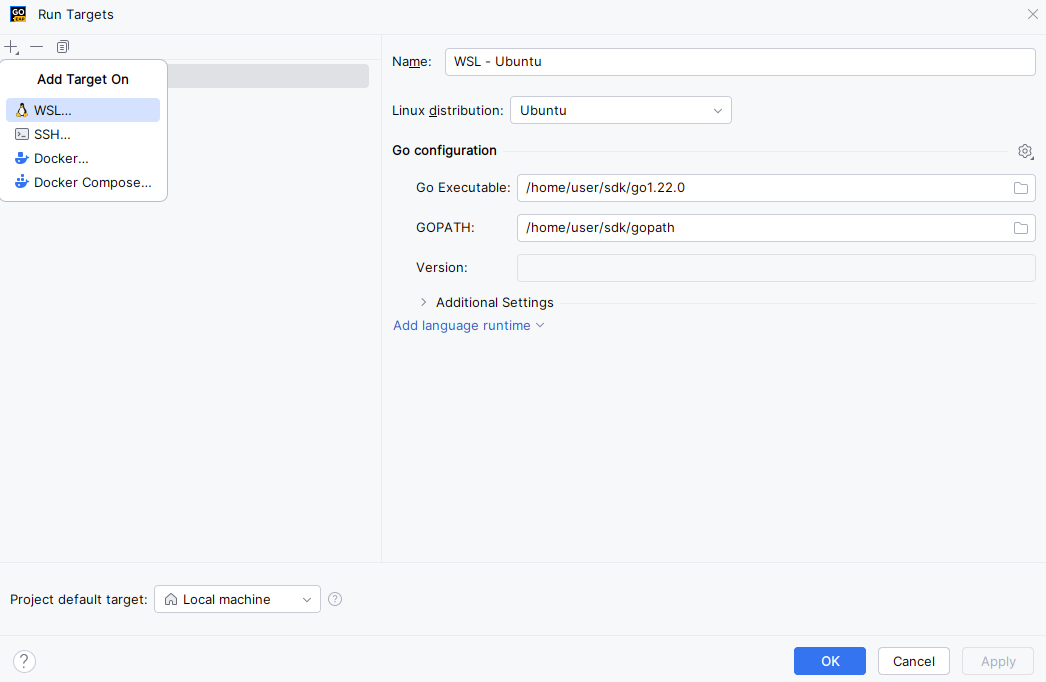
In the New Target wizard, select your Linux distribution from the Linux distribution list. If the distribution was detected automatically and the introspection passed, click Next.
Check that the Go runtime configuration for WSL was detected correctly and click Finish.
Alternatively, type your own settings.
Go Executable: the path to the Go executable (for example, /usr/local/go/bin/go)
GOPATH: the target's GOPATH. GoLand detects this value automatically by running
go env GOPATH.Version: the Go version. GoLand detects this information automatically by running
go version.Additional settings: a group of settings that allow you to set directories for source code files and executables.
To run on a target, GoLand uploads source files, files from the working directory, compiled executables, and Delve. If you do not specify paths in Additional Settings, GoLand creates directories for source files and executables.
You can specify the following options:
Project sources directory: a directory on a target where source code files are uploaded.
Compiled executables directory: a directory on a target that is used to store executables that your code produces.
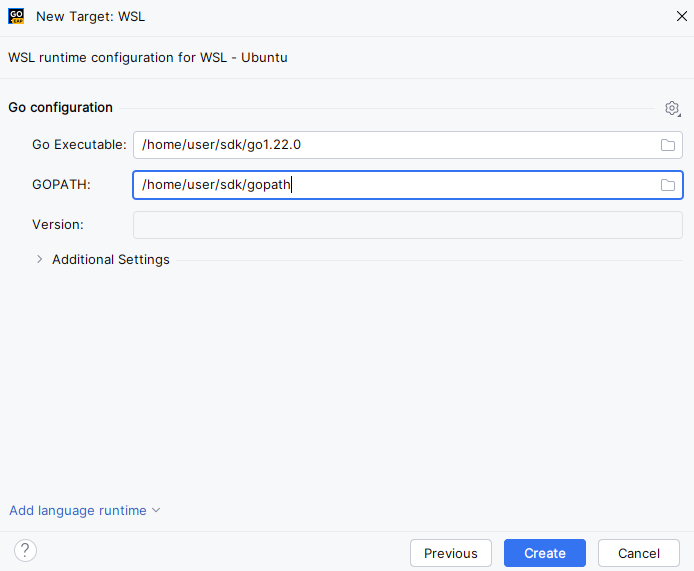
In the Run Targets dialog, click the Project default target list and select the created configuration.

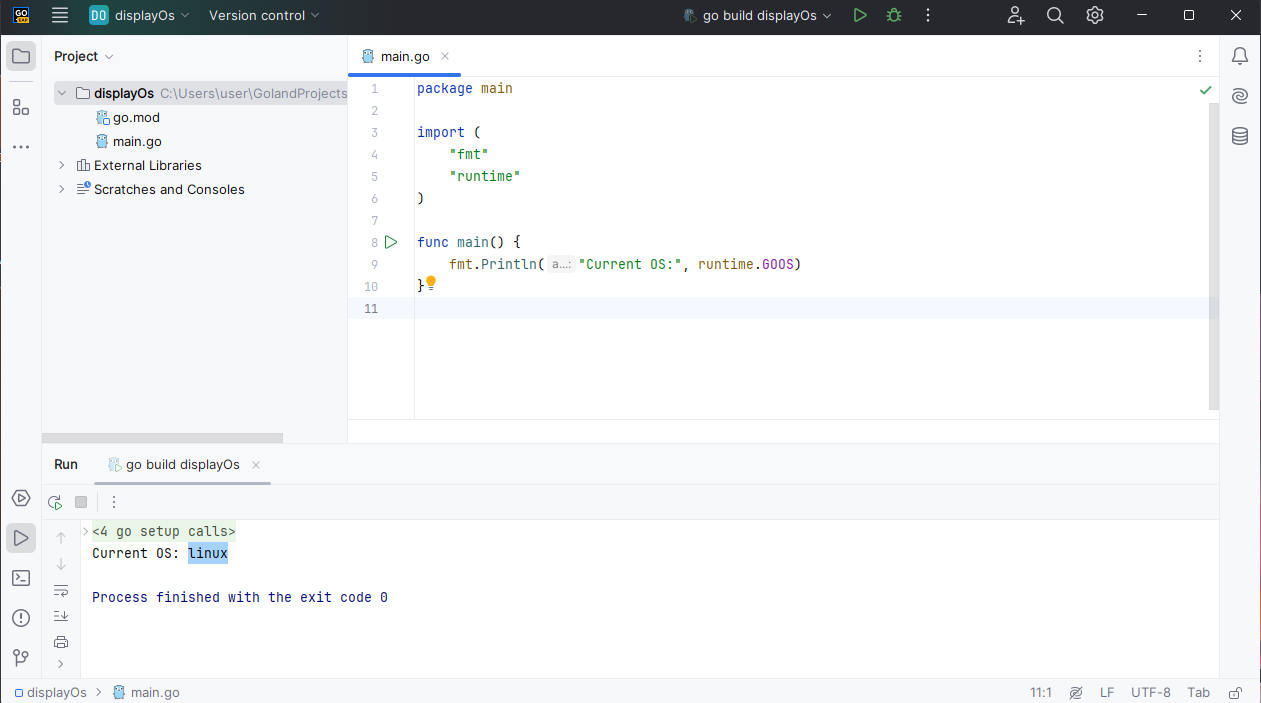
Run your application.
SSH
Select if you want to use an existing SSH configuration or create a new one:
Select an existing SSH configuration from the SSH list, then click Next. For more information about configuring SSH, refer to Create SSH configurations.
Enter the IP of the SSH server, the port listening for SSH connections, and the name of the user on the server machine, on whose behalf you are going to run your application. Click Next.
Wait for the connection to be established. If there is an agent that has the credentials, no additional configuration will be required. Otherwise, select the authentication method and provide the required values:
Password: enter the password.
Key pair (OpenSSH or PuTTY): To apply this authentication method, you must have a private key on the client machine and a public key on the remote server. GoLand supports private keys that are generated with the OpenSSH utility.
Specify the path to the file where your private key is stored and type the passphrase (if any) in the corresponding fields. To have GoLand remember the passphrase, select the Save passphrase checkbox.
Click Next.
Wait for the SSH server introspection to complete. During this step, GoLand tries to identify the language configuration available in the environment. Click Next.
Configure the following properties:
Use rsync: toggle this option to use rsync for file transfer. This is recommended as it will generally speed up copying files.
Project path on target: the path on the server that will be used for storing the project files.
Set the path to the Go executable and, if needed, GOPATH. GoLand detects the Go version automatically. The Version field is read-only.
The following Go configuration settings are available:
Go Executable: the path to the Go executable (for example, /usr/local/go/bin/go)
GOPATH: the target's GOPATH. GoLand detects this value automatically by running
go env GOPATH.Version: the Go version. GoLand detects this information automatically by running
go version.Additional settings: a group of settings that allow you to set directories for source code files and executables.
To run on a target, GoLand uploads source files, files from the working directory, compiled executables, and Delve. If you do not specify paths in Additional Settings, GoLand creates directories for source files and executables.
You can specify the following options:
Project sources directory: a directory on a target where source code files are uploaded.
Compiled executables directory: a directory on a target that is used to store executables that your code produces.
Docker
Select or configure a Docker server as described in Enable Docker support.
On Windows and macOS, allow Docker to access the project folder and any other local folders used by the container. For more information, refer to official Docker documentation.
Select if you want to build an image locally or pull it from Docker registry.
Dockerfile: the Dockerfile that will be used for building the image.
Context folder: a folder whose contents will be accessible by the Docker daemon during the build to be later used in the image filesystem.
Rebuild image automatically every time before running code: when this option is set, the image will be rebuilt every time the code is run. Otherwise, GoLand will use the already existing image (if any).
Additionally, you can specify the following:
Image tag: specify the name and tag for the built image. Similar to using the
-toption withdocker build.Build options: specify arbitrary options for the
docker buildcommand.Build args: override the default build-time variables. Similar to using the
--build-argoption withdocker build.Run options: specify arbitrary options for the
docker runcommand.
Image tag: specify the full coordinates for the image to be pulled from a registry. The default
:latesttag will be used if only repository is specified.Run options: specify arbitrary options for the
docker runcommand.
Wait for the container introspection to complete. During this step, GoLand tries to identify the language configuration available in the environment. Click Next.
Set the path to the Go executable and, if needed, GOPATH. GoLand detects the Go version automatically.
The following Go configuration settings are available:
Project path on target: the path on the server that will be used for storing the project files.
Go Executable: the path to the Go executable (for example, /usr/local/go/bin/go)
GOPATH: the target's GOPATH. GoLand detects this value automatically by running
go env GOPATH.Version: the Go version. GoLand detects this information automatically by running
go version.Additional settings: a group of settings that allow you to set directories for source code files and executables.
To run on a target, GoLand uploads source files, files from the working directory, compiled executables, and Delve. If you do not specify paths in Additional Settings, GoLand creates directories for source files and executables.
You can specify the following options:
Project sources directory: a directory on a target where source code files are uploaded.
Compiled executables directory: a directory on a target that is used to store executables that your code produces.
Docker Compose
You can use a single Docker Compose service as a run target.
Select or configure a Docker server as described in Enable Docker support.
For Windows and macOS – make sure Docker has access to all the folders used in the workflow, for example, the project folder. For more information, refer to official Docker documentation.
Specify the Docker Compose configuration files, select the necessary service, and provide any additional environment variables. Click Next.
Wait for the Docker Compose service introspection to complete. During this step, GoLand tries to identify the language configuration available in the environment. Click Next.
Set the path to the Go executable and, if needed, GOPATH. GoLand detects the Go version automatically.
The following Go configuration settings are available:
Project path on target: the path on the server that will be used for storing the project files.
Go Executable: the path to the Go executable (for example, /usr/local/go/bin/go)
GOPATH: the target's GOPATH. GoLand detects this value automatically by running
go env GOPATH.Version: the Go version. GoLand detects this information automatically by running
go version.Additional settings: a group of settings that allow you to set directories for source code files and executables.
To run on a target, GoLand uploads source files, files from the working directory, compiled executables, and Delve. If you do not specify paths in Additional Settings, GoLand creates directories for source files and executables.
You can specify the following options:
Project sources directory: a directory on a target where source code files are uploaded.
Compiled executables directory: a directory on a target that is used to store executables that your code produces.