Reformat and rearrange code
GoLand lets you reformat your code according to the requirements you have specified in your current code style scheme or the .editorconfig file. If anything is not defined in .editorconfig, it is taken from the project settings.
You can reformat a part of code, the whole file, a group of files, a directory, and a module. You can also exclude part of code or some files from the reformatting.
Reformat a code fragment
In the editor, select a code fragment you want to reformat.
Before reformatting, you can take a look at the code style settings that are applied to the selected code: press Alt+Enter and click Adjust code style settings.
In the main menu, go to or press Ctrl+Alt+L.
Alternatively, on the toolbar that appears, click
 Reformat Code.
Reformat a file
Either open your file in the editor and press Ctrl+Alt+Shift+L or in the Project tool window, right-click the file and select .
In the Reformat File dialog that opens, if you need, select the following reformatting options:
Optimize imports: select this option if you want to remove unused imports, add missing ones, or organize import statements.
Code cleanup: select this option to run the code cleanup inspections.
Do not keep line breaks: reformat line breaks according to the code style settings. This option is available only when is enabled for the current language in . If you select Do not keep line breaks, the IDE temporarily overrides that setting and removes existing line breaks according to the current code style.
You can also use the Reformat again to remove custom line breaks option in .
Click Run.
If you want to see the exact changes made to your code during the reformatting, use the Local History feature.
Reformat line indents
You can reformat line indents based on the specified settings.
While in the editor, select the necessary code fragment and press Ctrl+Alt+I.
If you need to adjust indentation settings, in the Settings dialog (Ctrl+Alt+S) , go to . Select the language for which you want to change indentation.
On the Tabs and Indents tab, specify the appropriate indents options and click OK.
Automatically reformat code on save
You can configure the IDE to reformat code in modified files automatically when your changes are saved.
Press Ctrl+Alt+S to open settings and then select .
Enable the Reformat code option.
Additionally, you can configure the way the IDE will reformat your code:
Click Configure scope… to specify the patterns of filenames and directories that you want to exclude from reformatting.
From the All file types list, select the types of files in which you want to reformat code.
Select Whole file or Changed lines if your project is under version control.
If you select Changed lines, reformatting will apply only to the lines of code that have been changed locally, but not yet checked in to the repository.
Reformat code on commit
You can reformat your code automatically when you commit your changes to the repository if your project is under version control. In this case, only the added or modified code will be reformatted.
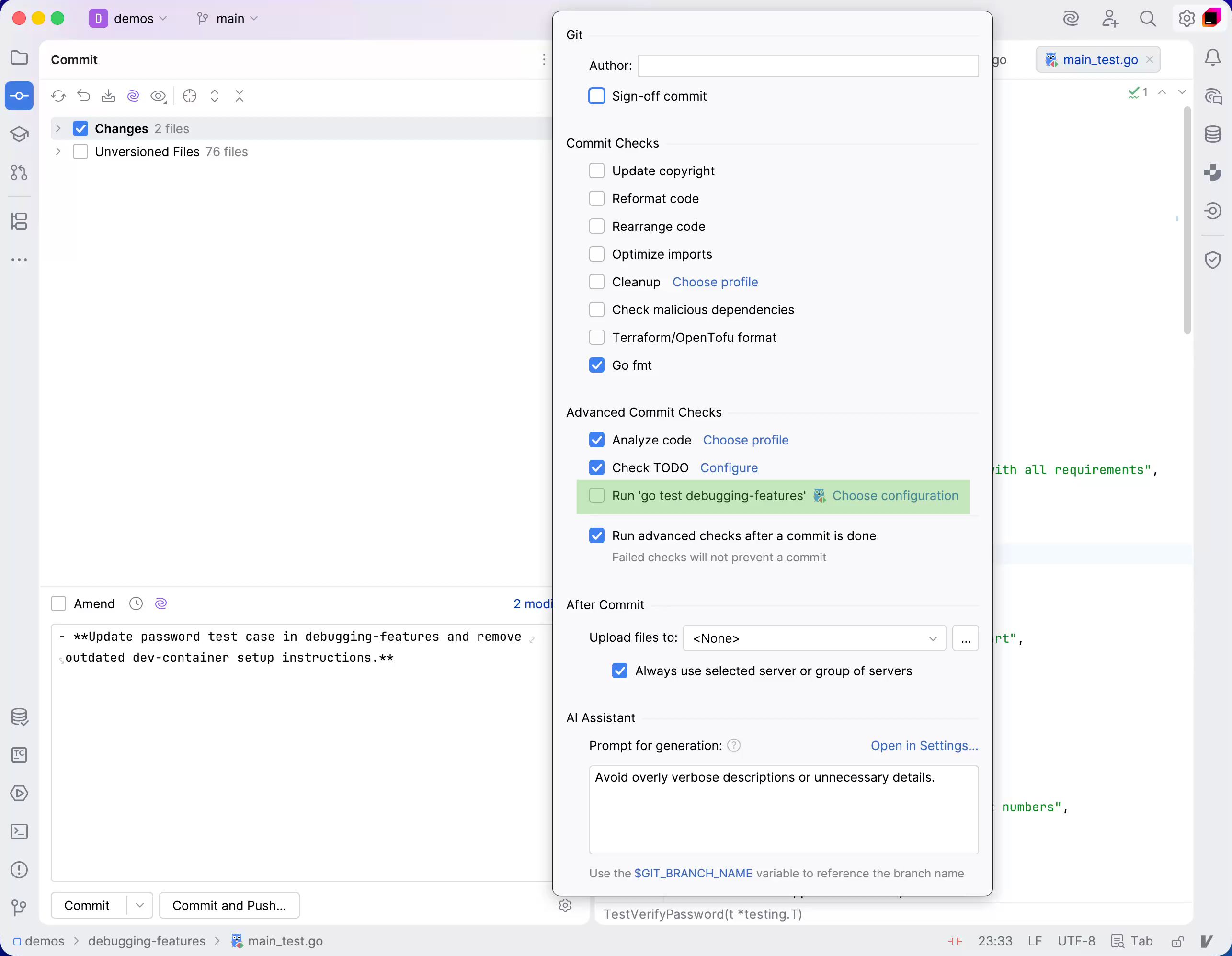
Press Alt+0 to open the Commit tool window and click Show Commit Options
 .
Under the Commit Checks menu, enable the Reformat code option.
After you have enabled the option, the added or modified code will be reformatted every time you make a commit.
Exclude files from reformatting
You can exclude a group of files and directories from reformatting and import optimization.
In the Settings dialog (Ctrl+Alt+S) , go to .
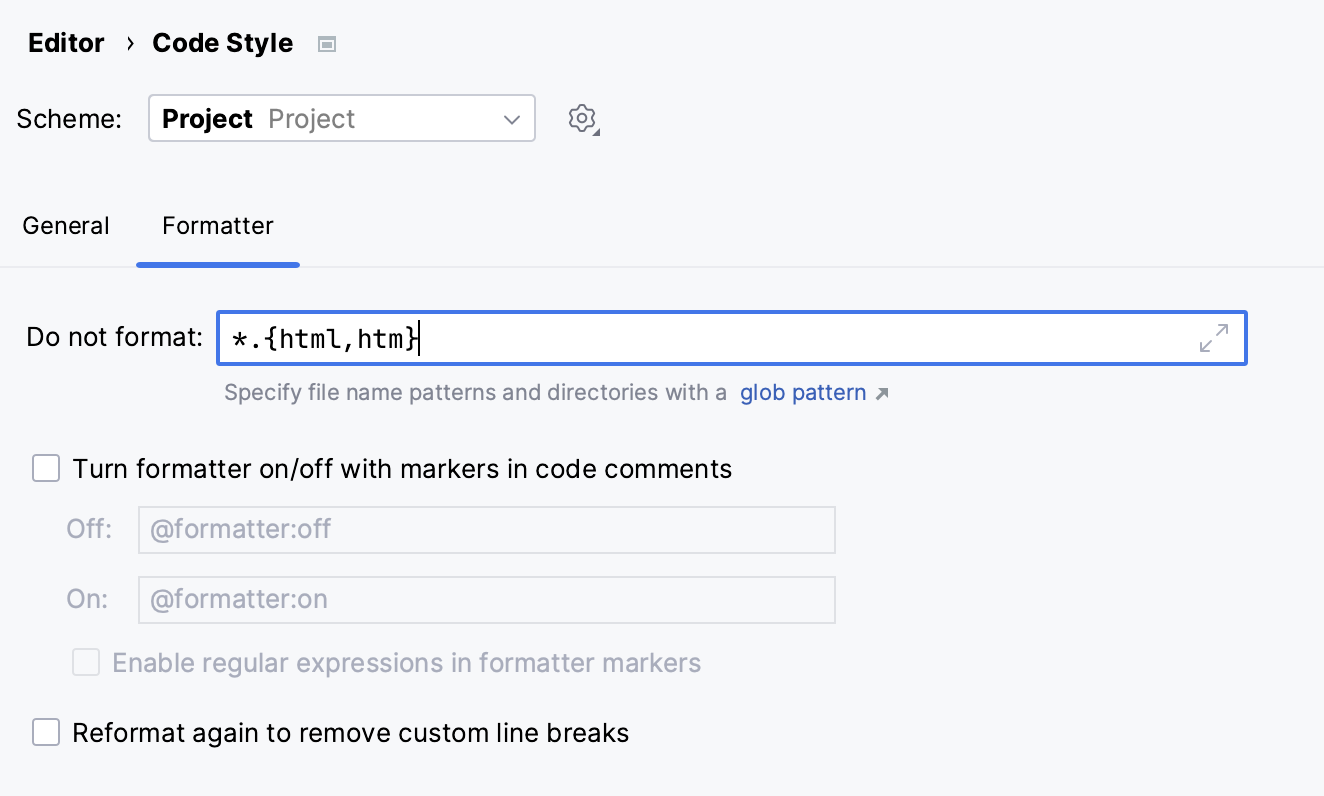
Switch to the Formatter tab and in the Do not format field, enter the files and directories that you want to exclude using a glob pattern.
You can specify several glob patterns separated with a semicolon
;. If you click , the field will expand, and each pattern will be shown on a separate line.
Apply the changes and close the dialog.
Exclude code fragments from reformatting in the editor
In the Settings dialog (Ctrl+Alt+S) , go to .
Switch to the Formatter tab and enable the Turn formatter on/off with markers in code comments option.
In the editor, at the beginning of a region that you want to exclude, create a line comment Ctrl+/ and type
@formatter:off. At the end of the region, create another line comment and type@formatter :on.The built-in formatter leaves the code between the markers unchanged.
Reformatting with the gofmt tool
By default, GoLand runs its built-in formatter and then gofmt when you reformat a Go file. Configure a Go SDK that contains the gofmt executable to use this second pass.
The built-in formatter can format selected code and code with syntax errors. The gofmt tool applies standard Go formatting to the whole file. It does not run when you reformat a selection.
You can also run gofmt separately:
Go tools: click and select Go Fmt File (to run gofmt in the current file) or Go Fmt Project (to run gofmt for the current project).
In Commit Checks, Go fmt is selected by default. Clear it to skip this formatting step before committing.
Configure gofmt after reformatting
Press Ctrl+Alt+S to open settings and then select .
Open the Other tab.
Under Run gofmt, select On Reformat Code action to run both formatters, or clear it to use only the built-in formatter. This checkbox is selected by default.
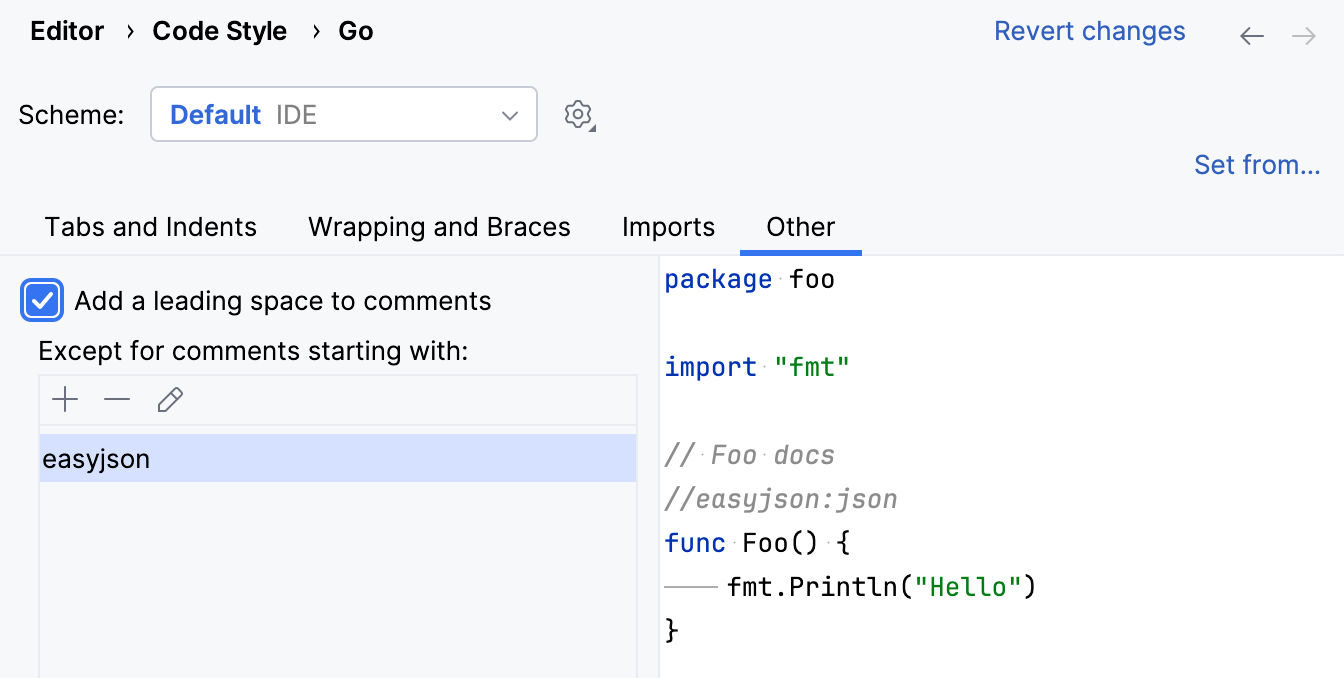
Configure leading spaces in comments
When you apply the Reformat Code action Ctrl+Alt+L, GoLand may add leading spaces before the comment text.
Before | After |
|---|---|
//easyjson:json
|
// easyjson:json
|
In Go, comments are also used as annotations. In some libraries, spaces between comment markers and annotation instructions are not processed correctly. In the previous example, easyjson:json is an annotation.
You can disable leading spaces for annotations that start with certain prefixes.
Open the Settings window ().
Click .
Click the Other tab.
Select the Add a leading space to comments checkbox.
Under Except for comments starting with:, click the Add icon (
 ).
Type the prefix name that you want to add as an exception (for example,
easyjson).