Create a local server configuration
A local server serves files from a local or mounted folder at a local URL. In a local server configuration, you develop your application in a GoLand project, then upload the project files to the server’s document root, the folder from which the server serves files.
To create a local server configuration in GoLand, configure the connection to the server. Then map your project folder to its destination folder on the server and the corresponding URL path.
1. Specify the name, type, and visibility of a server configuration
Press Ctrl+Alt+S to open settings and then select .
Alternatively, go to in the main menu.
In the left pane, click Add
 and select Local or mounted folder in the popup menu.
In the Create new server dialog that opens, type the name of the server to create and click OK. The Create new server dialog closes and you return to the Connection tab of the Deployment node.
From the list of servers, select the one you want to make default and click
 Use as Default on the toolbar above the list of servers to mark the server as default.
Keep Visible only for this project selected to use this configuration only in the current project. Clear it to make the configuration available to all projects.
2. Set up connection to the server
In the tab (Ctrl+Alt+S), specify the server settings:
Folder: the absolute path to an existing destination folder on your computer or a mounted drive. You need write access to upload files to this folder.
Web server URL: the base URL used to open deployed files in a browser. Configure it only if a web server serves this folder.
3. Map project folder to a server folder and URL path
On the Mappings tab, specify the project folder to upload and its destination.
Local path: the absolute path to the local project folder. GoLand automatically fills out this field with the path to the currently opened project.
Deployment path: a folder under the server document root where GoLand will upload the contents of the project folder specified in the Local path field.
If a folder with the specified name does not yet exist on the server, GoLand will create it when you trigger project upload.
The easiest way is to map the entire project root folder to a folder under the server document root. The project folder structure in this case will be recreated on the server.
Web path: the URL path configured for the folder specified in Deployment path. You can use a slash (
/) to point to the root folder, or leave the field blank if the directory is not accessible from the web.
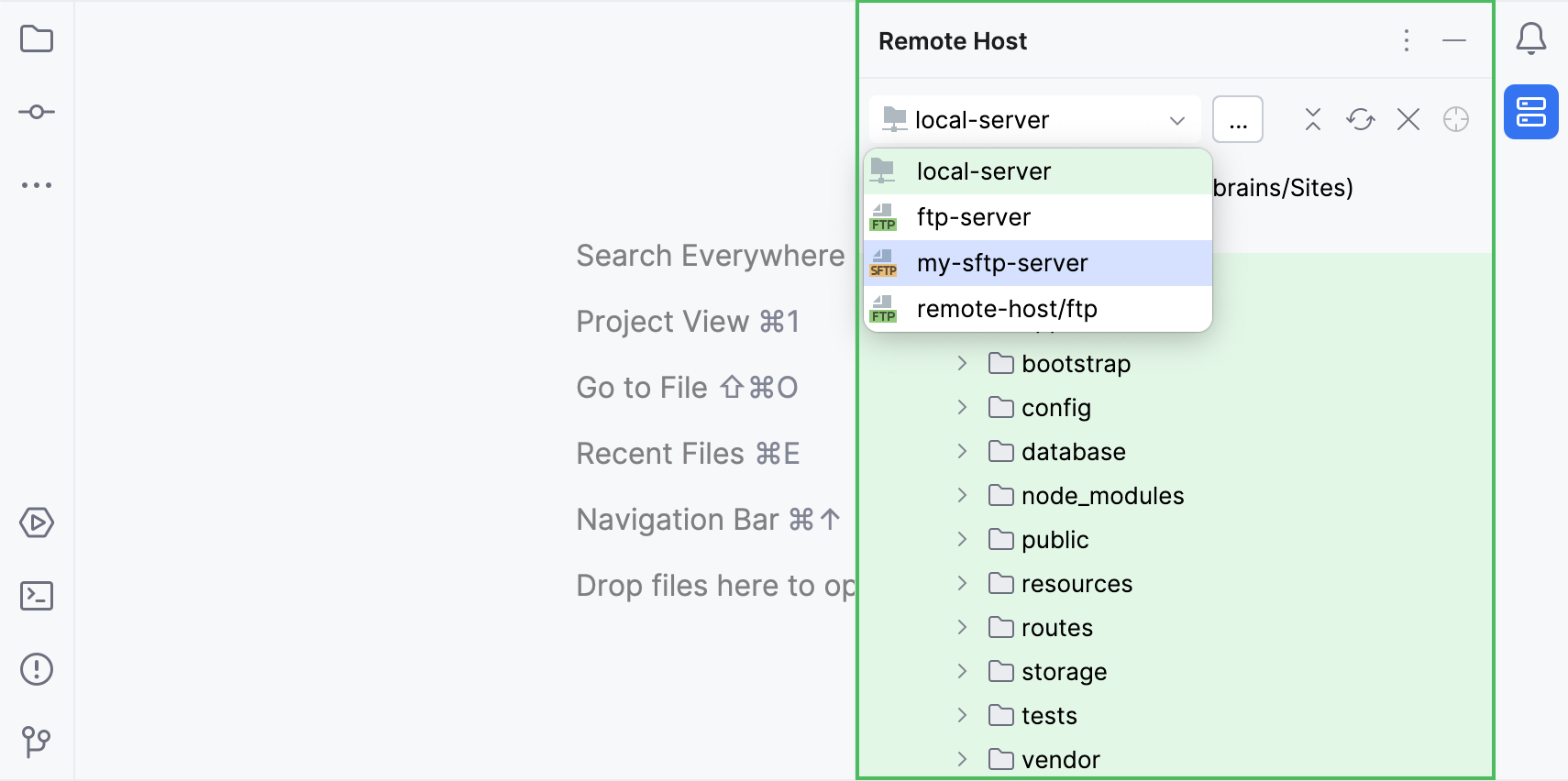
Now that you have the server configuration added, you can access the server's files and folders in the Remote Host tool window. Go to in the main menu, and in the tool window that opens, select the configured server from the drop-down list.