Configuring code coverage measurement
Configure code coverage behavior
Press Ctrl+Alt+S to open settings and then select .
Choose how to display new coverage results when a coverage suite is already active:
Show options before applying coverage to the editor: show the Code Coverage dialog to choose how to display the new results.
Do not apply collected coverage: keep the current coverage display without showing the new results.
Replace active suites with the new one: show only the new suite. The previous suites remain available.
Add to the active suites: add new code coverage suites to the active suites every time you launch a new run configuration with code coverage.
These options do not delete coverage data. You can select saved suites in . If no suite is active, GoLand displays the new results automatically.
Select the Activate Coverage View checkbox to open the Coverage tool window automatically.
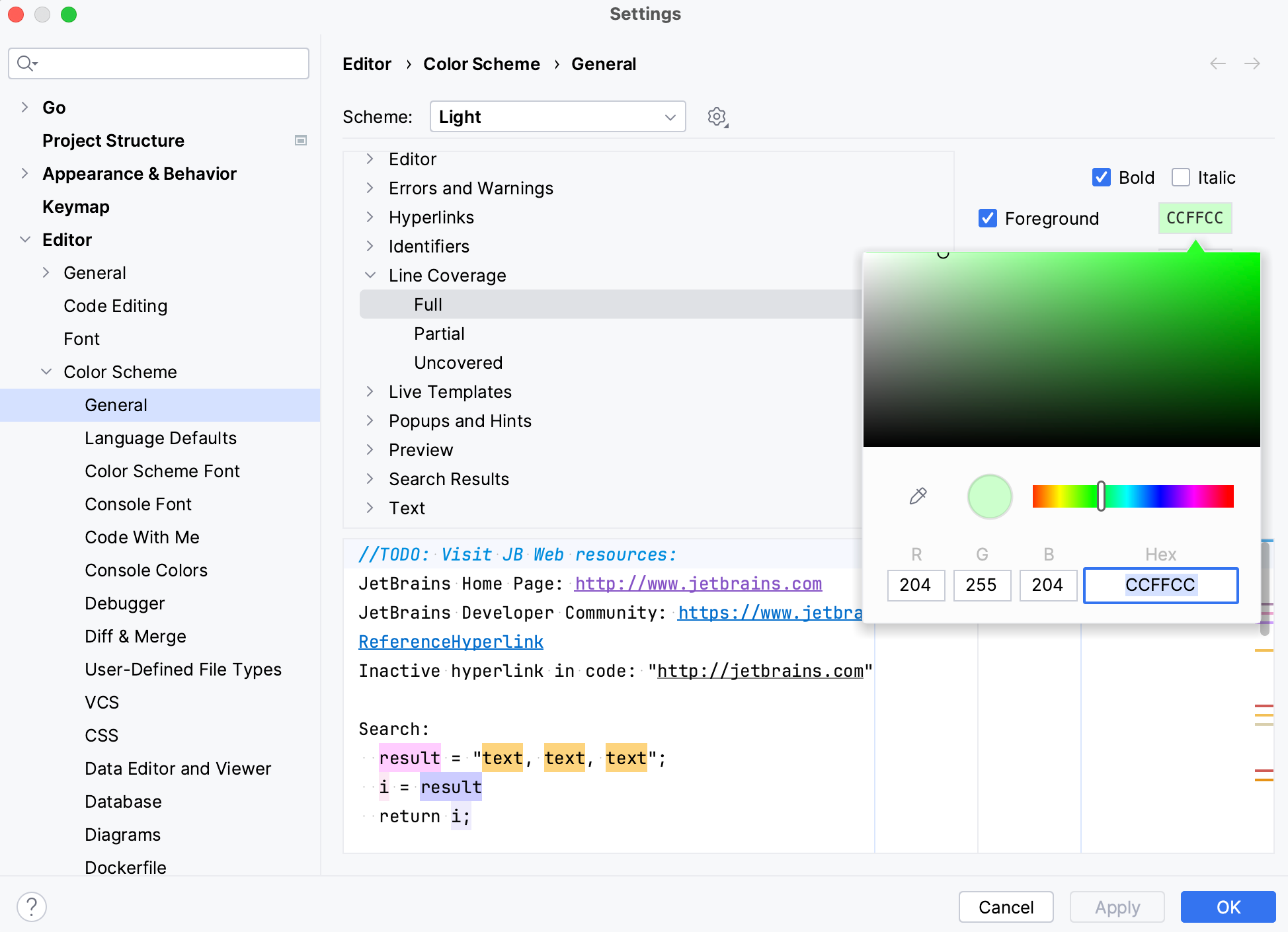
Change colors of the coverage highlighting
Press Ctrl+Alt+S to open settings and then select .
Alternatively, click
 in the popup that opens on clicking the coverage indication line in the gutter.
In the list of components, expand the Line Coverage node and select a type of coverage: for example, Full, Partial or Uncovered.
Click the Foreground field to open the Select Color dialog.
Select a color, apply the changes, and close the dialog.