dotMemory Options in Visual Studio
When dotMemory is integrated into Visual Studio, open and select dotMemory | General to configure temporary workspace storage and profiling preferences.
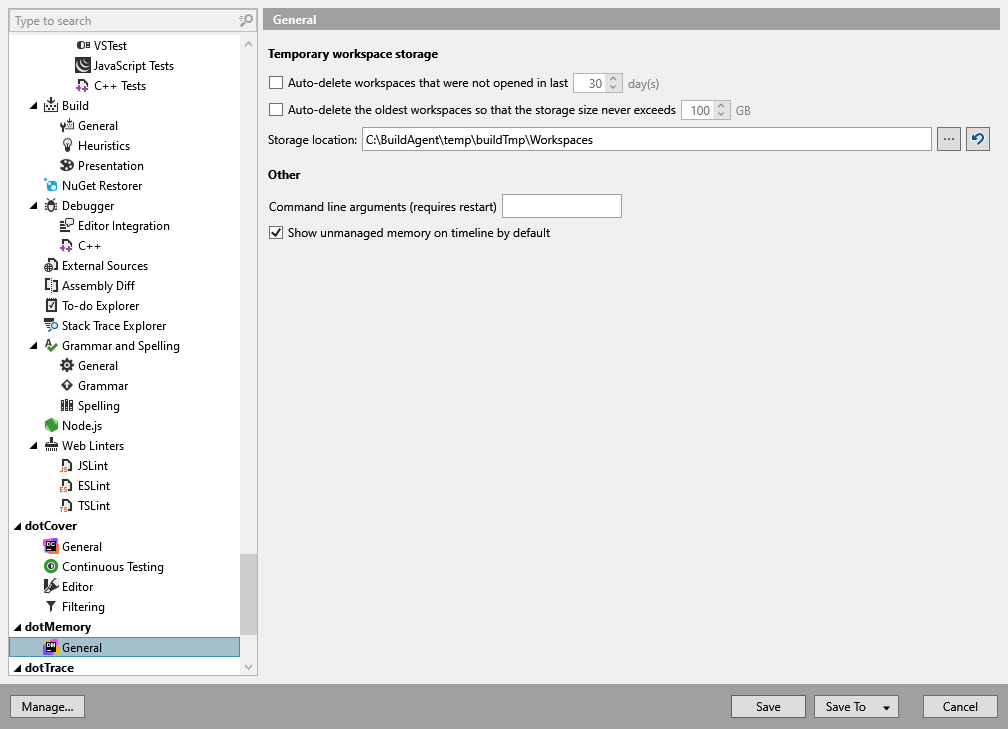
Temporary workspace storage
Auto-delete workspaces that were not opened in last | Deletes temporary workspaces that you have not opened for the specified number of days. Workspaces marked as favorites are excluded when the value is greater than zero. Set the value to |
Auto-delete the oldest workspaces so that the storage size never exceeds | Limits temporary workspace storage to the specified size in GB. When the limit is exceeded, cleanup deletes workspaces in order of last access, starting with those you have not opened for the longest time. Favorites are excluded when the limit is greater than zero, so they can prevent cleanup from reaching the limit. Set the value to |
Storage location | The folder where dotMemory automatically saves temporary workspace files (.dmw). Enter a path or use the browse button to select a folder. For details about workspace storage and cleanup, refer to Temporary workspace storage. |
Other
Command line arguments (requires restart) | Additional command-line arguments passed to the dotMemory process launched from Visual Studio. Restart Visual Studio after changing this setting. |
Show unmanaged memory on timeline by default | Shows unmanaged memory on the timeline graph during a profiling session. This option is enabled by default. |