Work with outputs
When you execute a code cell, its output is shown below. Outputs can include text, tables, or images.
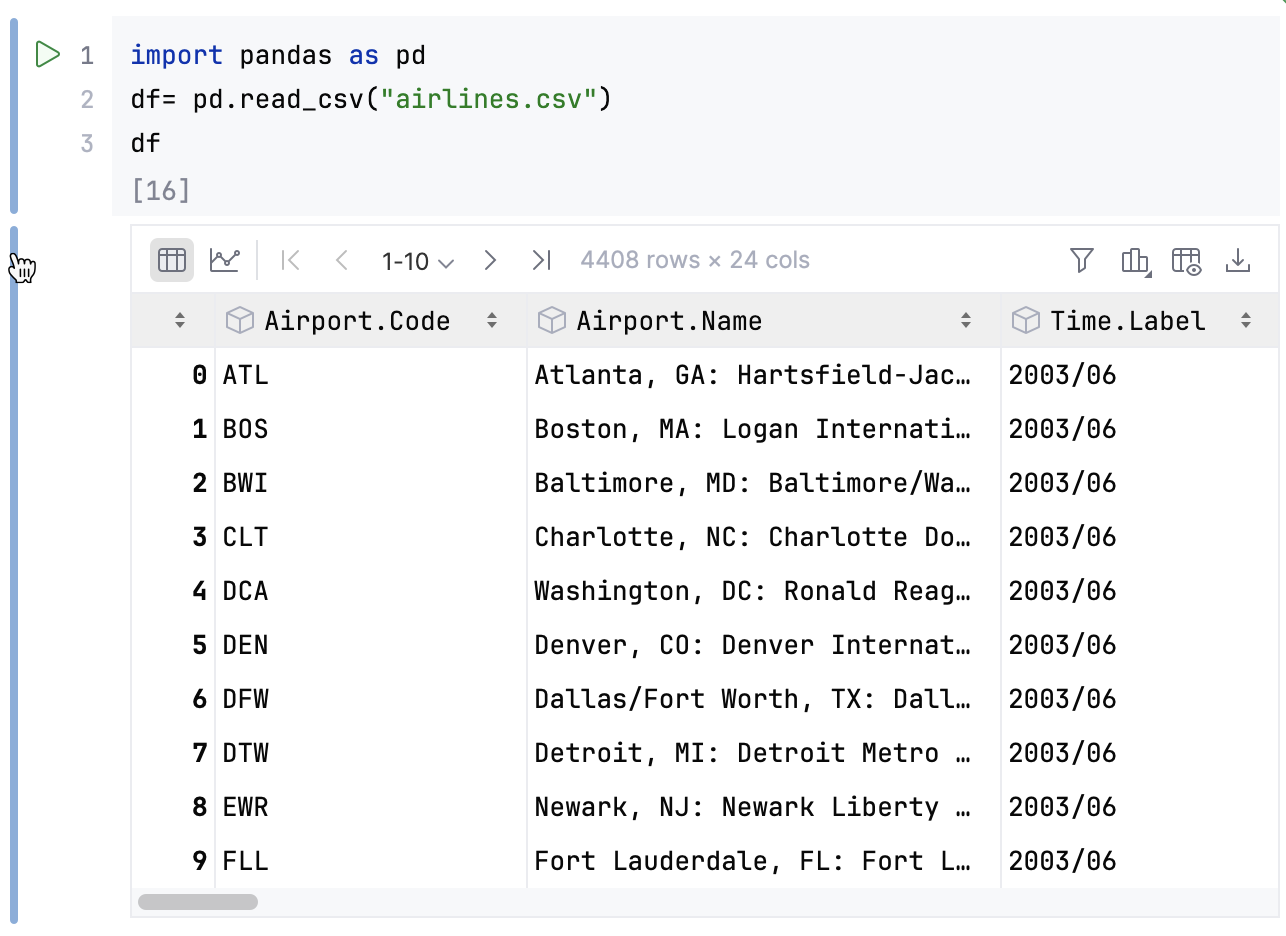
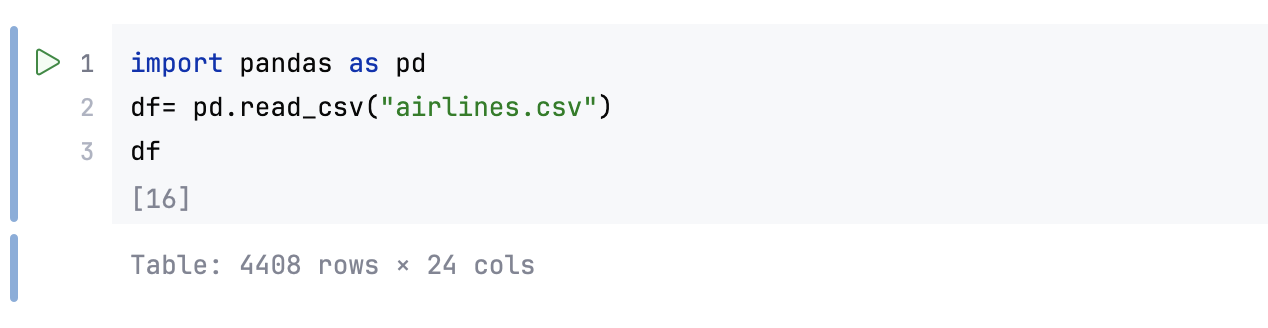
Expand or collapse cell outputs
Click the cell handle in the gutter next to the cell output.
Clear output
Right-click the output cell.
Select
 Clear Output from the context menu.
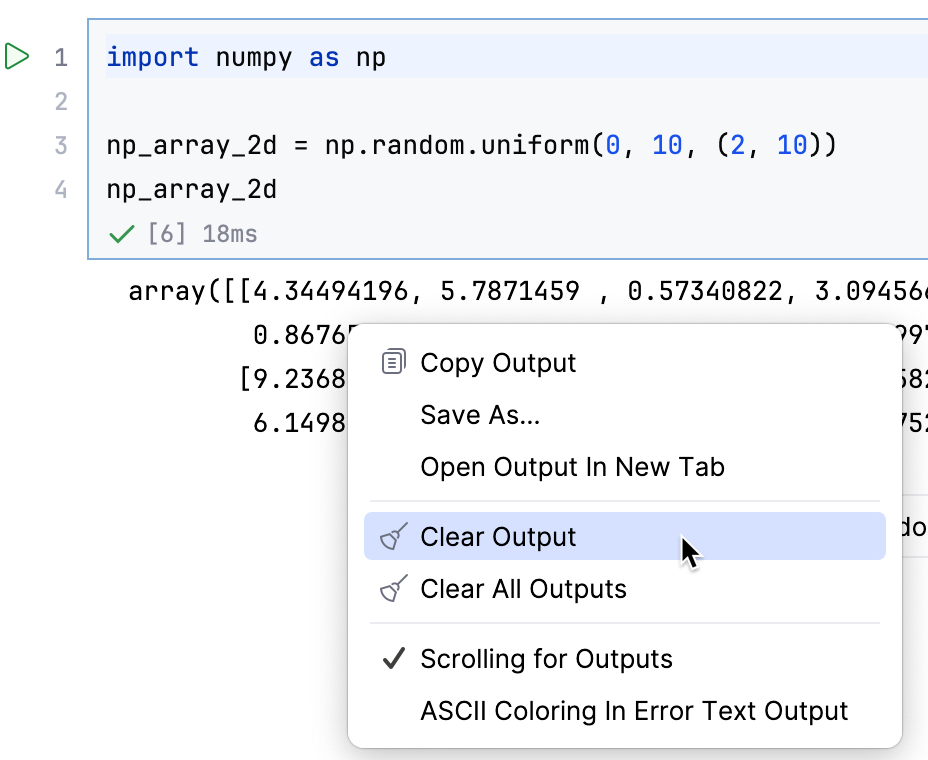
Clear all outputs
Right-click the output cell.
Select
Clear All Outputs from the context menu. This clears all the outputs in the current notebook.

Text outputs
Text outputs include printed results, log messages, and error traces. You can control how they are displayed, by disabling scrolling, or enabling ASCII coloring for error outputs.
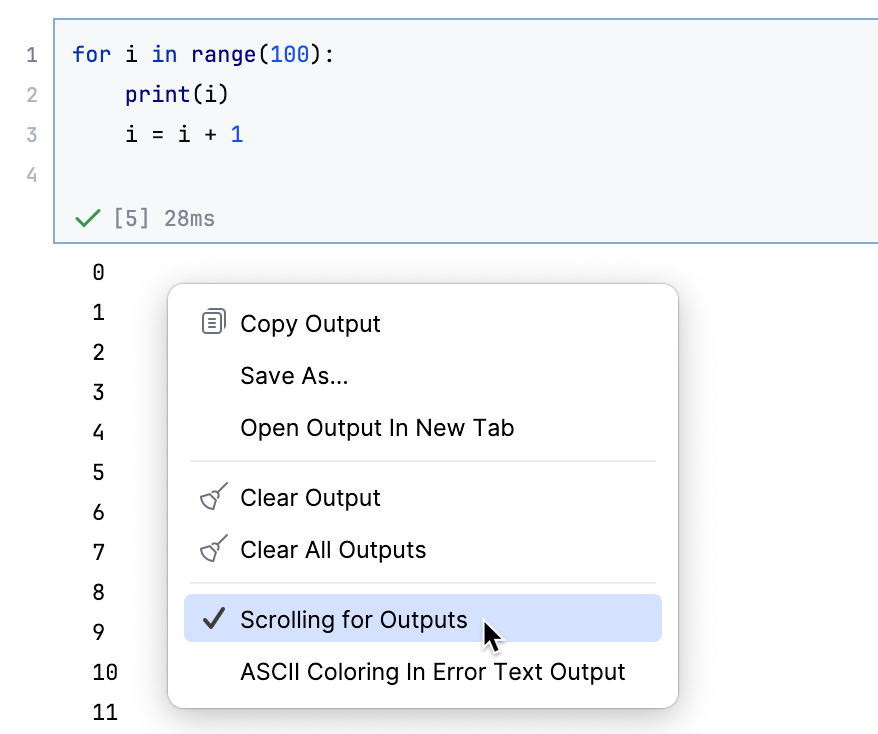
Disable scrolling in output cells
Right-click the output cell.
Disable the Scrolling for Outputs option. The entire output will be displayed without limiting the number of lines.
Enable ASCII coloring in error text outputs
Right-click the output cell.
In the context menu, enable the ASCII Coloring in Error Ouput Cells option.
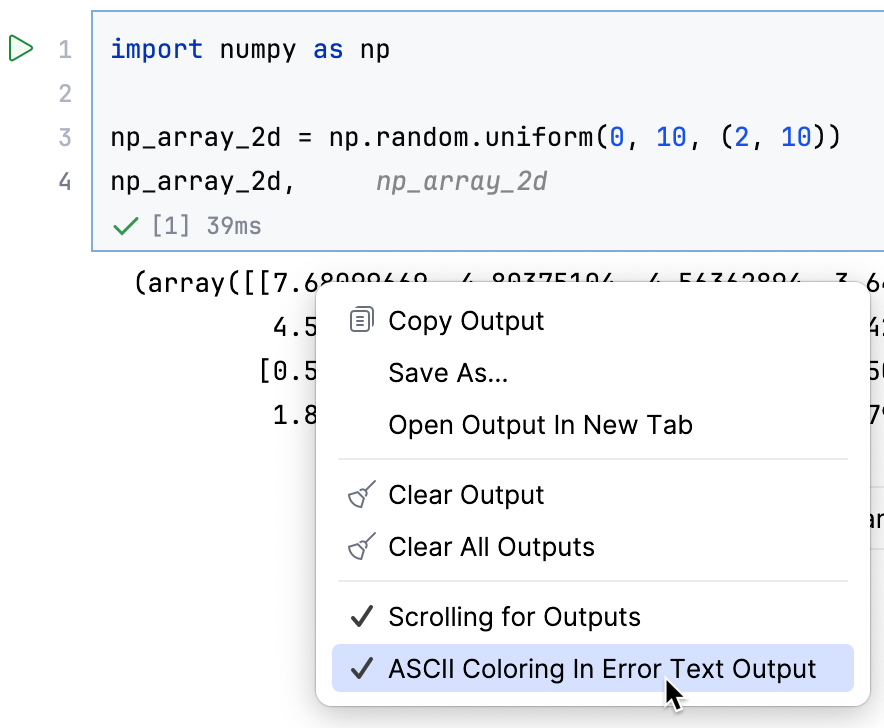
Table outputs
Table outputs include dataframes and other tabular data. They can be displayed as tables or charts. By default, tables are shown.
Work with dataframes
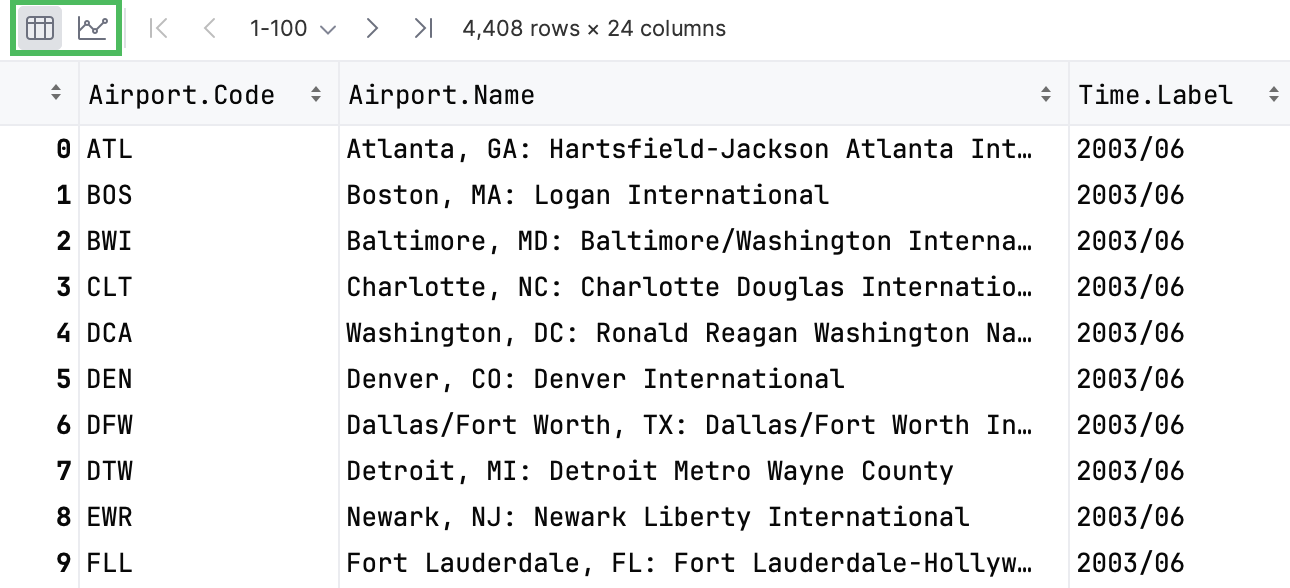
To view dataframes or series in a tabular form, click Table View in the upper left corner of the output cell.
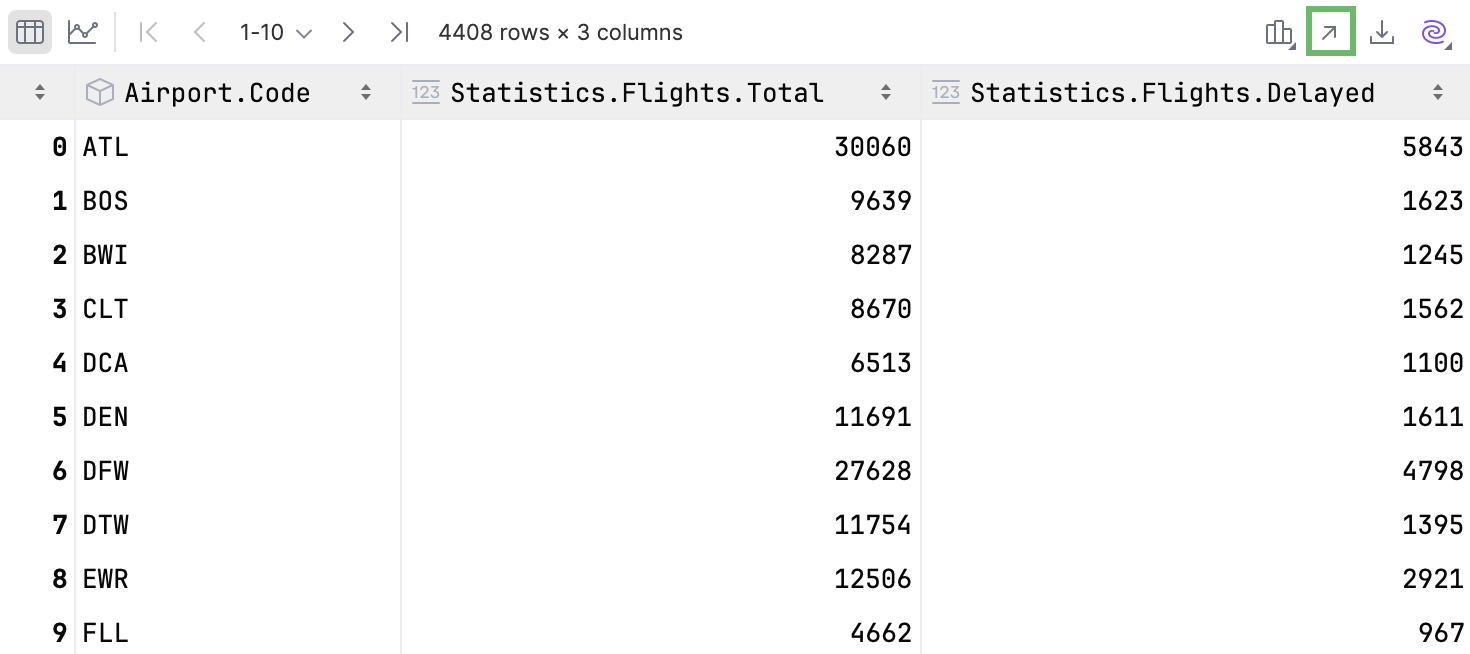
To open the table in a separate editor tab, click  in the upper-right corner of the table.
Create a new table from a file
Click
 New Cell and select Data Import.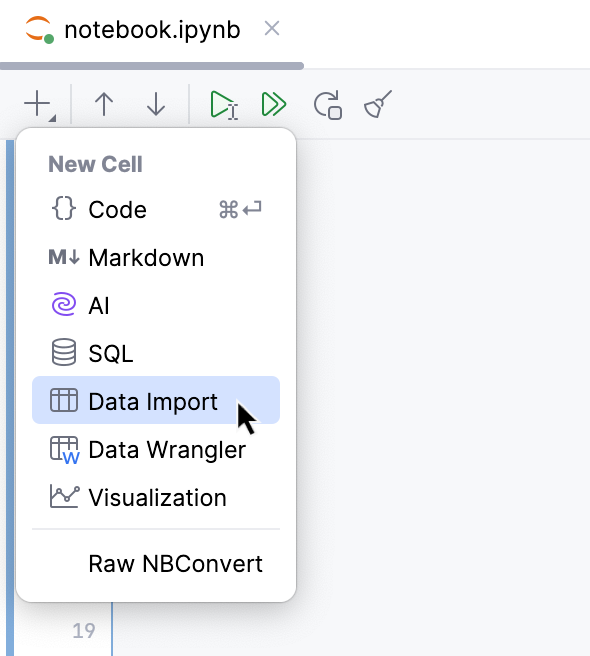
Do one of the following:
Drag and drop TSV, CSV or Excel XLSX file from your project to the cell.
Click Browse file and select the file in the dialog that opens.
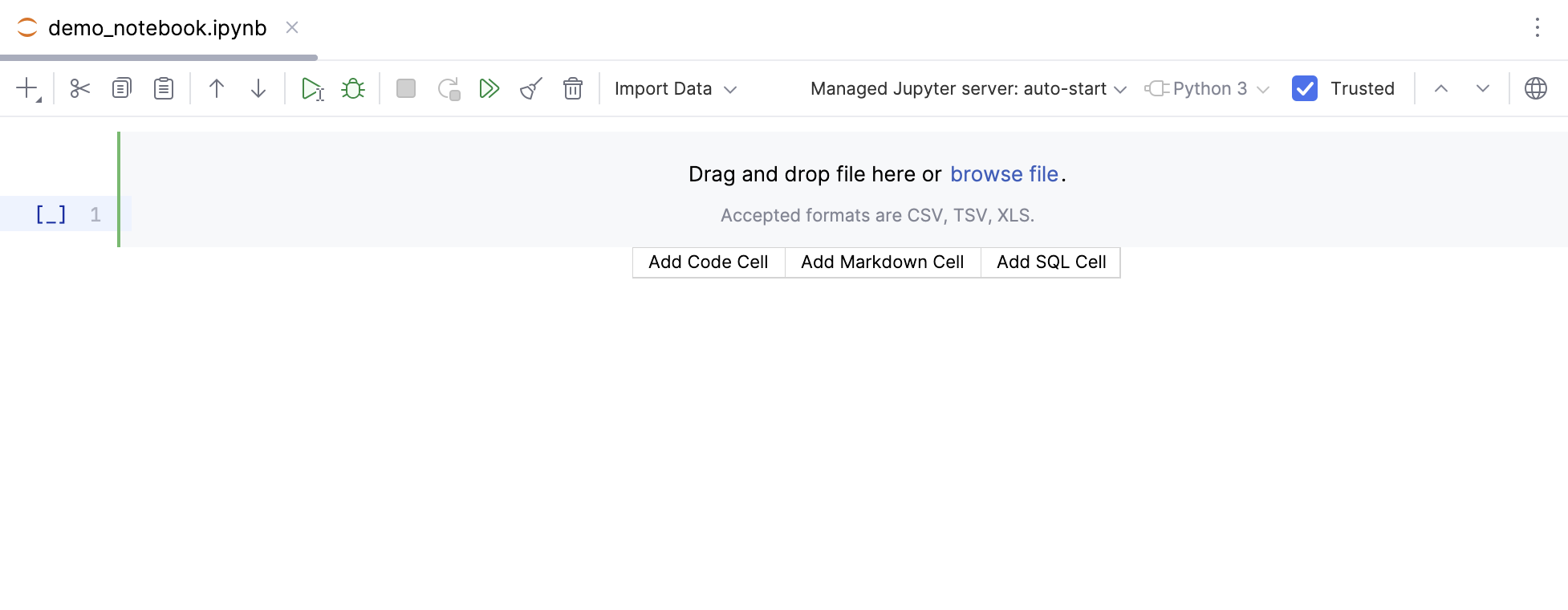
Run the cell and continue to work with the table using UI elements or Python code.
Customize tables toolbar

Press Ctrl+Alt+S to open settings and then select .
Alternatively, click
 on the toolbar and select Customize Tables Toolbar.
Add or remove actions under Customize Tables Toolbar.
For more information, refer to Menus and toolbars.
Click OK to apply the changes and close the window, or click Apply to keep the window open.
Customize page size
You can use the Change page size widget in the upper-left corner of the table to define how many rows are shown at once:
Select one of the predefined values in the Page Size list.
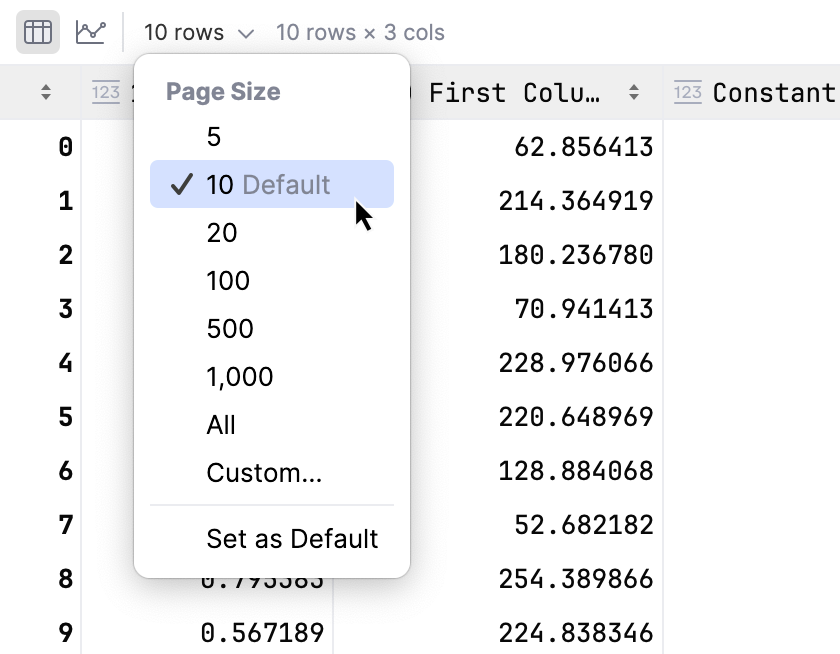
To specify a custom number of rows, select Custom in the Page Size list, enter the value in the dialog that opens, and click OK.

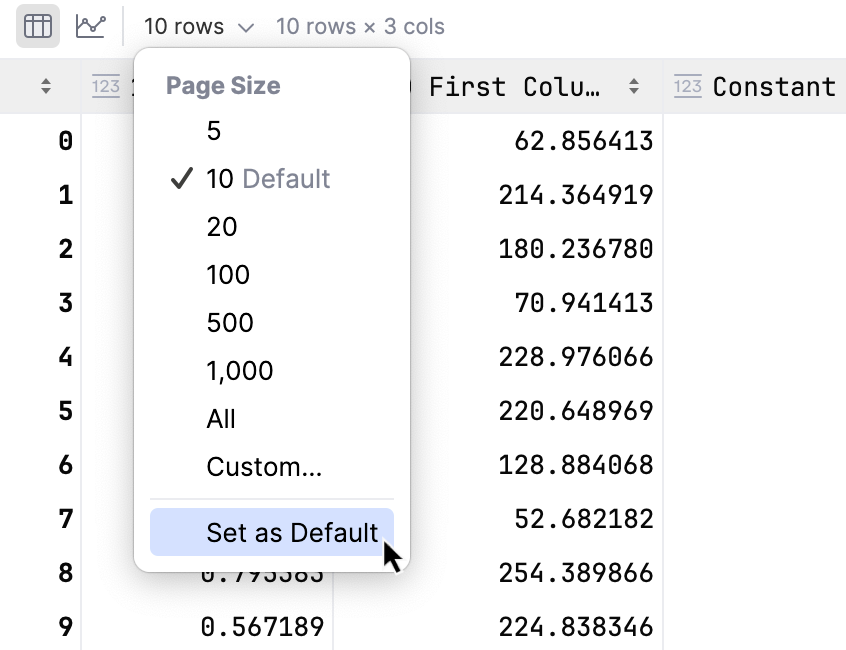
To make the selected value the default, click Set as Default. The word Default will appear next to the chosen value.
Work with columns
To open the table search bar, click the table and press Ctrl+F.
To open the context menu, right-click the column name:
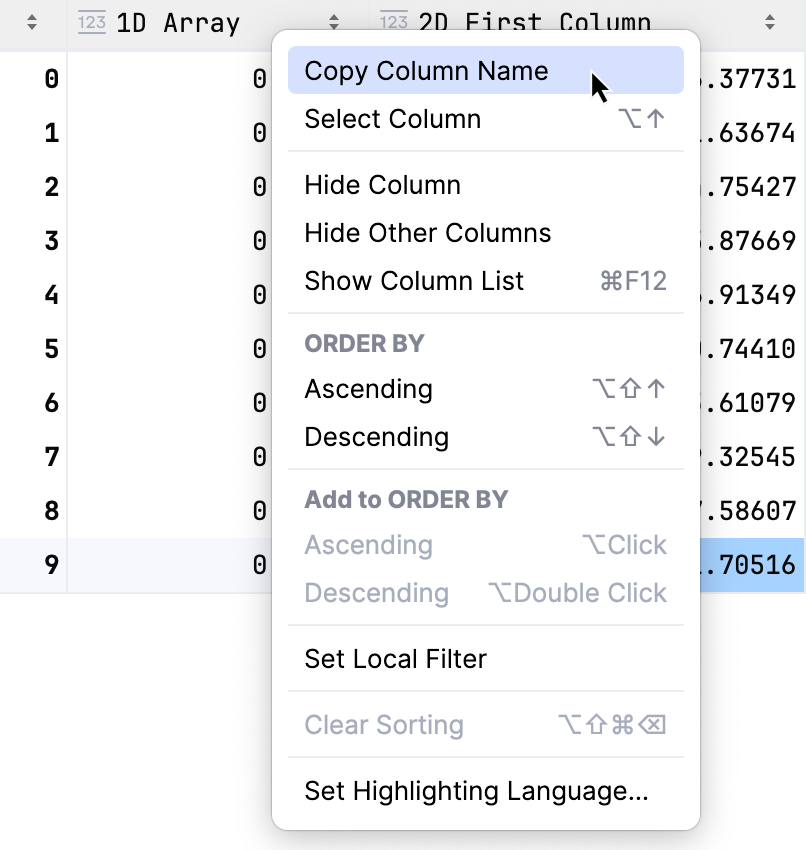
To copy the column name to the clipboard, select Copy Column Name.
To select the entire column, select Select Column.
To hide a column, select Hide Column. Hide Other Columns will hide all columns except the selected one.
To display hidden columns, click Show Column List Ctrl+F12. The hidden columns are shown strikethrough. Select a column and press Space to toggle its visibility. To search through the column list, start typing a column name in the Show Column List window.
To assign a language to a column, use Set Highlighting Language. For more information, refer to Inject a language for a column.
To toggle and configure cell coloring, click
 Table Coloring Options.
View column statistics
By default, column statistics are shown above the columns in a Compact mode, which includes only the None Count statistics.
To change the default mode, navigate to .

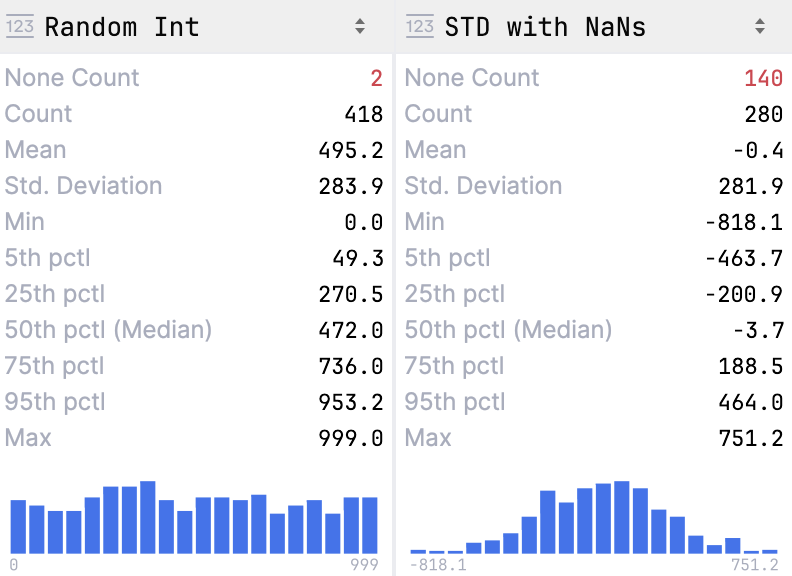
For numeric data, histograms are plotted and shown together with statistics. Hover over the histogram to view detailed information about each bar.
To view detailed column statistics, do one of the following:
Hover over a column name. A popup with column statistics appears.
Click
 Show Column Statistics and select Detailed.
The detailed statistics are shown above the columns.

- None Count
Shows the number of
Nonevalues in the column- Count
Shows the total number of items in a column
- Distinct
Shows the number of unique values
- Top
Shows the most popular value
- Frequency
Shows the number of times an element occurs
- None Count
Shows the number of
Nonevalues in the column- Count
Shows the total number of items in a column
- Mean
Shows the average number of all values in the column
- Std. Deviation
Shows the standard deviation value
- Min
Shows the minimum value in the column
- Pctl
Shows values for 5th, 25th, 50th( Median) and 95th percentiles
- Max
Shows the maximum value in the column
Sort data
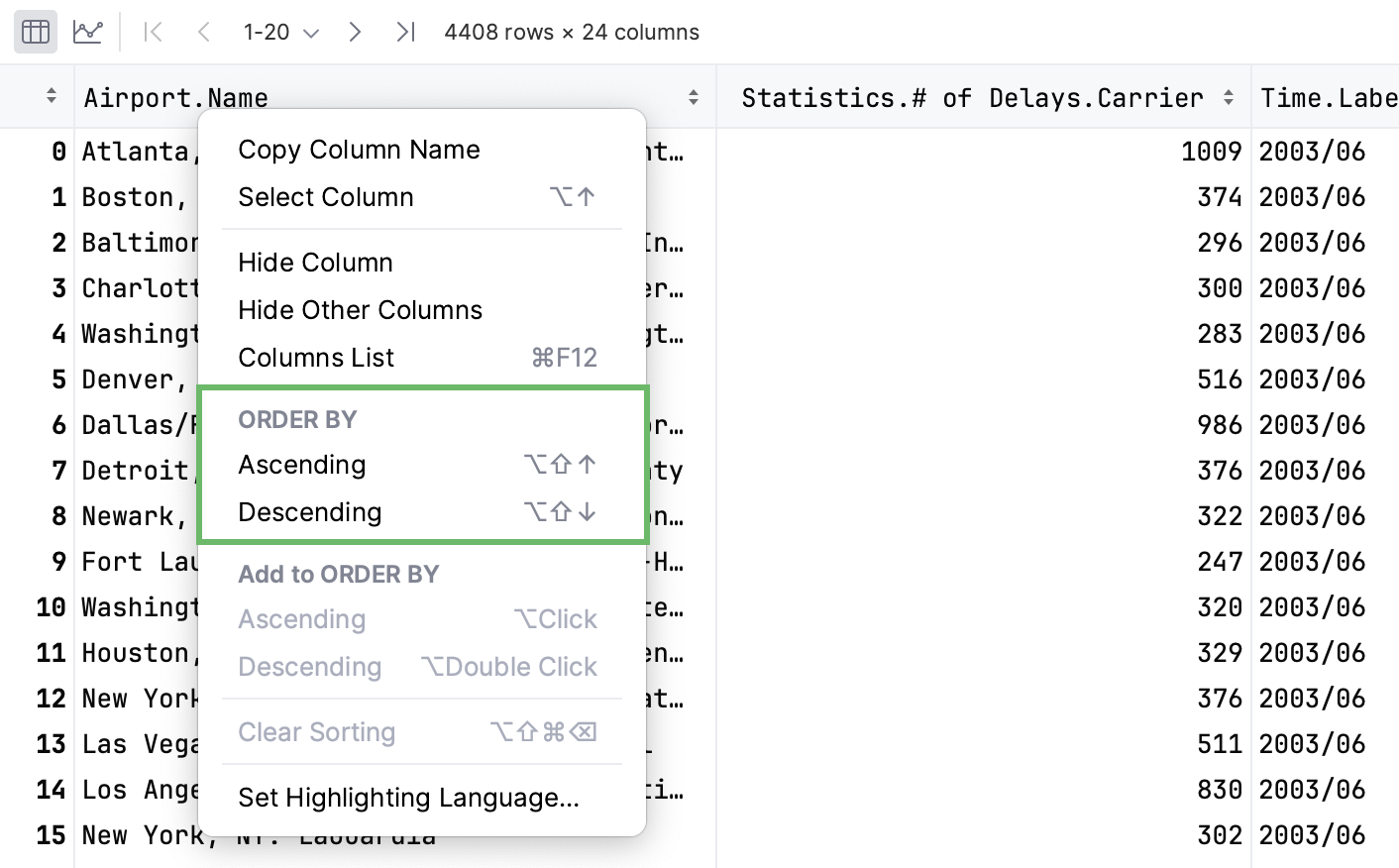
To sort the table data based on the column values, right-click the column name and select Ascending or Descending from the ORDER BY section in the context menu.
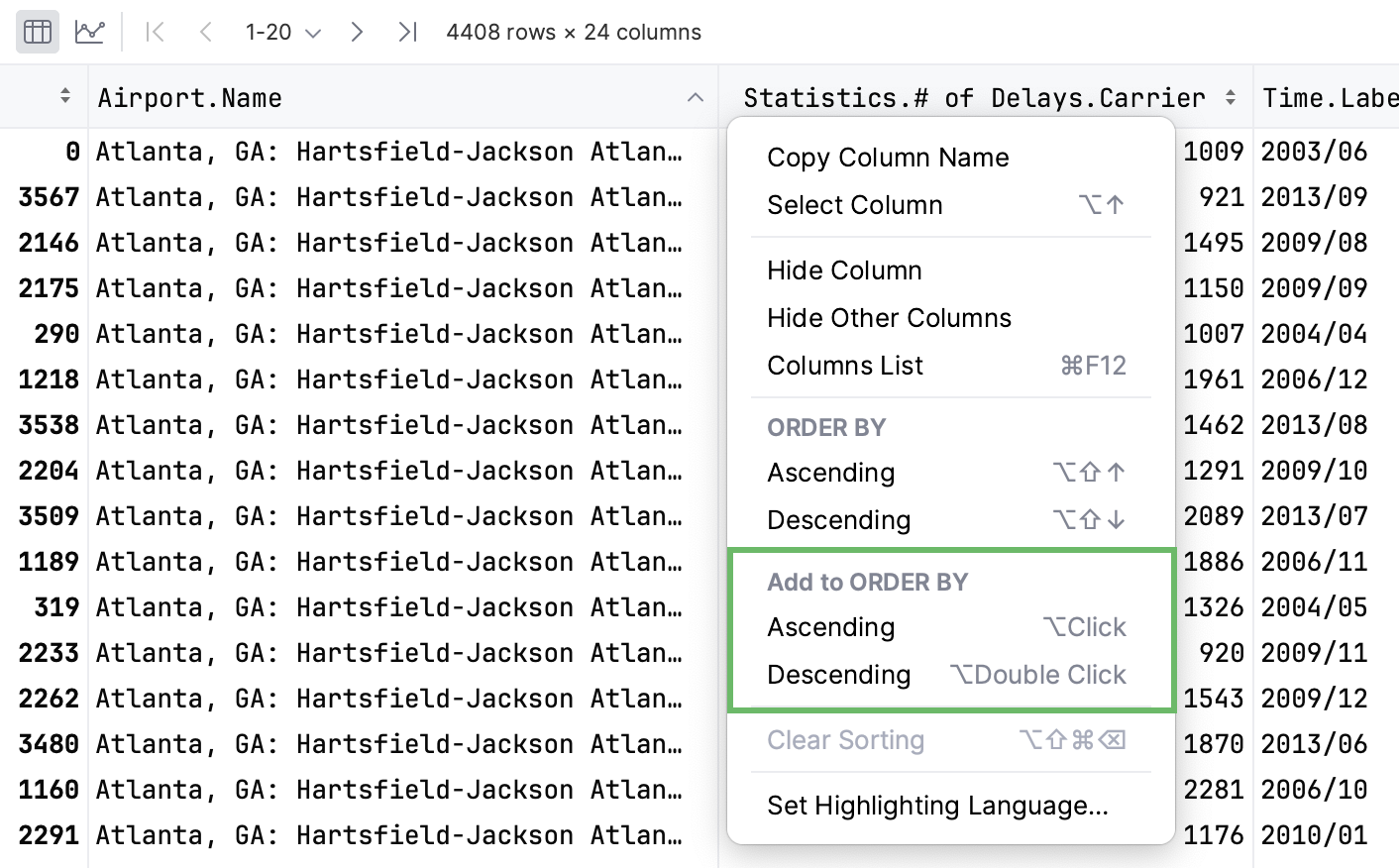
To add another column to sorting, you can either click the column name while pressing Alt or select Ascending or Descending from the Add to ORDER BY section in the context menu.
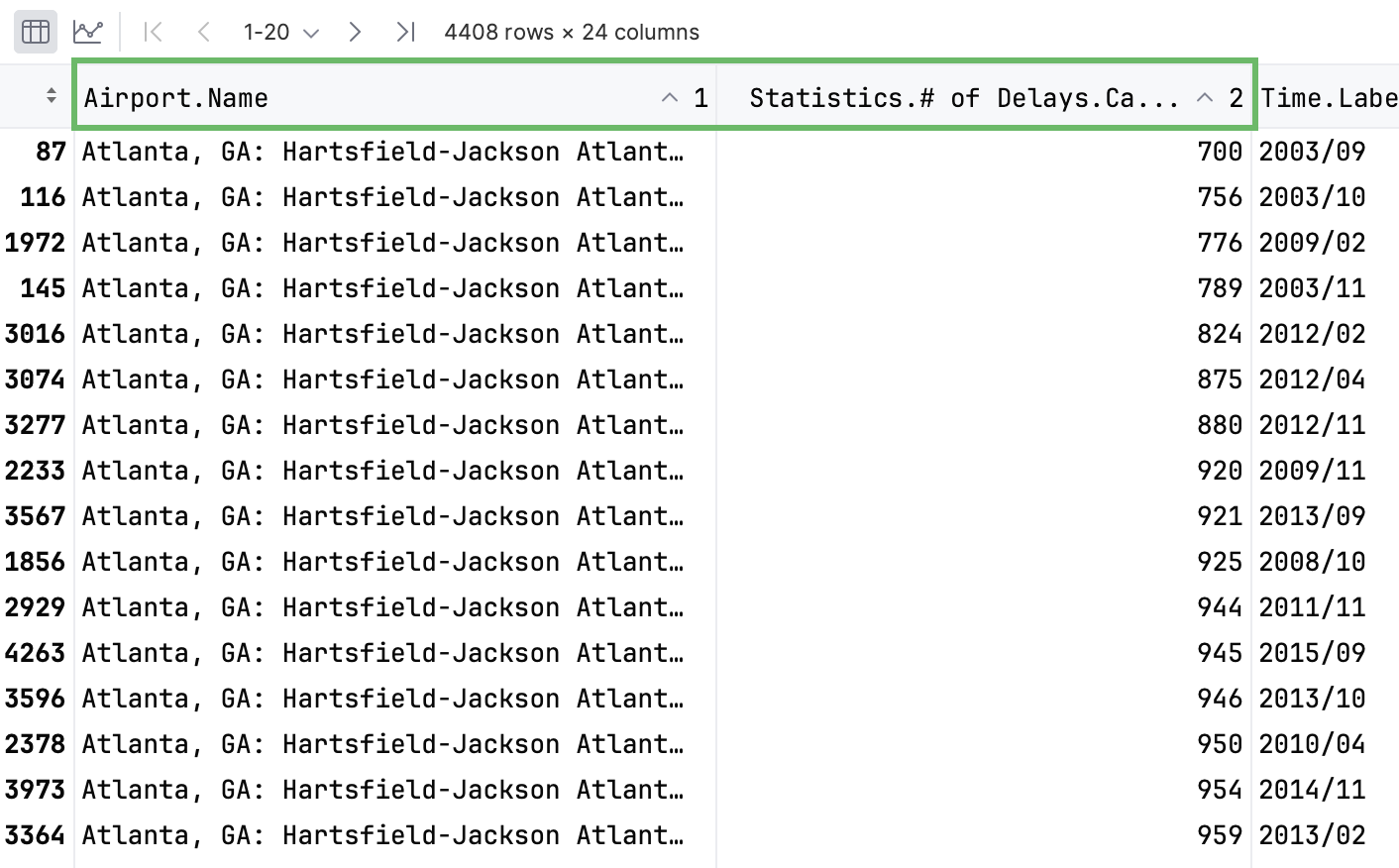
The data will be sorted by selected columns.
State
Description

Indicates that the data is not sorted in this column. The initial state of the sorting marker.

The data is sorted in the ascending order.

The data is sorted in the descending order.

The number to the right of the marker (1 on the picture) is the sorting level. You can sort by more than one column. In such cases, different columns will have different sorting levels.
Filter data
Click
 Open Filter View in the upper-right corner of the table.
In the dialog that opens, select the column where you want to apply the filter and specify the filter criteria.
For columns with the
objectdata type, filter values should be entered in quotes.You can use the Wrap with Quotes action to add them automatically.

If you want to use additional filters, click Add filter and specify the new filter criteria.
Click Apply to filter data.
To remove or duplicate a filter, click  Additional Filter Actions and select the required option from the list.
Reload data
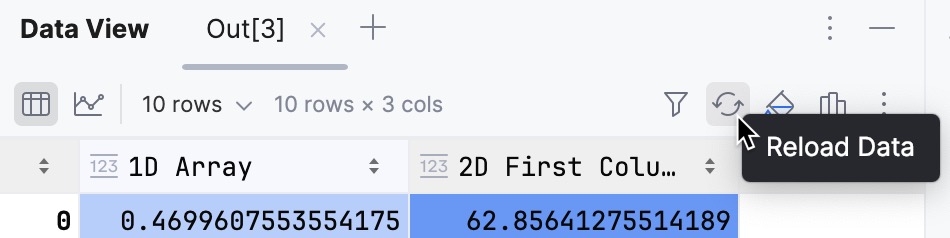
Click  Reload Data in the upper-right corner of the table. This refreshes the view with the most recent data.
Save data as a file
Click
More Actions in the upper-right corner of the table and select  Export Data to File.
Choose an extractor and configure additional settings.

Click
 Browse to choose the location for your file.
Click Export to File to save the data as a file.
Adjust table formatting
Click
More Actions and select Format Table...In the dialog that opens, specify the format and click OK.
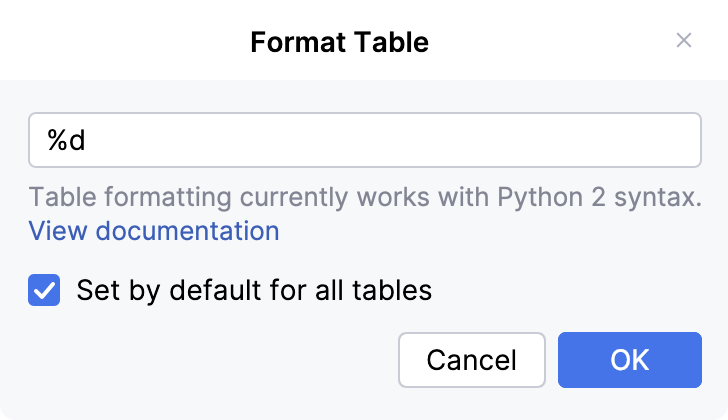
DataSpell supports Python 2 formatting syntax.
Use Expression Input
You can use Expression Input to display multidimensional data in a two-dimensional table format.
Click
More Actions and select Show Expression Input.Write your expression in the input field that appears on top of the table and press Enter.

Work with charts
To view dataframes or series in a graphical form, click Chart View in the upper left corner of the output cell.
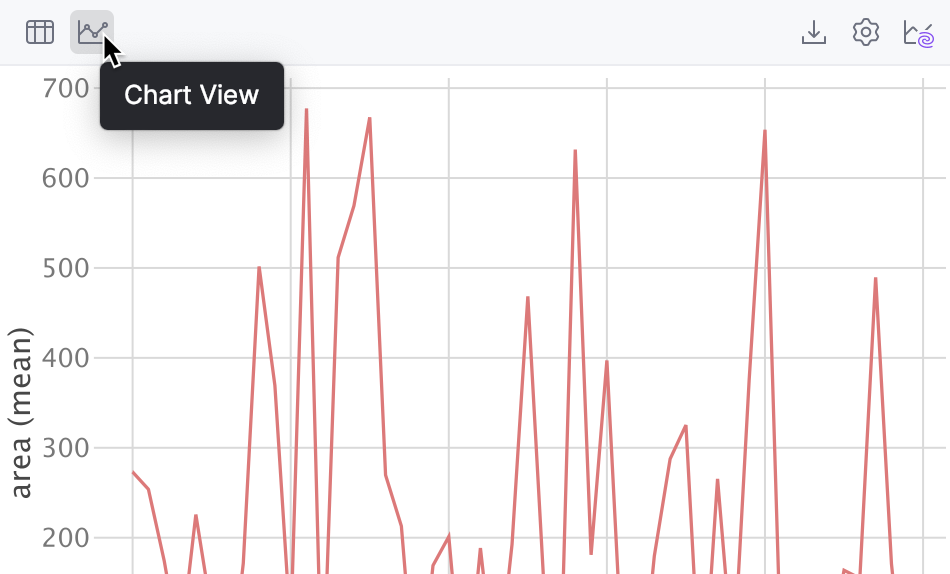
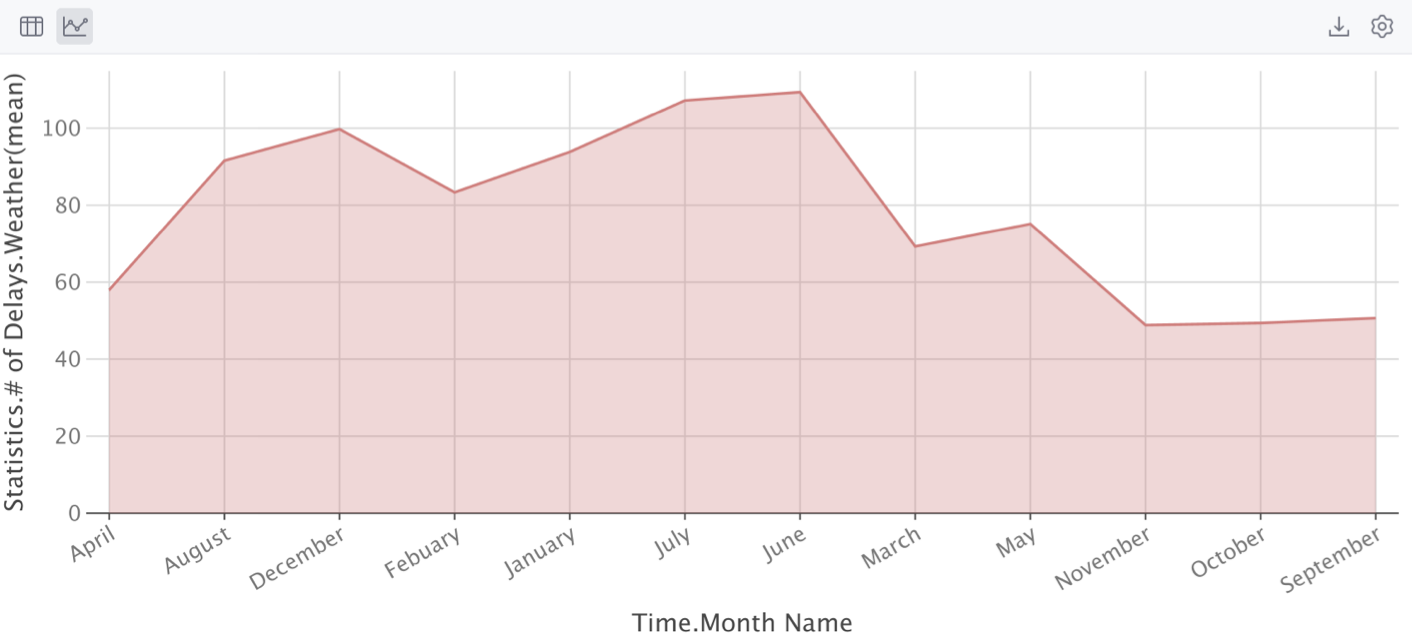
The data will be displayed in the form of a chart. You can change the type of chart and configure additional settings.
Configure charts
Click
 Show series settings to change the initial settings of the chart.
Select the chart type and configure the settings. You can choose one of the following chart types:
 Bar
Bar Pie
Pie Area
Area Line
Line Scatter
 Bubble
 Stock
Stock AreaRange
- Histogram
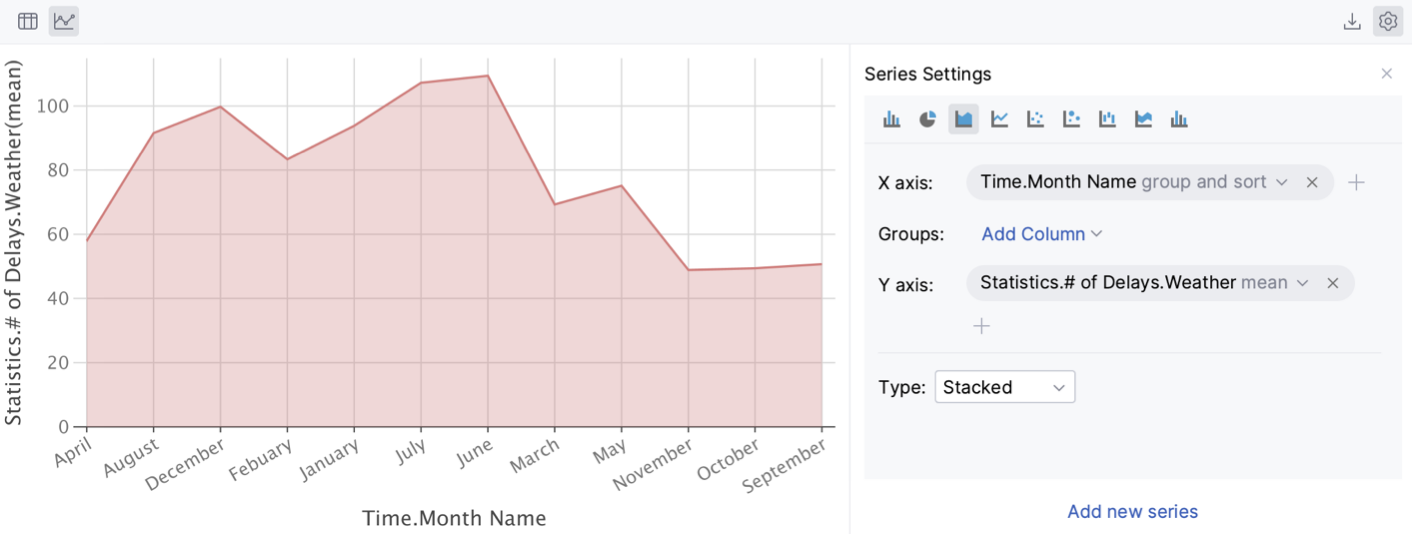
Click the Add new series link to add more series to the chart.
Save a chart as an image
Click
Export to PNG to save the generated chart in the .png format.Enter the filename and click Save.
AI-generated charts
You can generate a number of preview-charts for a DataFrame using AI. These previews can then be transformed into notebook cells.
Click
 AI Quick Charts in the upper-right corner of the table.
You will see the suggested charts under the table. Click any of them to insert the corresponding visualization code as a notebook cell.
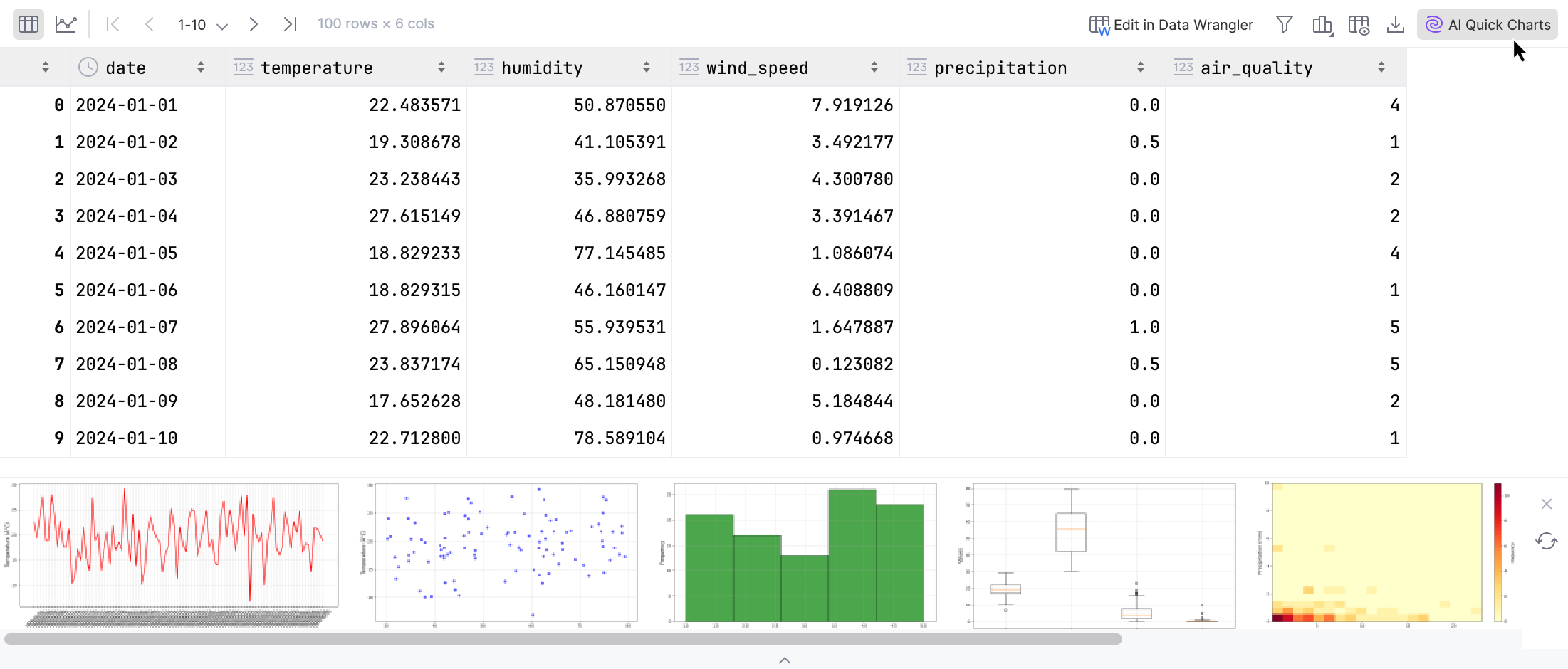
Image outputs
Work with images
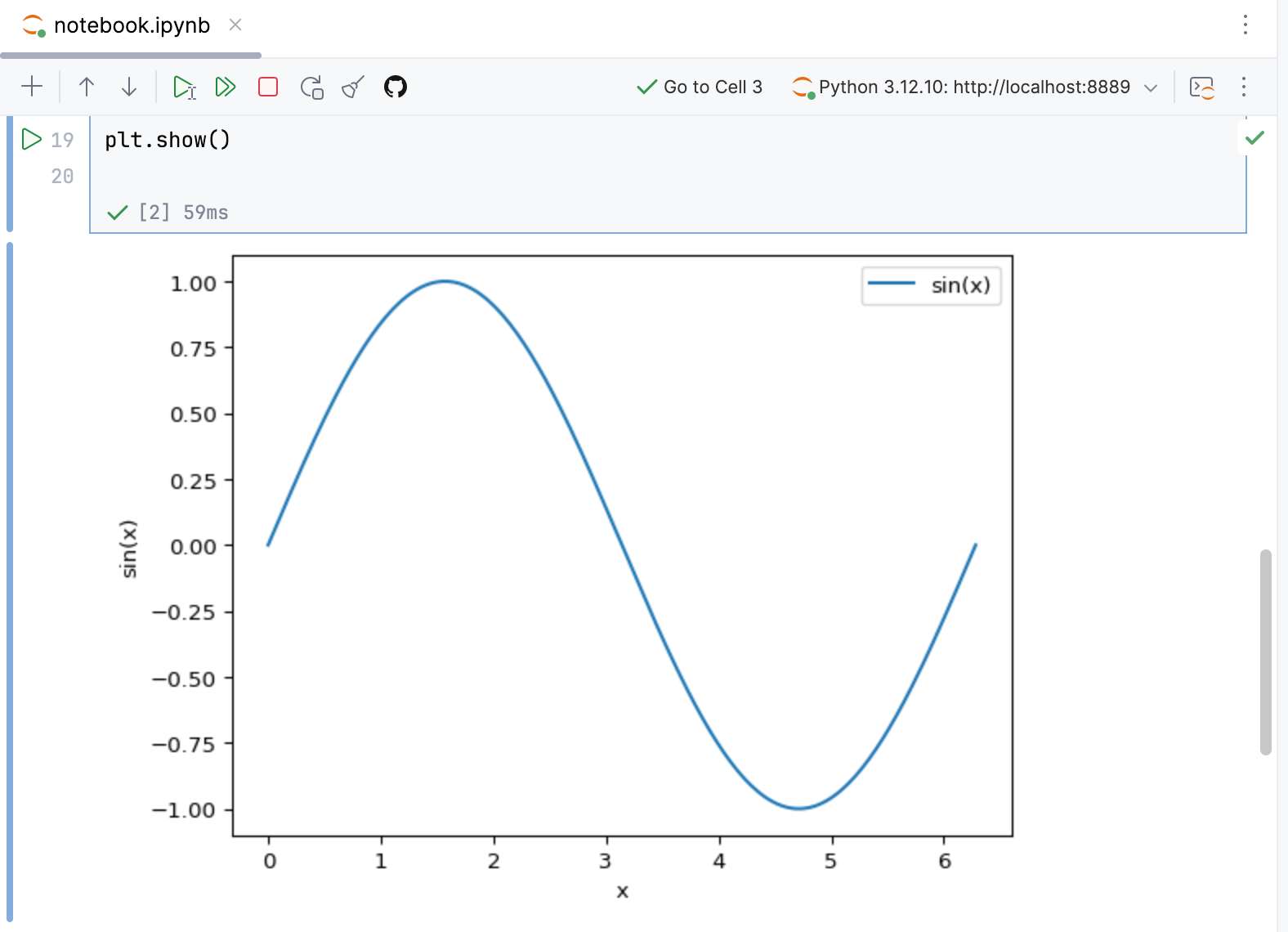
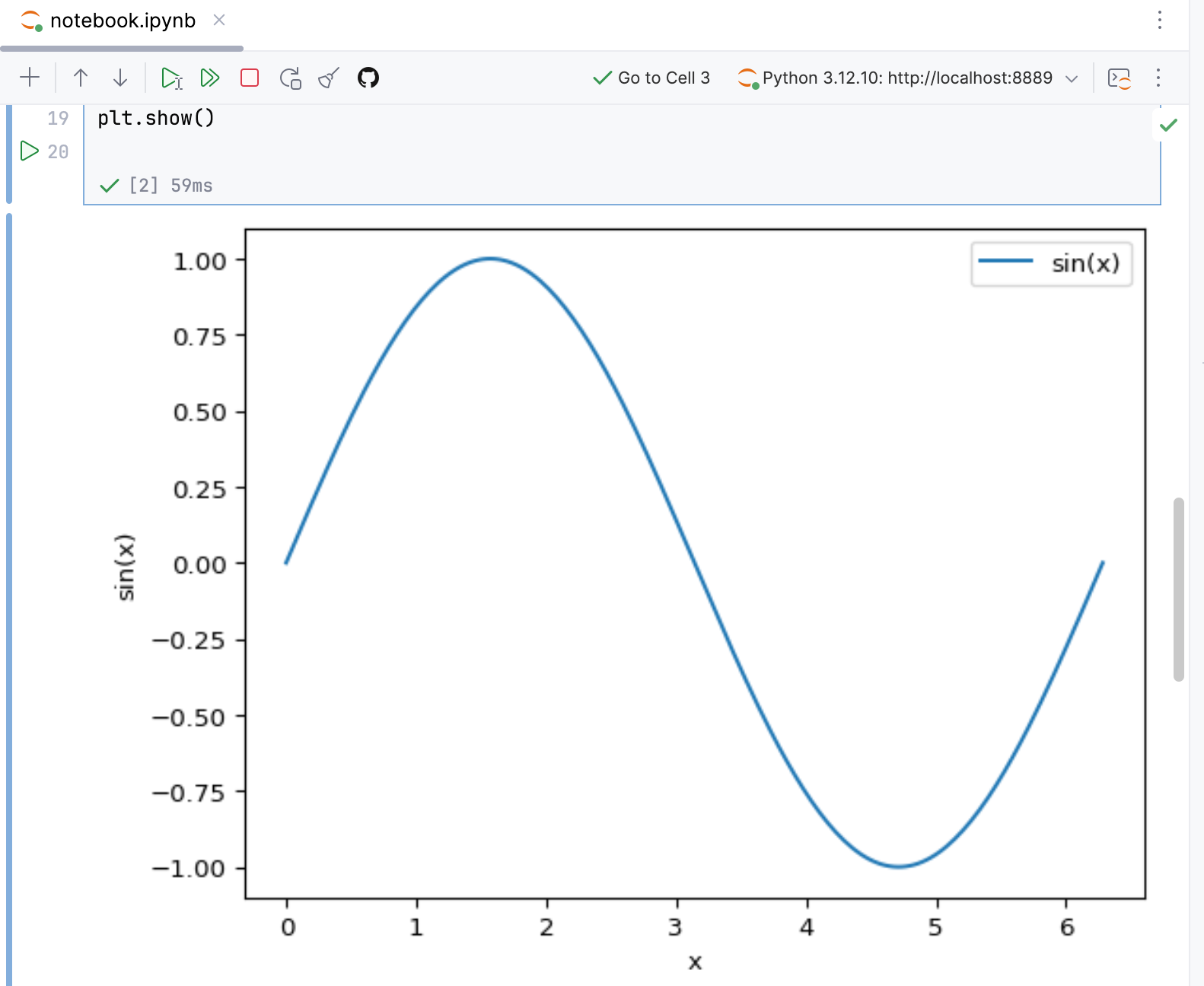
Image outputs include PNG, JPEG, and SVG image formats. You can manage how they are displayed, copy them to the clipboard, or save them as files.
Fit image to editor width
Right-click the output cell and enable the Fit to Editor Width option in the context menu.
Save image
Right-click the output cell and select Save As from the context menu.
Copy image
Right-click the output cell and select  Copy from the context menu.
Work with plots
PNG and JPEG images can be displayed as plots. You can work with plots either directly in the editor or open them in a dedicated Plots tool window.
Disable color inversion in plots
If you are using a dark UI theme, the colors in charts are adapted for better readability by default. To change this behavior, perform the following steps:
To disable inversion for a specific plot, right-click it and select Invert Image from the context menu.
To permanently disable color inversion for all images:
Right-click any image output and select Configure Inversion from the context menu.
Alternatively, go to .
Disable the Invert image outputs for dark themes checkbox.
Restart the editor to apply the changes.
To open an image in the Plots tool window, right-click it in the editor and select Show in Plots from the context menu.
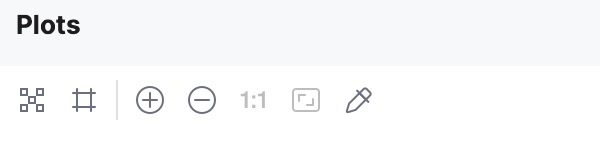
You can use the following toolbar options to work with the image:
Item | Description |
|---|---|
| Click this button to toggle a chessboard background. |
| Click this button to toggle a visible grid over the image. |
| Click this button to expand the image. |
| Click this button to compress the image. |
| Click this button to restore the actual size of the image. |
| Click this button to make a larger image fit the window size. |
| Click this button to open the Color Picker window. |
| Click this button to open the image in a new editor tab. |
 Show Chessboard
 Show Grid
 Zoom In
 Zoom Out
 Actual Size
 Fit Zoom to Window
 Show Color Picker
 Open In Editor Tab