Add and manage SSH keys
Datalore allows you to add SSH keys as workspace resources so that you can connect to databases in isolated networks or access private Git repositories.
No one, even the workspace owner, can access the private key after it has been added.
Add an SSH key
On the Home page, select the workspace where you want to add an SSH key.
In the expanded list of workspace resources, select Other and switch to the SSH keys tab.
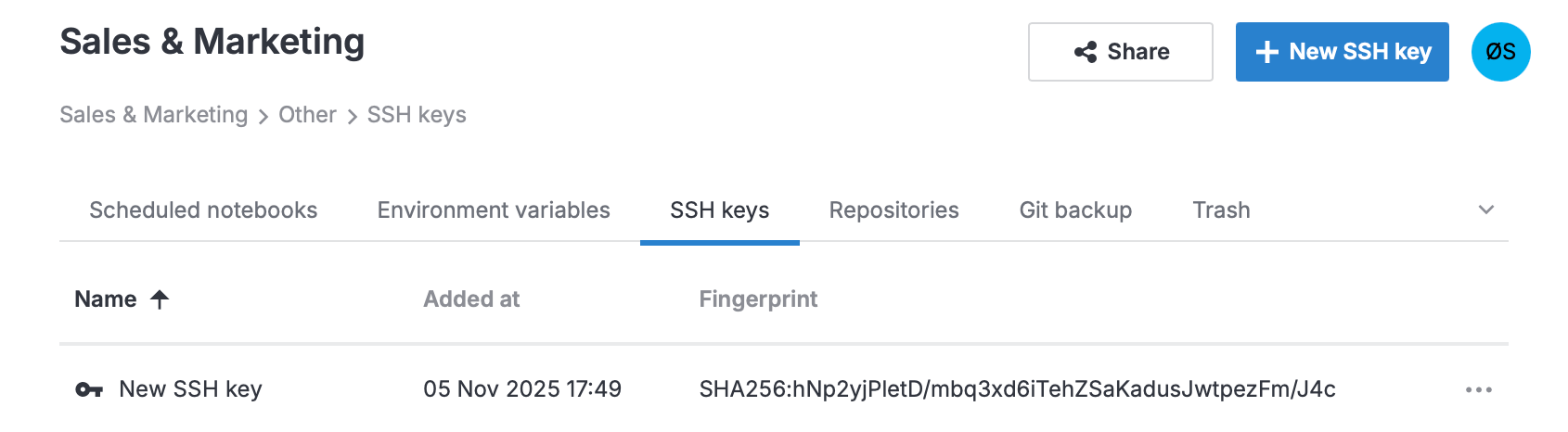
Click + New SSH key at the top right.
In the dialog, enter a name in Display name.
Do either of the following:
To use an existing SSH key: Paste the private key in Private key.
To generate a new SSH key: Click generate key. You can choose between creating a ED25519 and RSA key.
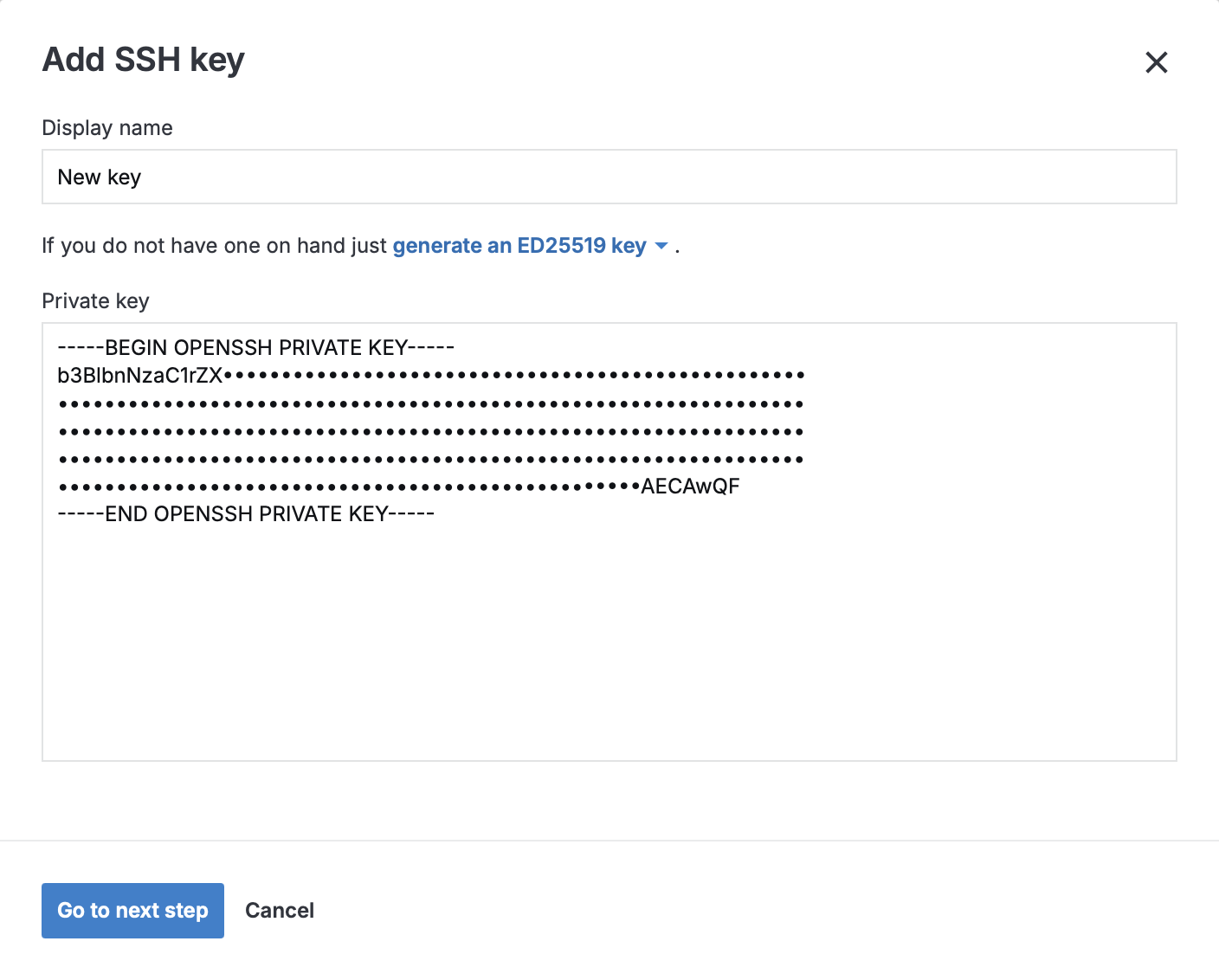
Click Go to next step.
Copy the public key.
Click Save and close.
Add the public key to the service you want to access, such as a Git service or a database server. You can select the SSH key you just added when configuring a connection to a database or a Git repository.
View the public key and fingerprints
You cannot access the private key after adding it to a workspace, but you can always view the public key as well as the SHA256 and MD5 fingerprints. To do that:
On the Home page, select the workspace where you want to view a public key or fingerprints.
In the expanded list of workspace resources, select Other and switch to the SSH keys tab.
Select the SSH key you want to view.
Rename an SSH key
On the Home page, select the workspace where you want to rename an SSH key.
In the expanded list of workspace resources, select Other and switch to the SSH keys tab.
Select the SSH key you want to rename.
In the dialog, enter a new name and click Save and close.
Copy an SSH key to other workspaces
On the Home page, select the workspace with the SSH key you want to copy.
In the expanded list of workspace resources, select Other and switch to the SSH keys tab.
Right-click the SSH key you want to copy.
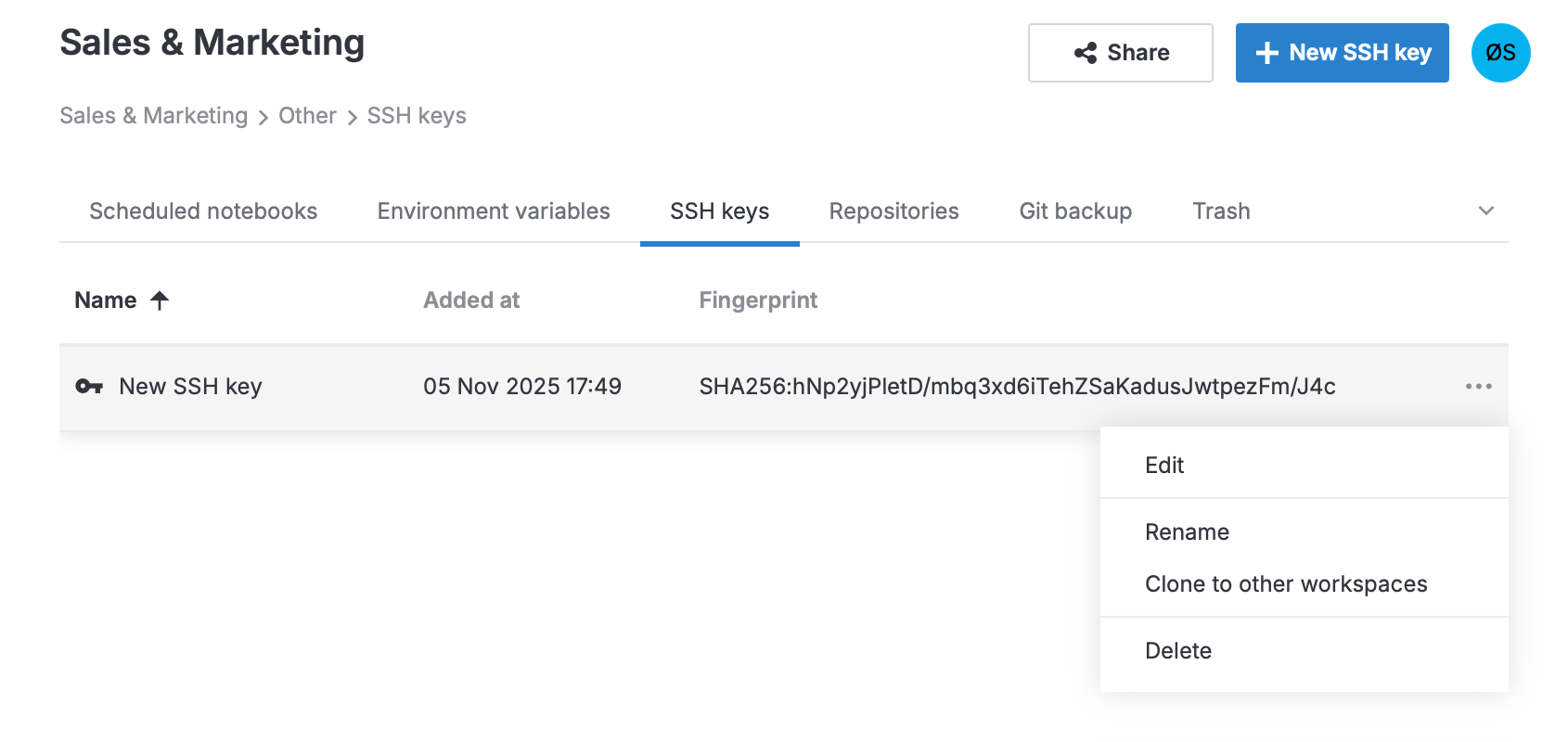
Select Clone to other workspaces.
Select the target workspaces.
Click Clone.
Delete an SSH key
On the Home page, select the workspace where you want to delete an SSH key.
In the expanded list of workspace resources, select Other and switch to the SSH keys tab.
Right-click the SSH key you want to delete.
Select Delete.