Manage your team
Take control of your team environment: manage users, enforce resource limits, and oversee compute usage from the Team admin panel.
Open the Team admin panel
Click your avatar at the top right and select Team admin page.
In the Dashboard section, you can review key information about your team:
Current Datalore credit balance
Number of team members and available invitations
Currently running machines
Manage team members
Add members to your team
Invite users to join your team.
In the sidebar, select Team management.
Click Add new member.
In the dialog, enter the user's email and click Add.
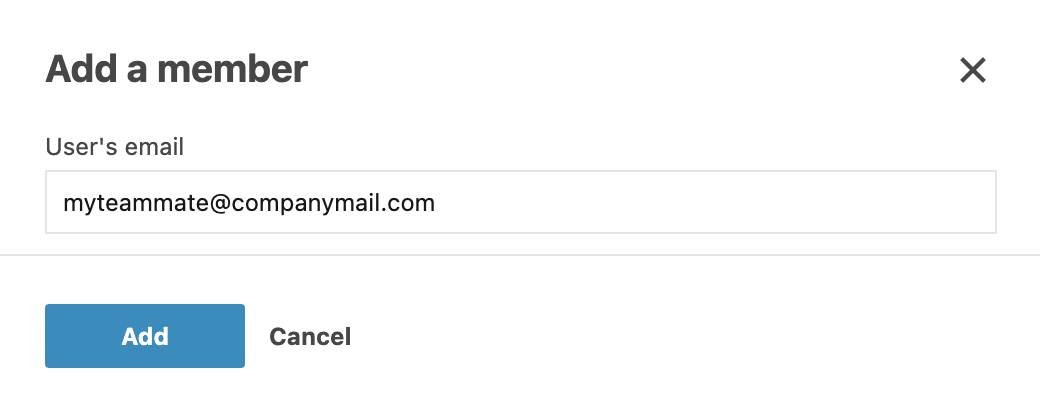
The invited user receives an invitation email with instructions to join the team. After they accept the invitation and sign in, they appear in the team member list.
Purchase seats
If all seats are in use and you need to invite more users to your team, you can purchase more seats.
Click your avatar at the top right and select Plans.
In the Cloud tab, click the Add more users.
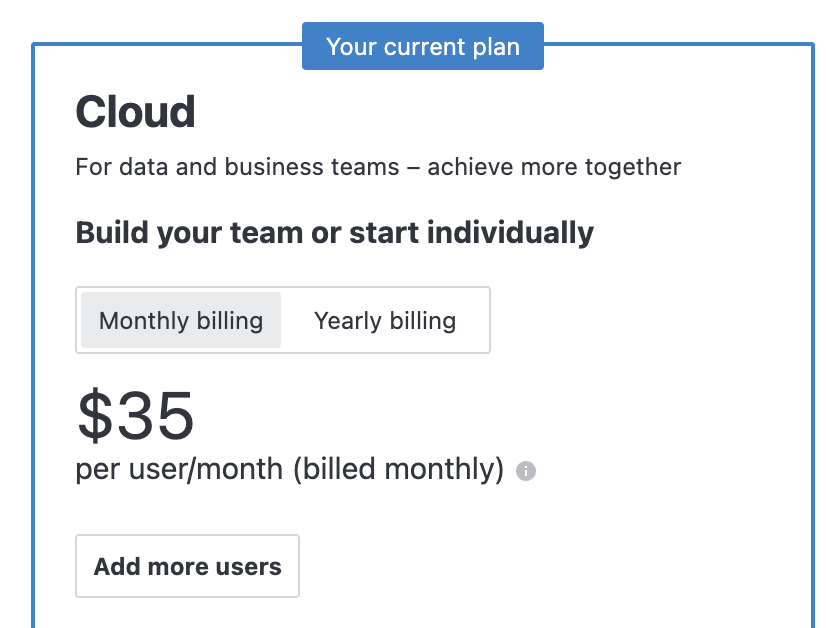
On the purchase page, update the number of users in the Users field and complete the order.
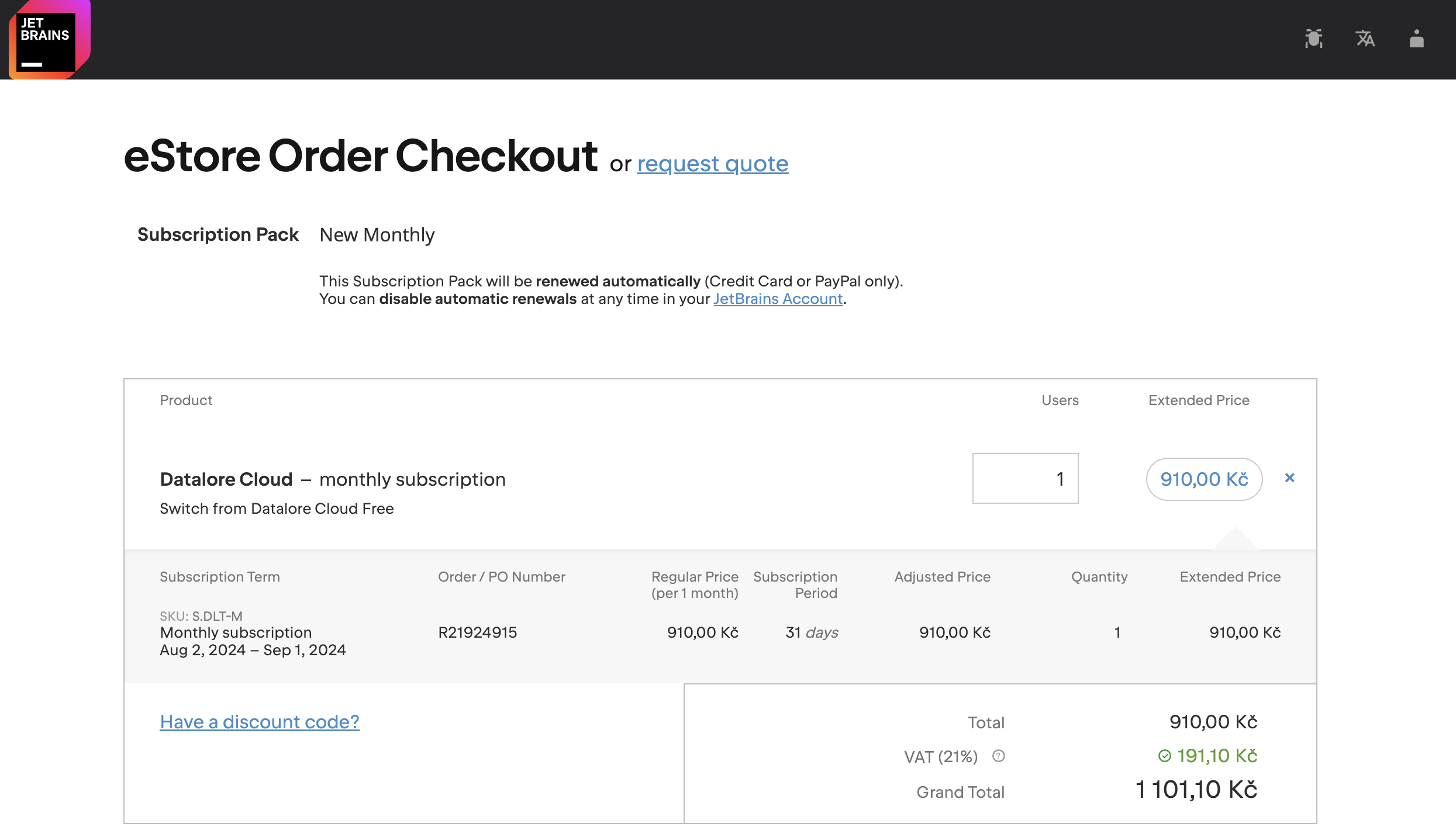
After the purchase is complete, the additional seats become available immediately and can be used to invite new team members.
Change a user’s role
Assign roles to control what actions team members can perform.
In the sidebar, select Team management.
In the team member list, locate the user whose role you want to change.
In the Role column, expand the role selector and choose the required role (admin or member).
The new role is applied immediately.
Delete a team member
Remove a team member to revoke their access and free up a seat for another user.
In the sidebar, select Team management.
On the team member list, click the ellipsis icon for the user you want to delete and select Delete.
In the confirmation dialog:
Select whether you want to delete all data associated with this user (default option). Clear the checkbox if you want to continue accessing and using their workspaces.
Click the Delete button to complete the procedure.
![Delete [user_name] confirmation dialog](https://resources.jetbrains.com.cn/help/img/datalore/2026.3/delete_confirm.png "Delete [user_name] confirmation dialog")
Restrict machine options for team members
Use computation profiles to restrict access to machines for different members of your team. By assigning a profile to a team member, you allow that user to use only those machines available under the selected profile.
Create a computation profile
This procedure explains how to create a computation profile. Optionally, you can select members of your team for this profile while creating it.
In the sidebar, select Computation profiles.

Click Add new profile at the top right.
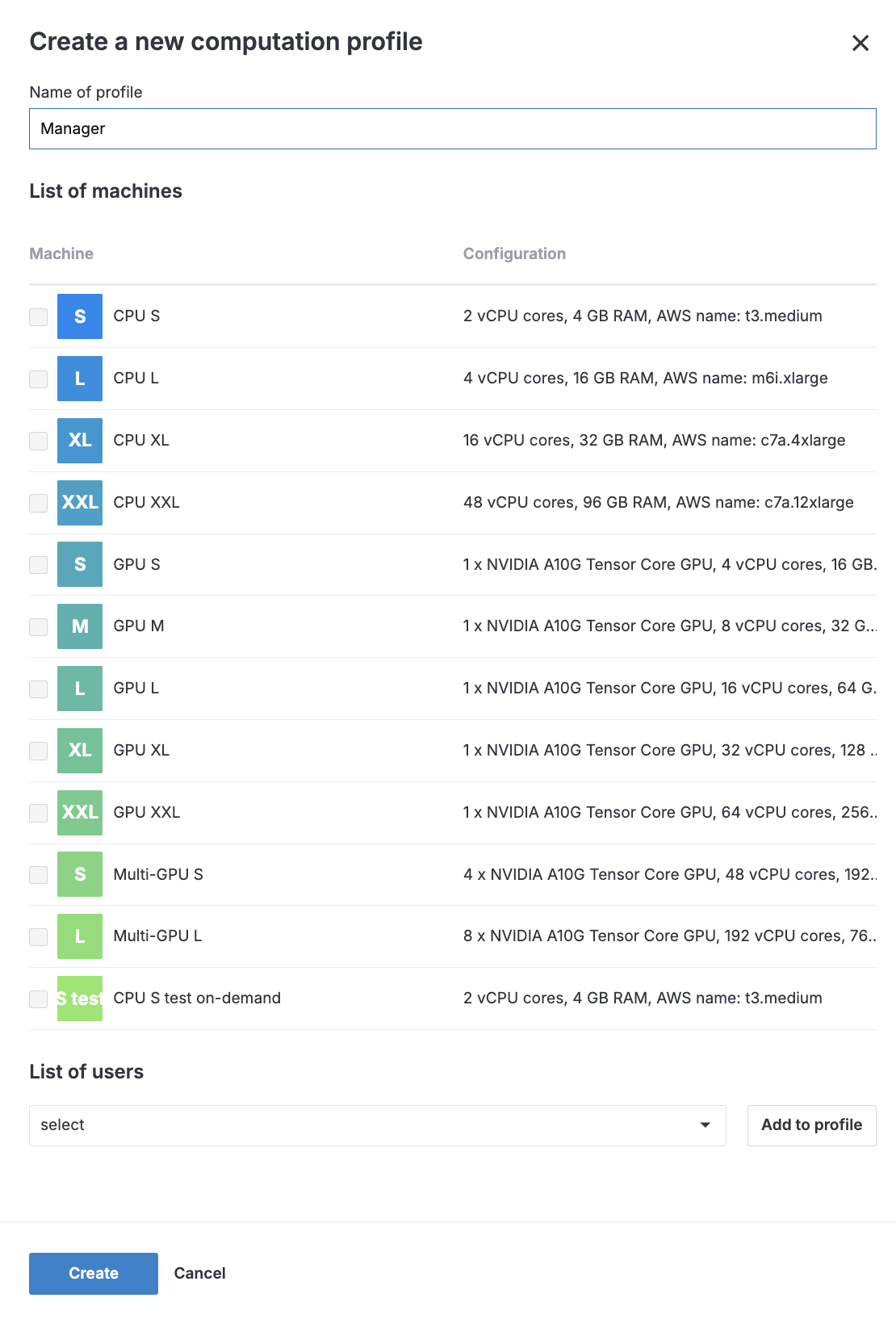
In the Name of profile field, provide a name for the new profile.
Under List of machines, select the machines that your team members with this profile can use.
(Optional) Assign the profile to selected members of your team.
Under List of members, expand the list of team members.
Click the users you want to select.
Click the Add to profile button to save the selection.
Click the Create to save the new profile.
You can now assign this profile to members of your team.
Edit or delete a computation profile
This procedure explains how to edit a computation profile you created for your team.
In the sidebar, select Computation profiles.
On the list of the computation profiles, click the ellipsis for the profile you want to edit or delete and select the required option:
Edit: opens the Edit [profile_name] dialog. Make the required changes (provide a new name, select and deselect machines, or choose team members for this profile), and click the Save button.
Delete: deletes the profile.

In the Name of profile field, provide a name for the new profile.
Under List of machines, select the machines that your team members with this profile can use.
(Optional) Assign the profile to selected members of your team.
Under List of members, expand the list of team members.
Click the users you want to select.
Click the Add to profile button to save the selection.
Click the Create to save the new profile.
You can now assign this profile to members of your team.
Assign computation profiles to team members
This procedure explains how to assign computation profiles to your team members. It is assumed that you have already created at least one such profile (see the procedure above).
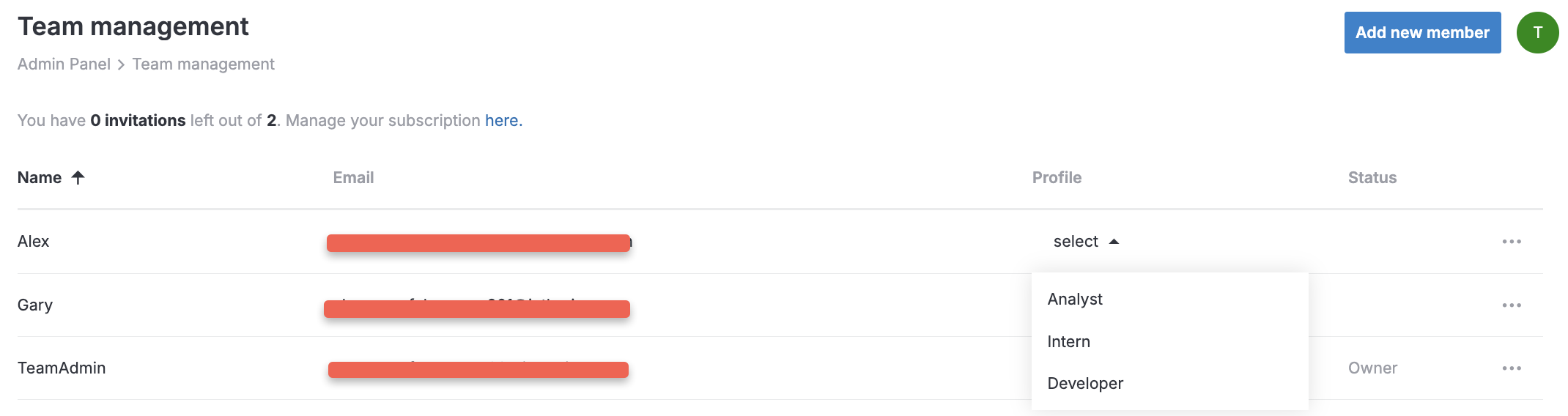
In the sidebar, select Team management.
On the list of team members, expand the list in the Profile column for the user you want to assign a profile.
From the expanded list, select the required profile.
Sharing
Restrict sharing of notebooks, reports, and other resources outside the team
If you need tighter control over how workspaces, notebooks, and reports are shared, you can restrict asset sharing to team members only.
To restrict sharing:
In the sidebar, switch to
 Team settings.
Enable Restrict sharing outside of the team.
All workspaces, notebooks, and reports shared outside the team will be unshared.
Only members of the team will appear in the suggestion dropdown in the sharing dialogs.
Allocate resources for team members
You can limit the use of Datalore credits and storage space for selected team members.
Procedure
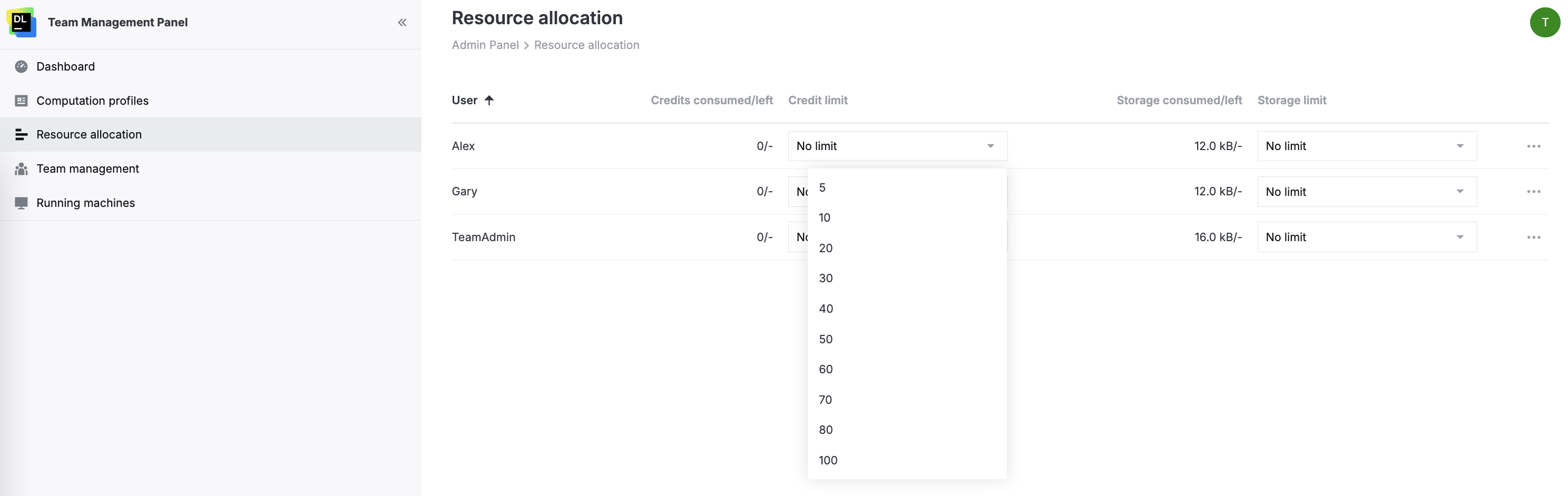
In the sidebar, select Resource allocation.
In the Resource allocation menu, you can view the list of all team members set resource limits for each of them:
Limit the amount of available Datalore credits:
Expand the list in the Credit limit column for the required team member.
Select one of the options.
Limit the storage space:
Expand the list in the Storage limit column for the required team member.
Select one of the options.
Manage running machines
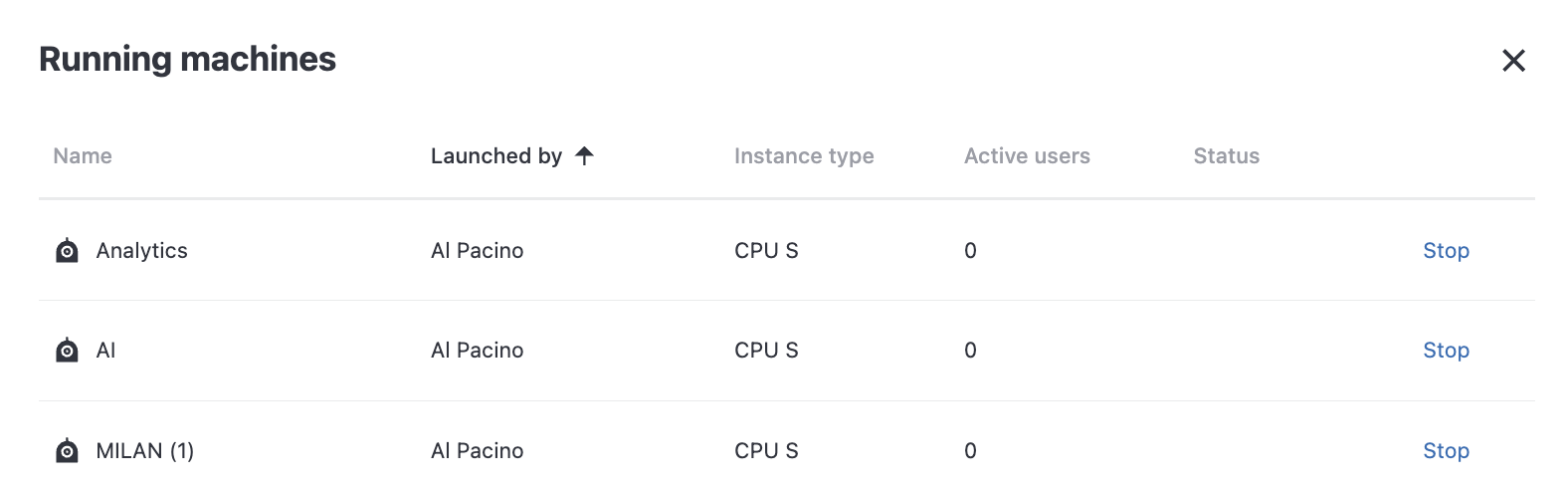
As the admin of your team, you can monitor and manage all running machines launched by the members of your team.
Procedure
In the sidebar, select
 Running machines.
To sort the list, click the header of the respective column.
To stop a machine, click the Stop button for the respective list item. After that, the stopped machine is removed from the list.
Related topics
Learn how to monitor and manage the usage of computational resources and associated transactions.
Learn how to purchase, use, and monitor the balance of Datalore credits, the currency used to buy paid machine hours.