Manage database connections in a workspace
Database connections as workspace resources
This article explains how to manage database connections added to your workspaces. Such data sources can be attached to any notebook residing in the respective workspace.
Access database connections in a workspace
In the sidebar on the Home page, select the workspace where you want to view database connections.
In the workspace resources, select
 Data and switch to the Databases tab.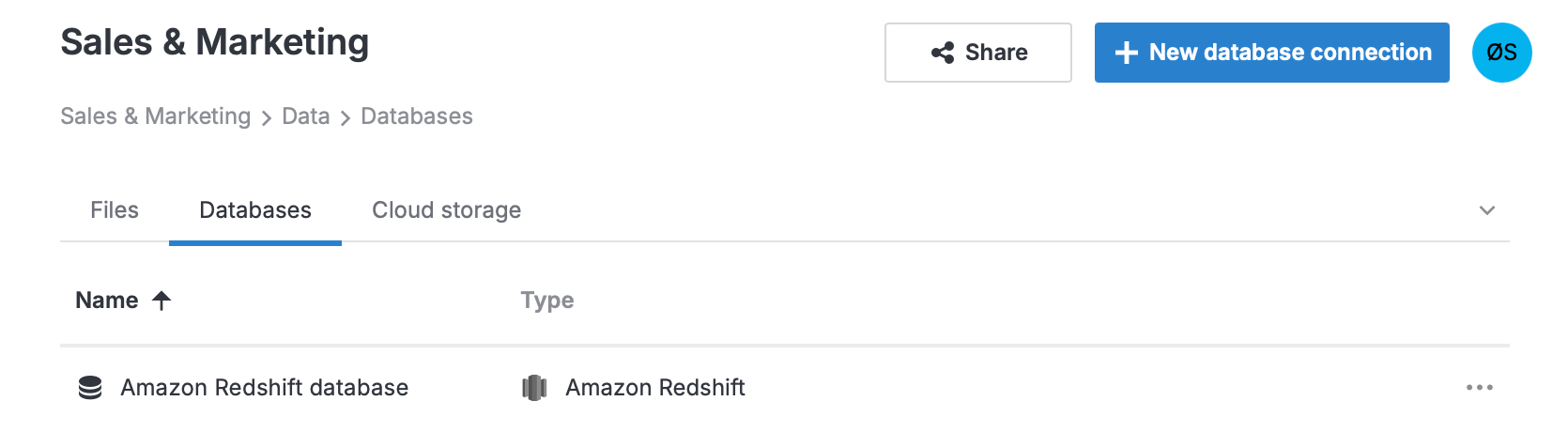
All further procedures are performed from here.
Manage database connections as workspace resources
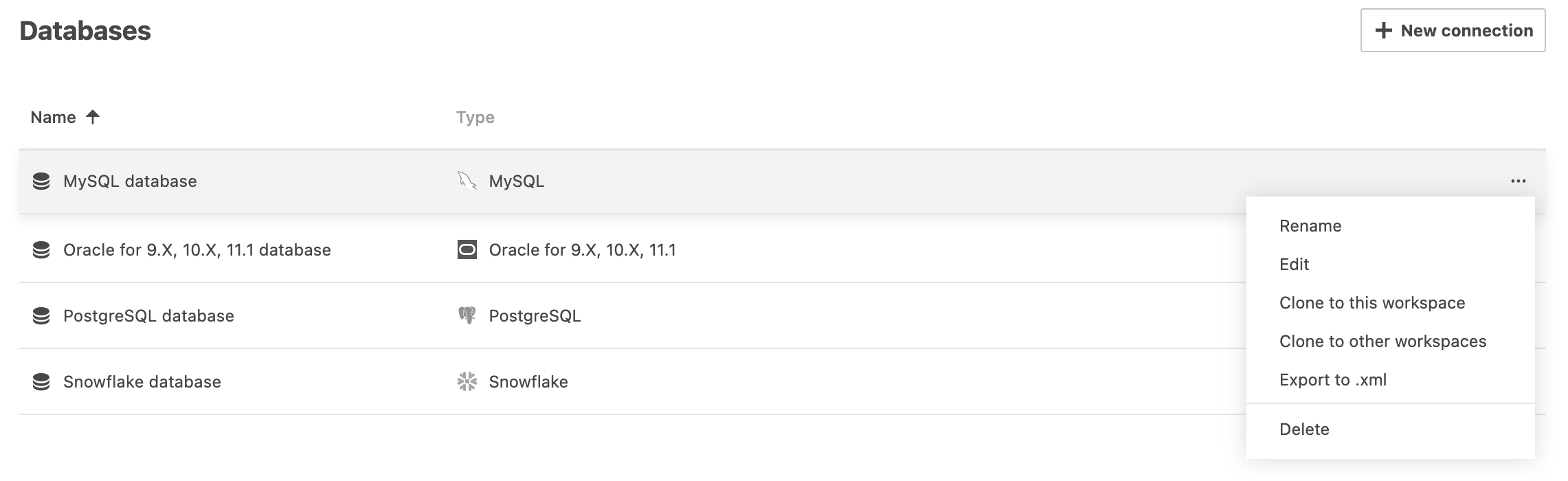
Rename a database connection
Right-click the connection you want to rename. This will open a popup menu.
Select Rename from the popup menu. Now, you can edit the database connection name.
Enter the new name and press Enter.
Edit database connection details
Right-click the connection you want to manage. This will open a popup menu.
Select Edit. This will open the Edit database connection dialog.
In the Edit database connection dialog, edit the connection details. Find database-specific information in the respective article listed under Configure a database connection.
Click the Save and close button to finish the procedure.
Clone a database connection
Right-click the connection you want to clone. This will open a popup menu.
Select one of the two options:
Clone to this workspace: to clone the connection to the same workspace. It will be added to the same list under a slightly different name.
Clone to other workspaces: to clone the connection to other workspaces:
In the Clone [database_connection_name] to other workspaces dialog, expand the Workspace list.
Select the workspaces you want to clone the connection to.
Click the Clone button.
Export database connection in XML format
This procedure saves the details of a database connection in XML format with all current values and copies them into your clipboard. You can use the copied XML content to create another database connection.
On the Home page, select the workspace to which you want to add a database connection.
From the left-hand menu, select Databases to open the list of all workspace database connections.
Right-click the connection you want to manage. This will open a popup menu.
Select Export to .xml.
The data is copied to your clipboard.
Delete a database connection
This procedure deletes database connections from your Datalore system without moving it to Trash.
Right-click the connection you want to manage. This will open a popup menu.
Select Delete.
Find where a database connection is used
For any database connection, you can view all notebooks and SQL cells that use it.
To find where a connection is used:
On the home page, select the workspace where the database connection is attached.
In the expanded list of workspace resources, select
Data.Switch to the Databases tab.
Select the connection and switch to the Usages tab.
You will see a list of SQL cells that use this connection. From here, you can open the notebook or SQL cell directly, or copy the cell code.
Run database queries
You can execute queries from the database configuration dialog without opening a notebook. It can help you to validate the connection and permissions, preview data, check data quality or perform diagnostics on a connected database.
You can further explore the query results using the data explorer tool and download the results as .csv or .xlsx files.
On the Home page, select the workspace in the sidebar.
In the list of workspace resources, select
Data.Switch to the Databases tab.
Select a database connection.
Switch to the Queries tab.
Enter your query and click Execute query.
Review the query results in the data explorer section.
For more details, refer to Use data explorer.
(For Datalore On-Premises only)
As a Datalore On-Premises admin, you can do the following to customize your database connection options:
Attach custom JDBC drivers to connect to databases that are not natively supported in Datalore
Create instance-wide database connections shared across all workspaces within your Datalore instance
For more details, refer to Using custom or third-party JDBC drivers.
Keywords
database, database connection, attach data, data sources, workspaces, workspace data sources, workspace resources, workspace databases