Use data explorer
With data explorer cells, you can explore, filter, search, and visualize data so that you can inspect and understand your dataset without writing additional code.
Add a data explorer cell
Data explorer cells can use data from dataframes.
(Optional) If you have not already, create a dataframe with your data.
Under the last cell, click More and select Data explorer.
Click Select source and select a dataframe with your data.
Table and visualization modes
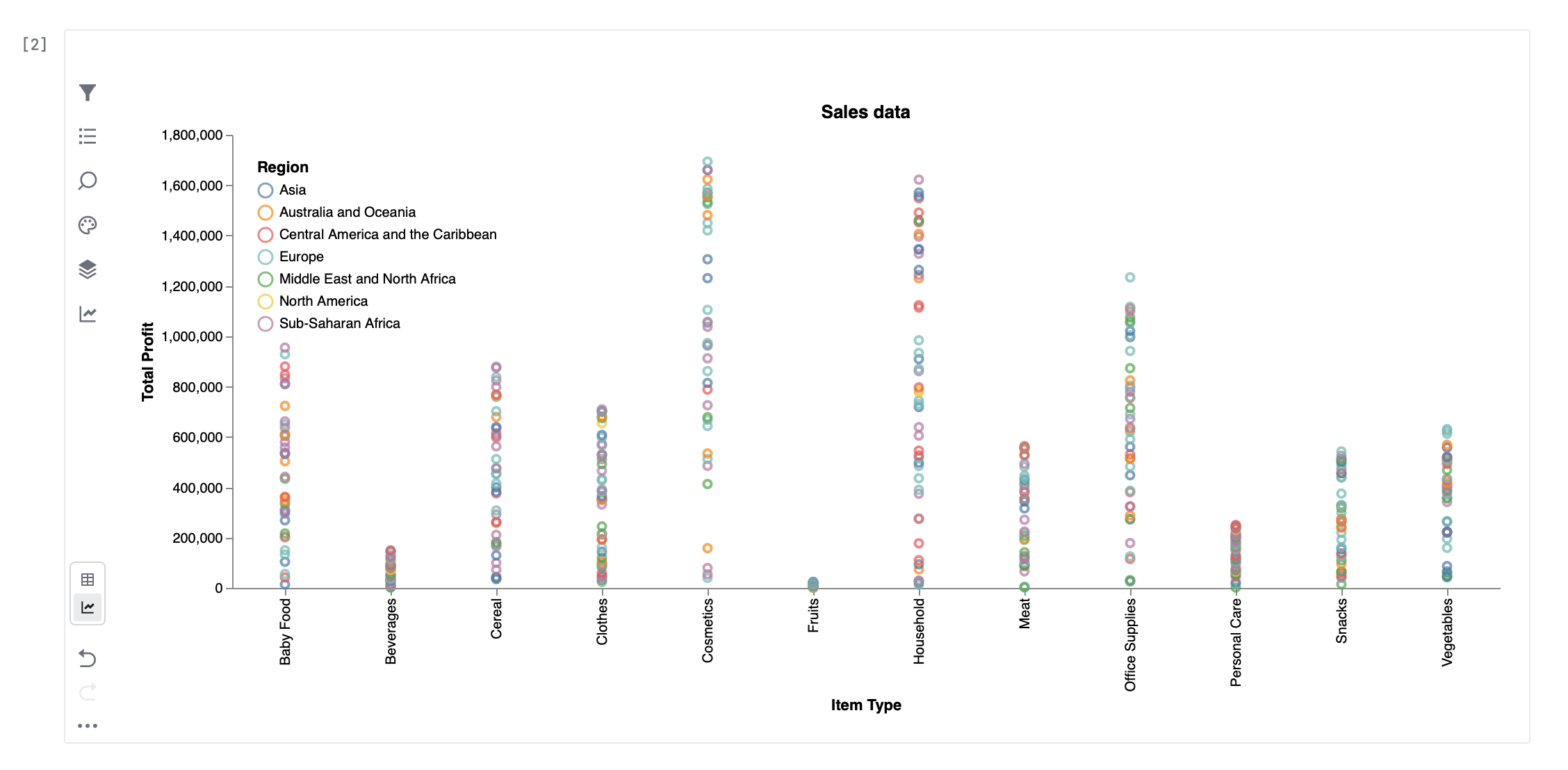
Data explorer cells can display your data as a table or as a line, bar, area, scatter, or box chart.
In both modes, you can filter, search, and transform your data.
Switch modes
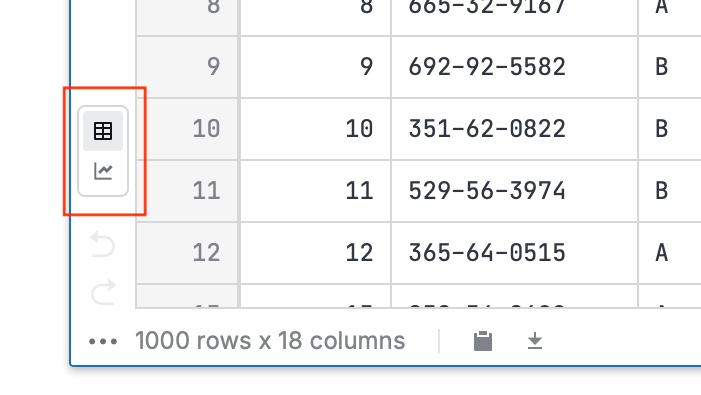
To switch between the table and visualization modes, use the buttons in the left panel of the data explorer cell:
Filter data
Use the  Filters tab to apply filters to your data.
You can apply various filters, depending on the data type in the column, exclude duplicates, or exclude missing values.
Add a filter
Select
(Filters) in the left panel of the data explorer cell.Click New filter.
Select the column you want to apply the filter to.
Specify the filtering parameters and click Apply.
Modify a filter
Select
(Filters) in the left panel of the data explorer cell.Select the filter you want to edit.
Change the parameters and click Apply.
Delete a filter
Select
(Filters) in the left panel of the data explorer cell.Select the filter you want to delete.
Hover over the filter and click Delete.
Use conditional formatting
Conditional formatting lets you highlight table cells based on their values, making it easier to spot patterns, outliers, and trends in your data. You can apply color scales or fixed colors to one or more columns.
Add a conditional formatting rule
Select
 (Conditional formatting) in the left panel of the data explorer cell.
Click New rule and select the column you want to apply formatting to.
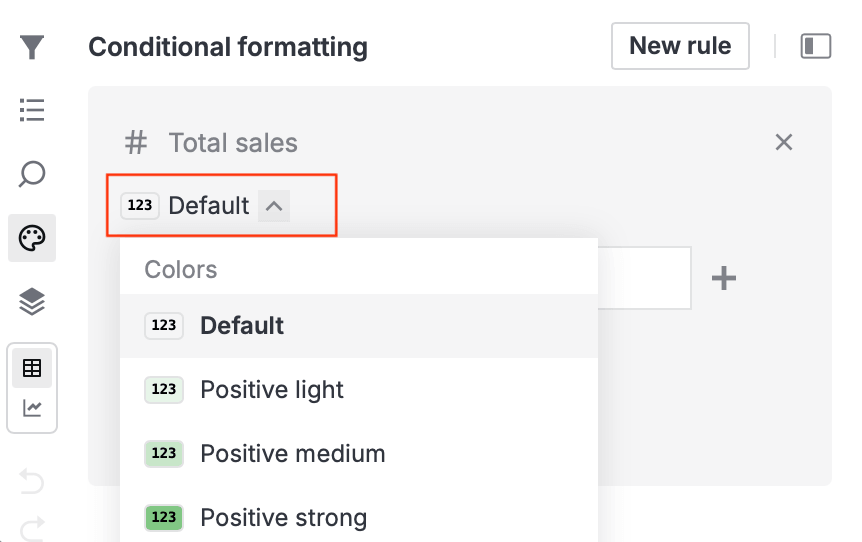
Click the rule type to select the color or gradient you want to apply:
Configure the rule parameters. You can use the following operators: =, ≠, >, ≥, <, and ≤.
(Optional) To apply more rules to the same column, click Add rule and repeat the last two steps.
Click Apply.
Edit a conditional formatting rule
Select
(Conditional formatting) in the left panel of the data explorer cell.Select the rule you want to edit.
Change the parameters and click Apply.
Delete a conditional formatting rule
Select
(Conditional formatting) in the left panel of the data explorer cell.Hover over the rule you want to delete.
Click
 (Delete).
Select displayed columns
Use the  Columns tab to select the columns displayed in the table or chart. You can also use it to filter out displayed values and view value stats.
Choose columns to display
Select
(Columns) in the left panel of the data explorer cell.Select or deselect the columns you want to display.
Filter displayed values
Expand the column where you want to filter values.
Select or deselect the values you want to exclude.
You can also exclude duplicates and missing values.
View column stats
Expand the column where you want to view column stats.
Create a new column
You can create new columns based on the values of other columns in the dataframe.
Click New column.
Enter the column name.
Enter the SQL expression for calculating the column values.
Click Save.
Visualize data
In Visualization mode, you can plot your data using various charts.
Add a chart
Switch to Visualization mode by selecting Visualization in the left panel of the data explorer cell.
Click + (New chart).
Select the chart type.
Select the X and Y axis values, and optionally apply aggregation and sorting.
(Optional) Select how your data is displayed using modifiers in the Appearance and Faceting sections.
(Optional) To change the title, legend position, layout, and grid, click
 (Settings) and edit the corresponding values.
Download a chart
You can download charts from data explorer cells as .png and .svg files.
On the Visualization tab, click
(Settings).Click Download chart and select the desired file format.