High CPU usage
If you can continue working with the IDE, but the IDE hangs, repeatedly stops responding, displays you warnings about memory consumption, try to close large files (for example, SQL files with thousands of rows), and restart the IDE.
Otherwise, capture the CPU snapshot and IDE logs and send them to the JetBrains support team.
Enable the Performance Testing plugin
This functionality relies on the Performance Testing plugin, which is bundled and enabled in DataGrip by default. If the relevant features are not available, make sure that you did not disable the plugin.
Press Ctrl+Alt+S to open settings and then select .
Open the Installed tab, find the Performance Testing plugin, and select the checkbox next to the plugin name.
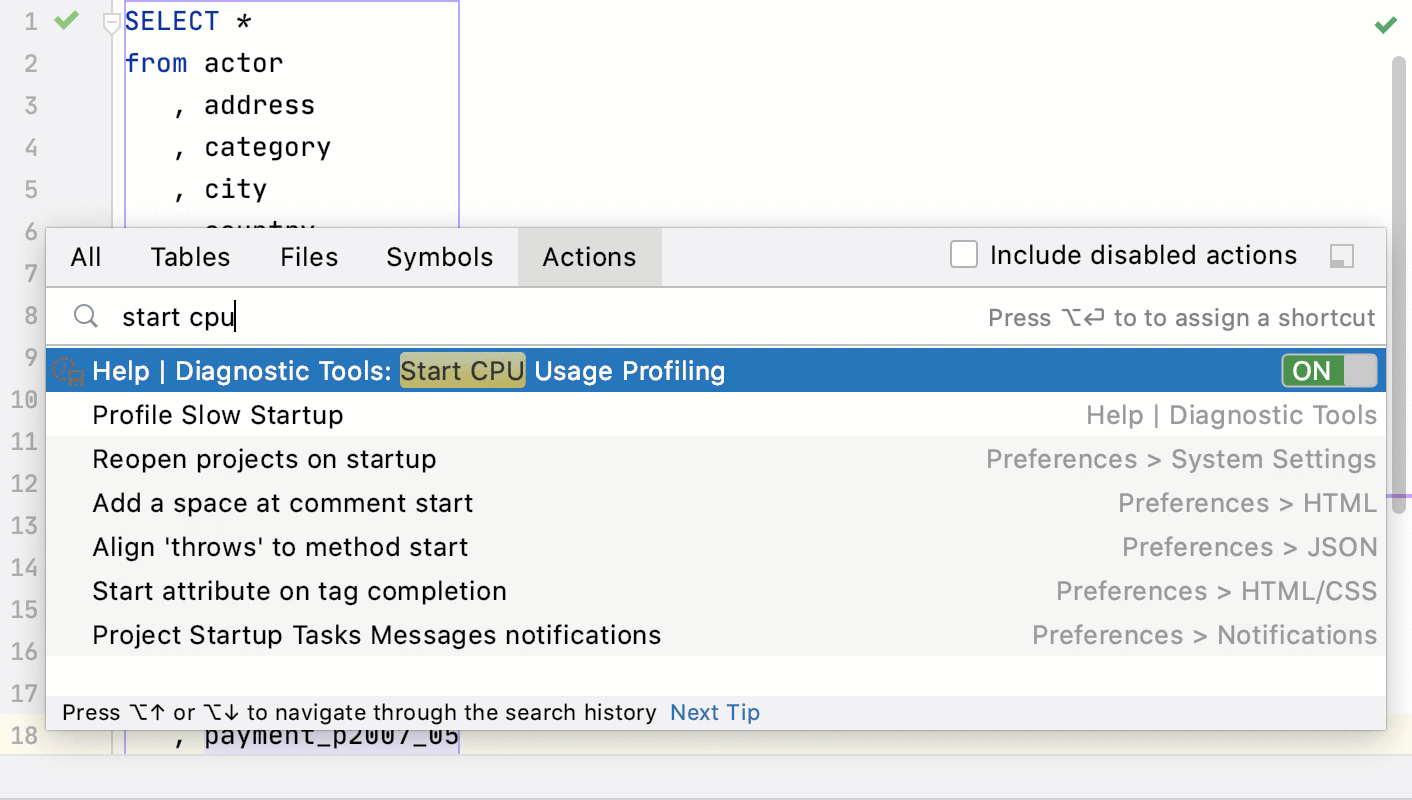
Start CPU usage profiling
Click .
DataGrip might ask you to restart IDE to add necessary VM options. If you see this notification, restart the IDE and start the CPU usage profiling again.
Perform the actions that cause performance issues. Try to reproduce the performance problem several times while the snapshot is being recorded.
Click .
DataGrip saves the snapshot file in the user home directory. If you do not see the notification, enable balloon notifications for Profiling in settings. Open settings by pressing Ctrl+Alt+S and navigate to . In the list of components, find profiler notifications and ensure that the Popup type is Balloon.