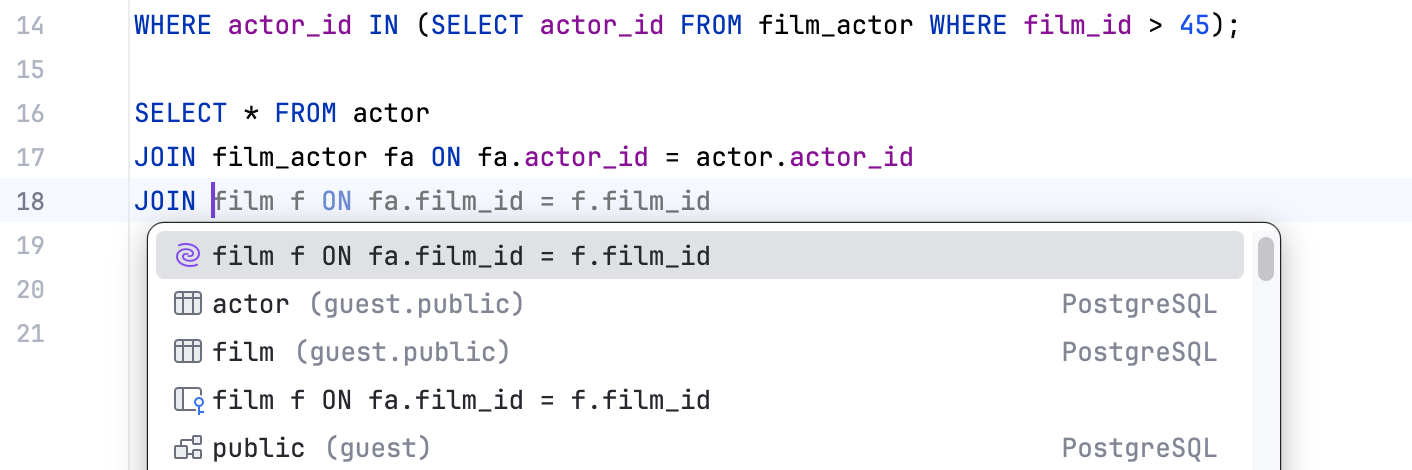
Full Line code completion
Install the AI Assistant plugin
This functionality relies on the AI Assistant plugin, which you need to install and enable.
Press Ctrl+Alt+S to open settings and then select .
Open the Marketplace tab, find the AI Assistant plugin, and click Install (restart the IDE if prompted).
Suggestions are displayed in the editor as you type SQL.
To accept an entire suggestion, press Tab.
To accept a suggestion word by word, press Ctrl+Right.
To accept a suggestion line by line, press End.
The IDE formats all suggestions and adds required brackets and quotes.
Full Line completion supports auto-import and uses smart filtering to avoid showing suggestions that tend to be canceled explicitly or deleted right after they were accepted.
Check system requirements
Full Line code completion requires a computer with an x64 processor that supports AVX2, or an ARM64 processor. If the AVX2 support is missing, Full Line Code Completion will be automatically disabled.
Enable and configure Full Line completion
Press Ctrl+Alt+S to open settings and select Editor | General | Code Completion | Inline.
Select the Enable inline completion using language models checkbox and make sure the Cloud (or Cloud and local) option is selected.
In the Display Suggestions For section, select the languages that you want to use Full Line completion with.
Models for are bundled with DataGrip.
Configure completion options:
Use the Enable multi-line suggestions option to get multi-line completion suggestions together with single-line suggestions.
Enable Synchronize inline and popup completions to view Full Line completion suggestions alongside regular completion. In this case, Full Line suggestions are marked with
 in the list of suggestions.