Manage projects hosted on GitLab
Enable the Git plugin
This functionality relies on the Git plugin, which is bundled and enabled in DataGrip by default. If the relevant features are not available, make sure that you did not disable the plugin.
Press Ctrl+Alt+S to open settings and then select .
Open the Installed tab, find the Git plugin, and select the checkbox next to the plugin name.
Install the GitLab plugin
This functionality relies on the GitLab plugin, which you need to install and enable.
Press Ctrl+Alt+S to open settings and then select .
Open the Marketplace tab, find the GitLab plugin, and click Install (restart the IDE if prompted).
Clone a GitLab project
You can clone a GitLab project that you want to contribute to directly from DataGrip and create a new project based on it.
Before cloning a project, make sure you have logged in to your GitLab account.
Use one of the options to open the Clone Repository dialog:
In the main menu, go to .
If the Git menu is not available, go to .
In the Clone Repository dialog, specify the URL of the project you want to clone.
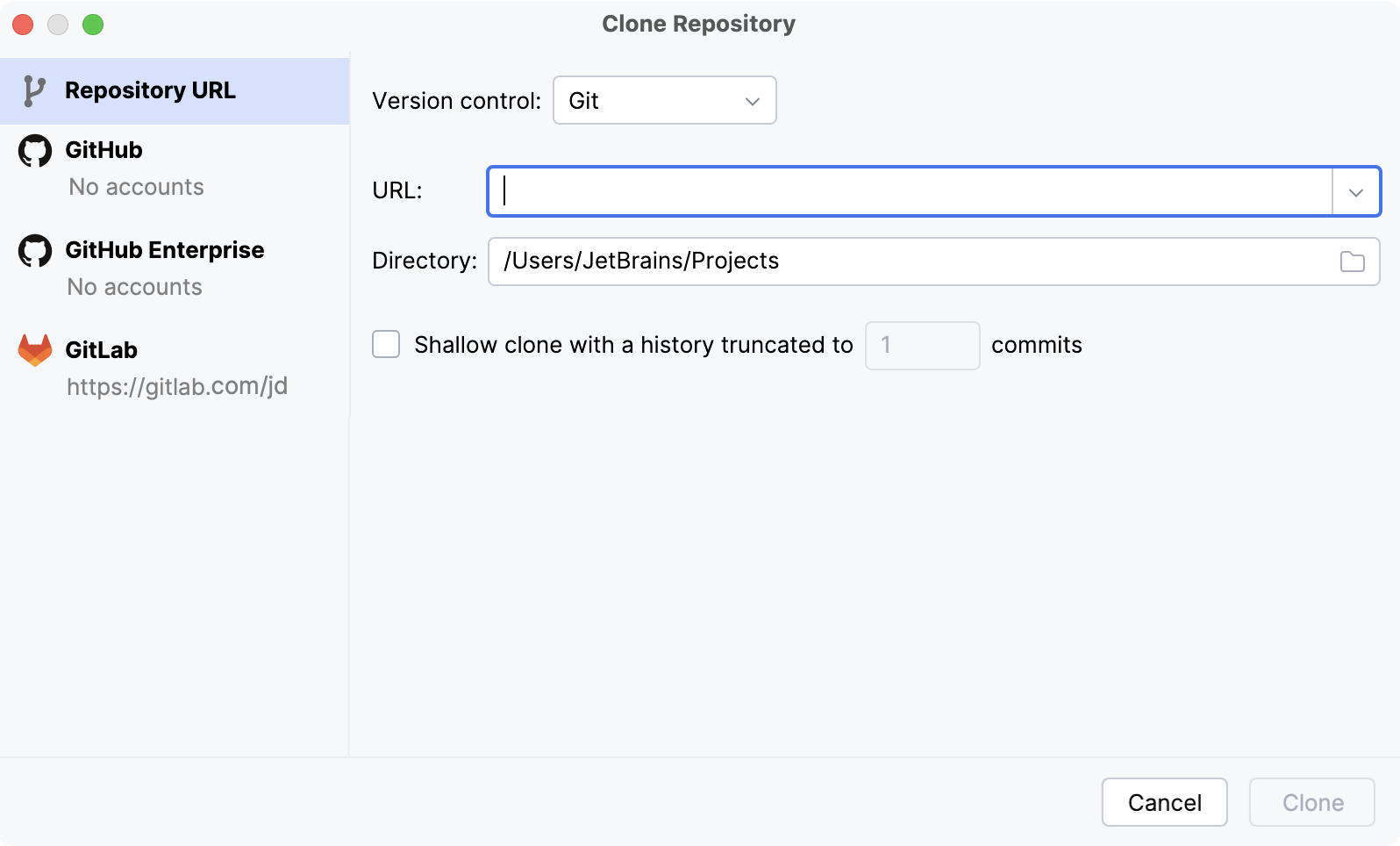
Alternatively, open the GitLab tab on the left side of the Clone Repository dialog. Select a repository from the list of all GitLab projects associated with your account and the organization that your account belongs to.
In the Directory field, enter the path to the folder where your local Git project will be created.
If you want to perform shallow clone with a limited history, select the Shallow clone with a history truncated to checkbox and specify the number of commits that you want to clone.
You can fetch the rest of the history later by selecting Git | Unshallow Repository in the main menu.
Click Clone.
Share a project on GitLab
You can add a remote GitLab repository for your local project so that others can view it or contribute to it.
Before sharing your project, make sure you have logged in to your GitLab account.
Open your local project.
If your project is already tracked by Git, go to in the main menu.
If you have not enabled Version Control Integration yet, go to in the main menu.
In the dialog that opens, select your GitLab account and namespace. You can also change the repository name (by default, it is the same as the project name), the name of a remote (by default, origin), choose the repository type (public or private), and add some description if needed:
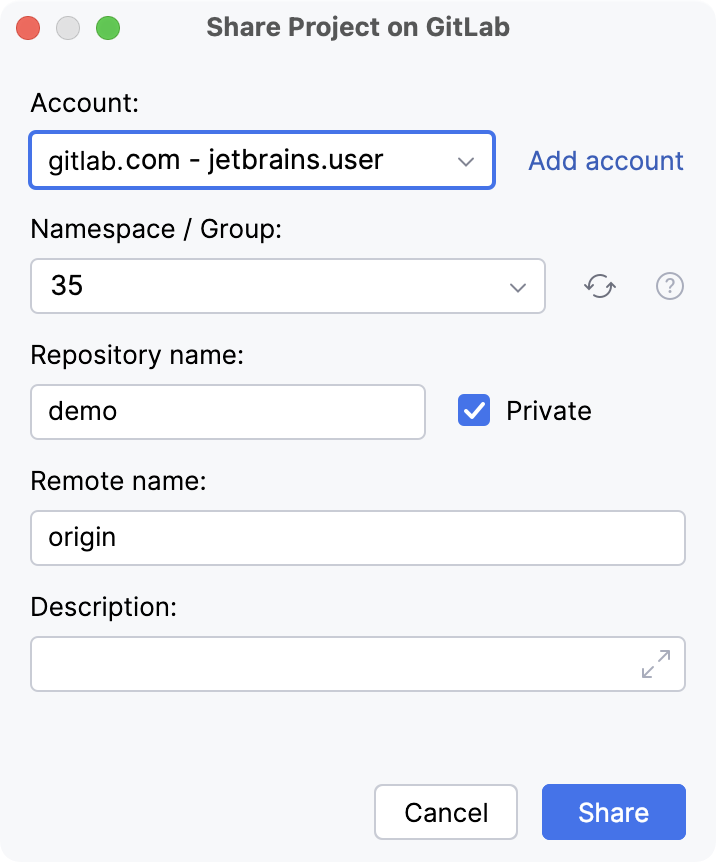
Click Share.
Once the project is published, you can always open it in browser by selecting in the main menu.