Add items to your project
Once you have created a project, you can start adding new items.
Create new items
Create a new directory
In the Files tool window (Alt+2) , right-click the current project directory and select .
Name the new directory and press Enter.
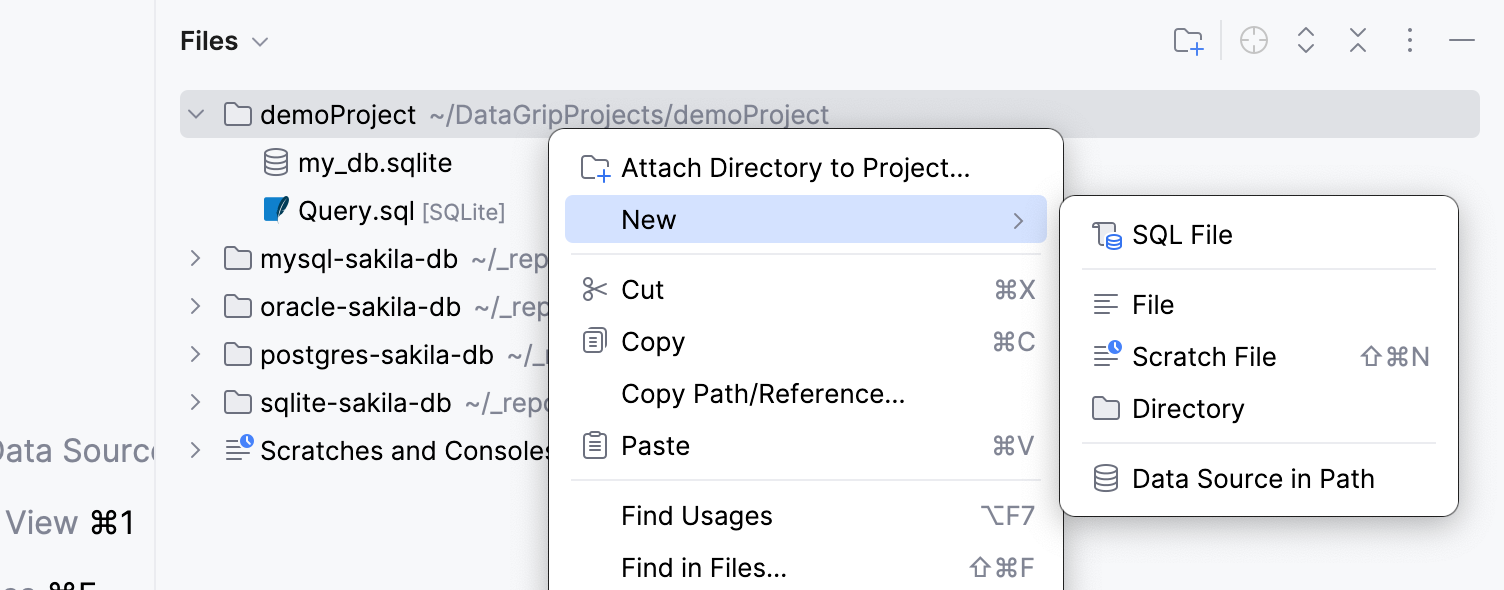
Create a new empty file
In the Files tool window (Alt+2) , right-click the current project directory and click .
Name the new file and specify its extension, for example: File.sql, and press Enter.
If the extension you have specified is not associated with any of the file types recognized by DataGrip, the Register New File Type Association dialog is displayed. In this dialog, you can associate the extension with one of the recognized file types.
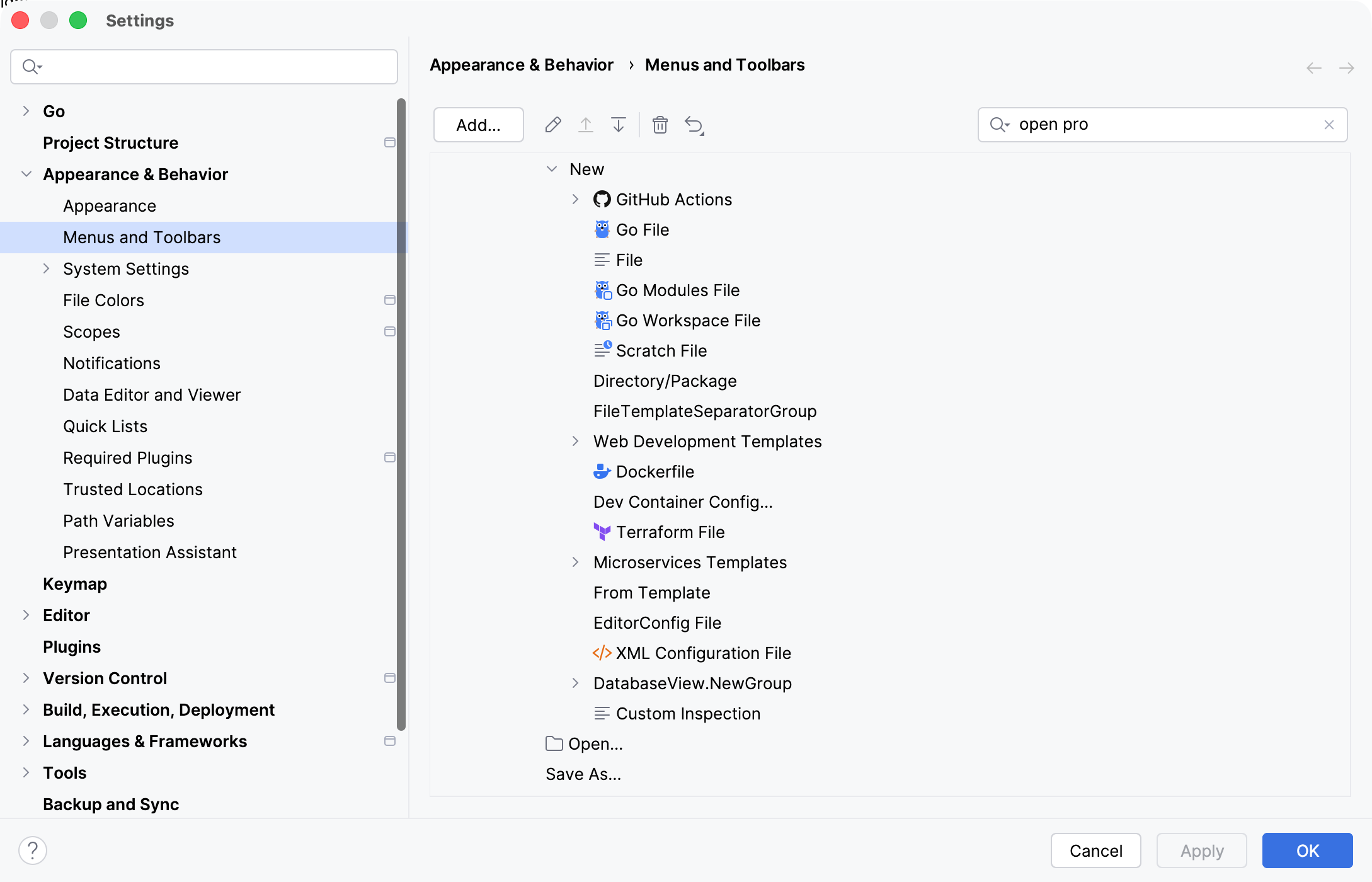
Customize the New File or Directory menu
Press Ctrl+Alt+S to open settings and then select .
Start typing
newin the right search bar.Reorder or remove items as you want them to appear in the New File or Directory menu and confirm the changes.
Import items
Import files
You can import files to your project using any of the following ways:
Drag the file from your system file manager to the current project directory in the Files tool window (Alt+2) .
Copy the file in the system file manager by pressing Ctrl+C and then paste in to the necessary node in the IDE Files tool window by pressing Ctrl+V.
Manually move the file to the project folder in your system file manager.
Import folders
To import a folder to your current project, drag the folder from your system file manager to the Files tool window (Alt+2) .