Install plugins from the command line
Install plugins by plugin ID from the JetBrains Marketplace or a custom plugin repository.
You can find the executable for running DataGrip in the installation directory under bin. To use this executable as the command-line launcher, add it to your system PATH as described in Command-line interface.
- Syntax
- datagrip64.exe installPlugins <plugin-id ...> [repository-url ...]
- Examples
Install the GitHub plugin:
datagrip64.exe installPlugins org.jetbrains.plugins.githubInstall a plugin with the ID
com.example.mypluginfrom a custom repositoryhttp://plugins.example.com:8080/updatePlugins.xml:datagrip64.exe installPlugins com.example.myplugin http://plugins.example.com:8080/updatePlugins.xml
By default, DataGrip does not provide a command-line launcher. For more information about creating a launcher script for DataGrip, refer to Command-line interface.
- Syntax
- datagrip installPlugins <plugin-id ...> [repository-url ...]
- Examples
Install the GitHub plugin:
datagrip installPlugins org.jetbrains.plugins.githubInstall a plugin with the ID
com.example.mypluginfrom a custom repositoryhttp://plugins.example.com:8080/updatePlugins.xml:datagrip installPlugins com.example.myplugin http://plugins.example.com:8080/updatePlugins.xml
You can find the script for running DataGrip in the installation directory under bin. To use this script as the command-line launcher, add it to your system PATH as described in Command-line interface.
- Syntax
- datagrip.sh installPlugins <plugin-id ...> [repository-url ...]
- Examples
Install the GitHub plugin:
datagrip.sh installPlugins org.jetbrains.plugins.githubInstall a plugin with the ID
com.example.mypluginfrom a custom repositoryhttp://plugins.example.com:8080/updatePlugins.xml:datagrip.sh installPlugins com.example.myplugin http://plugins.example.com:8080/updatePlugins.xml
If the plugin is distributed as a JAR archive, copy the JAR file to the plugins directory and restart the IDE:
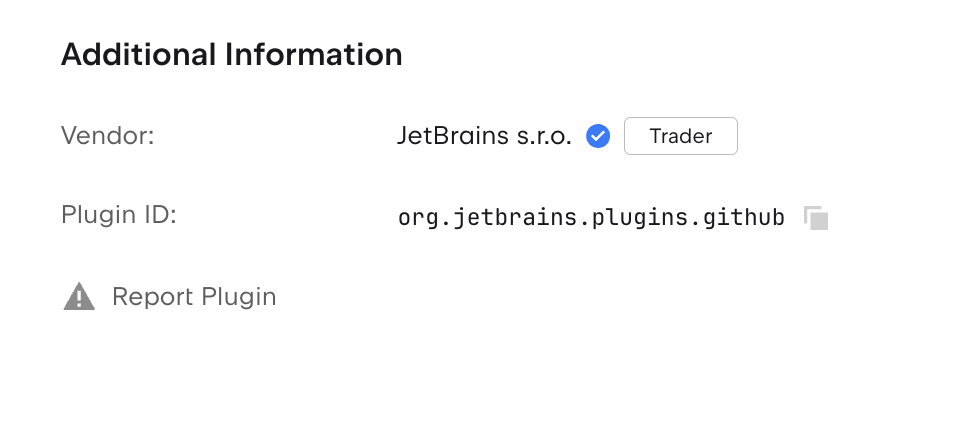
The developer of the plugin specifies a unique identifier for the plugin in plugin.xml – the plugin configuration file. If it is a public plugin, you can find its ID on the page of the plugin in JetBrains Marketplace. Scroll down to the Additional Information section and copy the value from the Plugin ID parameter.