Icon reference
You can find icons throughout the DataGrip user interface: toolbars, tool windows, the editor gutter, and so on. Icons usually represent actions you can perform, options you can set, or additional information about an element.
Most icons have tooltips that explain what they mean. To view a tooltip, hover over an icon.
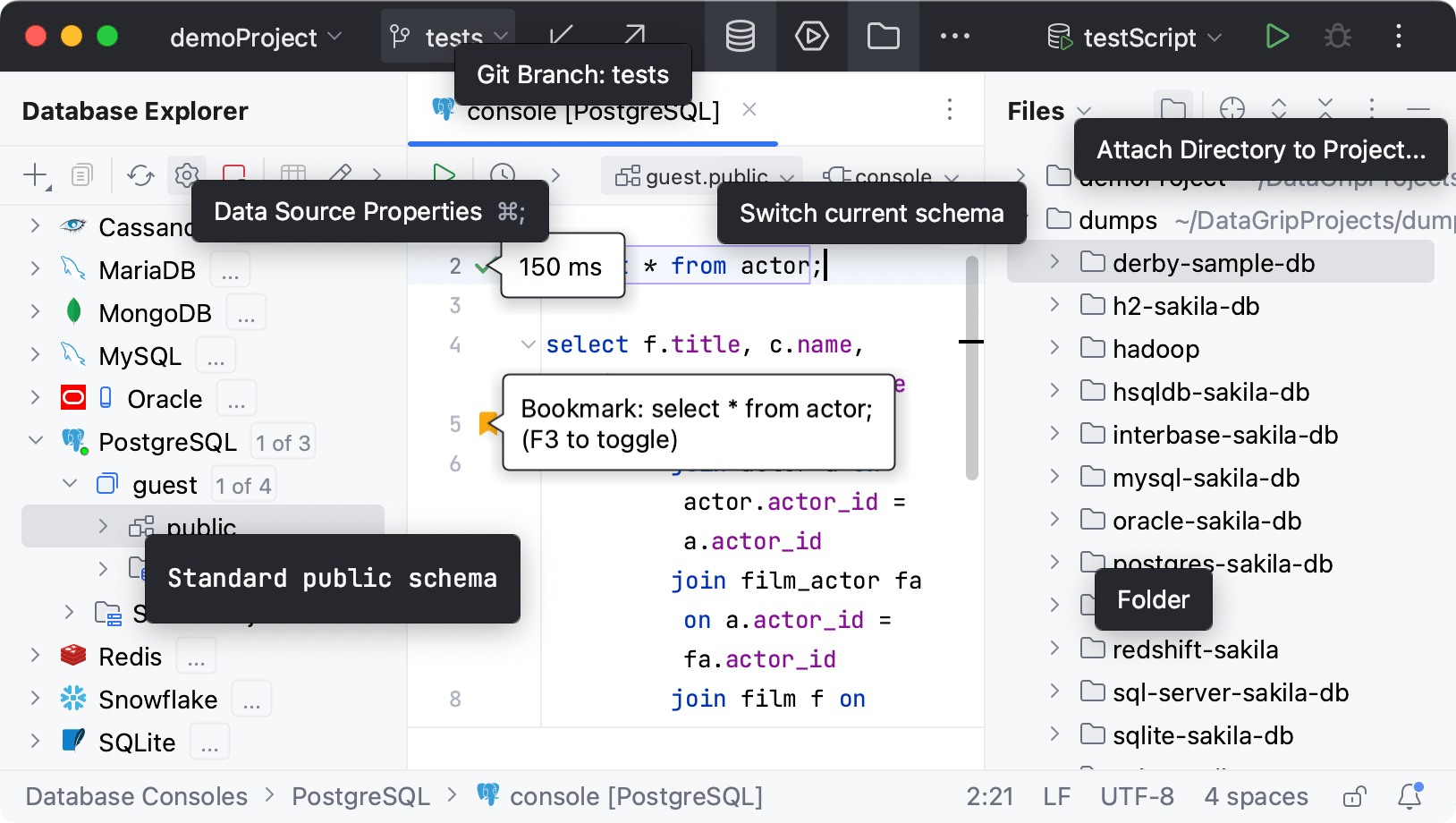
This reference describes different types of icons and visual indicators in DataGrip. The availability of some icons might depend on the configuration of your project, the frameworks that you use, and the plugins that you have installed.
Main toolbar icons
Icons on the sides of the main toolbar, which is located in the window header, represent actions that apply either to the whole project or the whole IDE.
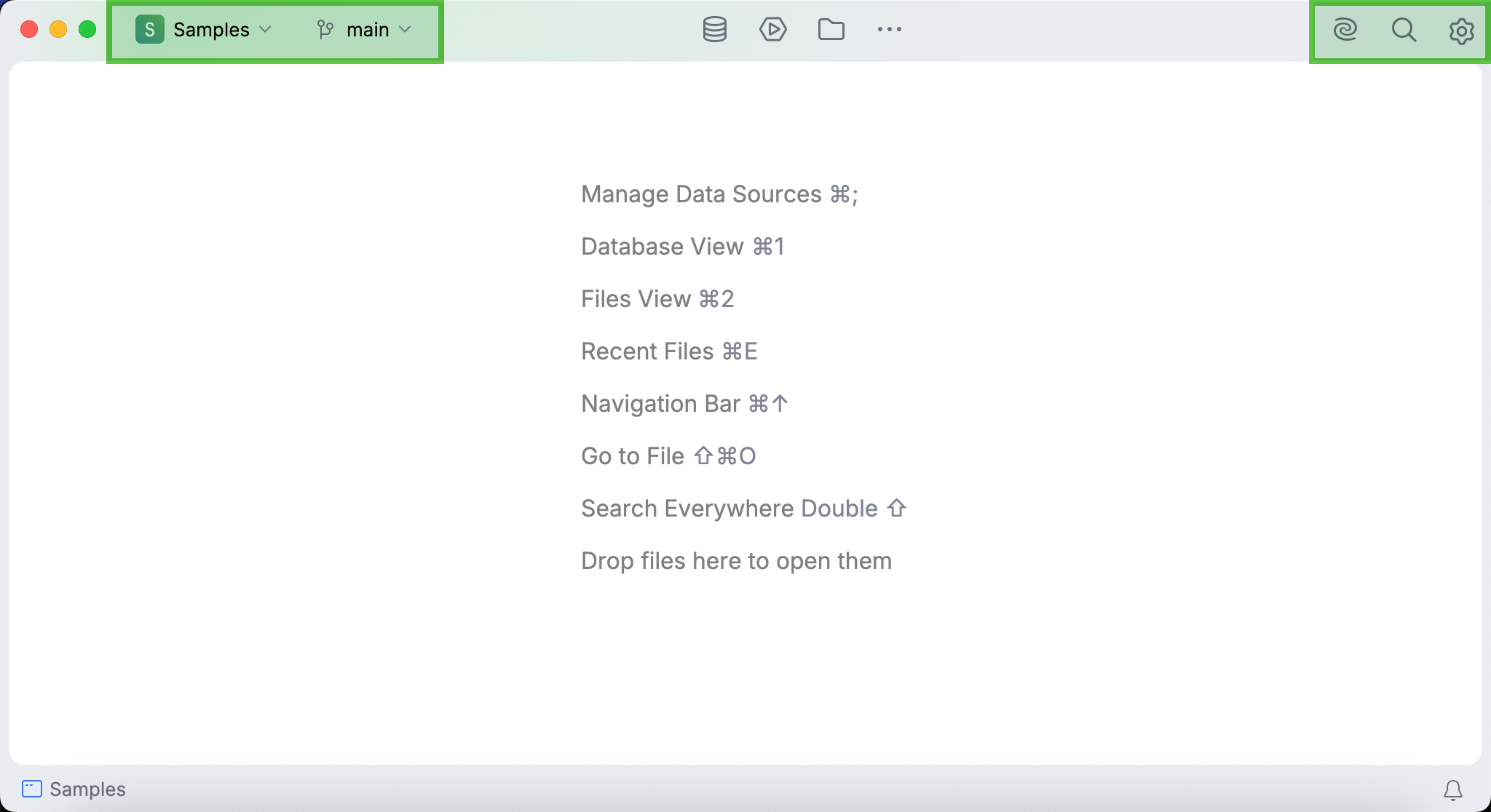
To learn how to add, remove, and edit the icons in the main toolbar, refer to Menus and toolbars.
Tool window bar icons
Icons in tool window bars represent different tool windows in DataGrip. If you click one of these icons, its corresponding tool window will open.

To learn how to add, remove, and rearrange the icons in tool window bars, refer to Tool windows in the new UI.
Toolbar icons in tool windows
Some tool windows have toolbars with icons that represent actions and options relevant to the tool window.
Database object icons
Database object icons let you quickly identify different types of introspected database objects. You can find them in selected tool windows (for example, Database Explorer, Database Changes, and Services), the code editor, the data editor, and so on. Each database object has a dedicated icon.
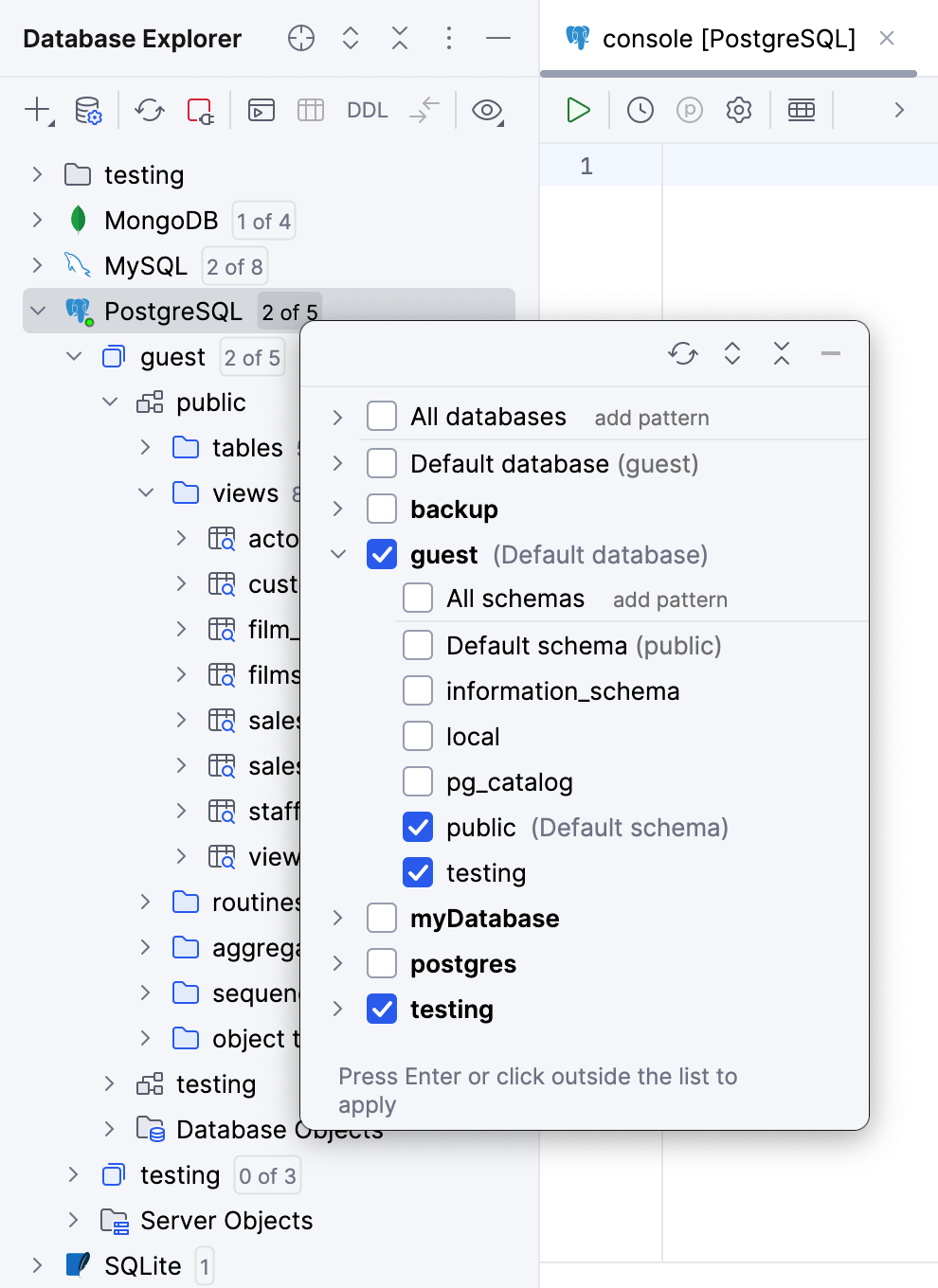
For more information about data source and database object icons, refer to the reference chapters of the Database Explorer topic:
File type icons
File type icons let you quickly identify file types in your project. You can find them in selected tool windows (for example, the Files tool window).
Each file format in DataGrip has a dedicated icon. To view all recognized file types and their icons, open the the Settings dialog (Ctrl+Alt+S) , and go to .
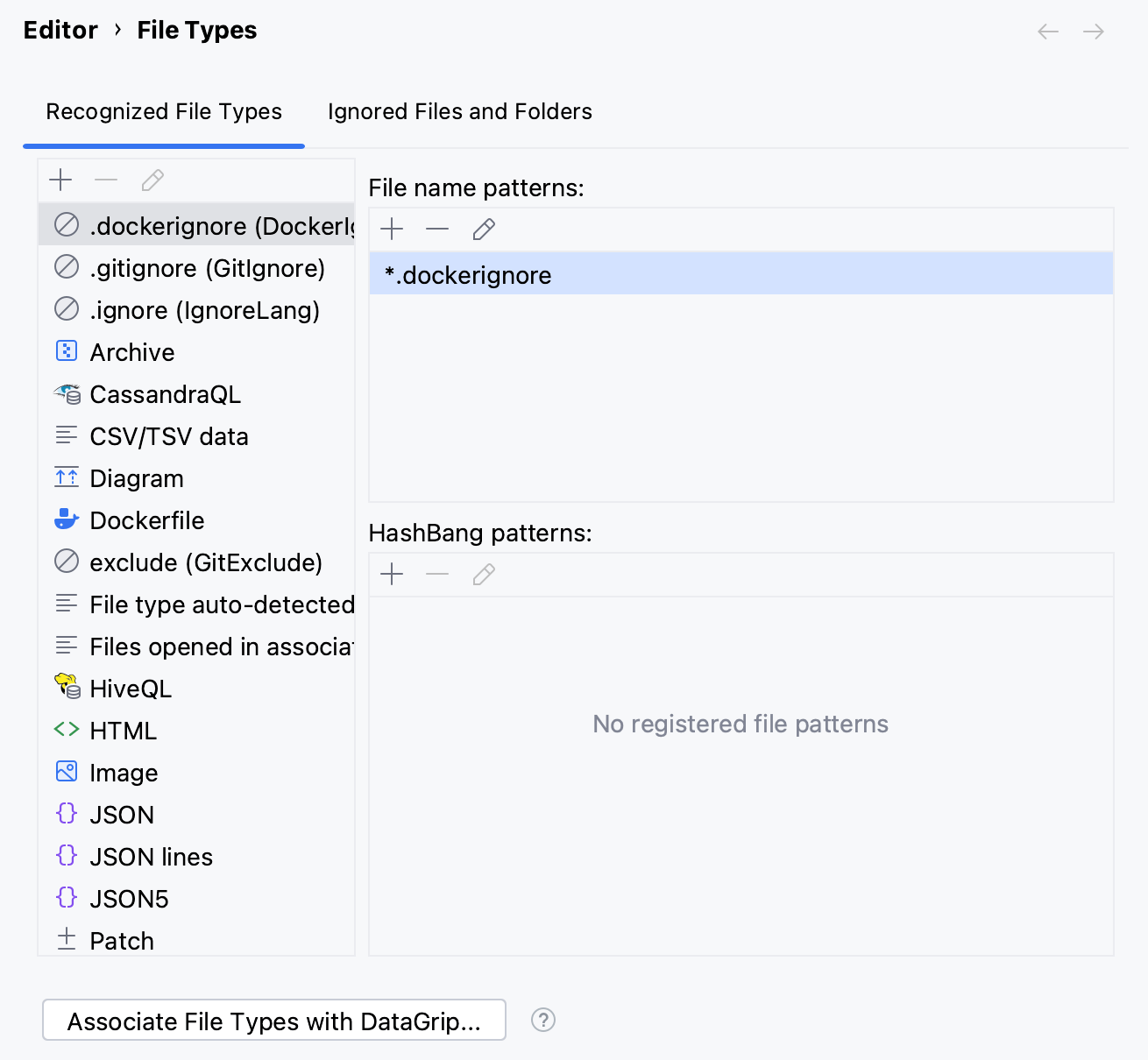
File type icons are predefined and cannot be customized through the UI.
Gutter icons
Icons in the editor gutter (a vertical area on the left side of the editor) let you perform code-related actions. Some gutter icons also provide additional information about the code elements.
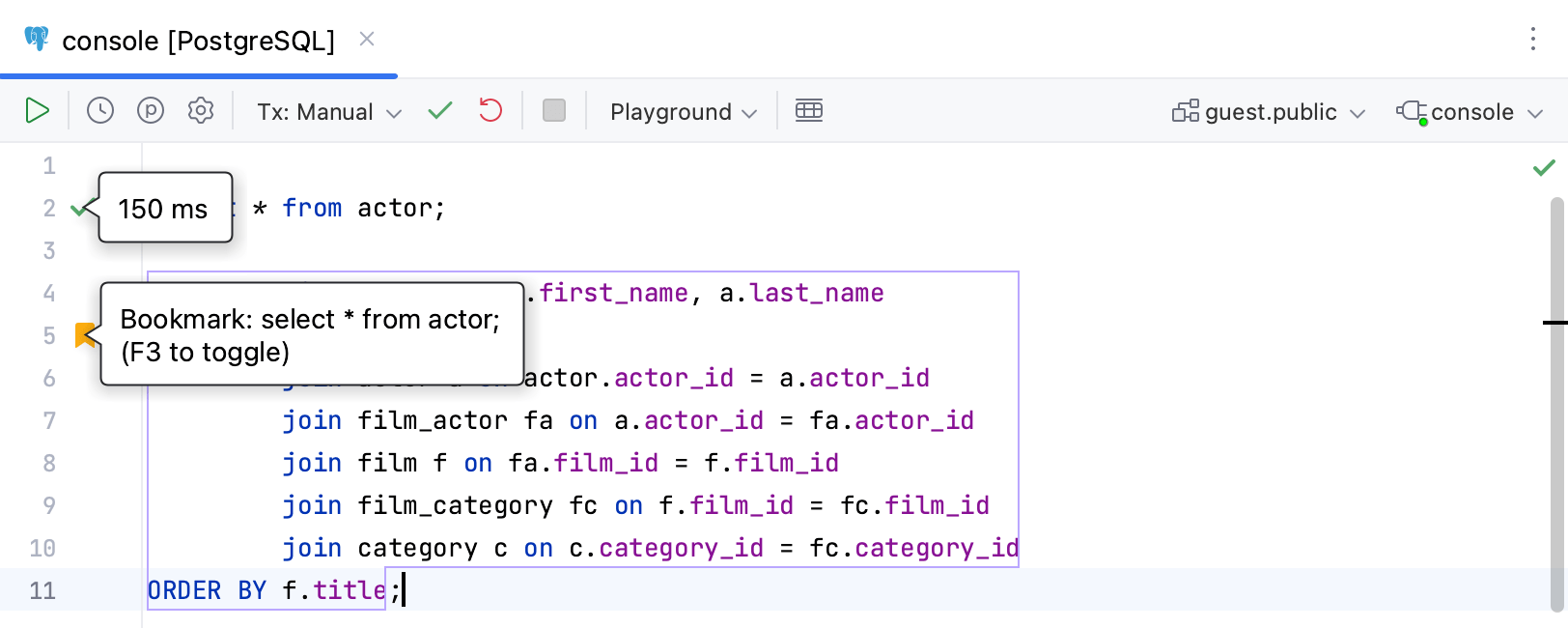
To view all available gutter icons and their meanings, open the the Settings dialog (Ctrl+Alt+S) , and go to . Gutter icons are predefined and cannot be customized through the UI, but you can choose which ones you want to display.
Bookmarks
Bookmarks let you quickly return to specific code lines, files, or folders whenever you need them. Icons for code line bookmarks are displayed in the gutter, next to the line numbers.
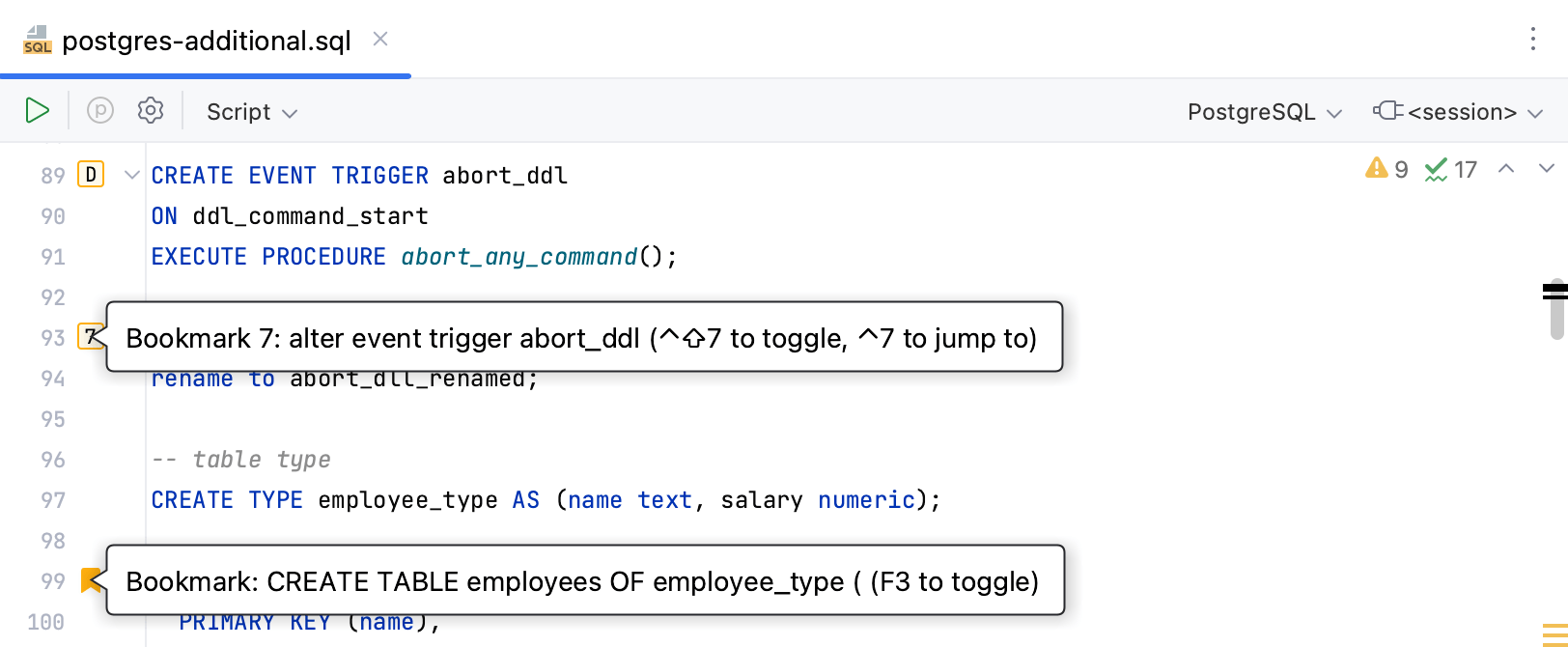
File and folder bookmarks do not have icons. To find bookmarked files and folders, go to .
There are two types of bookmarks: anonymous  and mnemonic (with letters
  or numbers
  ). To learn how to create different types of bookmarks, refer to Add bookmarks.
Change markers (VCS)
Change markers let you quickly identify which code lines have been modified since the last commit. They are displayed on the right side of the gutter and are color-coded. If you click a change marker, the IDE opens a popup with icons that represent VCS-related actions, such as committing a change or rolling it back.
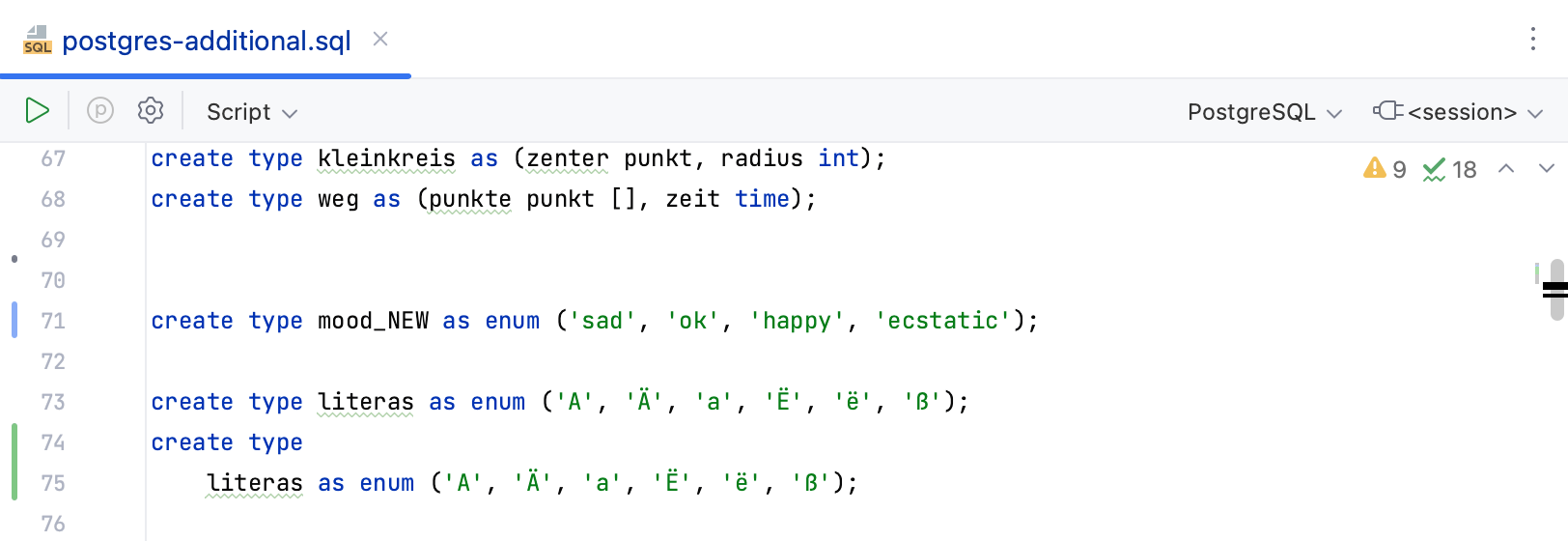
Each color represents a different type of change. To view all change marker colors and their meanings, open the Settings dialog (Ctrl+Alt+S) , and go to . To learn how to customize change marker colors, refer to Version control in the editor gutter.