Support and assistance
Access online documentation from the IDE
The most important source of information about DataGrip is this online help. To access it from DataGrip, do one of the following:
In the main menu, go to .
Press F1.
Click
 in a dialog or a tool window.
Access documentation offline
If you do not have internet access to view the online help, you can use the DataGrip Help plugin, which serves the help pages via the built-in web server for offline use.
Ask AI Assistant
If you have the AI Assistant plugin installed, you can ask questions about the IDE right in the chat.
Open the AI Assistant chat by clicking
 AI Chat on the right toolbar.
Type the
/docscommand and then type your question. If applicable, AI Assistant will provide a link to the corresponding setting or documentation page.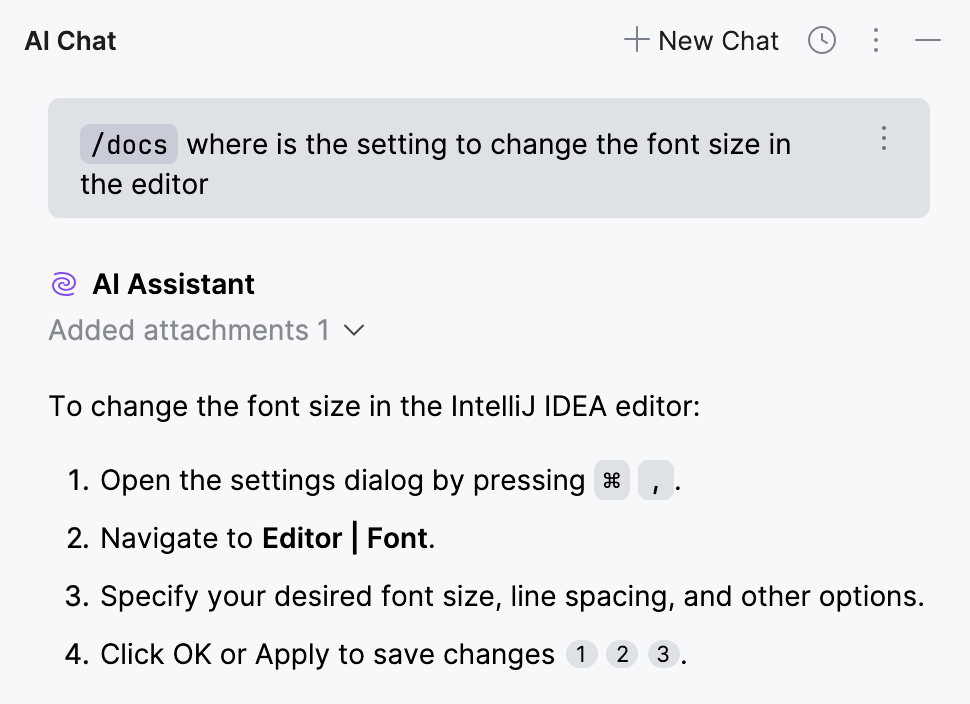
Learn more from Start a new chat (AI Assistant documentation).
Contact support
If you can't find the information you need in the online help, you can browse the DataGrip Knowledge Base. If it doesn't help either, contact the JetBrains support team.
Browse the DataGrip Knowledge Base.
In the main menu, go to to create a direct request for the support team.
Share feedback
You can use the feedback form to tell us what you like or don't like about JetBrains products.
In the main menu, go to .
Report bugs
Report an issue in Youtrack
Click .
Describe your problem and provide a brief summary in the Description and Summary fields respectively.
If it is possible, attach some troubleshooting materials.
Click Create.
Submit a request in the JetBrains Support Center
Open the request form by doing one of the following:
Click .
The request form will contain prefilled fields about your product and OS.
Go to the Submit a request page.
Fill in the Submit a request form.
If it is possible, attach some troubleshooting materials.
Click Submit.
Tweet us about your problem
Mention @datagrip in your message on Twitter and describe your problem. We will reach out to you.
Write to the DataGrip team
Email our team at datagrip@jetbrains.com. Describe your problem, and attach all available materials that can speed up troubleshooting (code samples, screenshots, logs, animations, videos, and other materials).
Learn more
There are several ways to learn more about DataGrip:
The Productivity Guide displays a list of useful features with statistics and tips.
To open it, select from the main menu.
To discover new features, sort the list by group and note rarely used features in the same group as the ones you use more frequently. Click the feature to see its usage description.
Sources of information:
YouTrack: the JetBrains tracking system.
JetBrains Community Forum: the online community where you can learn new things and share your knowledge about JetBrains products.
JetBrains Knowledge Base: a knowledge base that is collected and published by the JetBrains support team.
Stack Overflow: a knowledge base with questions and answers on a wide range of topics in computer programming and software products.
Twitter: Follow us on Twitter to be aware of new features, releases, and tips. You can ask us for help on Twitter, just mention @datagrip in your message.
Keymap reference: The default keymap reference for Windows, Linux, and macOS in the PDF format. To view the built-in keymap reference, click .