IDE and Plugins
CodeCanvas lets you flexibly configure the IDE for user dev environments. IDEs are configured differently depending on the IDE type: JetBrains IDEs (like IntelliJ IDEA, PyCharm, WebStorm, and others) or VS Code-based IDEs (like VS Code and Cursor).
JetBrains IDEs
Set IDE version
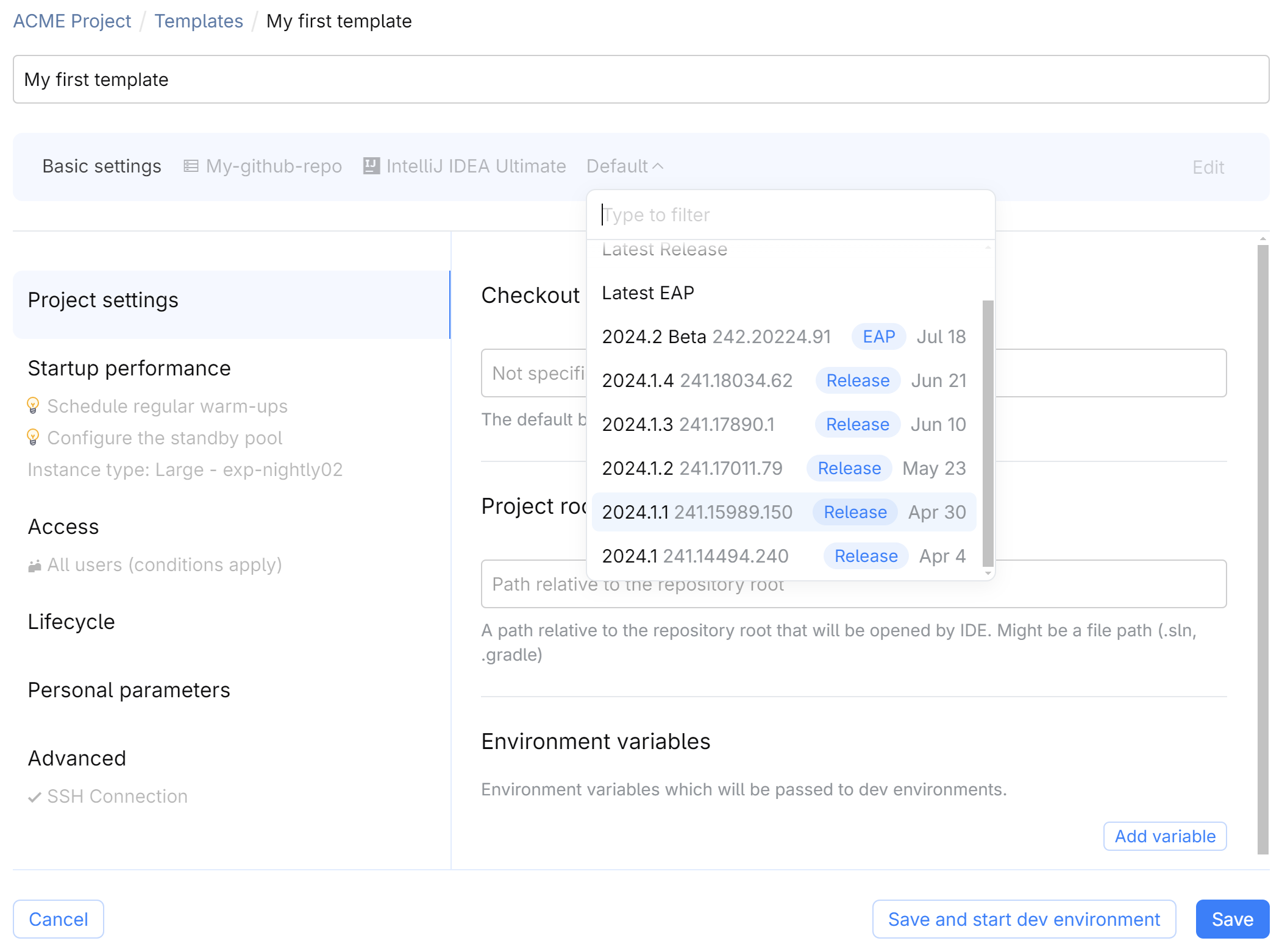
You can specify the IDE and its version when creating a dev environment template. If you specify Default as the IDE version, dev environments will use the version set by the system administrator. By default, the Default version means the latest release version. Learn more
Set VM options
In some cases, you might need to change the configuration of Java Virtual Machine (JVM) your IntelliJ-based IDE runs on. For example, increase the maximum memory heap size allocated for the IDE.
To configure VM options, use the Advanced | VM options section of the dev environment template. Specify one option per line. For example:
Set IDE settings
There are two types of settings in IntelliJ-based IDEs: project settings and personal settings.
Project settings
The .idea directory in the project directory contains project settings like the list of modules, run configurations, file encodings, and others. As this directory is stored in the source code, your project settings will be automatically applied to the IDE in a dev environment.
Personal settings
Personal IDE settings include the code style, inspections, live templates, and others. Personal settings are stored in the IDE configuration directory.
Namespace administrators can predefine personal settings for dev environments via a template as described in this topic.
Developers can override these predefined settings in a dev environment, e.g., using the Settings Sync or dotfiles features. Learn more
To predefine personal IDE settings in a template
Create a dev environment based on the same template as the one you want to configure.
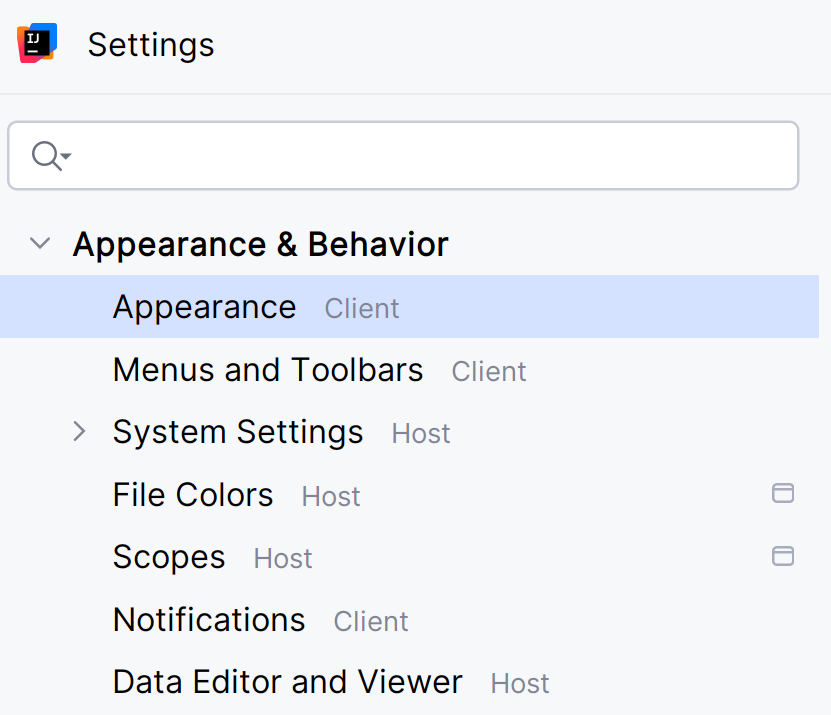
In the IDE, configure the settings you want to apply to dev environments. Note that when the IDE runs in a dev environment, its settings are split into two categories: Host (settings of the remote IDE) and Client (settings of the local client). Yours are the Host settings.
Keep the dev environment running and open the Advanced section of the dev environment template.
Go to IDE settings and select the running dev environment from the list.
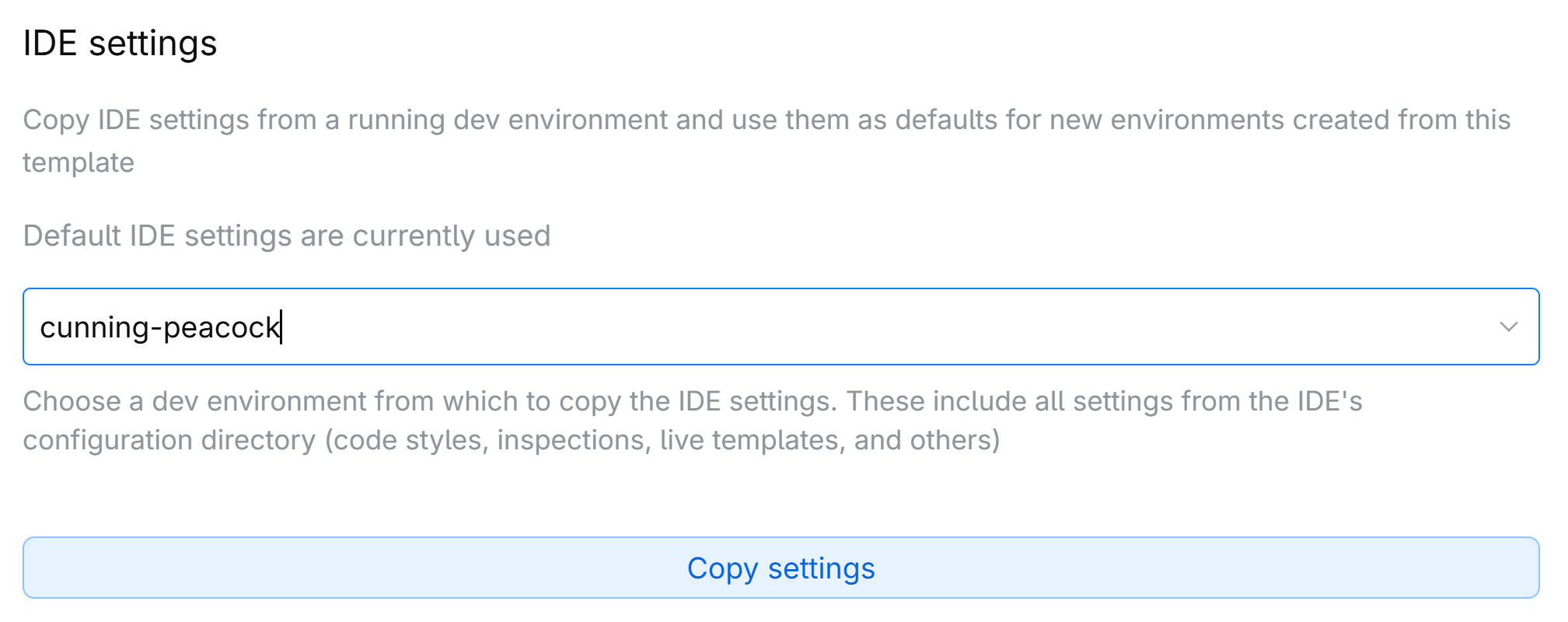
Click Copy settings, then Save. After that, the settings will be applied to all new dev environments created from this template.
Install IDE plugins
You can pre-install plugins in IntelliJ-based IDEs (like IntelliJ IDEA, PyCharm, WebStorm, and others) using the Project settings | IDE plugins section of the dev environment template. CodeCanvas downloads and installs plugins from JetBrains Marketplace or custom sources.
Plugin and IDE compatibility
CodeCanvas always installs the latest version of the plugin compatible with the IDE version. If the plugin is not compatible with the IDE (e.g., the plugin is not yet updated to support the latest IDE version), CodeCanvas won't install the plugin.
Plugin location
IDE plugins are stored on a dev environment in /mnt/jetbrains/system/ide-plugins (outside the IDE installation directory). If you need to install a plugin that is not available in JetBrains Marketplace, you can upload it to this directory using the On initialization lifecycle script.
Install plugins
In JetBrains Marketplace, find the plugin you need.
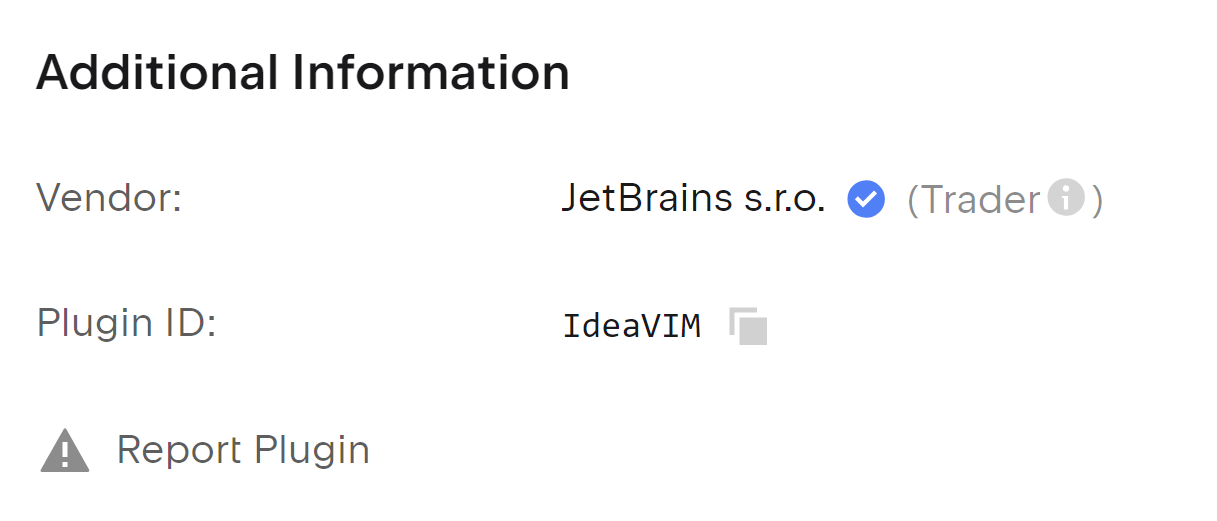
On the plugin page, go to the Additional Information section and copy the plugin ID.
In CodeCanvas, open the Project settings section of the dev environment template.
In the IDE plugins section, specify the plugin ID. To install multiple plugins, use the Add plugin button.
Install plugins from custom repositories
CodeCanvas can install plugins from custom sources (e.g., a private plugin repository) in addition to JetBrains Marketplace. When creating a dev environment, CodeCanvas searches for the specified plugins in all available sources, including JetBrains Marketplace and the custom repositories configured by the system administrator. If the same plugin is found in multiple sources, CodeCanvas always downloads the newest available version.
To add a custom plugin source
Select Administration in the header navigation, then in the sidebar menu, select IDE Plugin Sources.
Click New source and specify the source URL.
(Optional) Install plugins via lifecycle script
Alternatively, you can install plugins using the CodeCanvas's system tool – remote-dev-server.sh. To do this, create a script that installs the plugins, e.g.:
Then, use it as the On initialization script in the template's Lifecycle section.
Start run configuration on IDE startup
You can use the canvas tool (provided in each dev environment) to start a run configuration automatically when the IDE starts. This might be useful for speeding up the development process. For example, you can start a run configuration that runs tests or starts a server each time a developer opens the dev environment.
In CodeCanvas, open the Lifecycle section of the dev environment template.
Turn on the On every activation script and add the following script content:
#!/bin/bash # Start the run configuration canvas run-configuration <project-name> <run-configuration-name>For example, to start the Test run configuration in the MyProject project:
#!/bin/bash # Start the run configuration canvas run-configuration MyProject Test
VS Code-based IDEs
Set IDE version
You can't lock or enforce a specific IDE version in the template.
The version of the VS Code/Cursor server that runs in the dev environment always matches the version of VS Code/Cursor installed on the developer's local machine. When the developer connects to the dev environment, their local VS Code/Cursor downloads and installs the matching server version automatically.
Install IDE extensions
You can pre-install extensions in VS Code or Cursor using the Project settings | IDE extensions section of the dev environment template.
Extensions and compatibility
If a template includes VS Code/Cursor extensions, CodeCanvas installs them into a dev environment for the latest available VS Code/Cursor version.
If a developer uses an older local VS Code/Cursor version, the extensions might not be compatible and may not work as expected. To avoid these issues, we recommend that developers always use the latest VS Code/Cursor version.
Install extensions
In Visual Studio Marketplace, find the extension you need.
On the extension page, go to the More Info section and copy the extension unique identifier.
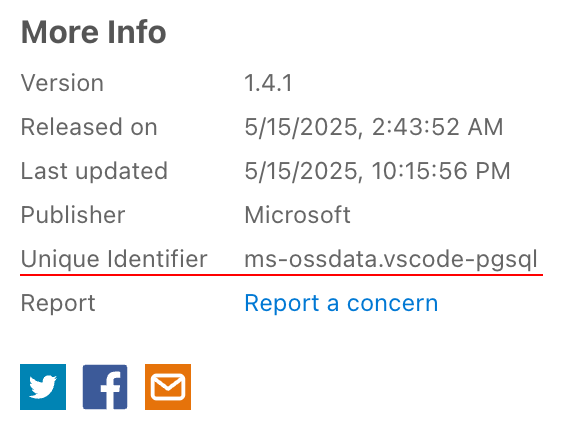
In CodeCanvas, open the Project settings section of the dev environment template.
In the IDE extensions section, specify the identifier. To install multiple extensions, use the Add extension button.