SARIF Viewer
The SARIF Viewer is available out of the box in CLion. You can import SARIF reports from external static analysis tools – such as Parasoft C/C++test, Clang Static Analyzer, or in-house checkers – and CLion will display the results in the tool window.
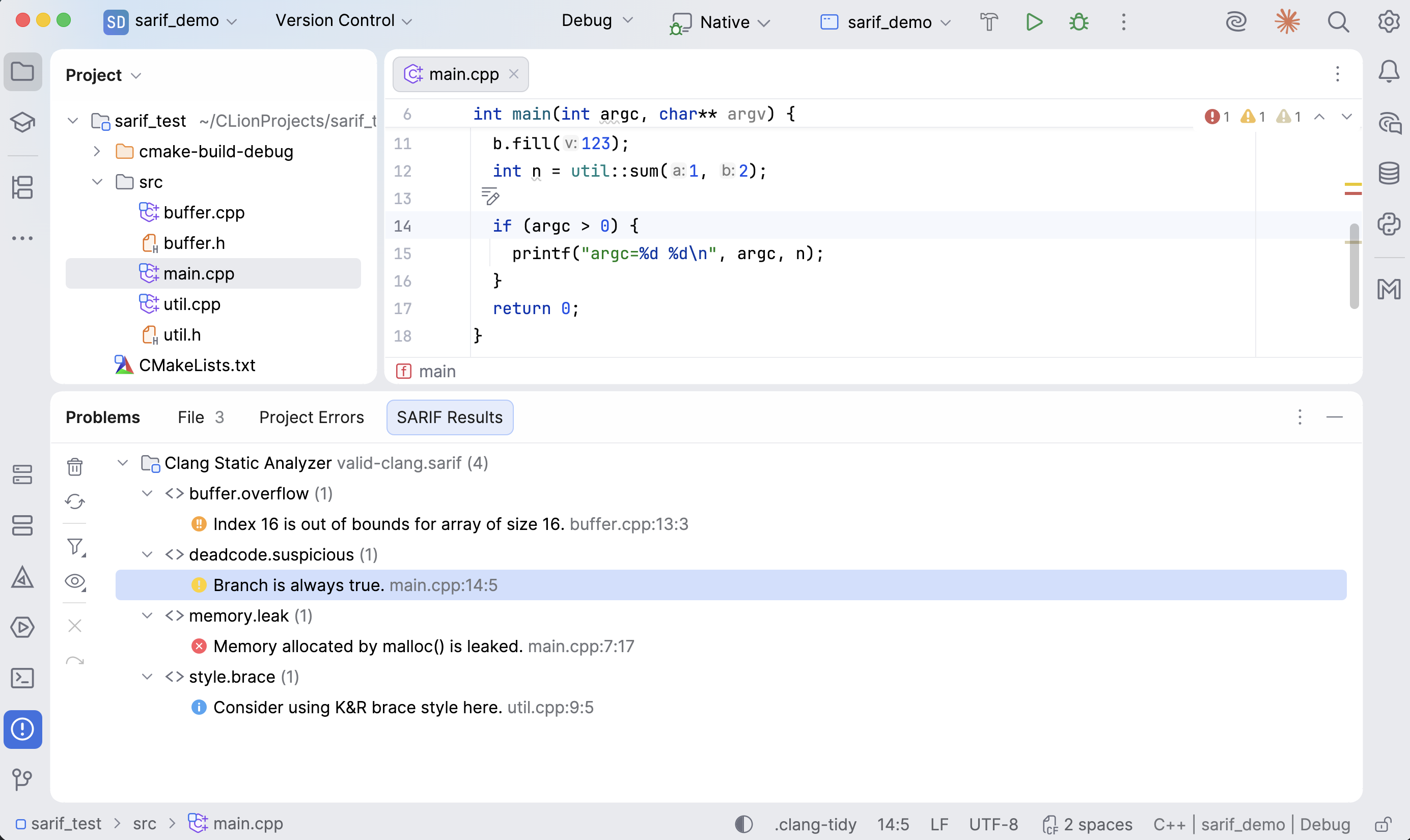
Supported input
SARIF Viewer supports SARIF 2.1.0 reports in JSON format. The file name must end with .sarif or with .json and contain .sarif, for example report.sarif.json.
Source locations are resolved from file paths and file:// URIs in the report. Relative paths are resolved against the directory that contains the SARIF report. Navigation and editor highlighting are available only when the resolved file is inside the current project.
Reports that do not match the SARIF 2.1.0 schema are not imported. CLion shows the validation error in the notification group.
Import a SARIF report
On the main toolbar, select and then one or more supported SARIF report files.
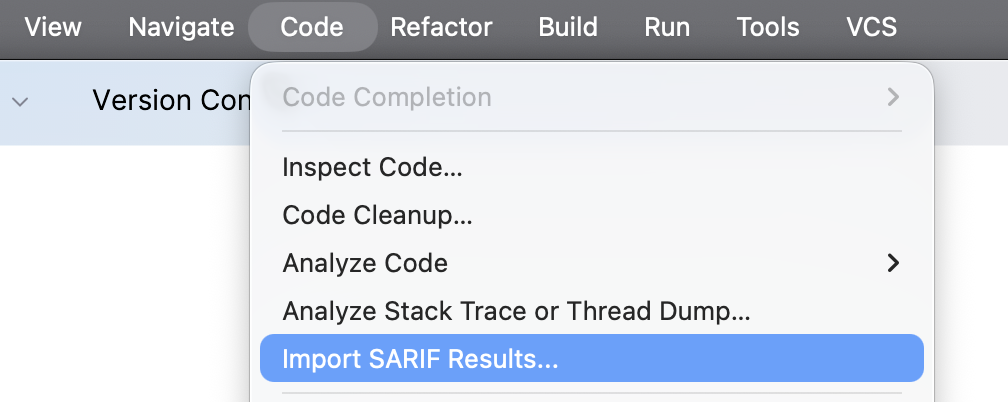
You can also drag a SARIF file onto the tab, or open a SARIF file from the tool window. Opening a SARIF file imports it into the tab instead of opening it as a separate editor window.
Imported report paths are stored in .idea/sarifViewer.xml and reloaded when the project opens. If a stored report path no longer points to a readable file, CLion skips it and shows a notification.
Explore SARIF results
Open the tool window and switch to the tab. Imported reports and rules show the number of visible results next to their names.
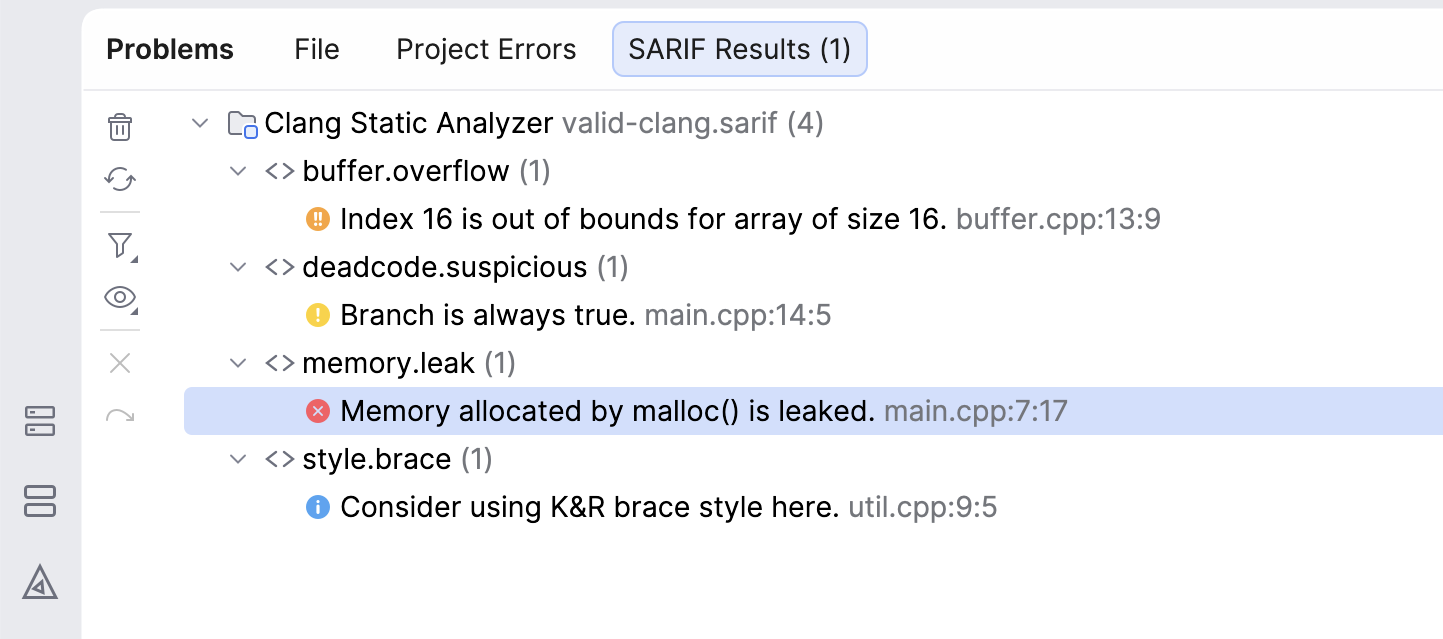
By default, results are grouped by tool and then by rule. Each result shows the message and the source location. The icon corresponds to the SARIF severity level, from an error to a weak warning.
If a resolved local file no longer exists, the result is marked with a warning icon and cannot be opened in the editor. If the referenced path cannot be resolved or points outside the project, the result remains in the tree but cannot be opened. If the file exists but the reported line cannot be highlighted, the result is marked as Not found.
Start typing in the tool window to find result messages, rule IDs, tool names, severities, or paths.
Code flows
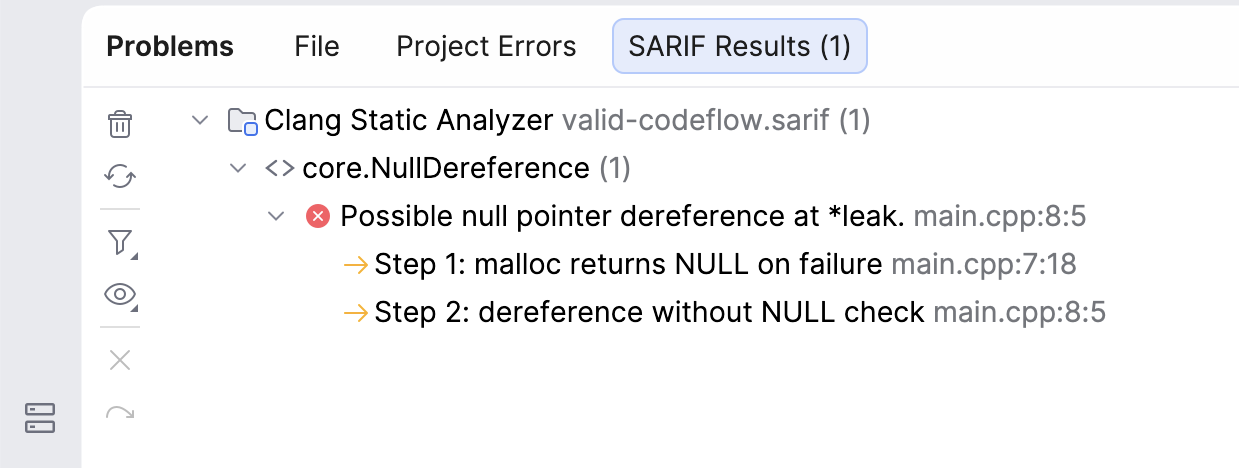
If a result contains SARIF codeFlows, expand the result to inspect the flow steps. A single unnamed flow is shown as a flat list of steps.
Named flows and thread flows use their SARIF messages; unnamed nodes use Code flow N and Thread N labels.
Navigate to source
Double-click a result or flow step, press Enter, or select Jump to Source from the context menu. CLion opens the referenced file and moves the caret to the reported position.
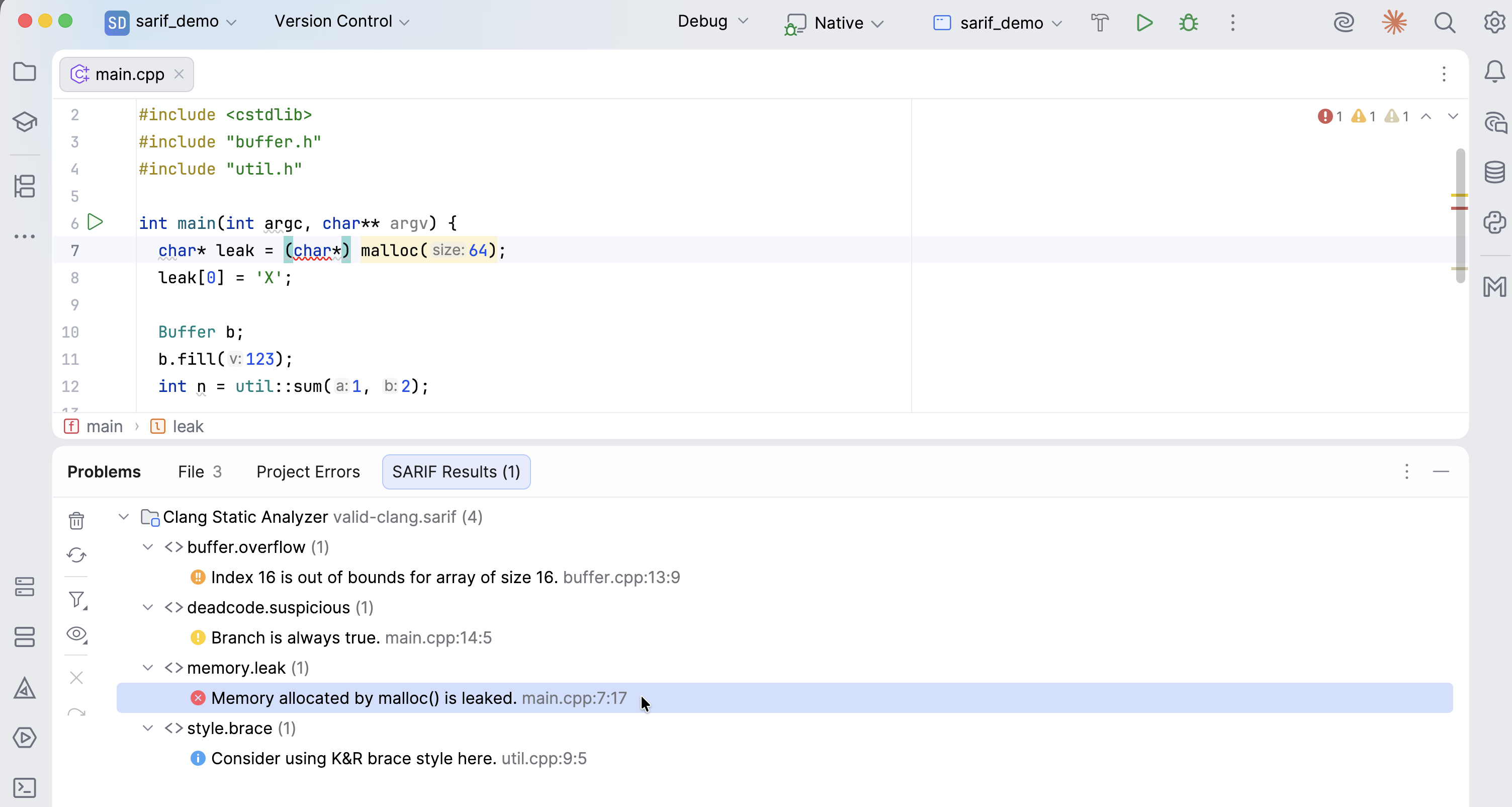
The editor highlights the corresponding code element when possible; otherwise, it highlights the non-blank part of the line.
Filter and group results
Use the toolbar in the tab to change the visible results.
Clear All: Removes all imported reports and editor highlights from the project.
Re-Import: Reads the imported report files from disk again. Use this action after updating a .sarif report.
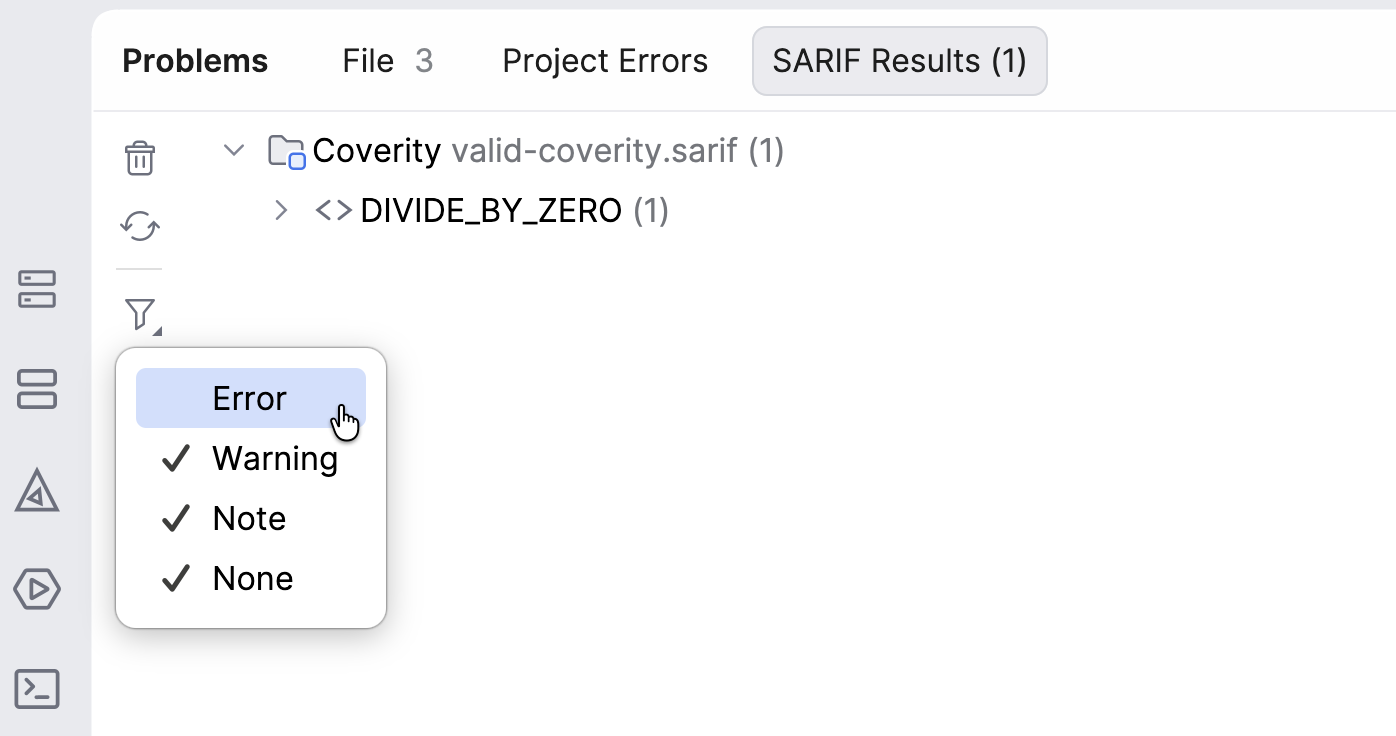
Filter by Severity: Shows or hide Error, Warning, Note, and None results.
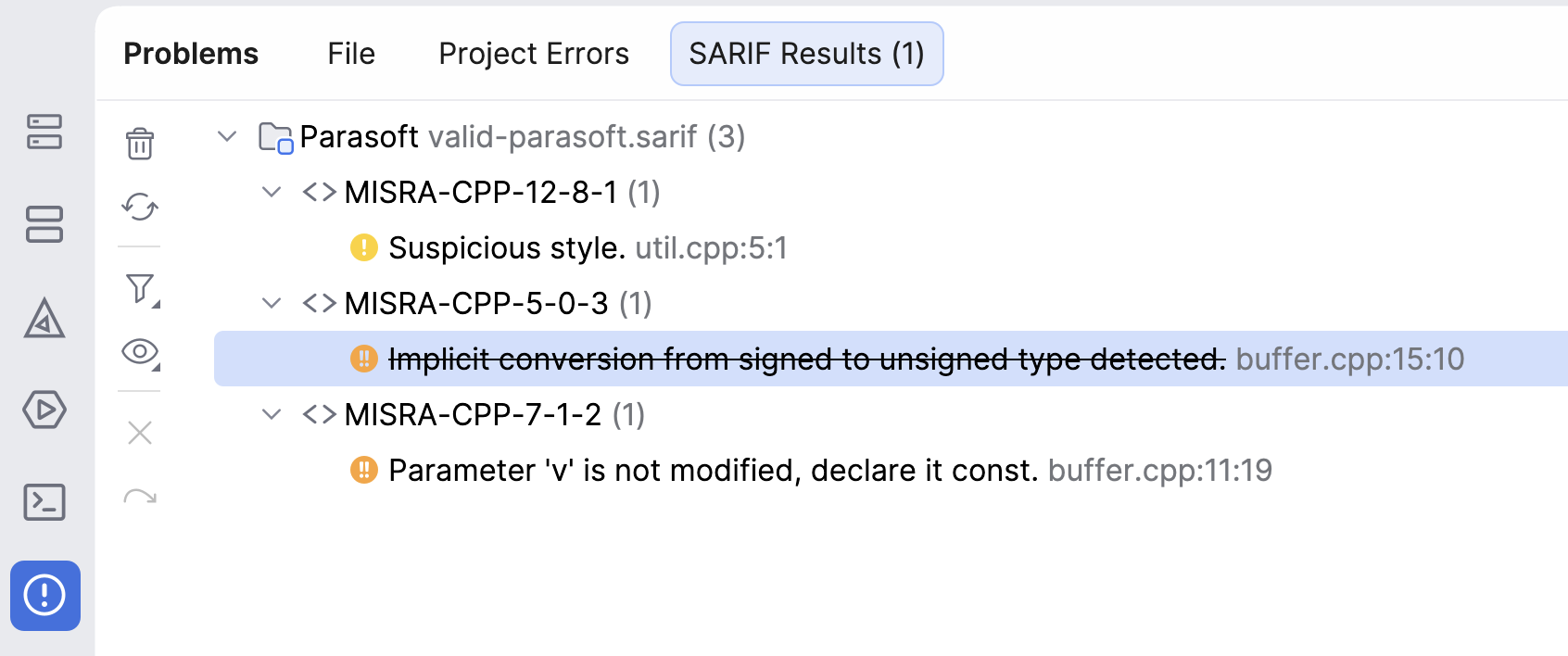
View Options | Show Suppressed: Shows suppressed results with strikethrough text.
View Options | Group By: Groups results by Tool, Rule, or File.
The result context menu also provides Jump to Source, Suppress, Unsuppress, and Copy Problem Description.
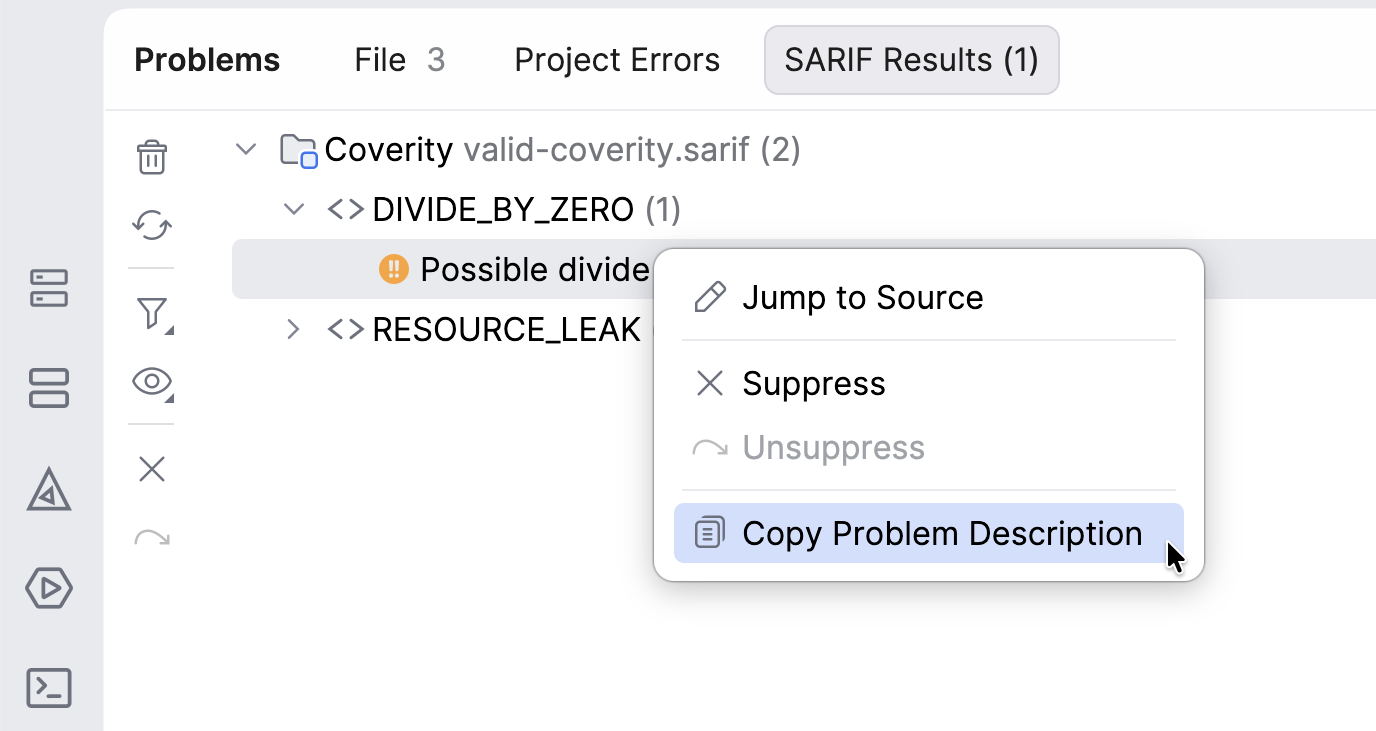
Copying a problem description puts a single-line summary on the clipboard in the following format: [<tool>] <ruleId>: <message> (<file>:<line>).
Suppressions
Suppressions hide results from the tree and remove their editor highlights. Turn on to display suppressed results.
The Suppress action is available only for tools that have a supported source-code comment format:
Parasoft C/C++test, Jtest, or dotTEST:
// parasoft-suppress <ruleId> "Suppressed via SARIF Viewer"Coverity:
// coverity[<ruleId>] Suppressed via SARIF Viewer
When you suppress a supported result, CLion stores the suppression in .idea/sarifViewer.xml and inserts the comment above the reported line. Unsuppress removes the stored suppression and deletes the matching comment that SARIF Viewer created.
For results from other tools, Suppress is disabled. SARIF results that are already marked as suppressed in the report are also hidden unless Show Suppressed is enabled.
Limitations
SARIF Viewer supports SARIF 2.1.0 JSON reports only.
Compressed SARIF files, such as .sarif.gz or .sarif.zip, are not supported.
HTTP and other non-file URI schemes are not resolved to source files.
Files outside the current project are shown in the results tree but cannot be opened from SARIF Viewer.
Reports are not reloaded automatically when they change on disk. Use Re-Import.
The tab does not provide an export action.
Source-code suppressions are available only for Parasoft and Coverity results.