Create SSH configurations
In CLion, you can save the remote server SSH connection parameters as a dedicated SSH configuration. The created configuration can be then used for configuring remote interpreters, connecting to SFTP deployment servers, or launching SSH sessions.
In the Settings dialog (Ctrl+Alt+S) , go to .
In the left pane, click
 .
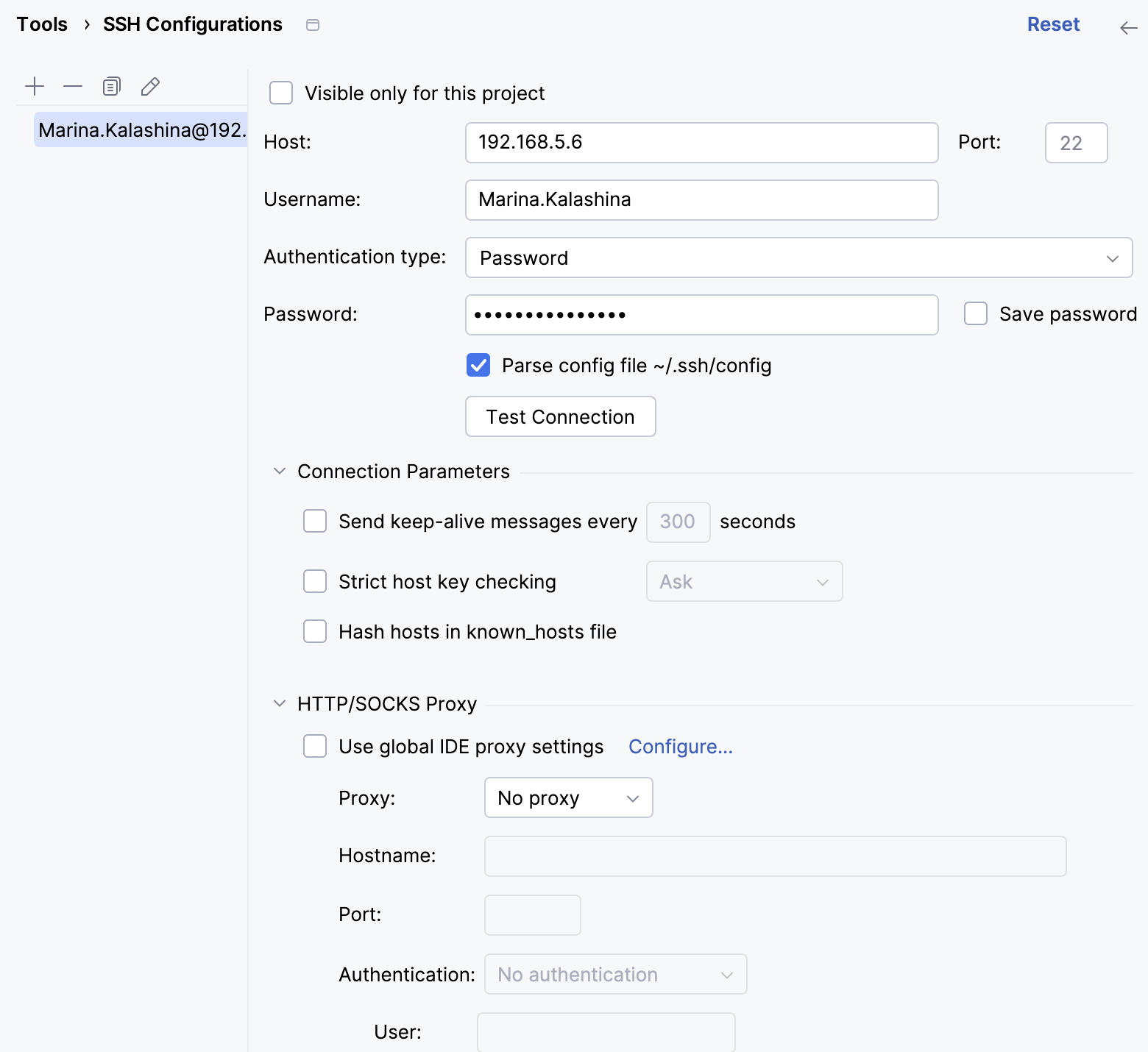
Use the Visible only for this project checkbox to enable reuse of this server access configuration in other projects.
Select the checkbox to restrict the use of the SSH configuration to the current project. Such SSH configuration cannot be reused outside the current project. It does not appear in the list of available configurations in other projects.
Project-specific configurations are stored in the .idea directory. Review these files before sharing them through version control. Server configurations available to all projects are stored in the IDE settings.
When the checkbox is cleared, the SSH configuration is visible in all CLion projects. Its settings can be reused across several projects.
In the Host, Username, and Port fields, specify the connection parameters.
Choose the way to authenticate to the server. Do one of the following:
Password: Access the host with a password. To save the password in CLion, select the Save password checkbox.
Key pair (OpenSSH or PuTTY): Use SSH authentication with a key pair. To apply this authentication method, you must have a private key on the client machine and a public key on the remote server. CLion supports private keys that are generated with the OpenSSH utility.
Specify the path to the file where your private key is stored and type the passphrase (if any) in the corresponding fields. To have CLion remember the passphrase, select the Save passphrase checkbox.
OpenSSH config and authentication agent: Use a credentials helper application that manages your SSH keys, such as ssh-agent or Pageant (Windows only).
For more information about working with SSH keys, refer to the Generating a new SSH key and adding it to the ssh-agent tutorial.
Click the Test Connection button to make sure that the settings are correct and CLion can connect to the target server.
Supported OpenSSH directives
When you use OpenSSH config and authentication agent, CLion reads your SSH configuration files. Choose how to read them in .
The default OpenSSH option requires OpenSSH on your computer and runs ssh -G to read the configuration. CLion then applies the settings supported by its SSH implementation, not every OpenSSH feature.
The Legacy option uses the parser built into CLion, which supports the following directives: