Custom compilers
If the compiler you are working with is not supported by default in CLion, switch to the custom compiler option. You can define any compiler not yet known to the IDE, even a rare compiler which may not be available publicly. This option is especially useful for embedded development.
Prepare the compiler description
In order to work with a custom compiler in CLion, you need to create a configuration file with its description in YAML format.
We prepared a few examples to help you start. You can use them as-is or as a template for creating your own configs.
The custom compiler config format includes a mandatory compilers section with a list of records. Every record has a description of a compiler and several tags to identify compiler invocation.
The first matching record is used to provide compiler information for CLion language engine, including a list of system-defined macros, target platform name for Clangd, and a list of system header paths.
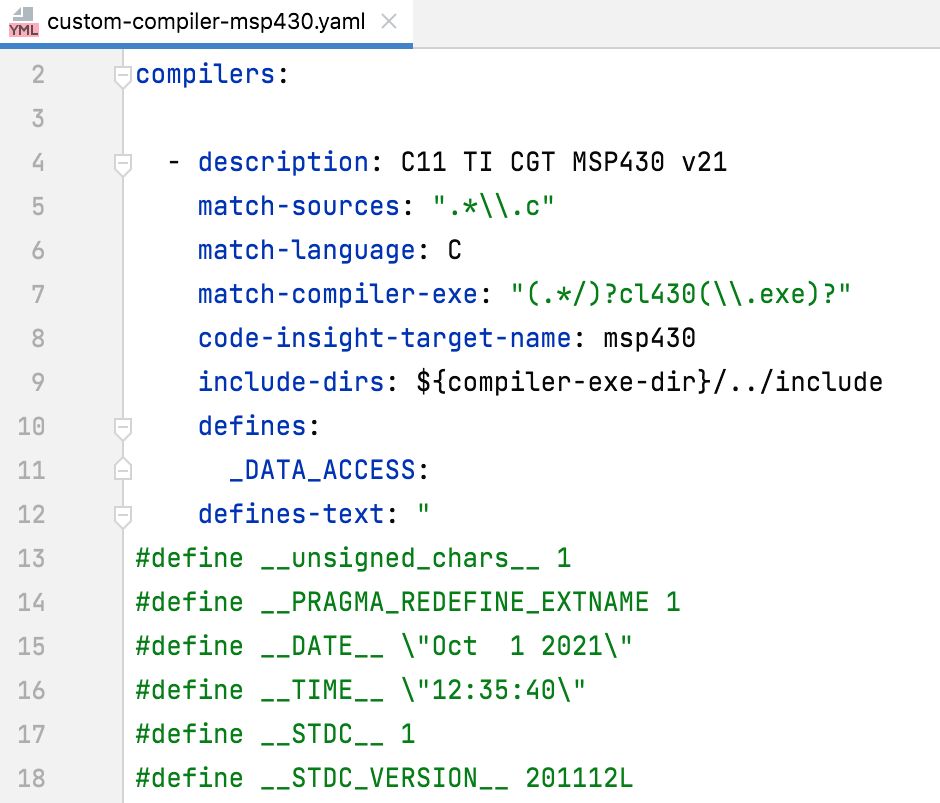
descriptioncompiler name (mandatory parameter)
match-sourcesregular expression for source file names
match-compiler-exeregular expression for the compiler executable name, required to use a compiler with such name from any location (mandatory parameter)
match-argscompiler command line keys
match-languagedetected language, C or CPP (required for CMake only)
code-insight-target-nametarget platform name for Clangd
include-dirscompiler-specific header search paths; the variables allowed in this setting are
${compiler-exe},${compiler-exe-dir},${user-home}, and${project-path}.definescompiler-specific macros in the
'name: value'YAML format (thevaluepart can be empty)defines-textcompiler-specific macros in the
'#define name value'C format (thevaluepart can be empty)
Specify the .yaml config in toolchain settings
Go to .
Set the Use custom compiler config (*.yaml) checkbox and provide the path:

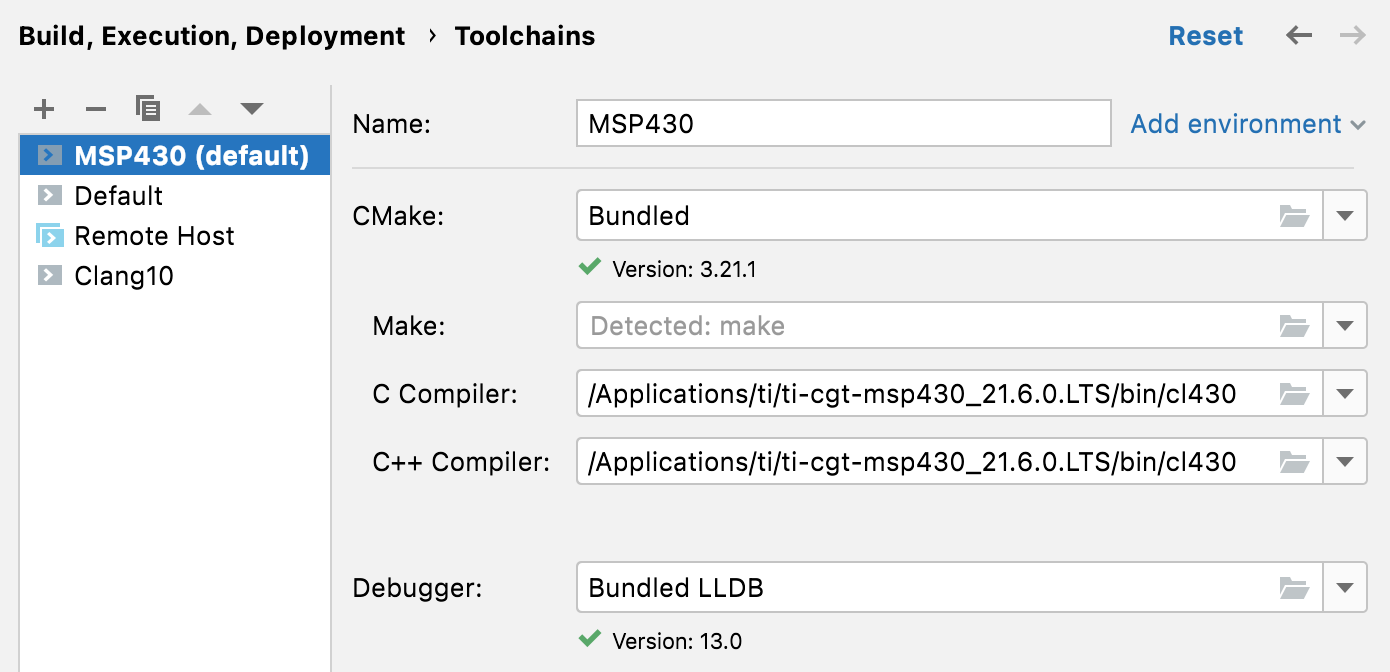
Switch to the Toolchains dialog and select the toolchain to be edited or create a new one.
Change the paths in the C Compiler and C++ Compiler fields to your custom compiler:
Alternatively, you can pass the custom compiler manually in your Makefile or via the CMake profile settings. In this case, the custom compiler will be used for the current project only.
Check the custom compiler
When a custom compiler is configured successfully, your code is resolved correctly and all code assistance actions work as expected. To double-check that your custom compiler is set up properly, do the following:
Load your CMake, Makefile, or compilation database project.
Open any of the C/C++ project files in the editor.
Call from the main menu.
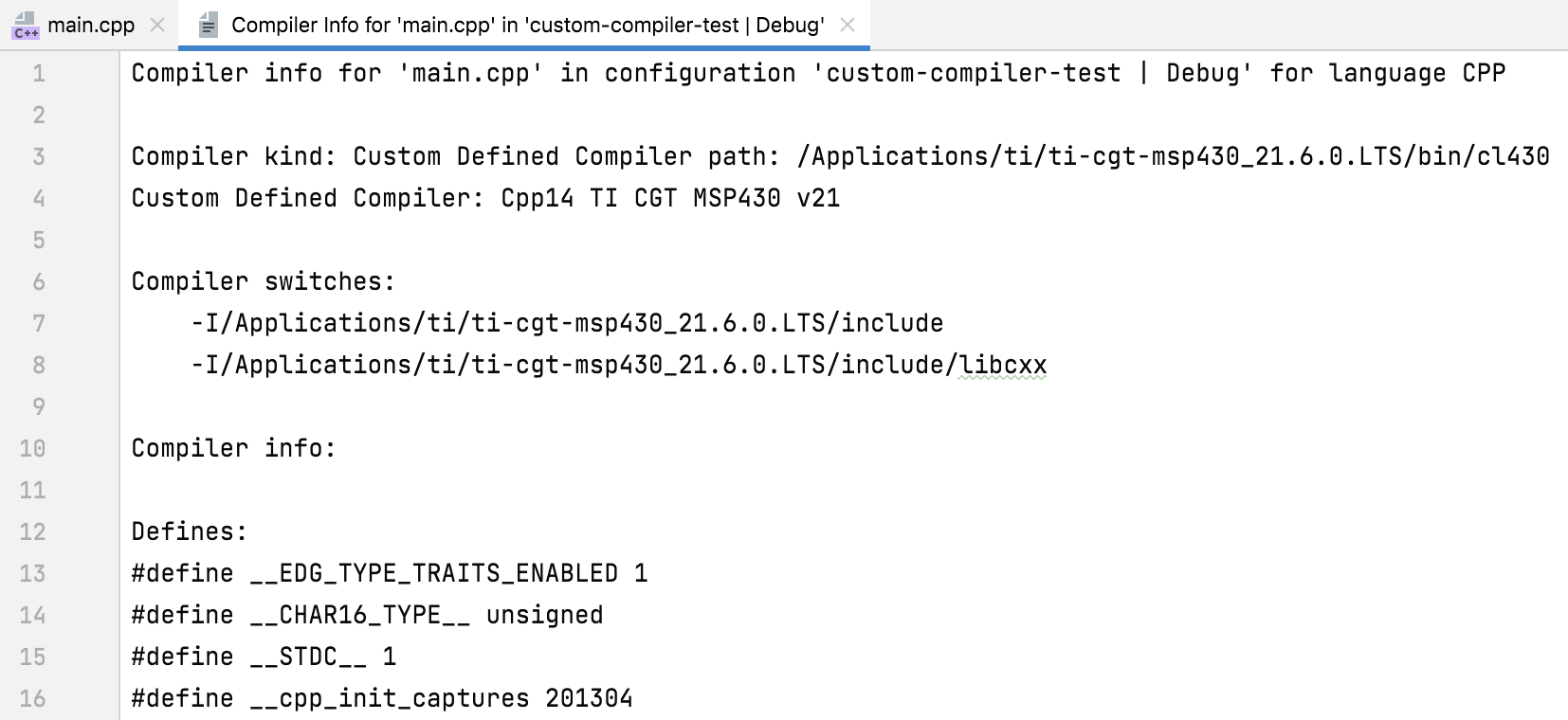
If everything is okay, you will see the compiler type and name as defined in your config file, as well as the list of compiler predefined macros:
Edit the .yaml config in CLion
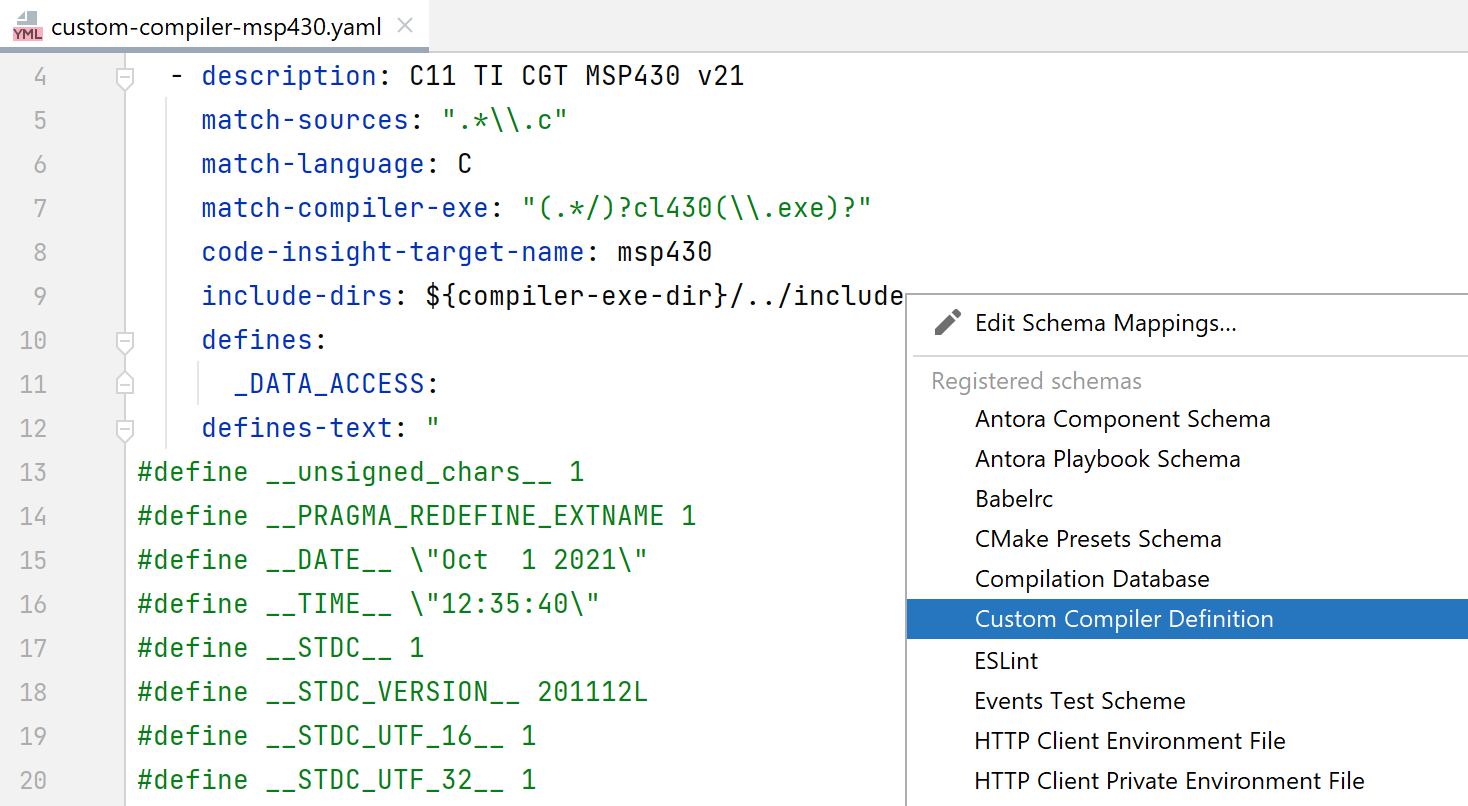
CLion supports the YAML language by default (see CLion features in different languages). To get schema-specific verification, code completion, quick documentation, and other actions, switch to the Custom Compiler Definition schema.
Open the .yaml config, click the schema switcher on the IDE's status bar at the bottom, and select Custom Compiler Definition: