What's New in DataGrip 2025.2
Introspection by levels for MS SQL Server and PostgreSQL, the ability to attach database objects for AI chat context, editable SELECT query results, and more.
AI Assistant features
To use the features described in this section, you may need to install the AI Assistant plugin. Once the plugin is installed, the features will be enabled by default in your IDE.
Ability to attach database objects to the AI chat
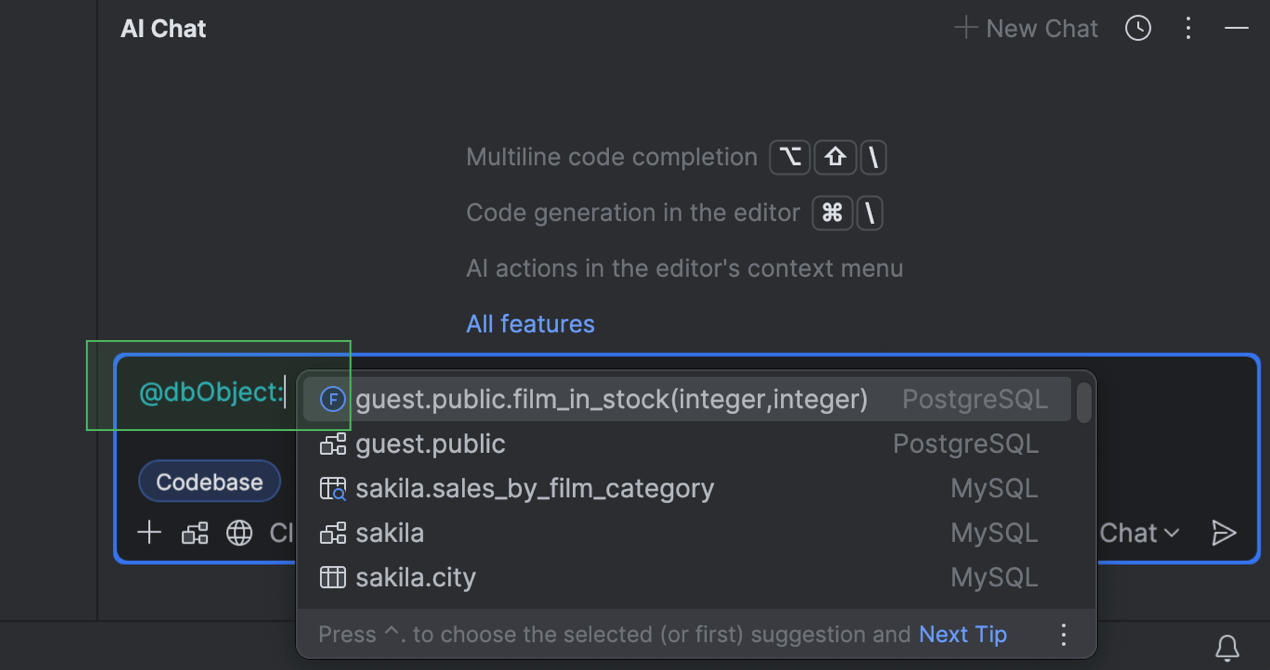
The database context you provide to the AI chat can now be more specific. Previously, only the whole schema could be attached. Now, you can attach the database object you need to work with – for example, a table or a view. This can be particularly useful when you’re working with larger schemas.
To attach a database object, type @ or # in the input
field, select or type dbObject:, and then select the object you want to
attach from the list.
Cloud-based code completion
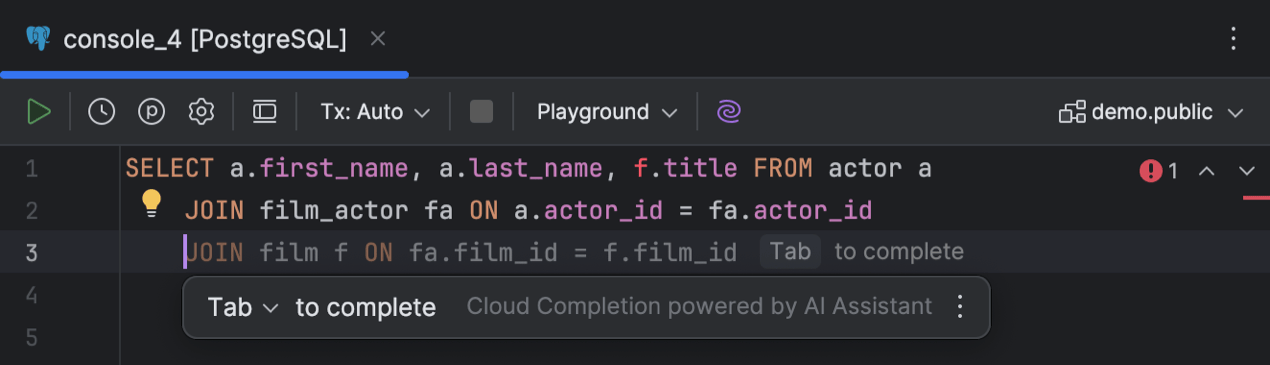
DataGrip now supports cloud-based code completion. It uses cloud resources to offer more precise code completion, leveraging greater computational power than local resources can provide. This feature allows the IDE to autocomplete single lines, blocks of code, and even entire scripts in real time based on the available context. The generated SQL is similar to how you would write your statements, matching your style and naming conventions.
With cloud-based code completion, DataGrip shows suggestions in the editor as you type, and you can also invoke them by pressing Alt+Shift+\. To disable this feature, go to Settings | Editor | General | Inline Completion, and then deselect the Enable cloud completion suggestions checkbox.
Connectivity
Introspection by levels PostgreSQL Microsoft SQL Server
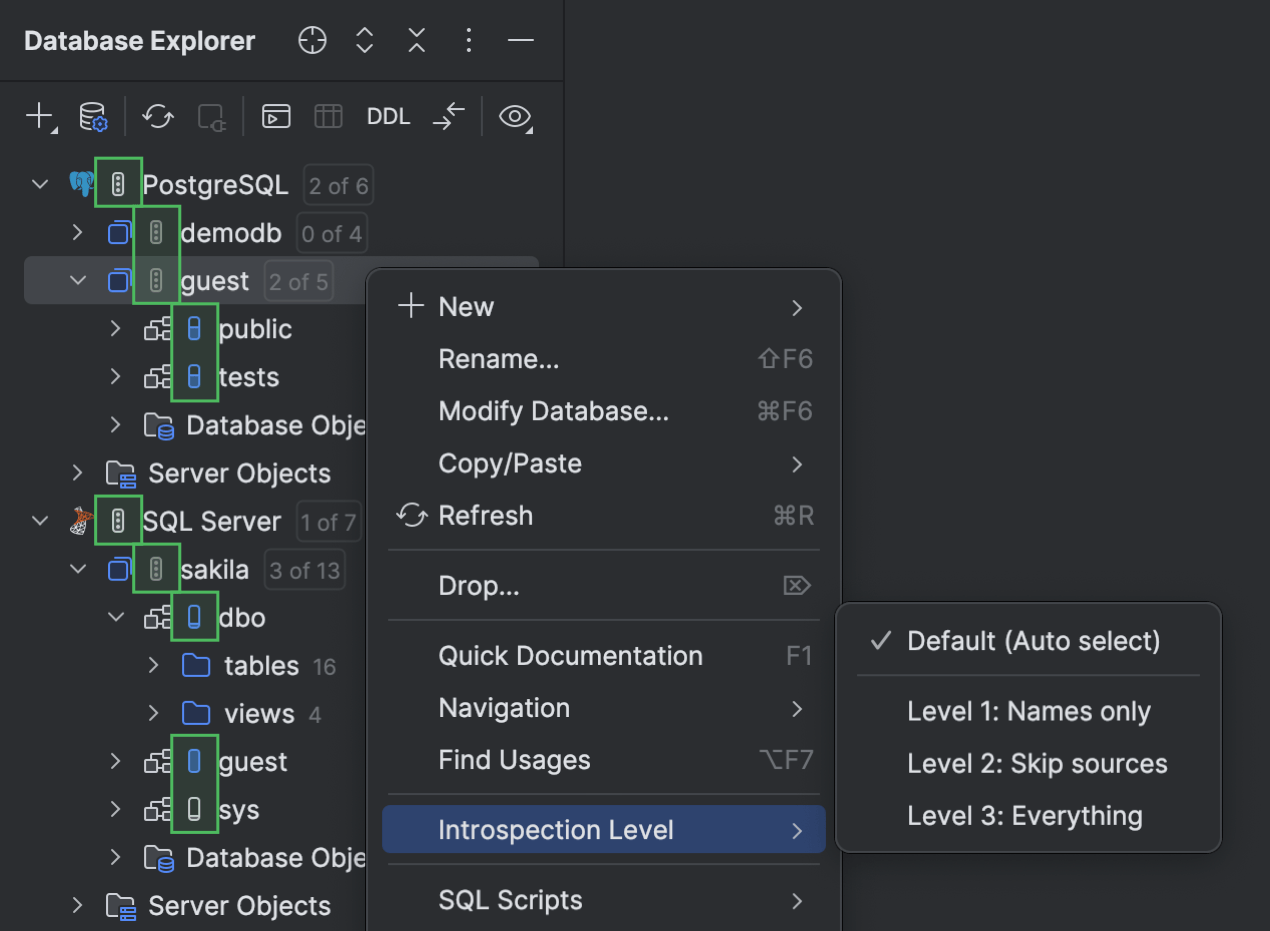
We are expanding the implementation of introspection by levels to more databases – this time, PostgreSQL and Microsoft SQL Server! DataGrip now automatically adjusts the amount of metadata loaded for these databases based on your database size. This means that for a larger database, you don’t have to wait till all the metadata is loaded to start working with it.
Smart refresh PostgreSQL
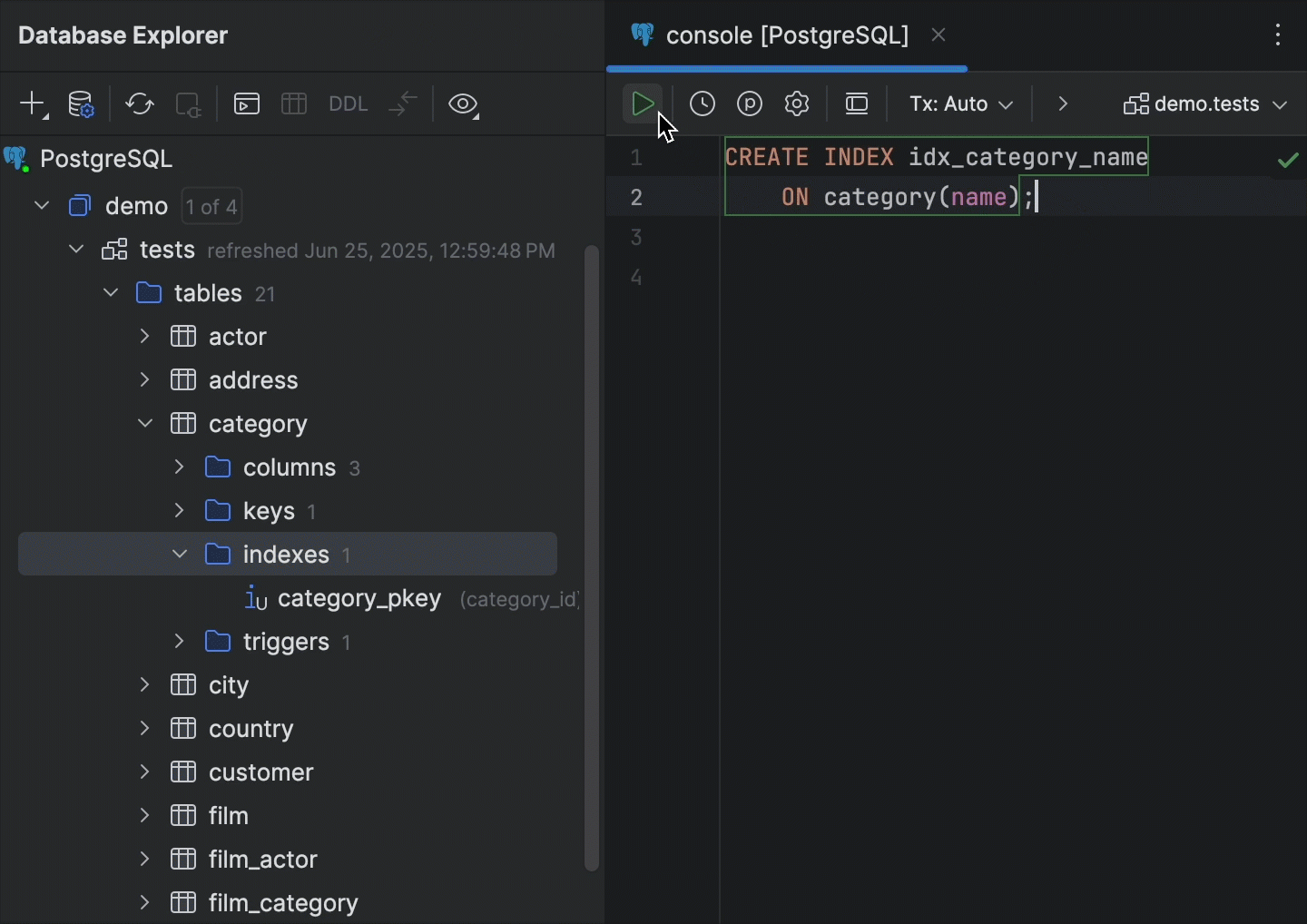
DataGrip now supports the smart refresh mechanism for PostgreSQL databases. Previously, the IDE automatically refreshed the whole schema in the database explorer every time a DDL statement was executed. With the smart refresh mechanism implemented, DataGrip analyzes which objects could be potentially modified by the query and refreshes that specific set of objects only.
This means that if your database contains many objects, you do not have to wait for an extended period while the whole schema is refreshed each time you run a DDL statement. Since only one specific set of objects is synchronized, you can get back to work much more quickly than if every object needed to be refreshed, and you’ll still have everything you need right in your database explorer.
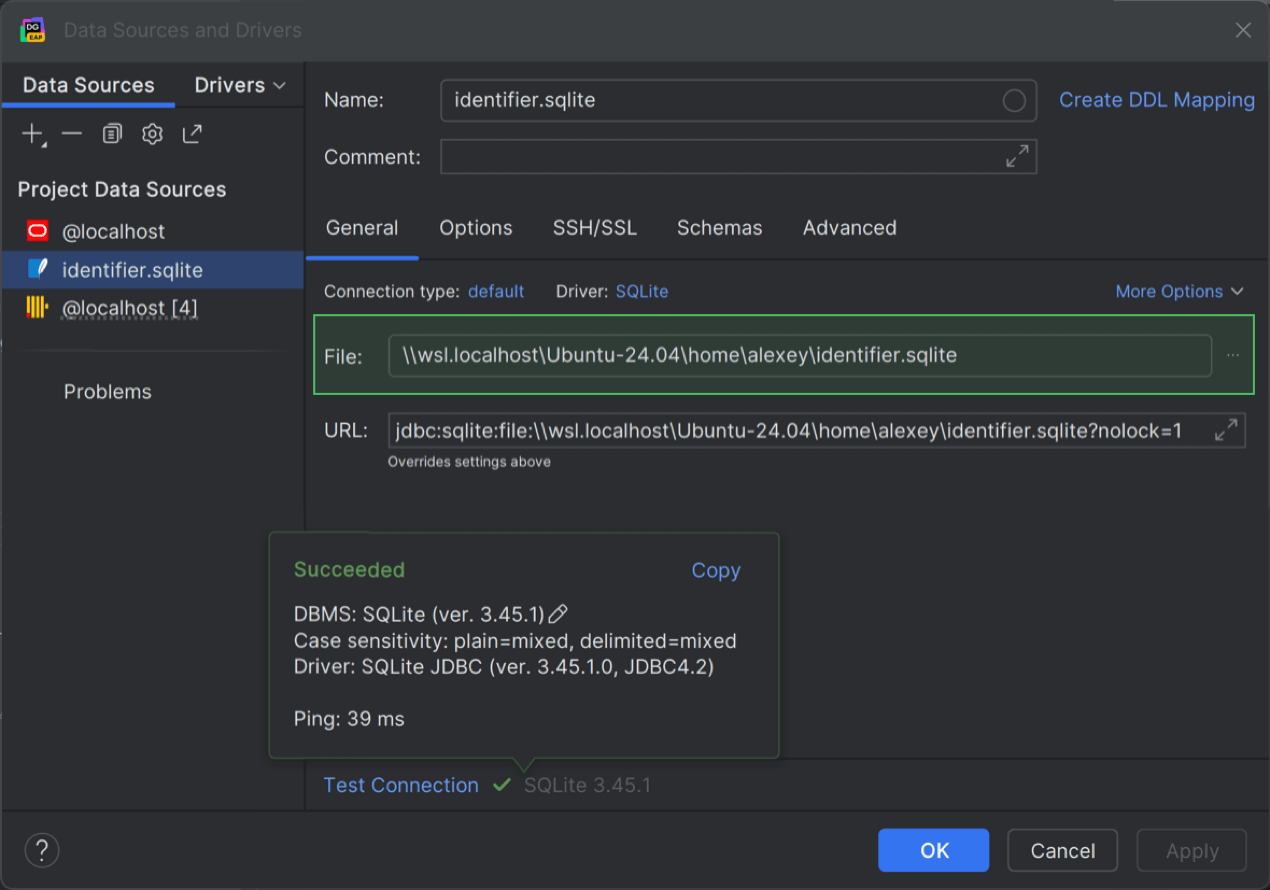
WSL database file path SQLite
After much anticipation, DataGrip now supports WSL file paths for SQLite database files. We have implemented a solution to address the write-locking issue in WSL on our side.
This means that you can now access your SQLite database in WSL and work with it
without the database file being locked for you. To do this, go to the
Data Sources and Drivers dialog
and use the following file path format:
\\wsl$\<os>\home\<username>\<database_file_name>.sqlite.
For example, \\wsl.localhost\Ubuntu-24.04\home\alexey\identifier.sqlite.
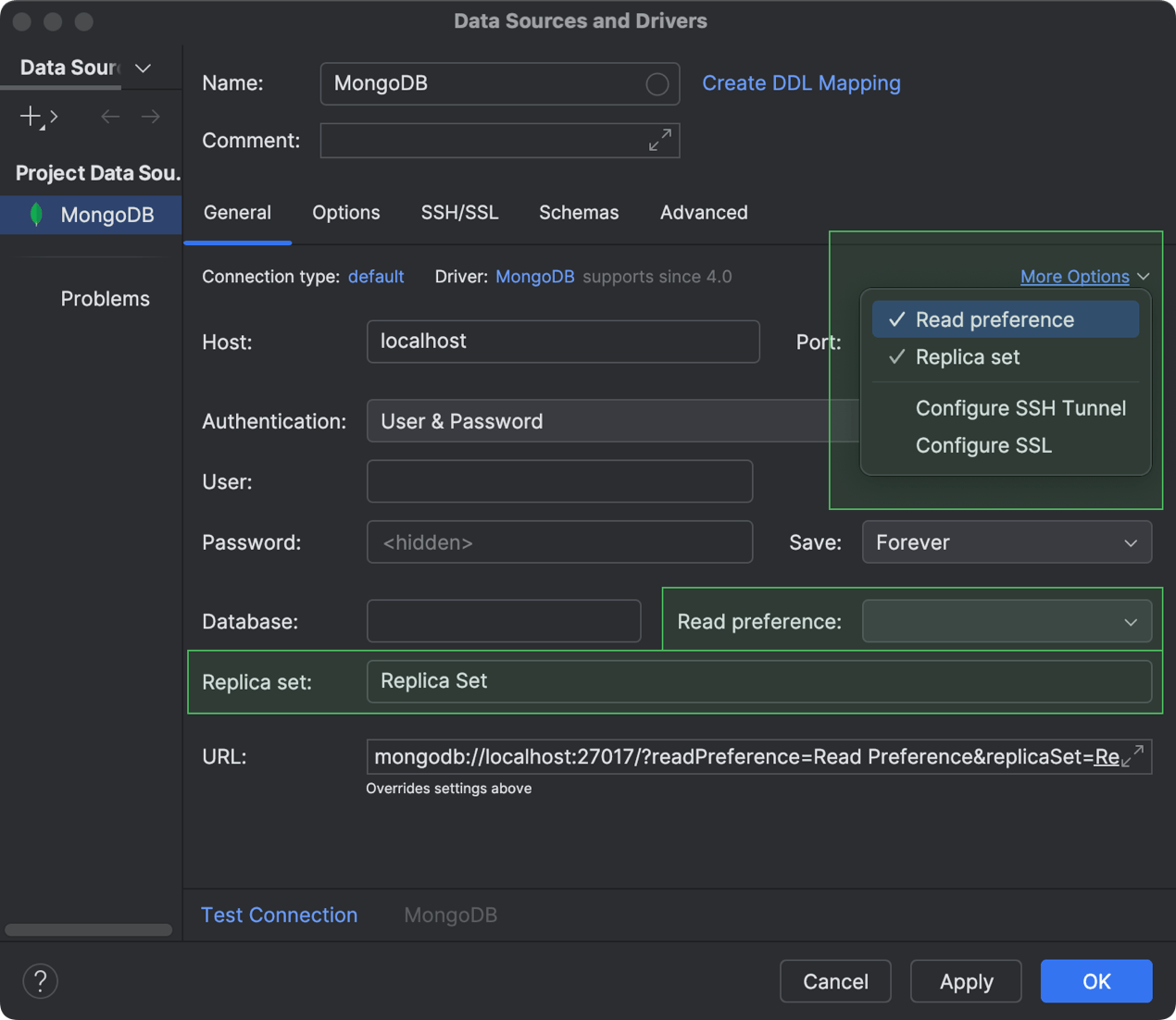
Support for the Read preference and Replica set connectivity settings MongoDB
You can now configure the way read operations are routed to the members of a MongoDB replica set, and even define which replica set should be used. To do this, while configuring the connection to your MongoDB database, go to More Options and enable the corresponding option in the Data Sources and Drivers dialog. Once you select either of them from the list, a new field appears where you can specify the setting. To specify your desired read preference, select the one you need in the Read preference field. To define your replica set, simply type its name in the Replica set field.
Working with data
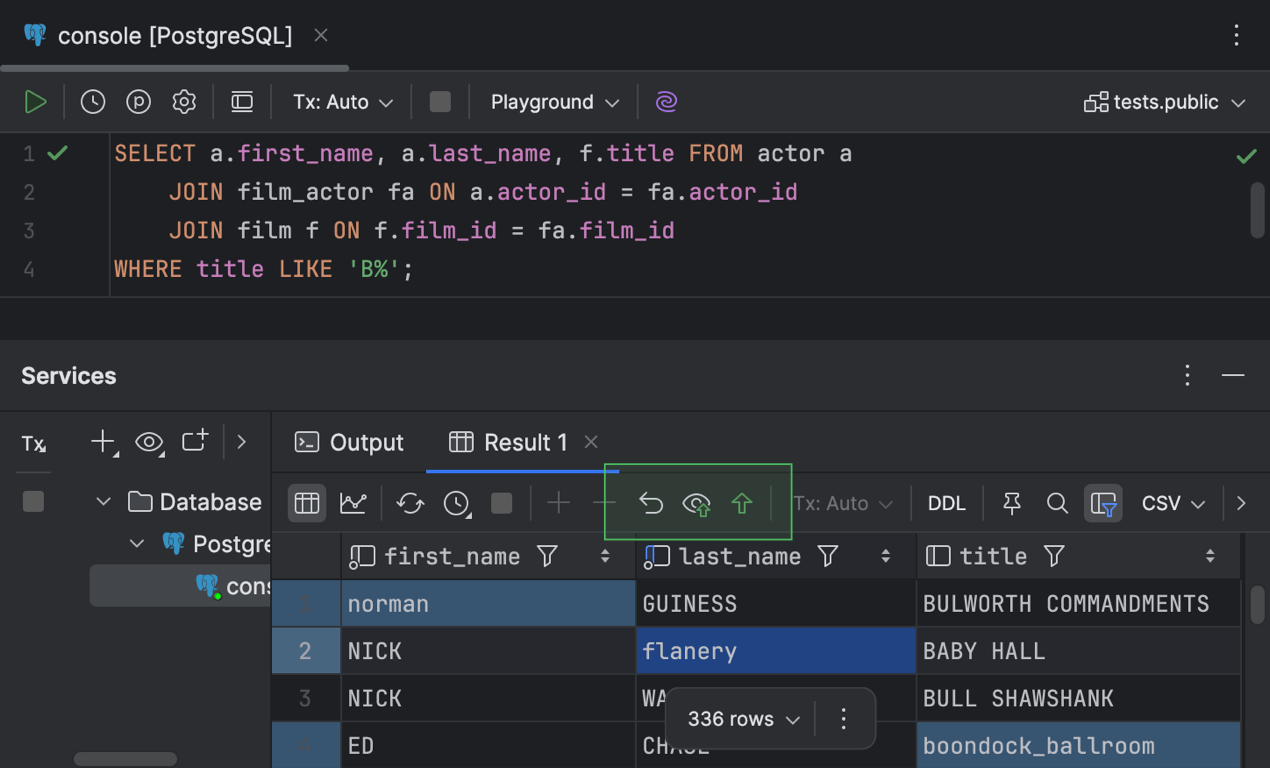
Editable results for SELECT queries with JOIN clauses
After a decade in the works, this
long-awaited feature
is here! Previously, the result set grid for SELECT queries with
JOIN clauses was read-only. Now, you can run such queries, view the
result set, and then edit cell values right in the query results grid. To do this,
simply double-click a cell or select it and press Enter.
Also, just as in any other grid, you can right-click the cell and select
Open in Value Editor to edit the value in a
separate pane
that opens on the right.
The data editor allows you to edit the values both in the in-editor results and in the Services tool window. Once you edit a cell value, the following buttons become active on the Result tab’s toolbar in the Services tool window: Revert Selected, Preview Pending Changes, Submit.

An additional toolbar with those buttons also appears at the bottom of the in-editor results pane.
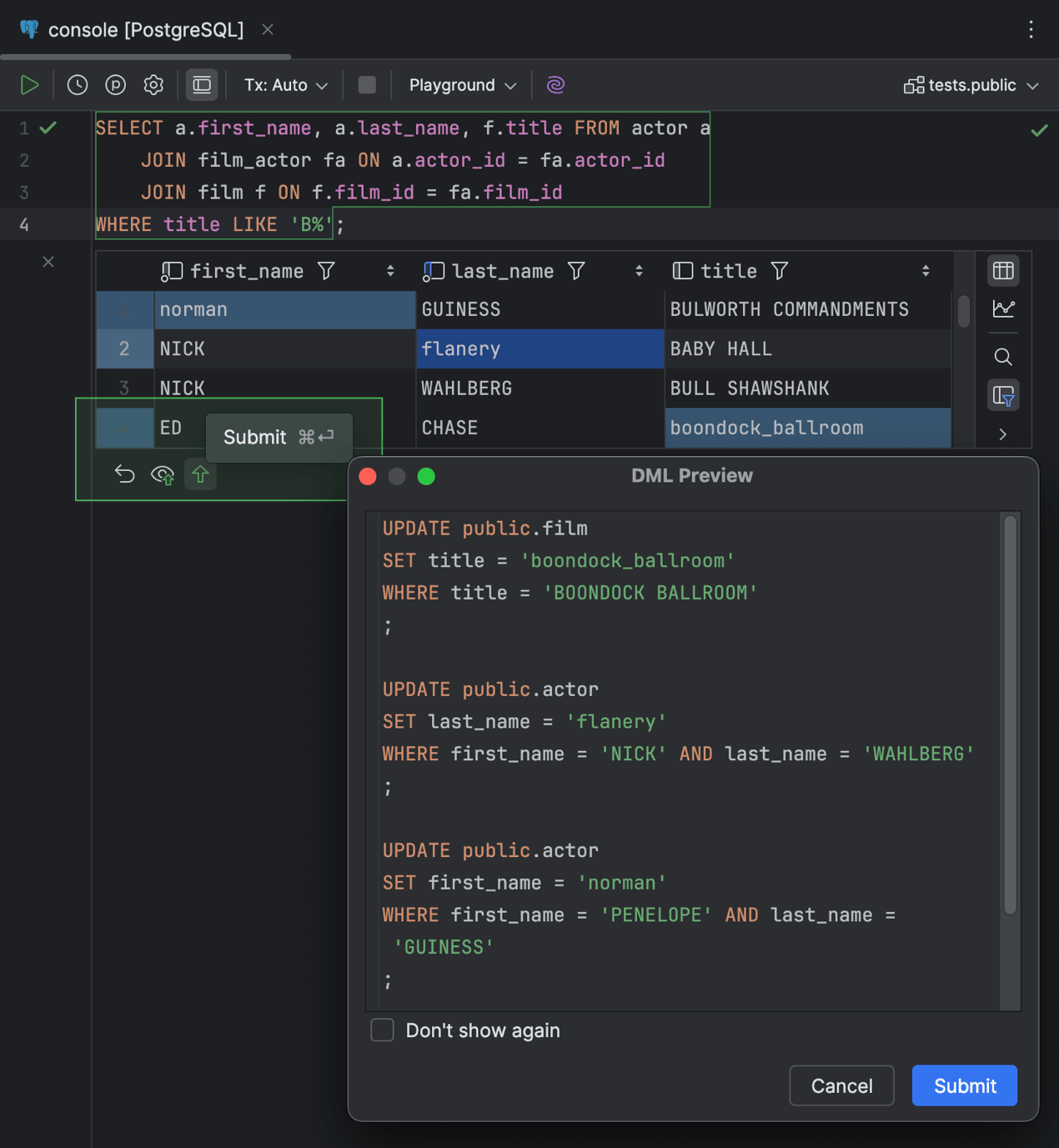
When you submit your changes to the database, DataGrip displays the DML Preview dialog for you to check the generated statements first. To edit your changes, click Cancel and proceed with editing. To submit the changes, click Submit.
This feature is not supported for the SQL UNION operator, table
self-join operation results, result sets with calculation result columns (for
example, CONCAT), or NoSQL databases. To ensure this feature works
properly, each row must have a field or set of fields that uniquely identifies it.
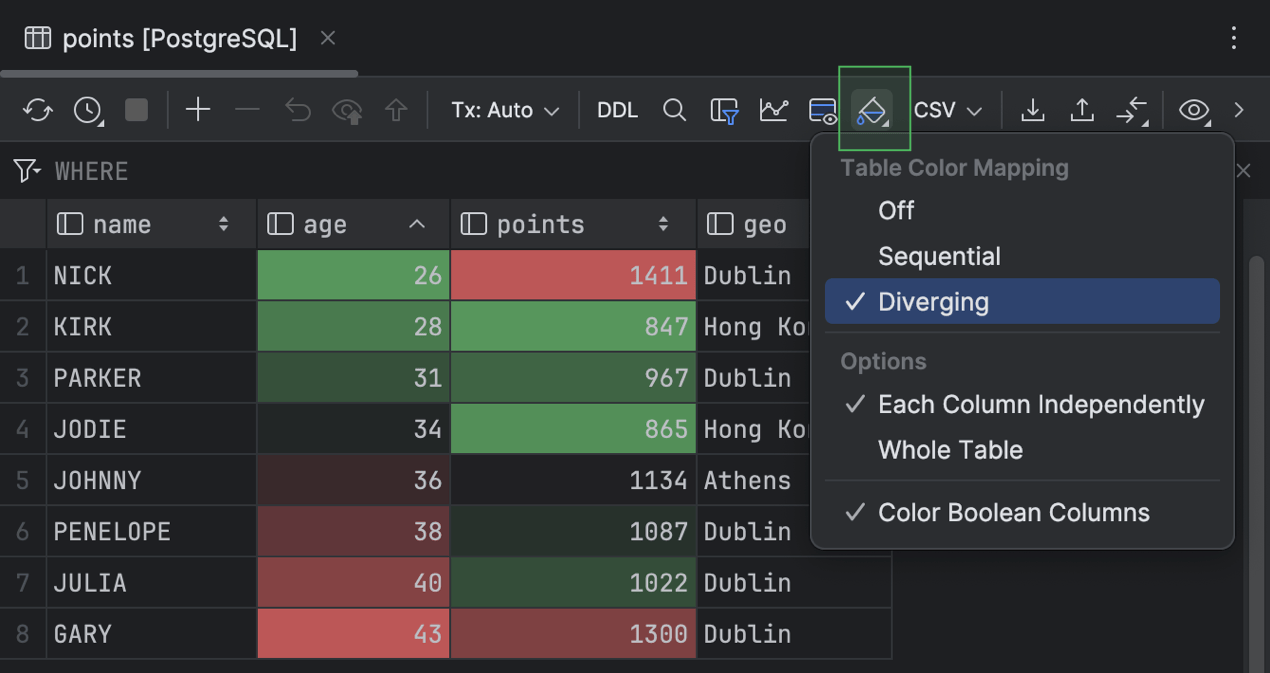
Grid heatmap
In the data editor, DataGrip now provides grid heatmaps with two color-scheme options, Diverging and Sequential. To enable the heatmap for your grid, click Table Coloring Options on the toolbar and select one of the schemes.
The Diverging color scheme emphasizes variation relative to a norm. It consists of two contrasting colors that deviate from a central value in two opposite directions.
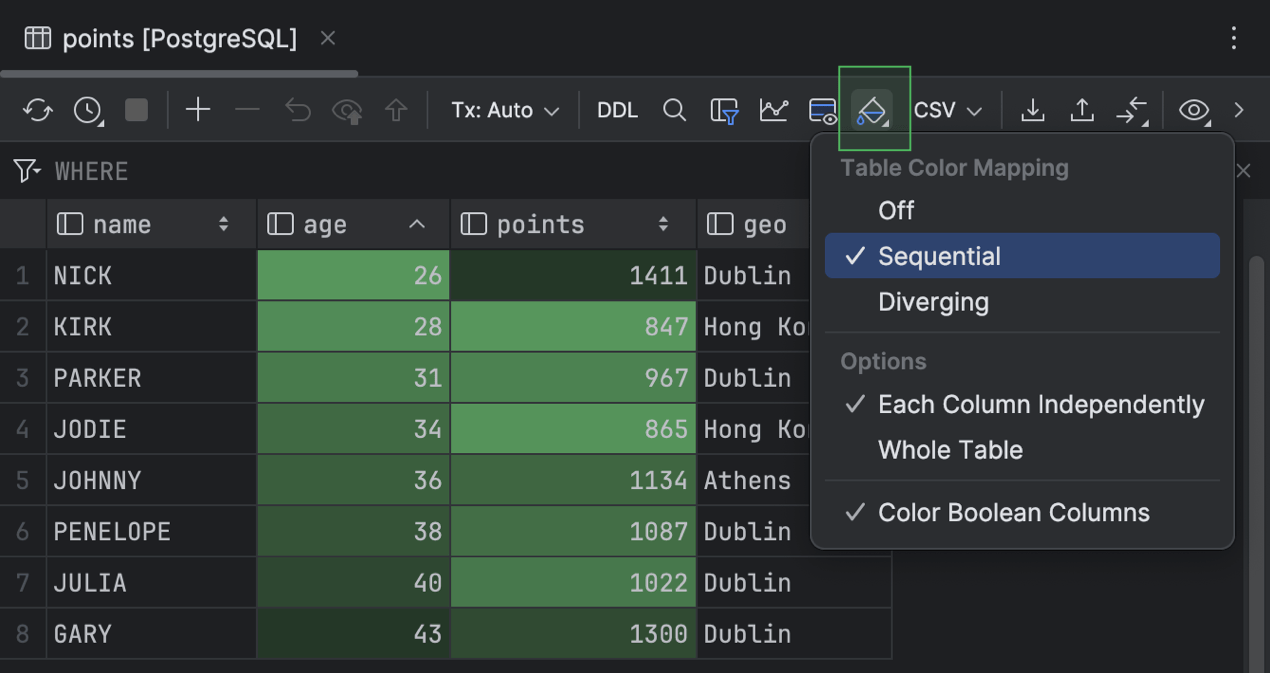
The Sequential color scheme consists of a single color or a range of closely related colors that vary in intensity.
You can apply the heatmap color schemes to the whole table or to each column separately, or you can use coloring only for Boolean values.

One action for clearing all local filters in a grid
Now, you can clear the local filter for all columns in your grid using just one action. To do this, invoke the Find Action popup by pressing Ctrl+Shift+A, start typing Clear Local Filter For All Columns, and then select the action from the list.
Code editor
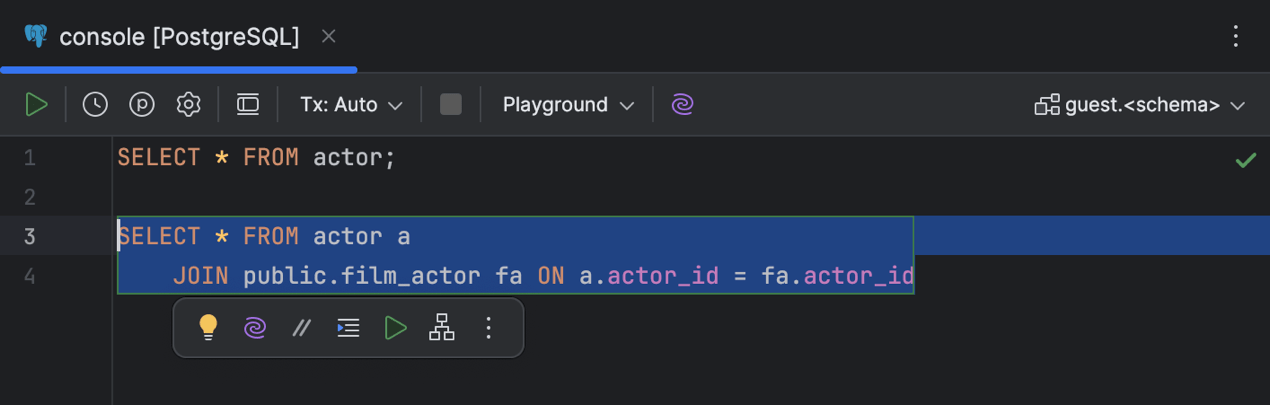
Floating toolbar
DataGrip now displays a set of context-based and AI-driven actions available for a given piece of code in a floating toolbar. Select any code in your code editor to make the toolbar appear.
To customize the floating toolbar, use the kebab menu (three vertical dots). To hide it, you can either use the same menu or go to Settings | Advanced Settings | Editor and check the Hide floating toolbar for code editing option.
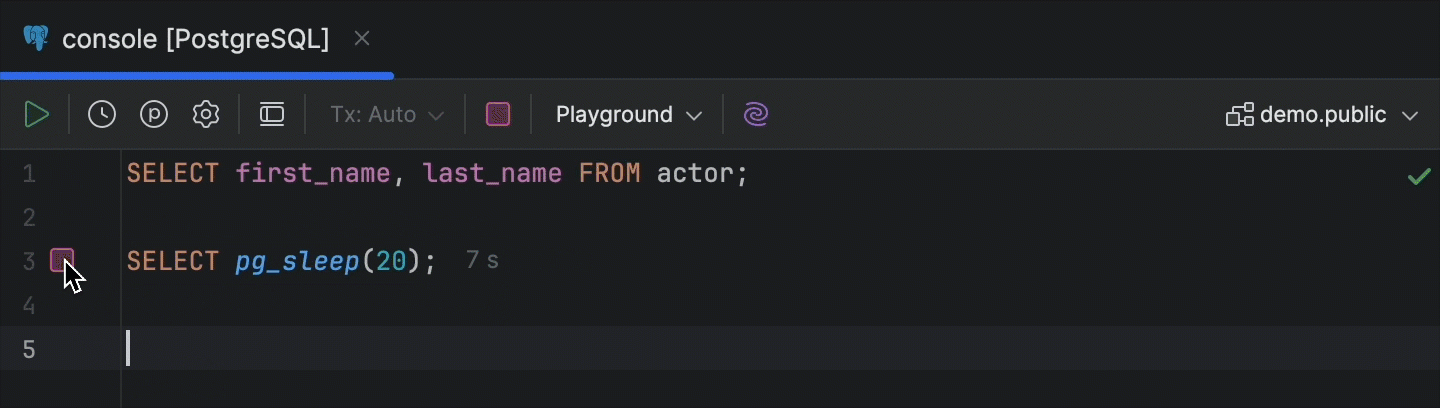
Cancel Running Statements button in the gutter
For a running statement, the progress icon in the gutter now transforms into the Cancel Running Statements button on mouse hover.
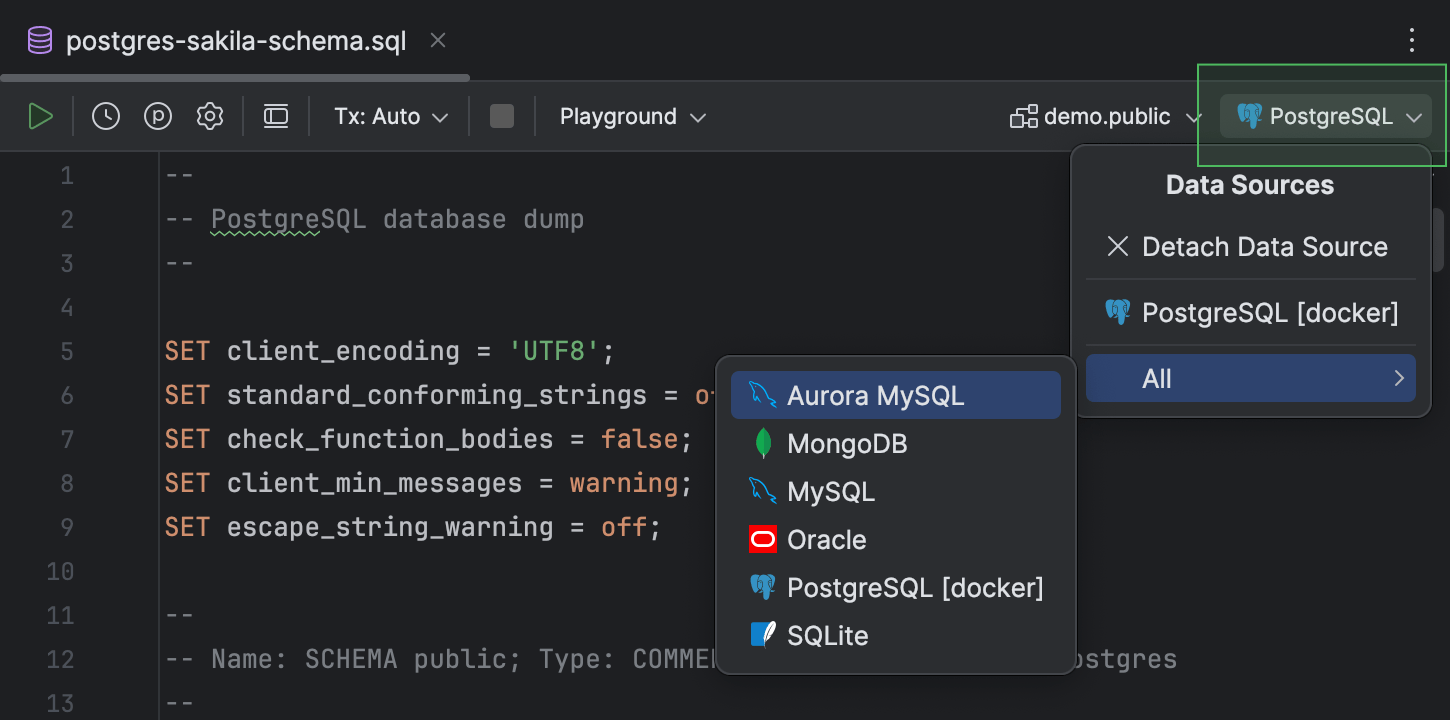
Attached data sources that persist after restart
Previously, you had to attach data sources to files each time you restarted the IDE. This was a pain in the neck, so we fixed it!
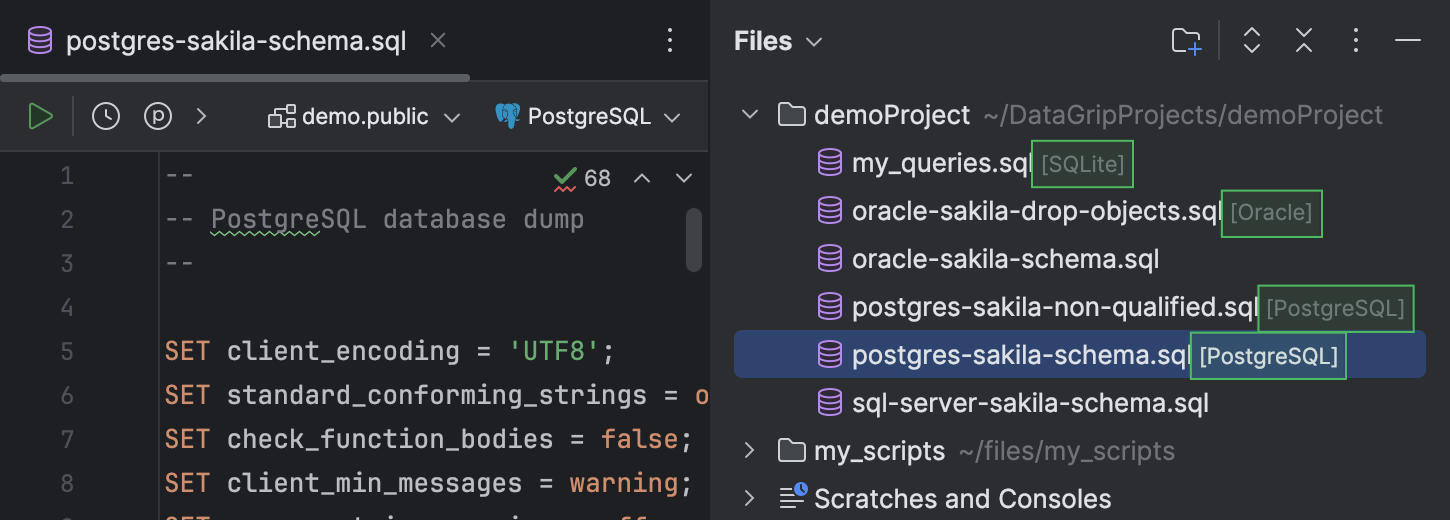
Additionally, you can see the attached data source for each file in the Files tool window.
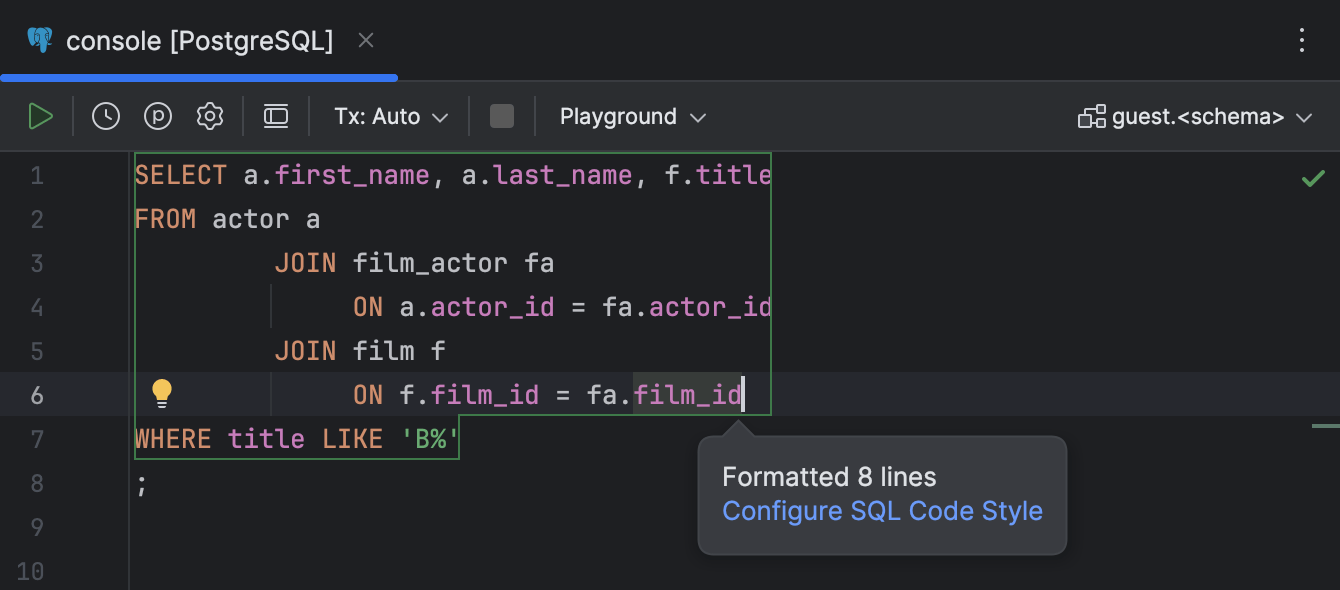
Quick access to code style settings
It's now easy to navigate to the code style settings straight from the popup you see each time code is reformatted.
We hope you enjoy these updates! If you come across a bug or would like to submit a feature suggestion, please do so via our issue tracker.
Want to stay up to date on the latest features and receive tips on how to work with databases more productively? Subscribe to our blog and follow us on X!